Do you think IIT Guwahati certified course can help you in your career?
Introduction
Newman offers a plethora of options for customising a run. Today we're going to discuss the options available in Newman Commands. In this article, we will look at how to use different Newman options to customise the execution results of postman collections. If you haven't set up Newman with your postman, It is recommended that you do the same. Let's get started with the blog.
Setting up Newman for Options
This is our Newman installed, and we all know the basic command to run
collection from a Newman. So let's run that already created collection from the postman. Later in the article, we will see the command to run it.
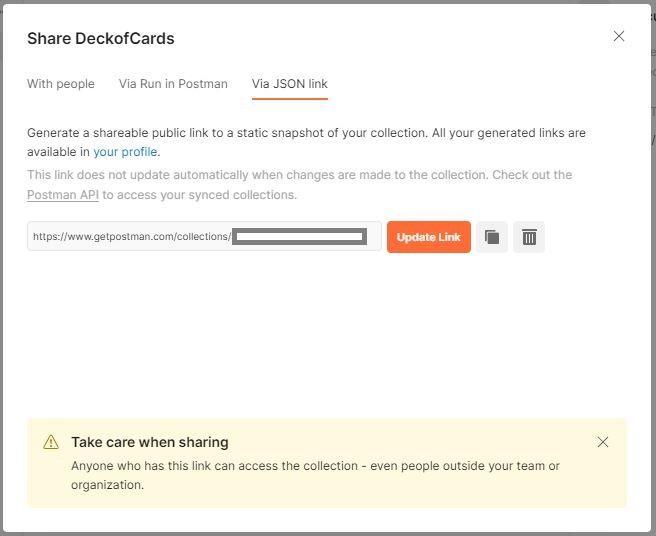
We have to either specify the exported file path or a link to the collection. Now we are going to see how to run the test from a link. So for that, go to your postman. Click on the collection you want to run. Any collection would do the job.
When you click, there is a button called "share". Go to the "Get public link" option, and your link appears for that particular collection. So copy this as you have an option to copy it.
Viewing the Options
We have options in Newman to modify the command so that we can customise our output. There are a lot of options to help us to customise our output of the request.
First, we are going to see the help command.
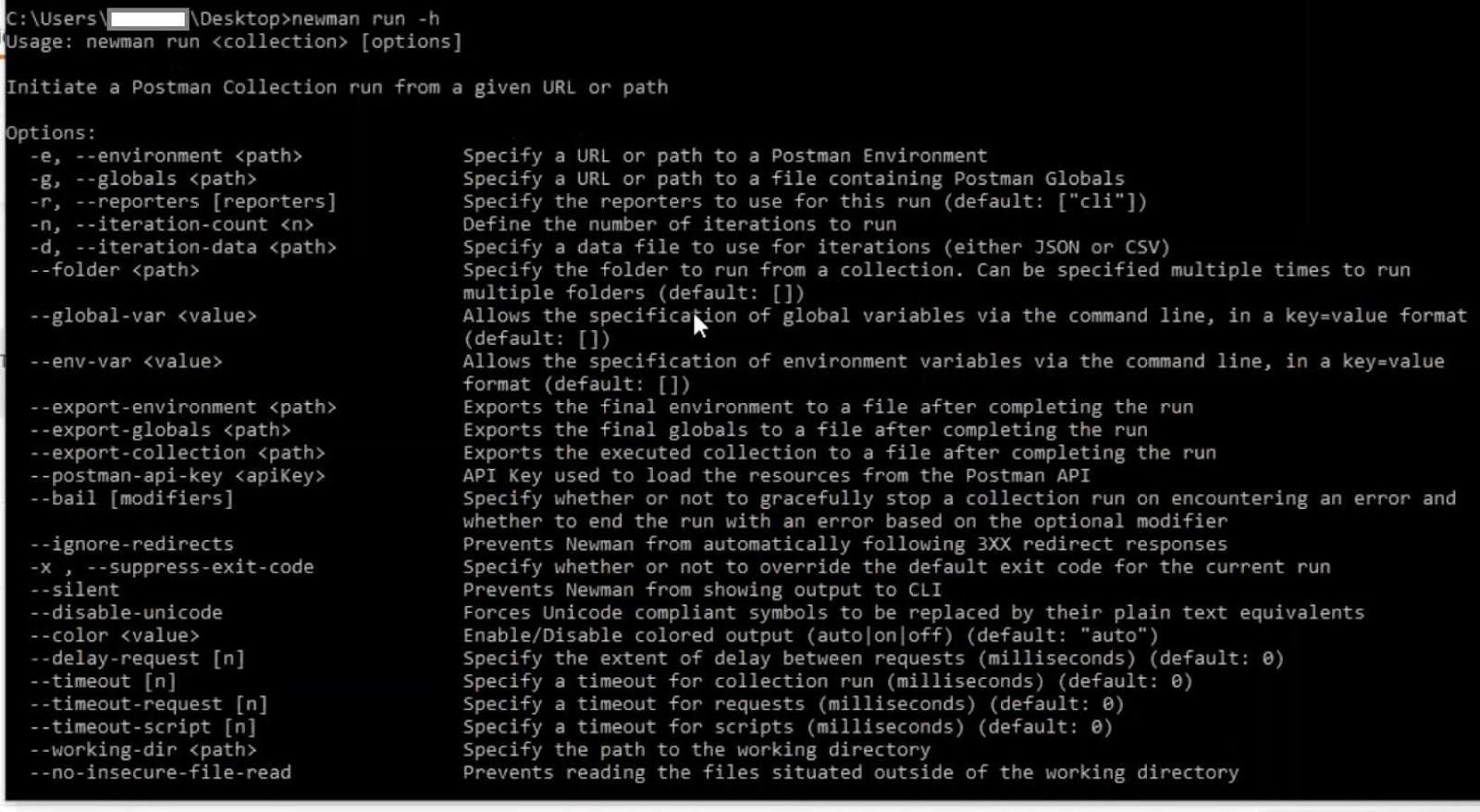
Here in Newman, the "help" command is used to let us know all the available options for us in Newman. So the command "newman run -h" will give us the options available in new man commands.
Options
So you can see all available options that are there printed above. Let us see a few essential or common options we use to customise our output.
Number of Iterations
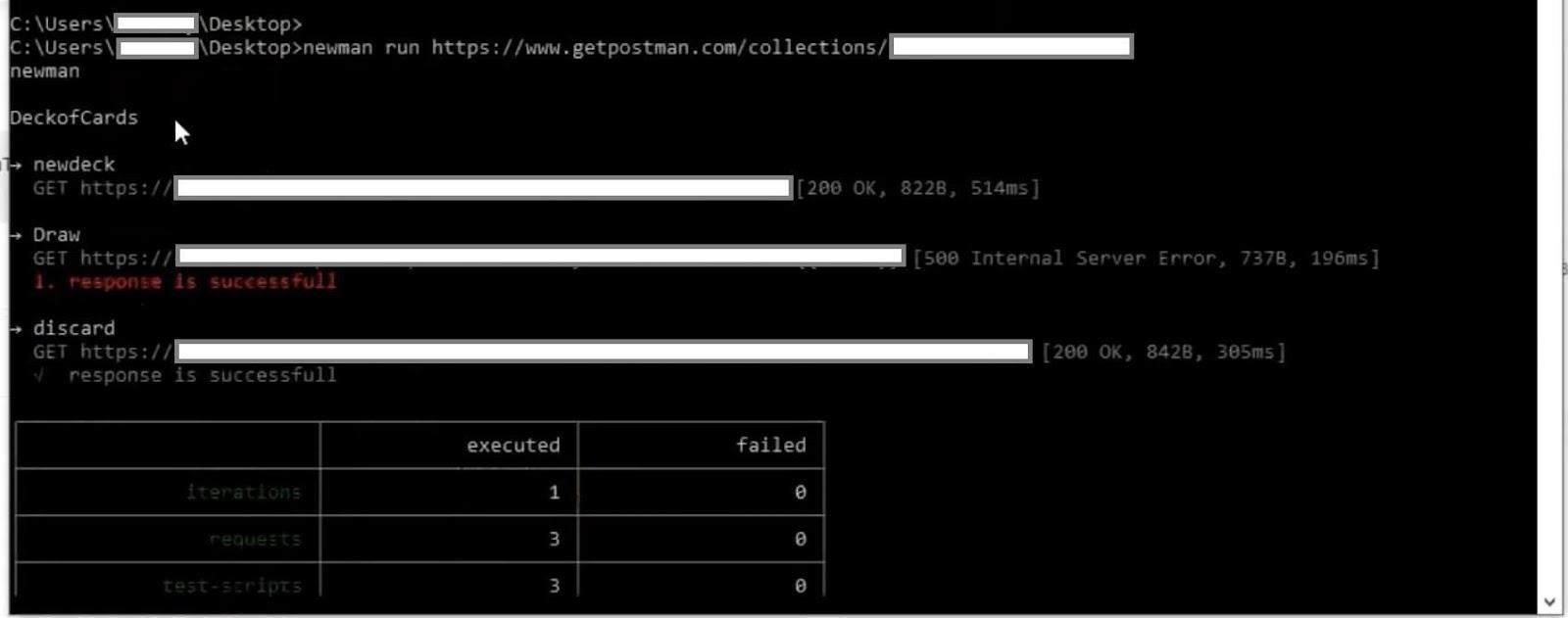
In the command line, give the command "newman run" and the link that you just copied and press enter. This could take a while.
So now you can see the number of requests executed successfully
with the details of how many iterations, requests and assertions are there. So this is the basic command to run any postman test.
The first one we are going to see is the number of iterations that is here as we executed our collection in Newman, our collection requests are run only once, and the details are displayed.
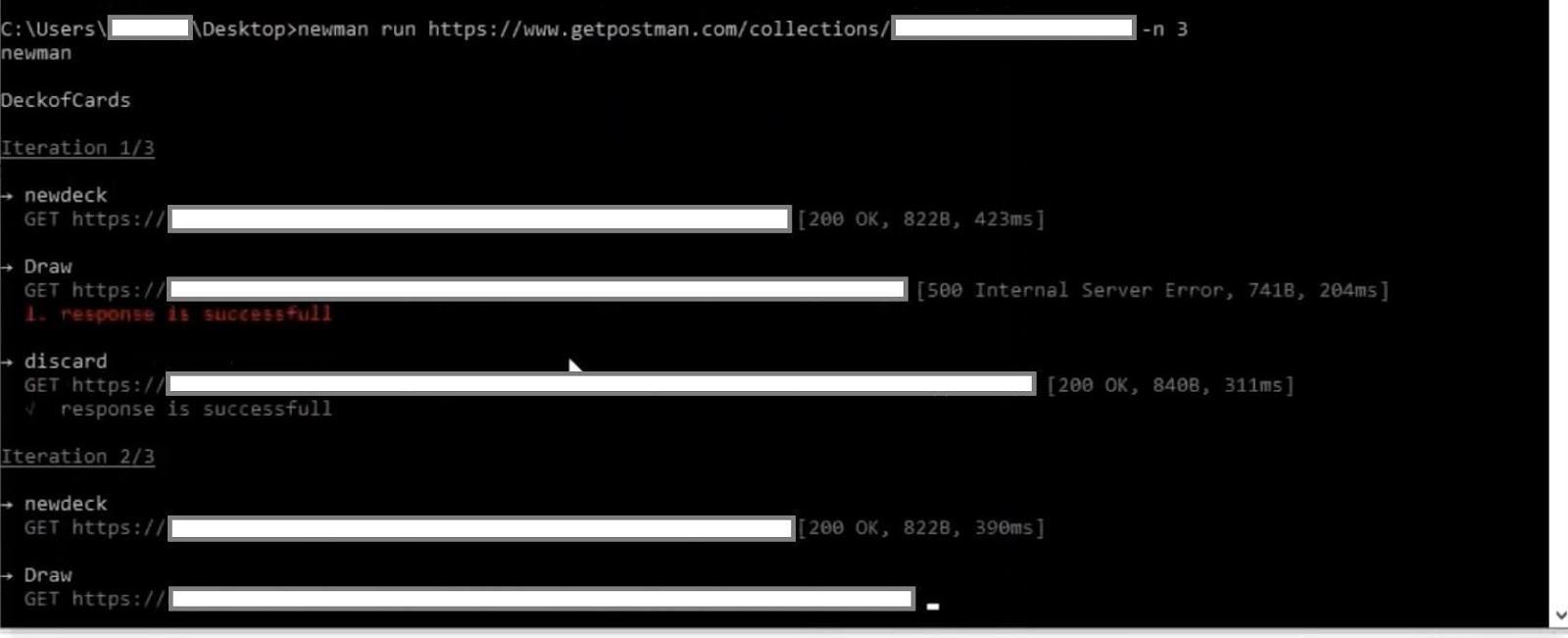
Now we want to run our collection "n" a number of times. For example, I want my collection to be executed thrice.
So the command we had seen was "newman run", followed by the URL. Now, as it is the same command we used to run that collection, we are specifying the iterations.
Here "-n" indicates the number of times the collection has to be executed. So we are just specifying three here. So now we can see our requests are executed thrice with three iterations.
As you can see, in the first iteration, three requests are executed, and again iteration second and again in the third iteration. So now, here in the table, we can see three executed and zero failed, and six assertions and the details of assertions in each iteration. So this is our first command. We have seen executing the test "n" number of times.
Passing the Data File
The next one we'll see is passing the data file, so if you haven't passed an external data file to your collection, you can get familiar with it first.
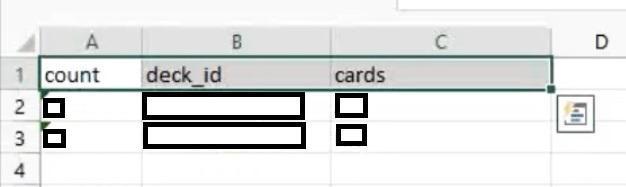
So here again, we are going to pass the values from an external data file to our collection. For that, we have a data file saved on the desktop. We are using a public API in this example. So let's directly get into the file. Here we have passed two sets of data where the first set and second have three data "deck_id", "cards", and "count".
Now we will pass this data file to my collections so that our Newman will pick and execute these data. There will be a default patch mentioned in the command line. So either we can place the file in the same path as you have there. Otherwise, we can mention the path as you mentioned the file name.
For that, we are going to type the command:
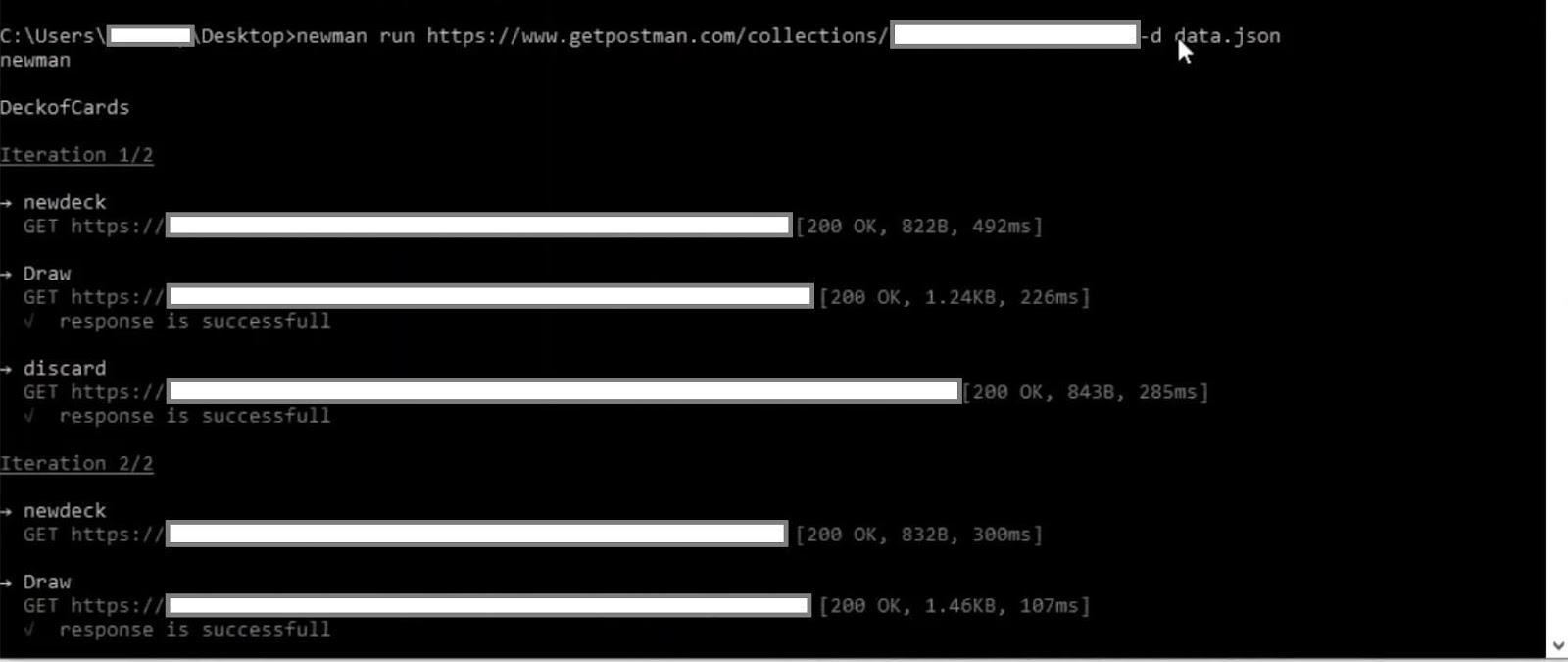
newman run the_url_of_the_collection -d data_file_name.json
Here we are using "-d". This specifies which file we will pass to our Newman to run our collection in postman. Now we are going to run the command. You can see two iterations because we have passed two data sets here.
So for the first iteration, it picked one data, and for the second iteration, it picked the second data. So as it has pulled the data.json, it has executed twice, and the response is successful. Iterations are two, and everything is displayed as expected. Here we have used data.json to run our test.
You can otherwise use a CSV file where the first row specifies the column name and the other row specifies the data in place of a JSON file. This is very similar. We will give the file name of data.csv instead of data.json. Otherwise, the command stays the same.
Reporters
The following command we are going to see is reporters. as we know, once we execute our collection in collection runner, we get to see a button called exports. The button will export all your output and response to a JSON file and save it in a location where you want it. Similarly, we use a comment to save our response in an external JSON file.
Let's see how to do that. We are going to use the command:
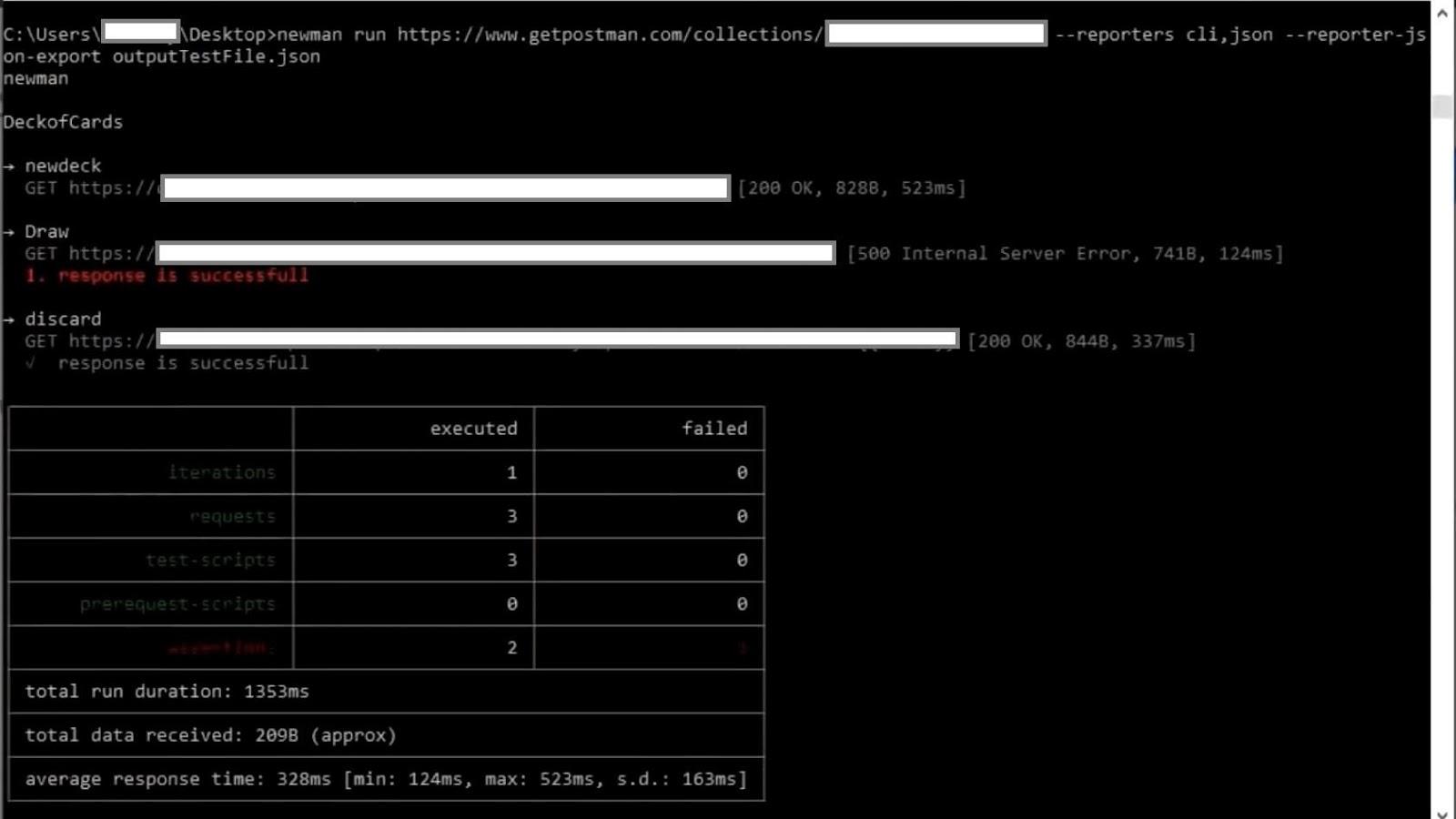
newman run the_url_of_the_collection --reporters cli, json --reporter -json-export outputTestFile.json
This "cli" is a default reporter format we use in Newman. So we are just specifying "cli" and then "json-export". Here using this, we are specifying we have to export the report in JSON format. There are other options as well, but we are just simply specifying that we want it in a JSON format, and at last, we specify the file name in which file name it should be saved. We gave it as "outputTestFile.json". So in this name, a new JSON file will be created, and the response will be saved. As we have given, we are working on this path. This file also gets saved in the same path.
Otherwise, if we want the file to be saved in a different path before the file name, we have to specify the path of the file as well. After we hit enter, we can see that our tests are executed, and as usual, the results are printed. Now, if we are going to check whether the file is generated or not, we will see that we have a file created here in the name we specified.
When we open this, we can see the response, statement, status, and everything saved as a JSON file as specified in the command. So we have generated a report in the format of a JSON file as expected. We can have other options as well. We can specify other options as well to generate reporters as we want.
Coloroff
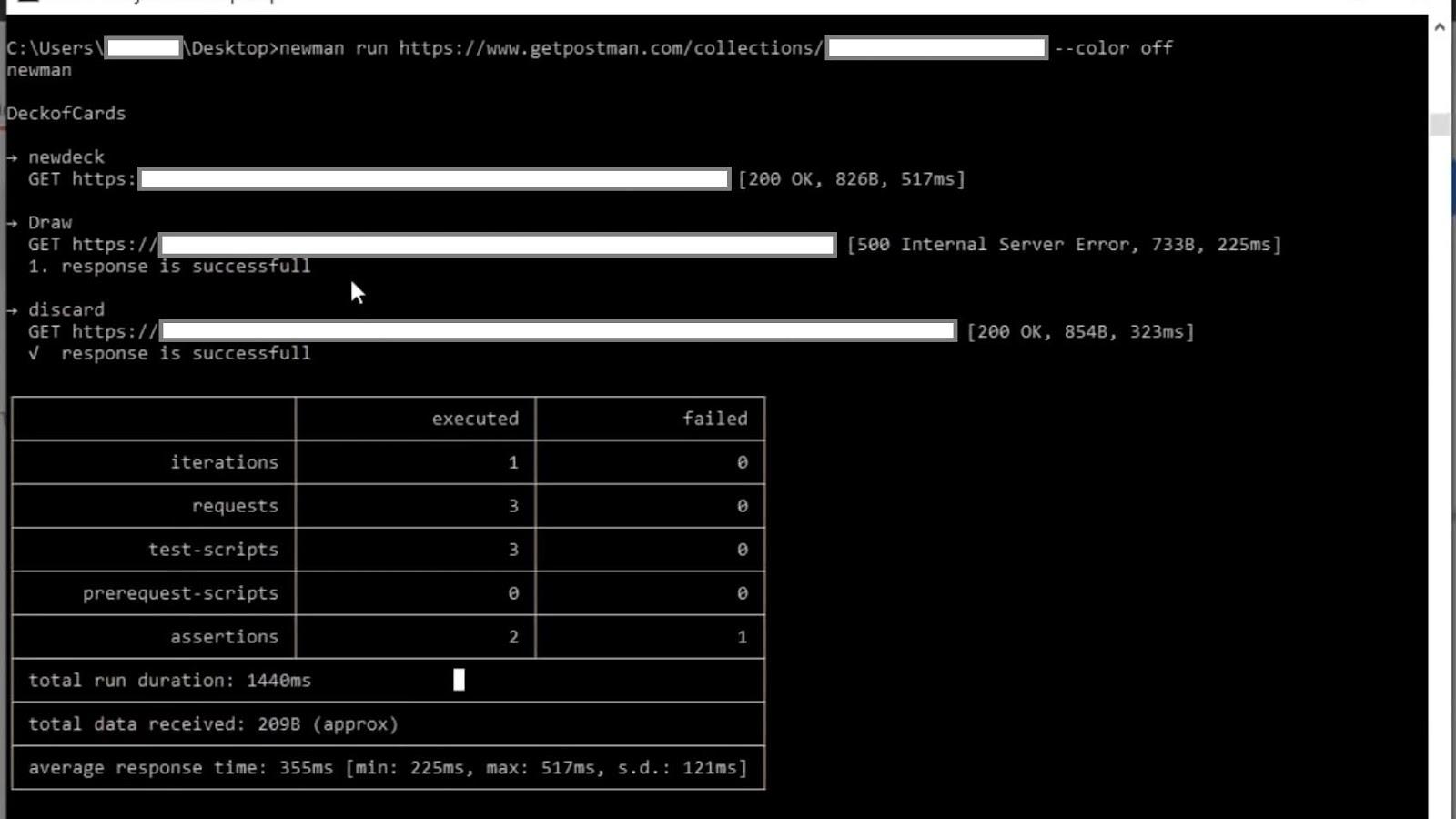
Moving on to the following command, we will see pretty simple commands that we can work around. So the next one we are going to see is "coloroff". This one is nothing but your response will be displayed without any colour.
We will give a similar command:
newman run the_url_of_the_collection --coloroff
As expected, our requests are executed, and there is no colour. Every text is in the same colour.
Verbose
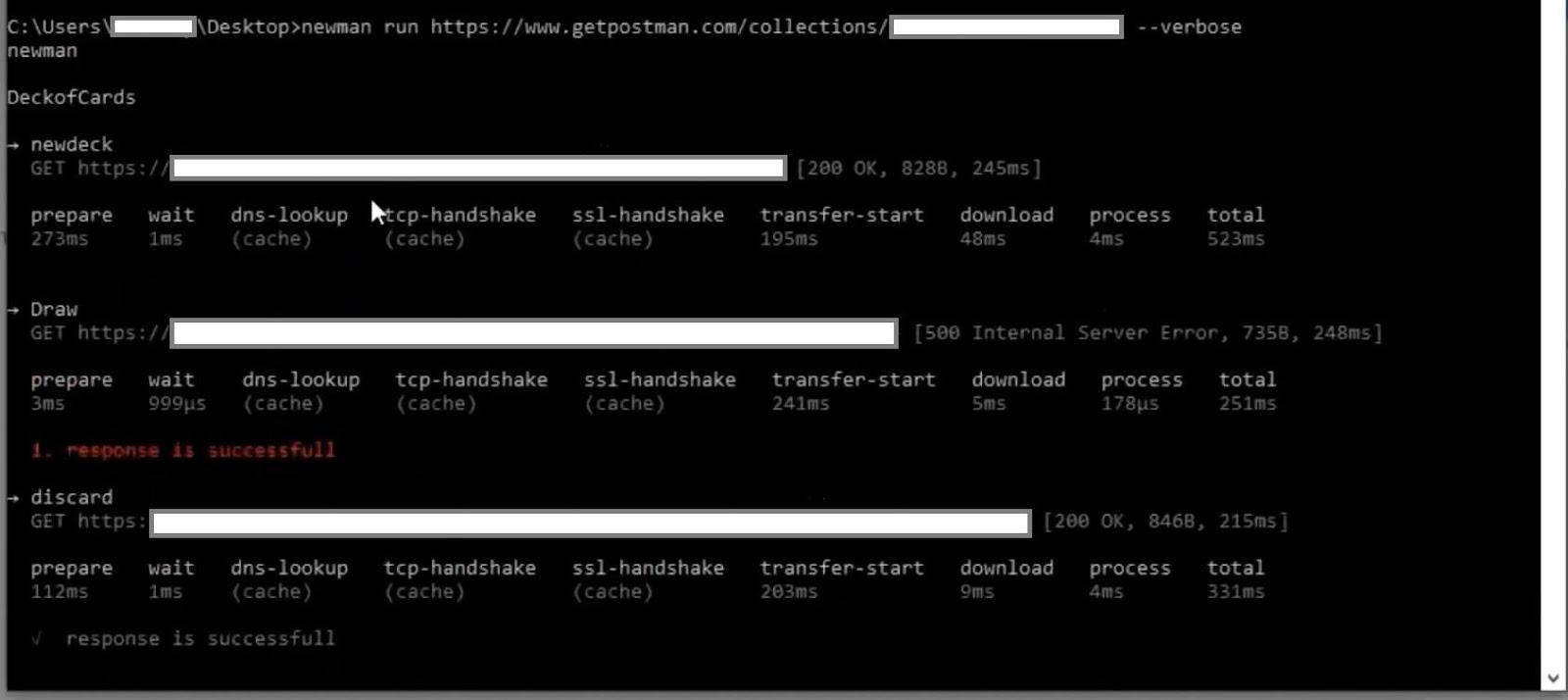
The next command we are going to see is "verbose. so if you see in "cli", the requests are executed, and the table only displays how many requests and how many iterations and assertions etc. So we have executed three requests but the data displayed is for the whole collection. We want to know the time that's taken and other details for each and every request. So, in that case, we can use the "verbose" command.
So let's do the same command followed by "--verbose".
The command would look like this:
newman run the_url_of_the_collection --verbose
This command will display the details of each request. Once the first request is executed, it shows the time it took to prepare, the time it took to download and transfer, etc., for each request. So that's the purpose of web verbose.
Silent
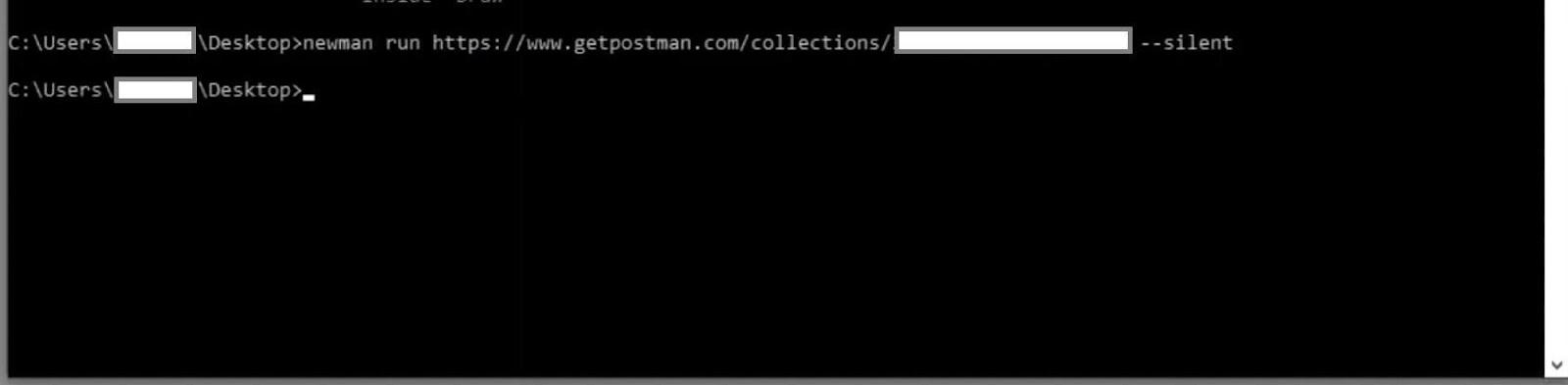
The next command we're going to see is silent. For this command, we are just going to add "--silent" to the previous command style.
Once run, you will see that there is no response printed, but the command is executed. The collection is executed, but you cannot see anything in the output. So it is a pretty simple command, but we probably don't use this command anytime because we always want to check what is the output of our test.
Bail
The next command we are going to see is a very, very important command. This is especially true if you are going to connect your Newman with your CI/CD.
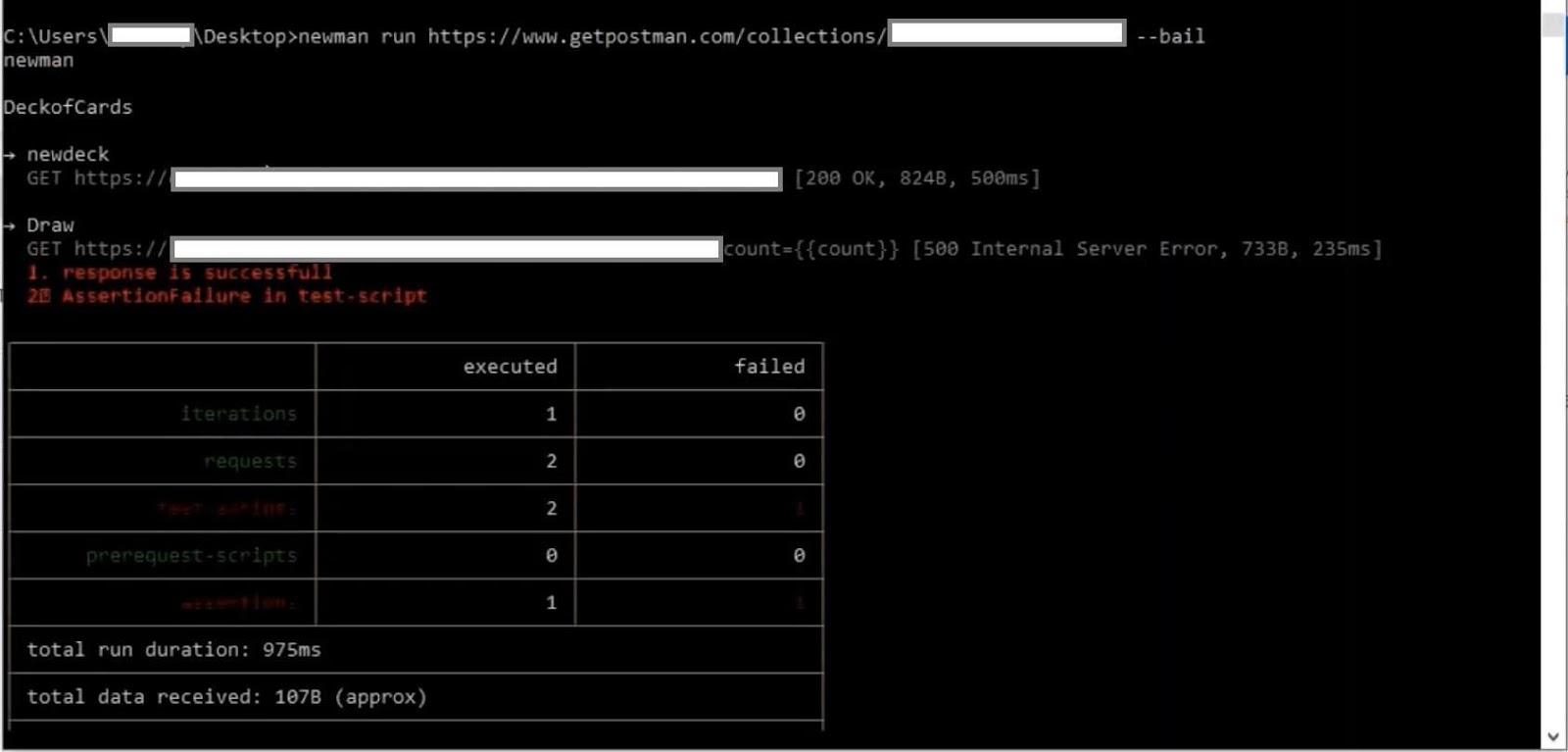
So the next command is the bail command. The command looks like this:
newman run the_url_of_the_collection --bail
What this command does is every time it encounters an error in assertion or assertion failure, it quits the execution and comes out of the test. If you see every time we executed the test, all three requests are executed, and we could see the iterations and requests three every time. But this time, we purposefully failed our second request, and the assertion failed here in the second request. The third request did not get executed. It just quit the execution after the second request itself. So this is an important command where you can tell your Jenkins or any CI/CD tool to quit the execution when it sees the failure in its test results.
Again, one more thing is that every time the test executes, it exits if everything goes fine without any error. Its exit code is zero. You have other commands to set or customise your exit codes, and you can tell this bail to exit the test when it encounters the code one or zero.
Frequently Asked Questions
How do we configure an environment variable in Newman?
You can set environment variables on the command line in a key=value format. You can also use --env-var multiple times to add multiple environment variables.
Does Newman allow file uploads?
For request form data, Newman also supports file uploads. The files must be in your current working directory. Your collection must include the filename in the request's "src" attribute.
How do we automate API in Newman?
API can be automated in Newman. To begin, we must export the Environment and Testing Collection we created. After that, we need to install Newman as a global package so that we can launch it from any folder. Then we can begin our tests, passing as parameters the test collection and environment files.
Conclusion
So these are the basic commands used in Newman to customise our options. We read about them and saw how to run them. We found out what these do and got to know their benefits. We also learned how to use Newman commands to pass external data input and to stop test execution when an assertion fails. How to use Newman to execute N number of Postman requests and generate JSON reports from Newman commands.







 33+ registered