Newman options with Postman
Basic operations
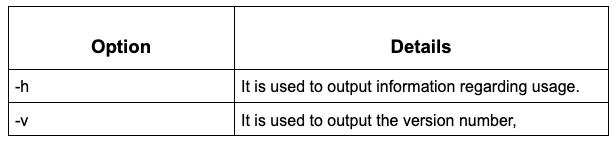
Setup
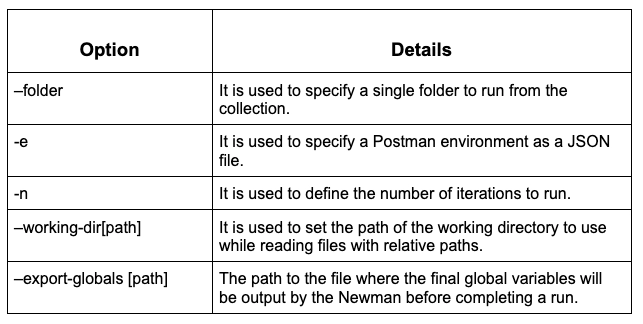
Request Options

Newman with Docker
It can be used with popular operating systems like macOS and Ubuntu or Windows.
macOS and Ubuntu
Follow the below-mentioned steps to use Newman with Docker in macOS and Ubuntu:
-
The user can download their copy from the Docker Hub.
- The user must ensure that Docker has been successfully installed and is running on the system. Installation guidelines for popular operating systems are provided by Docker. The user can choose their operating system and follow the below instructions:
- If the user wants to test the Docker installation, then the below-mentioned command should be executed without errors:
$ docker run hello-world
- Pull the Newman docker image
$ Docker pull postman/newman;
- Run the below-mentioned Newman commands on the image
$ docker run -t postman/newman run "https://www.getpostman.com/collections/0d0350a9a89d39fb6361".
The above-mentioned URL is a shareable public link to the user's collection. To get the above link:
- Click on the More actions icon, which is next to the collection name.
- Click on Share collection.
-
Click on Get public link.
At the current stage, the collection is running in Newman, and the terminal displays the output. The user can use all of the Newman command-line parameters as Newman is the entry point to the Docker image. The user also has the option to run locally stored collection files. How to mount the shared data volumes is mentioned in the README of the image.
Windows
Installing Docker on Windows
The user can follow the below-mentioned steps to install Docker for windows:
- The user can download the setup for the latest version of boot2docker, it is a helper application that allows the user to run the Docker on windows. The below-mentioned link can also be used to get the latest release:
https://github.com/boot2docker/windows-installer/releases/latest
- Click on the dock-install.exe file downloaded in the first step and run the setup. It will install the Docker Client along with the other required components like Virtualbox and Git for Windows. Once the installation process is complete, the user needs to restart the system.
- The user should now be able to see Boot2Docker start and Oracle VM VirtualBox icons on the desktop.
- Run the Boot2Docker Start by double clicking on the icon. This creates a public/private key pair for the user and initializes a new Virtualbox machine.
- Test the docker installation by running the below command in the shell
$ docker run hello-world
CI with Postman API
CI stands for Continous Integration. It is a development practice followed by the developers, which requires them to regularly merge code updates into a shared repository. It also includes the process of automating the build and testing of code whenever the developer commits code updates.
The user can access collections to run inside the CI/CD environments using Postman API.
Things To Check Before Getting Started
- The user must ensure that a CI system has been set up on the system that has the capability to run shell commands and that the user has access to modify.
- Generate an API key if you don't have one already.
- The user needs to have a Postman Collection that can test the localhost server and note the UID of the collection.
Steps
- Install Node as per the installed CI.
- Install Newman
- Newman is a command-line tool that allows the user to run a collection on the user's server. Using the below-mentioned command, the user can install Newman in the CI:
npm i newman -g;
The user needs to run the below-mentioned Newman command with appropriate parameters:
newman run https://api.getpostman.com/collections/{{collection_uid}}?apikey={{postman-api-key-here}}
If the user wants to provide an environment for the collection, then the user can use the below command to do so:
newman run https://api.getpostman.com/collections/{{collection_uid}}?apikey={{postman-api-key-here}}
--environment https://api.getpostman.com/environments/{{environment_uid}}?apikey={{postman-api-key-here}}
Integrating with Jenkins
A fully featured testing sandbox is present in the Postman, which allows the user to write and execute JavaScript-based tests for the API. The user can then integrate Postman with the CI/CD build system using Newman.
Installing
- Install Jenkins on the system and start it.
-
Install Node.js and Newman in Jenkins:
- The user needs to go to the Jenkins server and sign in
- Install the NodeJS plugin by going to Manage Jenkins > Manage Plugins.
- Choose Add NodeJS, which is under NodeJS in Manage Jenkins > Global Tool Configuration.
- The user needs to provide a name for the Node.js installation.
- Enter newman in Global npm packages to install.
- Click on Save
Set up Jenkins
- Go to http://localhost:8000 and sign in while the Jenkins is running.
- To create a new job, click on New item from the Dashboard page.
- Choose a Freestyle project from the options and give the project a name. Click on OK.
- From the General tab, add a build step in the project and click on Execute Shell. A shell command is executed by the build step. Enter a shell command to run.
Frequently Asked Questions
Which command is used to specify the number of iterations to run when working with Newman?
To specify the number of iterations to run when working with Newman'-u' command is used.
What is the default value for '--working-dir[path]' when working with Newman?
The default value for '--working-dir[path]' is the current directory.
For using CI with Postman API, what version of Node.js is required?
For using CI with Postman API, Node.js v4 or above is required.
- From the build environment, choose Provide Node & npm bin/ folder to PATH and then select the NodeJS install that is configured with the Newman.
- Click on Save to finish creating the project.
Conclusion
In this article, we have extensively discussed about Newman with Docker and CI with Postman API.
After reading about Postman API, are you not feeling excited to read/explore more articles on testing? Don't worry; Coding Ninjas has you covered. To learn about testing tools for mobile applications, the basics of software testing & various testing methods, and what are the best practices for well-defined REST APIs.
If you wish to enhance your skills in Data Structures and Algorithms, Competitive Programming, JavaScript, etc., you should check out our Guided path column at Coding Ninjas Studio. We at Coding Ninjas Studio organize many contests in which you can participate. You can also prepare for the contests and test your coding skills by giving the mock test series available. In case you have just started the learning process, and your dream is to crack major tech giants like Amazon, Microsoft, etc., then you should check out the most frequently asked problems and the interview experiences of your seniors that will surely help you in landing a job in your dream company.
Do upvote if you find the blogs helpful.
Happy Learning!






 1+ registered

