Do you think IIT Guwahati certified course can help you in your career?
Introduction
Azure Boards are the services used to manage the work for your software projects. Teams require flexible, expanding tools. This is what Azure Boards offers for you, bringing you a wealth of features, including native Scrum and Kanban support, configurable dashboards, and integrated reporting. In this blog, we will dive deep into plans and portfolios given in the Azure Boards service. You want your tools to scale as your business expands to meet your expanding business needs. The primary method of scaling for Azure Boards tools is through supporting new teams. Each team offers versatile tools that let teams concentrate on their work.
Let’s dive into the blog to get more information.
Portfolio management
Enterprise project managers frequently oversee a portfolio of initiatives. Usually, numerous teams work together to build these projects. Portfolio managers can learn more about the tools being produced by their teams by setting up a hierarchy of teams.
Delivery plans
Delivery plans give insight into the features being worked on by various teams throughout numerous sprints. Portfolio managers can check the calendar of stories or features their teams intend to deliver using Delivery Plans. Delivery Plans display the scheduled work items for chosen teams by a sprint (iteration path) against a calendar view.
Team dashboards
Each team can create several dashboards to measure and monitor their progress. Additionally, portfolio managers can make dashboards to track team progress.
Manage your product and portfolio backlogs using Azure Boards
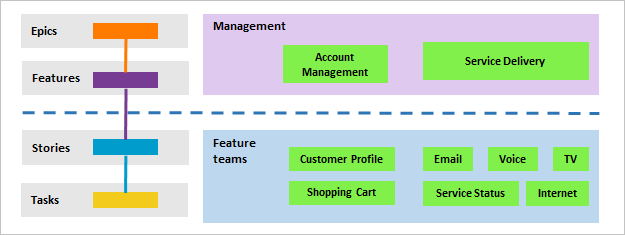
Thanks to portfolio backlogs, product owners can see what many agile feature teams have worked on. Product owners can specify high-level objectives as Epics or Features. These tasks can be divided by feature teams into the user stories they will prioritize and create.
This part will teach you:
How to support a management view of the progress of many teams
How feature teams might concentrate on advancing their team backlog
How to distribute tasks from a shared backlog
How to organize teams and backlogs in a hierarchy
You may provide each feature team with a unique backlog for planning, prioritizing, and tracking work by building up a team structure as the one depicted. Additionally, portfolio or product owners can develop their vision, strategy, and goals for each release, keep track of the development of their portfolio of projects and manage dependencies and risks. Source
When you want to support the following components, set up a hierarchical team and backlog structure:
Feature teams that operate independently and can manage their backlog of work
Views for portfolio management are used to schedule epics and features and keep track of the development of lower-level feature teams.
From a shared backlog, assign backlog items to feature teams.
Management view of team progress
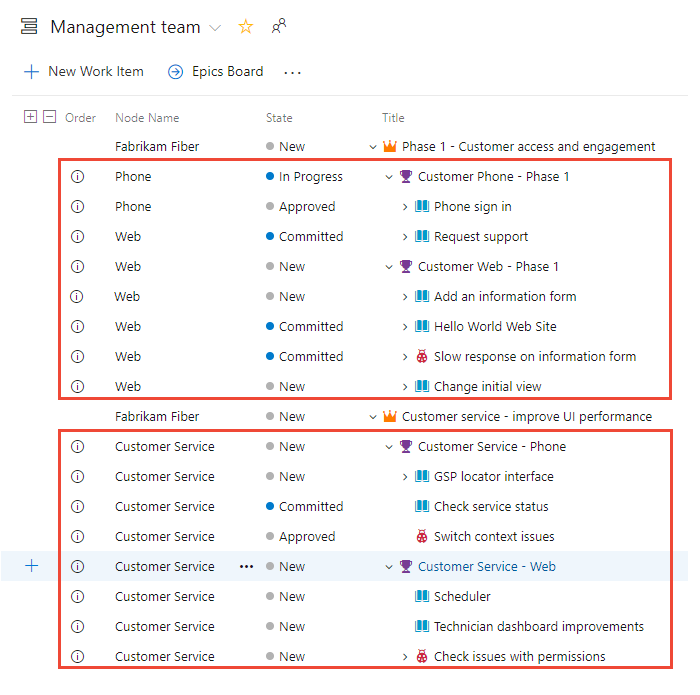
This example displays the Management team's Epics portfolio backlog. Even if they are assigned to one of three teams—Customer Service, Phone, or Web—you can see every backlog item and feature by drilling down.
View of progress and team backlog ownership feature
The product and portfolio backlogs, task boards, Kanban boards, and team home pages are unique to each feature team. Each team's work is the only work displayed on these pages. The iteration pathways and assignments to the work item area determine the relevance.
Only the tasks allocated to the Fabrikam Fiber/Customer Service area path are included in the backlog, as seen by the Customer Service feature team. Here, we display the parents of some of the features and epics of which the backlog items are a part. Other teams' possessions are shown by bars that are hollow inside. For instance, the Account Management team is responsible for mobile feedback and text alerts.
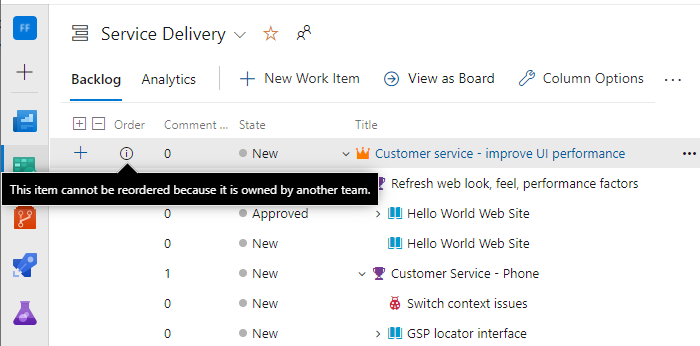
Items owned by different teams display an information icon.
Assign work from the common backlog
While the hierarchical team and backlog structure enable giving work to teams from a shared backlog, it also supports autonomous teams taking control of their backlog. Product owners and development leads might review the backlog during a sprint or product planning meeting. By adding specific things to the feature team Area Path, teams can also distribute them among other teams.
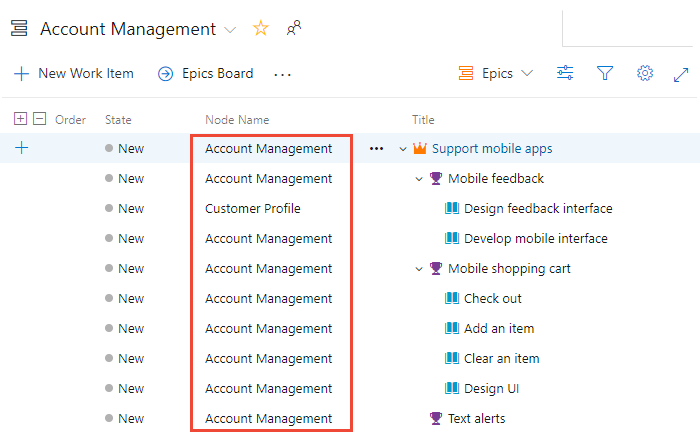
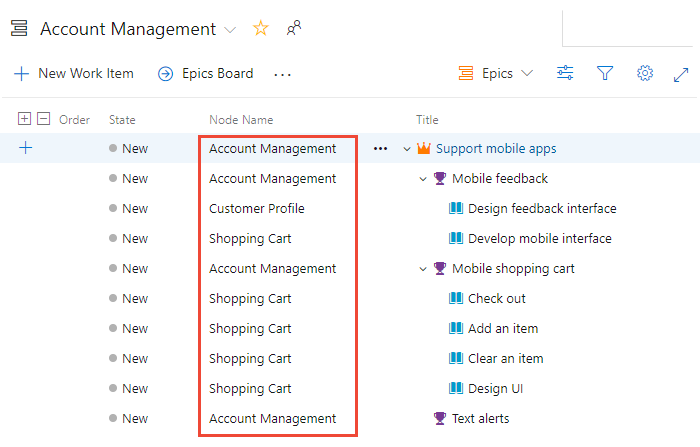
All items still assigned to Account Management are not yet given in this view of the backlog for that department.
You can examine each item, add notes, and assign it to the team to work on during the planning meeting.
All backlog items in this instance have been delegated to feature teams, while Account Management continues to own all features and epics.
Add portfolio backlogs
You can add extra backlog levels if you require more than three.
Track dependencies across teams
Utilizing the Related link type to link work items will make tracking interdependence between teams the most straightforward process possible. You can use the Predecessor/Successor link types if they are time-dependent. Then, you may build queries to look for work items that include these associations. You may keep track of dependencies across projects inside an organization using Delivery Plans.
Portfolio feature progress
You can add a rollup column or look at the Feature Timeline to see feature progress based on associated requirements.
Create a hierarchy of teams
We demonstrated how management and feature teams might leverage their backlogs to concentrate on the work most essential to them in portfolio management. This article explains how to best set up teams to support the various backlog perspectives that management and feature teams have.
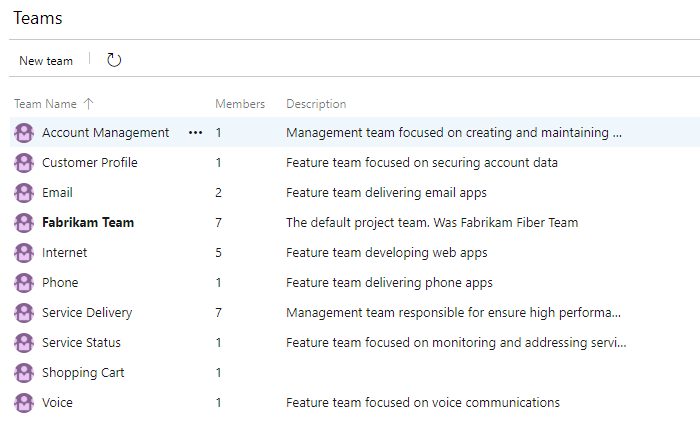
We'll demonstrate how to set up a team structure like the one in the image below.
In this section, you will discover how to:
Establish a hierarchy of teams and backlogs.
For all teams, establish a single sprint cadence.
Review the teams' designated area paths.
Add a team for each management area.
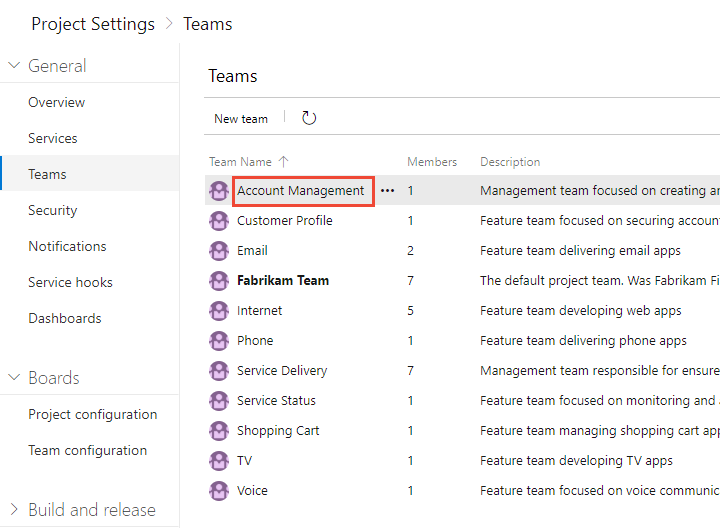
The first step is adding a team for each feature team and management area. Teams that you've already added can also have new names. You'll have a group of teams that like those in the example when you're done.
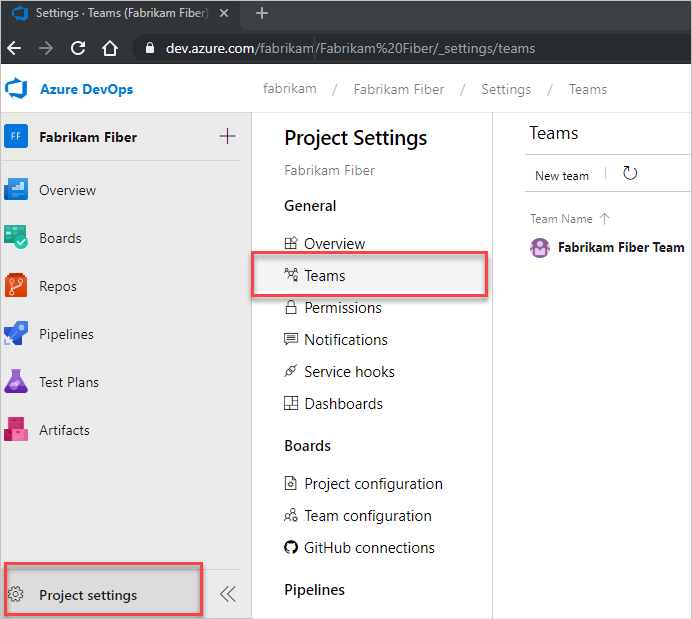
Open Teams by selecting Project settings from the web portal.
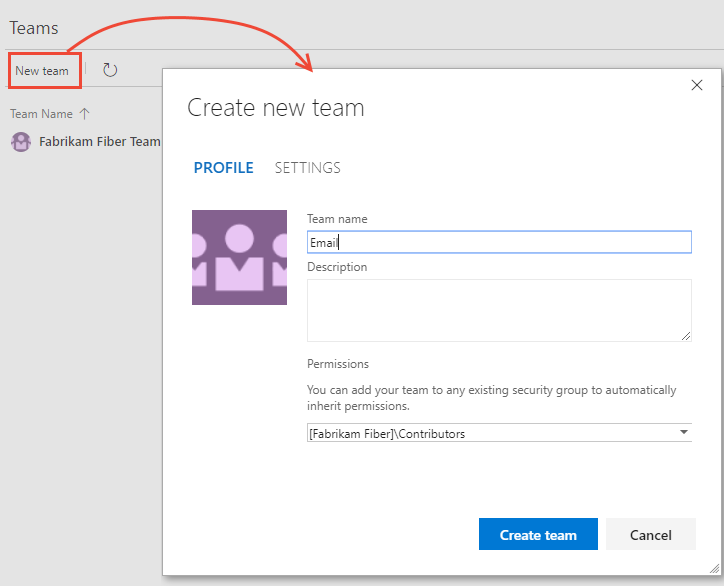
Select New team. Give the group a name and, if you like, a brief description.
Repeat this procedure for each feature and management team you want to form.
Move area paths into a hierarchical structure
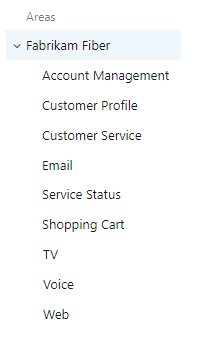
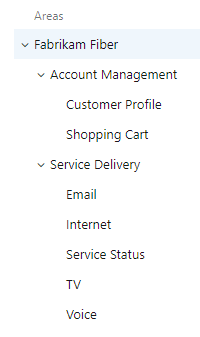
In this stage, you wish to convert the feature teams' area paths from a flat to a hierarchical structure.
Flat area structure
Hierarchical area structure
To accomplish this, you open each area path connected to a feature team and move it under the management area path.
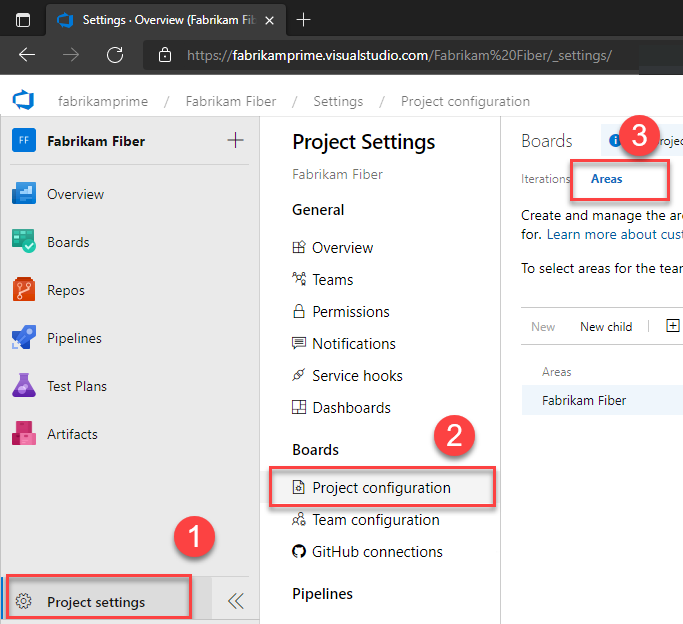
Select (1) Project Settings, then, if necessary, expand work, select (2) Project configuration, and finally, select (3) Areas.
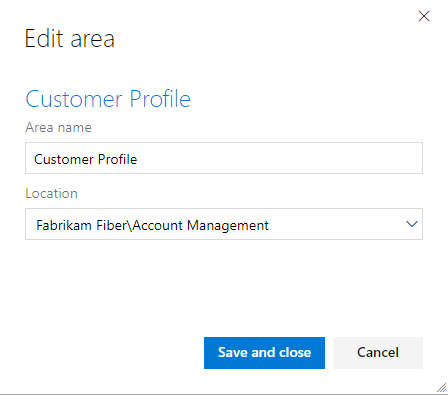
Next, pick Edit from the actions icon for one of the area paths connected to a feature team. After that, modify the Location to place it along the path of the management team area that corresponds to it.
For example, we relocate the Customer Profile to the Account Management section.
For each feature team area path, repeat this procedure.
Include the management team's subarea paths
You automatically add the backlog items from respective feature teams into the management team's backlog by specifying subarea pathways for the management teams. Subarea pathways are excluded by default for all teams.
You define both areas and iterations from Project Settings>Boards>Team configuration. From Teams, you can get there swiftly.
Select Teams from Project Parameters, then select the team whose settings you wish to change.
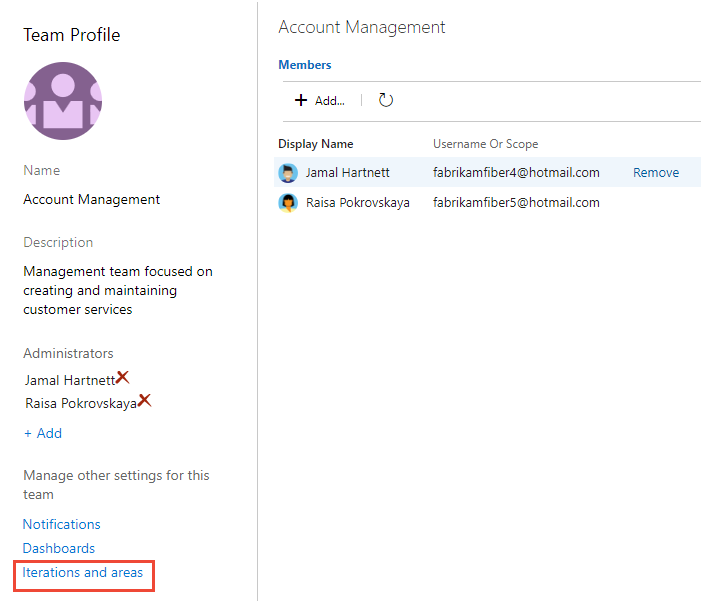
The Account Management team is now available.
Select Areas, Iterations, and then Areas.
Use the team selection in the breadcrumbs to change the team context if necessary.
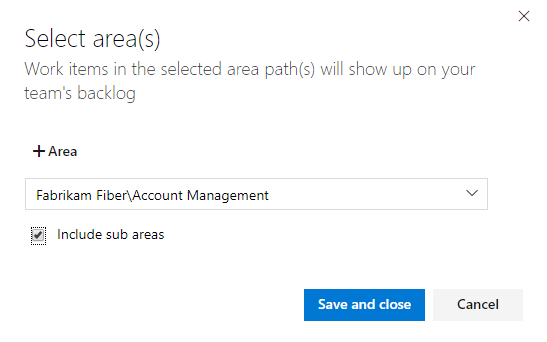
Choose Select area(s), choose the Account Management area path, and then select the Include sub-areas checkbox.
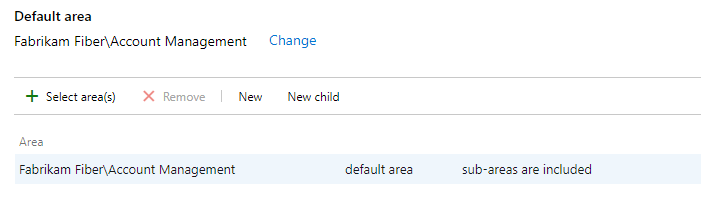
Check to see if the team has only chosen this area path as the default area path. Delete any other area pathways that you might have selected in the past.
For each management area, repeat this process. Repeat this step for the default team if you want to allow rollup across all feature teams and management areas to the top-level area. That is equivalent to Fabrikam Fiber in our illustration.
Establish a single sprint cadence for all teams
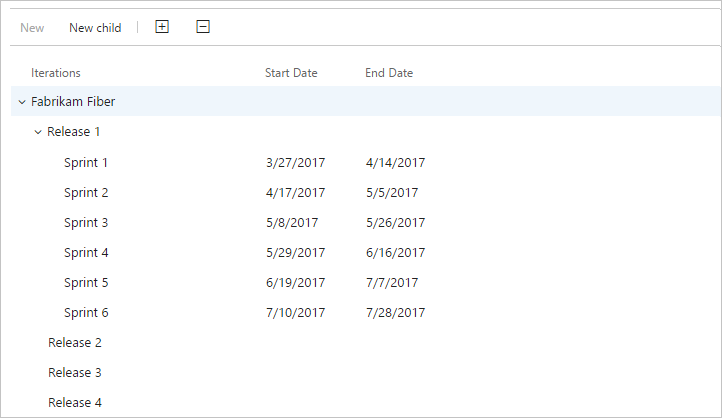
You should set up a series of sprints that all teams can use if your feature teams use Scrum or sprints to assign their work. You will, by default, see a list of preconfigured sprints. Add more sprints and customize their sprint dates from Project Settings as per the instructions in Dates for the iterations should be added. The default sprints can be changed and edited as necessary.
Create other team settings
You should add team administrators and ask them to check or set up other team settings so that teams are well defined.
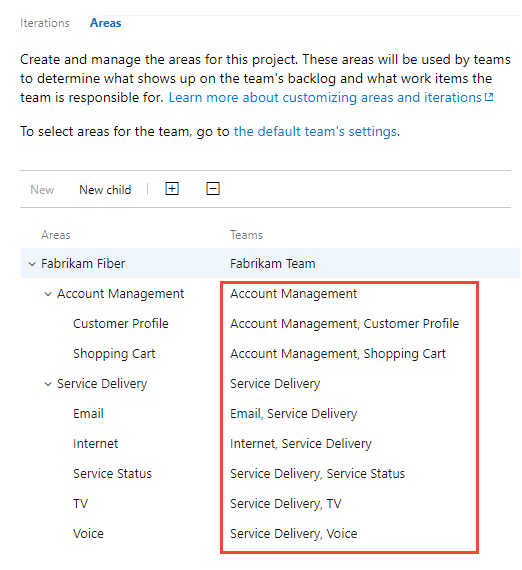
Review area paths assigned to teams.
You may check which Area Paths have been assigned to which teams by going to Project Settings>Project configuration>Areas. Select the team, then alter the team's area path assignments to adjust the assignments.
Exercising select features with shared area paths
You should be aware of how conflicts are handled by Azure Boards when using these capabilities when you share area pathways across two or more teams:
Rearranging the job items on a board or backlog
When moving things to a different column, the Kanban Board Column, Board Column Done, and Board Lane fields are updated.
Reordering and reparenting work items
Drag and drop is supported for rearrangement and reordering work items on all boards and backlogs. Changes made to the backlogs and boards of one team are mirrored in the backlogs and boards of all other teams that share the same area path. To see the changes, you might need to refresh the page.
Only work items assigned to area paths chosen by your team can be reordered or repartitioned using drag-and-drop. Work items that don't belong to your team may appear on your backlog when the Parents view option is activated. Anything that displays the information icon is owned by another team and cannot be reordered or reparent.
Kanban board column updates
The values allocated to the fields on the Kanban board may not match your expectations when another team updates the work item from a separate board since each team can alter the swimlanes and columns on the Kanban board. Updating work items on one team's Kanban board won't update work items on another team's Kanban board, even if the management team and the feature teams configure their Feature Kanban board columns with identical process mapping. The card column only reflects the same on all boards when the work item is moved to a column that corresponds to a workflow state.
By design, the team with the most extended area path prevails in a conflict and chooses the values for the Board Lane, Board Column Done, and Kanban Board Column fields. The outcomes are non-deterministic if the common area pathways have the same depth.
The immediate solution to this problem is to define area routes and assign work items to teams while maintaining sole ownership of each task. Another choice is to include individual workflow states that all teams can use.
Frequently Asked Questions
What does Azure DevOps' portfolio plan entail?
You may report on the progress of all Epics using Portfolio Plans across many projects. Additionally, it enables you to modify the duration, start date, and end date with just a few drag-and-drop operations. Install the extension from the Azure DevOps store before you begin (LINK).
What is the backlog of the portfolio?
In SAFe, the Portfolio Backlog is the backlog with the greatest priority. It serves as a holding space for upcoming projects and supporting epics designed to develop a wide range of solutions.
Who is the portfolio backlog's owner?
The product manager is in charge of managing the team backlog, whereas the product owner is in charge of managing the portfolio backlog. To prevent hangovers and delays, the two positions must work together.
Who is in charge of the portfolio kanban?
Through the Portfolio Kanban system, Epic Owners are in charge of coordinating portfolio Epics. Together, they develop the epic's Minimum Viable Product (MVP) and Lean business case, and when those are accepted, they assist with execution.
Conclusion
In this article, we have extensively discussed the plans and portfolios in Azure Boards. We have also discussed managing your product and portfolio requirements and creating a team hierarchy in detail.










 1+ registered

