Do you think IIT Guwahati certified course can help you in your career?
Introduction
Kanban is a visual management method for tracking work as it progresses through a process. Kanban depicts the process (the workflow) and the actual work that passes through it. Kanban's purpose is to detect possible bottlenecks in your process and solve them so that work may flow through it efficiently and at an ideal pace or throughput.
Through this article, we will learn about Kanban Board, its uses, configuration, up-gradation and cumulative flow, and other key concepts related to the Kanban Board.
What is a Kanban Board?
A kanban board is a tool for Agile project management that helps visualize work, restrict work-in-progress, and enhance productivity (or flow). It can aid agile, and DevOps teams in establishing order in their everyday operations. Kanban boards employ cards, columns, and continuous improvement to assist technology and service teams in committing to and completing the appropriate work.
Uses Of Kanban Board
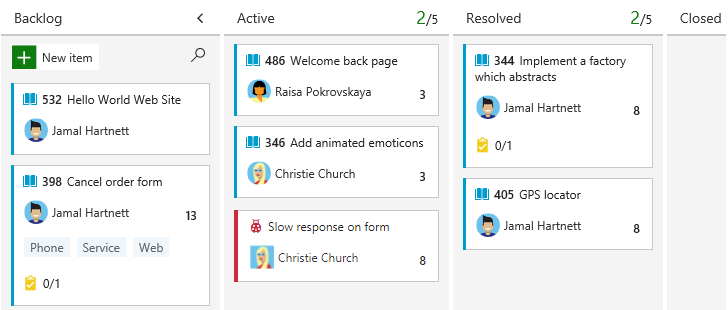
A Kanban board is an interactive visual environment where you and your team can plan and track progress. It allows your team to track essential information such as which work items are in progress, where bottlenecks are, who is given tasks, and more. Like sticky notes on a whiteboard, Boards offer work items as cards and allow for rapid status changes through drag-and-drop.
Following are the uses of Boards in DevOps:
Apply Kanban methodologies.
Define the tasks assigned to your team by creating user stories, product backlog items, or requirements.
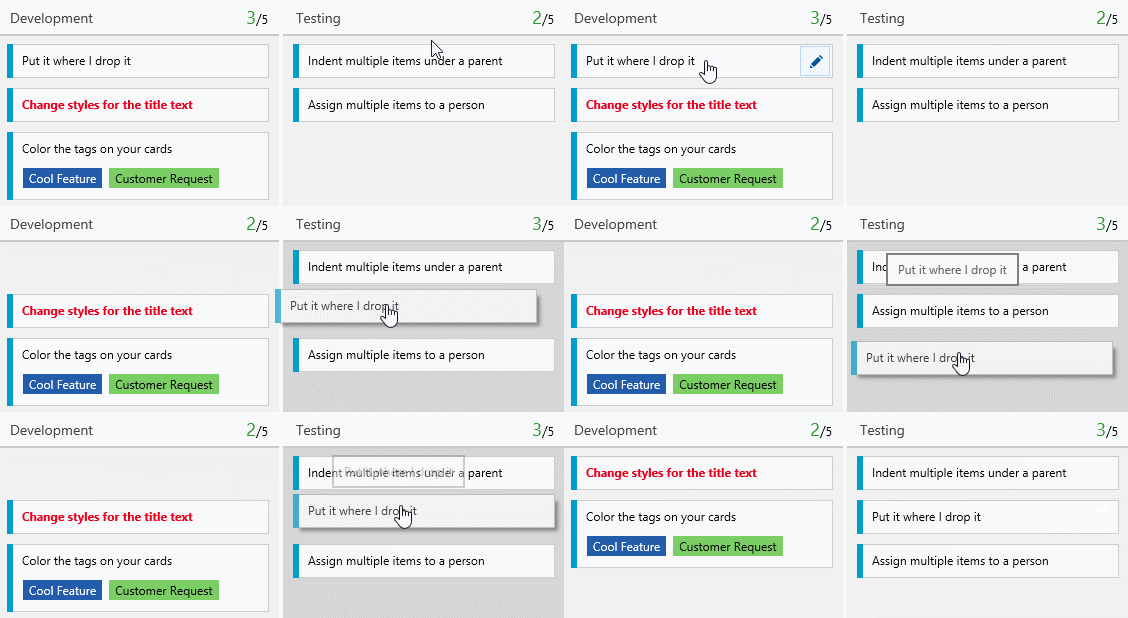
Drag-and-drop work items to a column to track progress and change status.
Backlog items should have information and estimations.
Create tasks or child items for backlog items quickly.
Inline tests may be added, executed, and updated.
Let's Get Started
To get started with the Kanban Board, follow the instructions given below:
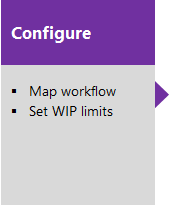
Configure and customize your Kanban board
Your Kanban board is very customizable to assist the productivity of your team. Each team can configure each board in the following areas:
Configure boards:
Adding columns
Setting WIP limits
Defining card reordering
Enabling backlog and board levels
Setting Definition of Done
Adding swimlanes
Working with bugs
Configure card displays:
Adding or removing fields from cards
Defining card styles
Applying tag colours
Enable/disable annotations
Defining inline test behaviour on cards
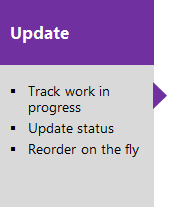
Update work item status
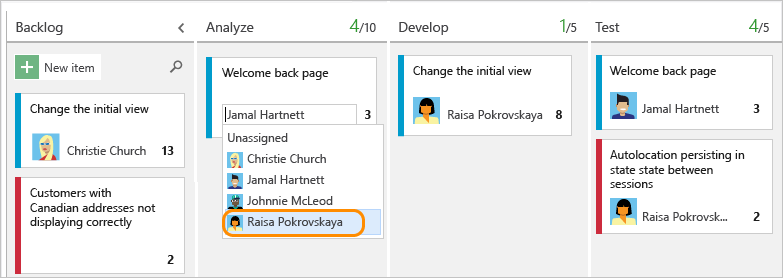
After setting up your Kanban board, you may add work items straight to it. Work status may then be updated by dragging a card to another column on the Kanban board. When you transfer a card to a new column, you can modify the order of the things.
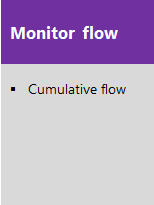
Use the Cumulative Flow Diagram to monitor metrics.
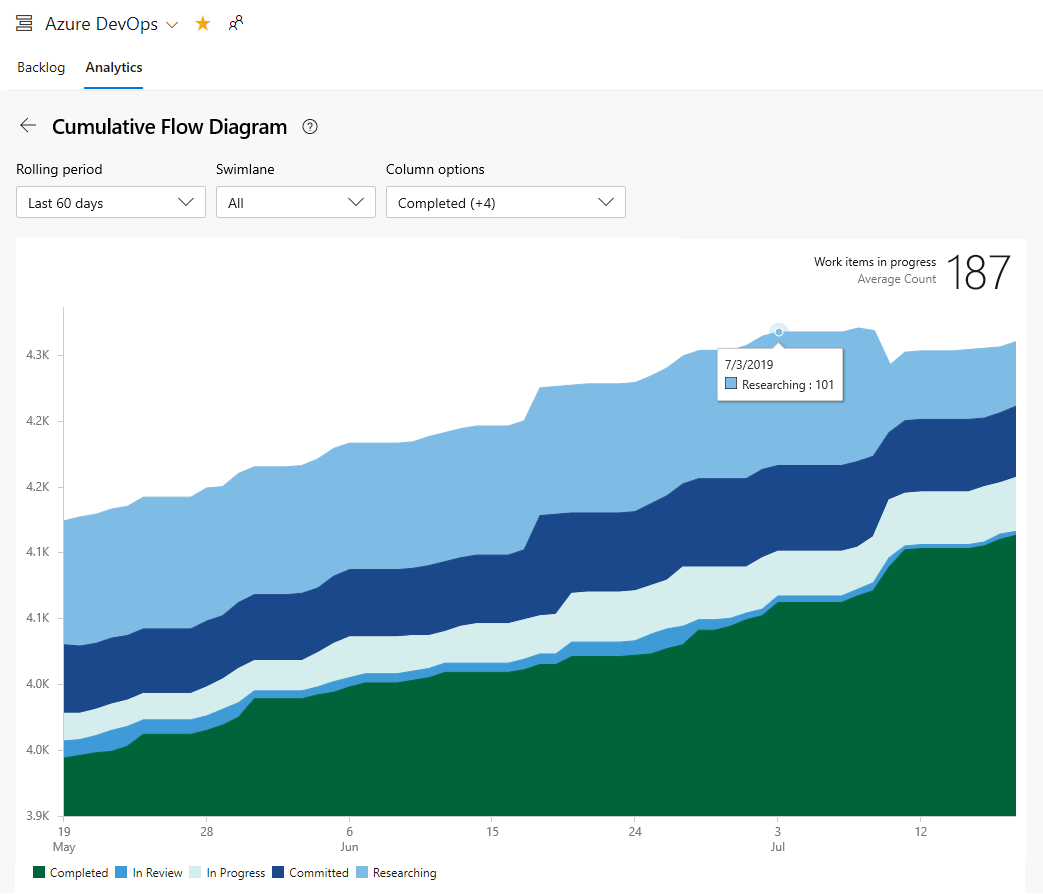
The Cumulative Flow Diagram (CFD) is a report provided in context for both product and portfolio backlog levels. Monitor crucial KPIs using this graphic to fine-tune your procedures.
The Average work in progress number does not include finished work items. Using the interactive controls, choose the time period, swimlanes, process statuses, and Kanban board columns. You may acquire insight into how to enhance your operations and reduce lead time by monitoring these data.
Display of leaf node work items
While you can make a hierarchy of backlog items, tasks, and issues, we don't encourage making same-category hierarchies. That is, avoid creating parent-child relationships between work items of the same type, such as story-story, bug-bug, and task-task. This is because the display of the leaf node, the final node in a same-category hierarchy, is limited to Kanban boards, sprint backlogs, and taskboards. For example, if you link things in a four-level same-category hierarchy, only the items at the fourth level display on the Kanban board, sprint backlog, and Taskboard.
We propose keeping a flat list of needs, issues, and tasks rather than layering them. In other words, construct one level of parent-child relationships between items from various categories.
Understanding select features with multi-team ownership
While you share area pathways across two or more teams, you should be aware of how Azure Boards handles conflicts that may emerge when using these features:
Work items on a backlog or board are reordered or reparented.
When moving items to a different column, updates are made to the Kanban Board Column, Done, and Lane fields.
Reordering and reparenting work items
Drag-and-drop is supported in all backlogs and boards for reordering and reparenting work items. Updates to one team's backlogs and boards are mirrored in the backlogs and boards of other teams that share the same area route. To see the changes, you may need to refresh the page.
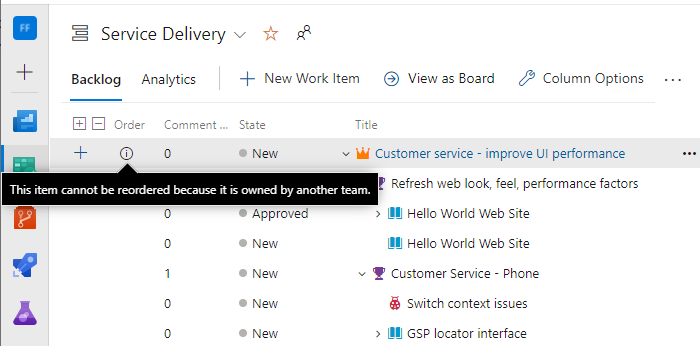
Drag-and-drop may only be used to rearrange or reparent work items allocated to area pathways chosen by your team. When the Parents view option is selected, work items that do not belong to your team may display on your backlog. Because another team holds it, anything with the information symbol cannot be reordered or reparented.
Kanban board column updates
Because each team can modify the Kanban board columns and swimlanes, the values supplied to Kanban board fields may differ from what you anticipate when another team changes a work item from a different board. Even if the management and feature teams design their Feature Kanban board columns with the same workflow mapping, changing work items on one team's Kanban board will not be reflected on the other team's Kanban board. Only when a work item is moved to a column corresponding to a workflow state does the card column on all boards reflect the same.
The team with the longer area path, by definition, wins the dispute and decides the values for the Kanban Board Column, Board Column Done, and Board Lane fields. The findings are non-deterministic if the common area pathways are of identical depth.
Provide permissions and access
As a member of a project's Contributors group, you have access to most of the capabilities available under Boards or Work. All functions are available to users with Basic access. Certain functionalities are restricted to Stakeholder users.
Quick Start: Kanban board
Your Kanban board transforms your backlog into an interactive signboard showing the activity flow. You update the elements on the board as work goes from idea to completion. Each column indicates a step of the task. Then, each card represents a backlog item, user narrative, or issue.
User stories and bugs represent different sorts of work tasks. Work items convey information, assign tasks to team members, update progress, manage dependencies, and do other things.
Prerequisites
Boards are automatically generated when you create a project or add a team. Following are some of the prerequisites Kanban Board:
You must be linked to a project. Make a project if you don't already have one.
You must join a team or project.
You must have Basic or higher access to add work items and use all board features.
To view or modify work items, your View work items in this node and Edit work items in this node permissions set to Allow. By default, the Contributors group has this permission set.
Users having Stakeholder access to a private project may drag-and-drop work items and edit status, but not the fields presented on cards. They can add tasks and alter the status of tasks.
Users with Stakeholder access for a public project have the same level of access to board features as users with Basic access.
Add a Kanban board
Assume you have a project that includes a Kanban board. Each project has its default team and set of boards. When you wish to support a new team, you merely need to create a Kanban board. While creating a team, you create a lot of team assets. A team admin may configure the assets to support how the team works. See Add a team to add a set of Kanban boards to support a new team.
Kanban boards are assigned to each team's work item types. The association is determined by the process chosen when the project was formed, team setups and process modifications. The boards established for each step are as follows:
Agile: Stories, Features, and Epics
Basic: Issues and Epics
Scrum: Backlog items, Features, and Epics
CMMI: Requirements, Features, and Epics
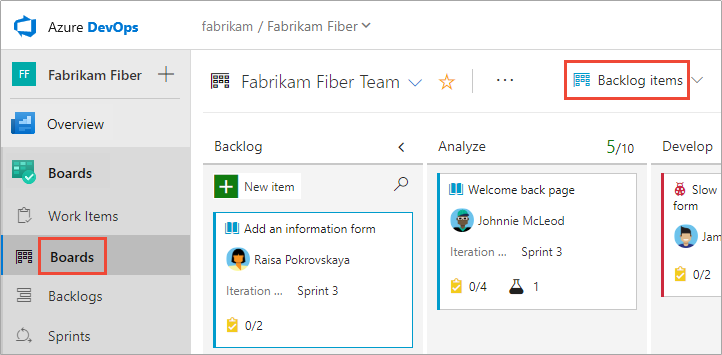
You can pick the board from the backlog selection, as seen in the figure below.
Open your Kanban board from the web portal.
Your Kanban board is one of two sorts of boards you may use. The other is the sprint Taskboard. Kanban boards keep track of requirements, are sprint-independent, and provide a cumulative flow chart for tracking progress. Each sprint is coupled with a Taskboard that allows for the tracking of sprint-specific activities. Progress may be tracked using capacity charts and the sprint burndown chart.
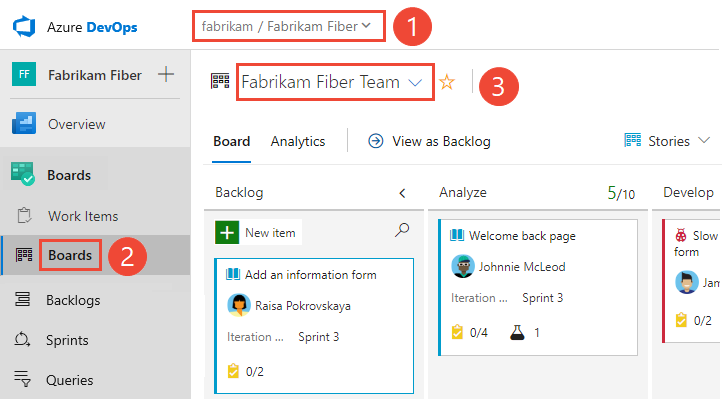
Check that you've selected the correct project, then go to Boards > Boards. Then, from the team picker menu, choose the appropriate team.
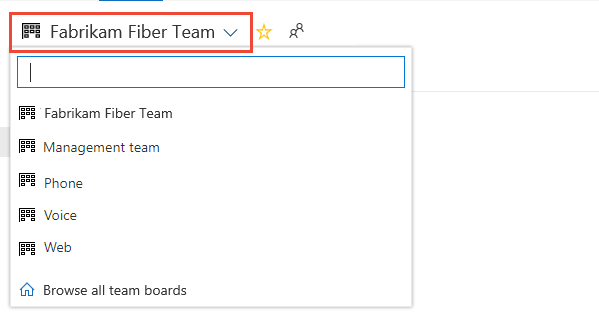
Open the selection to choose another team's board. Then, either choose a new team or use the home icon. Browse all team boards. Alternatively, you can use the search box to narrow down the list of team backlogs for the project.
Check that the backlog level is set to Backlog items for Scrum, Stories for Agile, or Requirements for CMMI.
Add work items
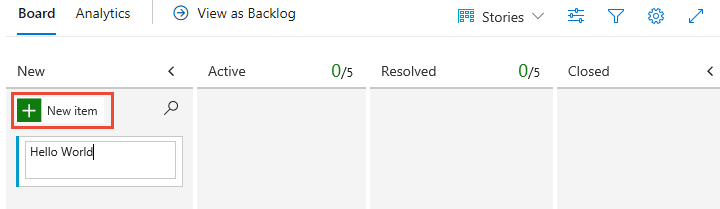
Select the plus symbol, input a title, and then press Enter to add a work item.
Add a new item to the Kanban board and new navigation. The system saves the work item with the title you entered automatically. We can add as many work items as you wish using this strategy.
Select the title to add details to any work item. Alternatively, you may directly alter any field that appears. You can, for example, reassign a work item by choosing Assigned To.
Update the status of a work item
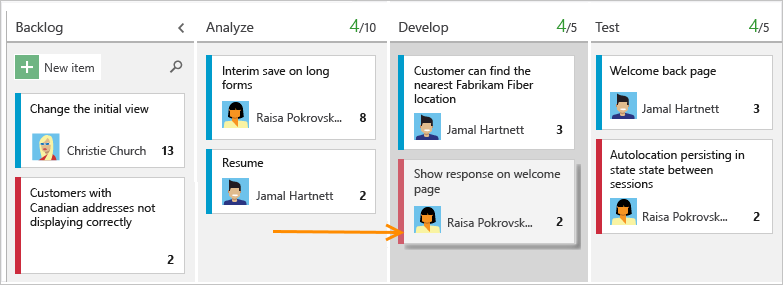
As work in one step is completed, change the status of an item by dragging it to a subsequent stage.
Update fields from the card
You may rapidly alter a field or reassign ownership directly from the board. If the field you wish to alter isn't visible, click the customize the card button to bring it up.
Filtering the board using keywords, field values, or tags
Filters can be used interactively to focus on a subset of work. You may, for example, filter the board to focus on tasks given to a single team member for a specific sprint. Select Filter to begin filtering.
Inviting others to work on your Kanban board
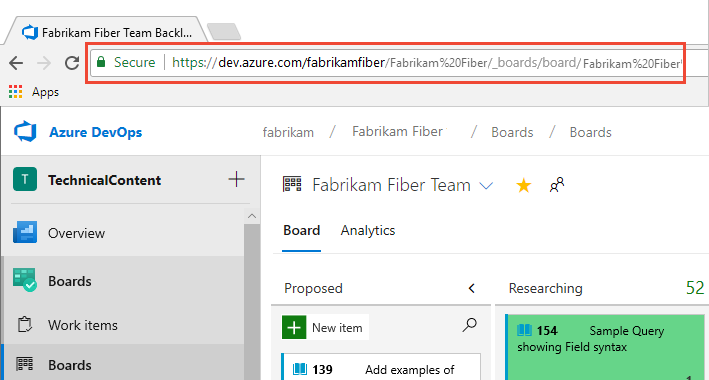
Your Kanban board is viewable and editable by all project participants. Copy the Kanban board URL and send it to anyone you wish to invite to your project to invite them to contribute.
Frequently Asked Questions
What Is The Importance Of Kanban In The Manufacturing Process?
Kanban will aid an organization's quality control process by guaranteeing that quality is always maintained. It will also guarantee reduced expenses by using lean manufacturing procedures and not stockpiling surplus inventory. The organization will also see the team's potential and be able to adapt rapidly to any changes. It eliminates laxity and sloth in the system and encourages a right-first attitude.
What is Production Kanban?
This includes all of the prerequisites for completing a procedure. It pulls together the resources, pieces, and information required to complete the process. It makes use of visual signals to keep a process moving. It describes the kind and quantity of product the previous operation should produce. This guarantees that the manufacturing process runs smoothly and that the outputs are of the desired quality.
What do you mean by Forking Workflow?
Forking Workflow provides Developers with access to service-side repositories. It supports open-source projects and is frequently used with a Git hosting service such as Bitbucket.
Conclusion
This article extensively discussed the Kanban Board, configuration, up-gradation and cumulative flow. We hope this blog has helped you enhance your knowledge of Kanban Board in DevOps.










 7+ registered

