

Table of contents
1.
Introduction
2.
Setup
2.1.
Program:
2.2.
Output:
3.
Configurations 
3.1.
Program:
3.2.
Program:
3.3.
Program:
4.
Browser Specific Options
5.
FAQs
6.
Key Takeaways
Last Updated: Mar 27, 2024
Easy

Running Mocha in the Browser

Career growth poll
Do you think IIT Guwahati certified course can help you in your career?

Introduction

Running tests in the browser can be a very vital tool for developers. Browser support can provide better structure to your tests and make integrating new unit tests to existing applications easier. 

Every release of Mocha comes with new builds of ./mocha.js and ./mocha.css for use in the browser. Through this article, we will explore the typical setup of the Mocha test runner in the browser, browser configurations, options, reporting, and implementation with the help of examples.

Setup

Though the implementation of running unit tests using the Mocha framework in the browser varies depending on the project requirements. The basic setup looks similar to the one given below:

Program:

<!DOCTYPE html>
<html>
  <head>
     <!-- styling for the test results -->
     <link
        rel="stylesheet"
        href="https://cdnjs.cloudflare.com/ajax/libs/mocha/3.1.0/mocha.min.css"
     />
  </head>
  <body>
     <!-- container that will display test results -->
     <div id="mocha"></div>

     <!-- mocha (test runner) -->
     <script
     src="https://cdnjs.cloudflare.com/ajax/libs/mocha/3.1.0/mocha.min.js"></script>

     <!-- chai (assertion library) -->
     <script
     src="https://cdnjs.cloudflare.com/ajax/libs/chai/3.5.0/chai.min.js"></script>

     <!-- You can load the test from source file or write the code-->
     <!-- <script src="test.js"></script>-->>
     <script>
        // setup test helpers
        mocha.setup("bdd");

        // your tests here
        describe("test suite", function () {
           it("should work", function () {
              chai.assert(true);
           });
        });

        // run tests
        mocha.run();
     </script>
  </body>
</html>

Output:
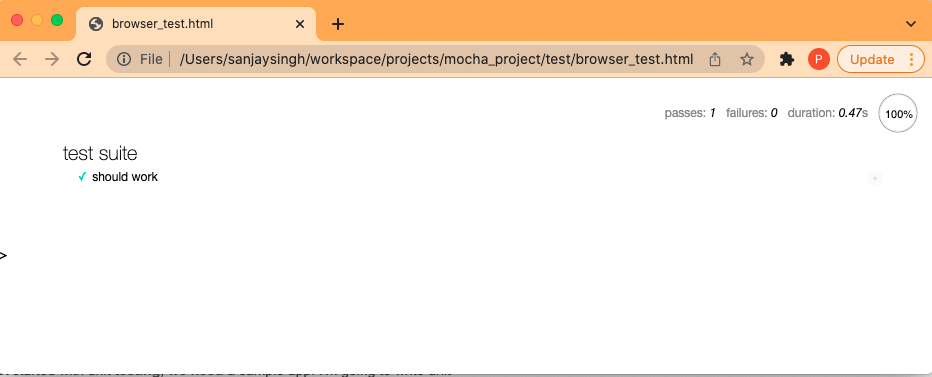
Here we are calling mocha.setup('bdd') to use the Behavior Driven Development(BDD) interface before loading the test script, running it onload with mocha.run().

The Output is the HTML Reporter, the default reporter while running the Mocha framework in the browser. You can also use alternative reporters like Mochawesome.

Configurations 

With the basic setup of using Mocha in the browser, you can also change the structure as per your project or test requirement. You change the browser configuration by setting mocha options via mocha.setup().

For example, if you want to implement the Test Driven Development(TDD) interface, you can achieve the following with two equivalent methods like this:

Program:

// This is a shortcut to set the interface;
// any other options have to pass via an object.
mocha.setup('tdd');

Program:

// This method is equivalent to the above method.
mocha.setup({
ui: 'tdd'
});

While using the TDD interface, you can also add other configurations such as checking for global leaks and then forcing all the tests to be asynchronous like this:

Program:

mocha.setup({
ui: 'tdd',
       checkLeaks: true,
       asyncOnly: true
});

Browser Specific Options

Although the browser Mocha does not support all cli options, it supports many cli options. To use a cli option that contains a "-", you will need to convert the option to camel-case—for example, check-leaks to checkLeaks.

  • reporter {string|constructor}: This is an option that differs slightly from the cli options. You can pass the name of a reporter or constructor of a custom reporter. Though not recommended, you can also use built-in reporters, which the browser does not support.
  • noHighlighting {boolean}: This option only functions in the browser context. You should not attempt syntax highlighting on the output test code if set true.

FAQs

1. Is Mocha.js a BDD tool?

Ans: The default interface of Mocha.js is BDD. But apart from that, Mocha.js provides a variety of interfaces for you to define test suites, hooks, and individual tests. These include TSSExportsQUnit, and Require. 


2. What are the CLI options in Mocha?

Ans: Several utilities are available for you to leverage when using the Mocha CLI binary. It is pretty easy to access the list of all the available options in the command line, along with a brief explanation of their implementation. You access the list like this:

mocha -h


3. What is mocha describe()?

Ans: The describe() function gives a way to group your tests in Mocha.js. You can nest your tests in groups as deep as you require. The describe() function takes two arguments:

  • A name of test groups
  • A callback function


4. What is done() in mocha? 

Ans: Mocha provides you with a done callback method that you can call from the beforeEach, afterEach call, it, and more calls. When this done parameter is present in your callback function, it tells Mocha that you are writing an asynchronous test. This causes mocha to enter a timer when the function with the done parameter runs, waiting for the async function to finish.

Key Takeaways

This article extensively discussed running Mocha in the Browser and its configuration and implementation in using the Mocha framework. This knowledge of the implementation and usage of Mocha to run Unit Tests in the browser can prove fruitful for large-scale development projects.

Suppose you are interested in the Mocha framework for testing in javascript. In that case, you should also explore the jest framework in javascript through some excellent introductory articles on coding ninjas like Getting Started with Jest and Writing first Unit Test with Jest.

We hope that this blog has helped you enhance your knowledge regarding testing using Mocha. If you would like to learn more, head over to our practice platform Coding Ninjas Studio to practice top problems, attempt mock tests, read interview experiences, and much more. Do upvote our blog to help other ninjas grow. Happy Coding!


Live masterclass


