Do you think IIT Guwahati certified course can help you in your career?
Introduction
Katalon is automating testing software that lets the users test web, mobile or desktop applications and APIs without coding to deliver efficient and robust software to the consumers. The software is built over the Selenium and Appium automation frameworks, making testing convenient and code-free.
Setting Capabilities for Chrome/Chrome (headless)
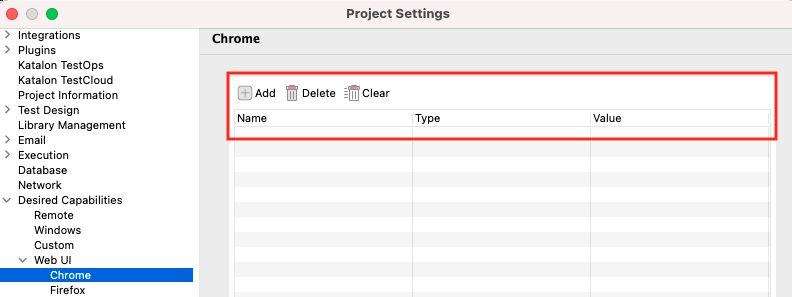
For this, go to Project > Settings > Desired Capabilities > WebUI > Chrome/Chrome (headless). Capabilities can be added or cleared/deleted here.
After clicking on the Add button, enter the Name, Type and Value of the property you want to configure.
NOTE: Desired capabilities are JSON objects, which means they have keys and value pairs. You need to set the Name as key and the capability as value. Remember, capability keys are case-sensitive.
An alternate method is to edit the capability in the Groovy script. For that, go to <your test project location>\settings\internal, and open the setting files for Chrome/Chrome (headless).
General Use Cases
Given below are some common use cases for Chrome in Katalon Studio:
To open an Incognito page in Chrome, click on the Add command and enter the following field values:
Alternatively, copy-paste the following script into the settings file:
{"CHROME_DRIVER":{"args":["--incognito"]}}
2. To open a maximized Chrome page by default, click on the Add command and enter the following field values:
Alternatively, copy-paste the following script into the settings file:
{"CHROME_DRIVER":{"args":["--start-maximized"]}}
3. To combine many capabilities for starting a browser, enter the following field values:
Or copy-paste the following script into the settings file:
Setting Capabilities for Firefox/Firefox (headless)
To set up capabilities for Firefox and getting their access, follow the given steps:
Open the Firefox Browser.
Type about:congif in the address bar.
Search for the browser key.
To define desired capabilities in Katalon Studio, follow the given steps:
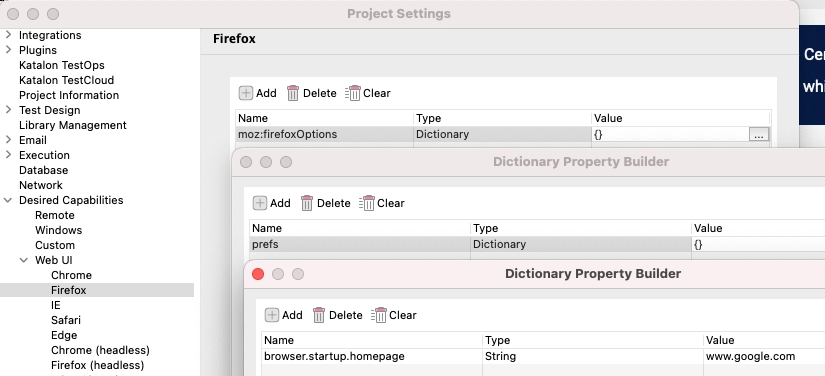
Go to Project > Settings > Desired Capabilities > WebUI > Firefox/Firefox (headless).
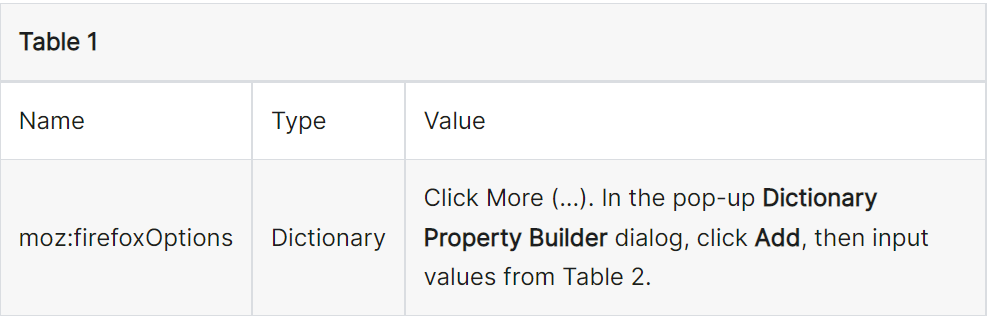
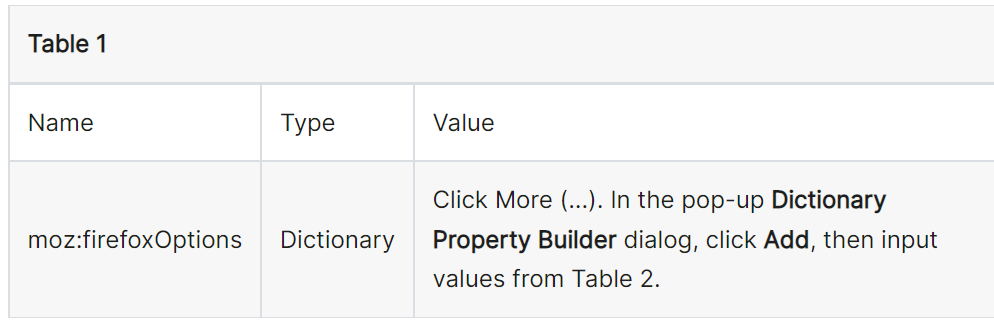
Click Add to create a key called moz:firefoxOptions.
Add your capabilities inside the moz:firefoxOptions key.
Alternatively, go to <your test project location>\settings\internal, and edit the capabilities in Groovy by opening the settings file for Firefox/Firefox (headless).
General Use Cases
Given below are some use cases of the desired capabilities for Firefox:
To start Firefox in Private mode with devtools, click the Add button on the command toolbar, and enter the following field values:
Alternatively, you can copy-paste the following script into the settings file:
3. To download files into a specified folder (for example, to download .html files to the C:/Downloads folder). Click on the Add command and enter the following field values:
Given below is the explanation of the settings:
Alternatively, copy-paste the following code script into the settings file:
Internet Explorer supports some essential capabilities which aid in the smooth execution of tests. They ease the automation testing using Selenium WebDriver.
To set desired capabilities, go to Project > Settings > Desired Capabilities > WebUI > IE or go to <your test project location>\settings\internal and open the settings to edit the capabilities in Groovy.
General Use Cases
To configure Internet Explorer for automation testing, click on the Add button on the common toolbar, and input the following values:
Or you can copy-paste the script in the settings file:
For every environment, the settings file can be found in <your test project location>\settings\internal folder. Each driver’s files are named as follows:
Frequently Asked Questions:
What is Katalon Studio?
Katalon is an automated testing software that lets the users test web, mobile or desktop applications and APIs without coding, to deliver efficient and robust softwares to the consumers.
What are desired capabilities in Katalon Studio?
Desired capabilities are key-value pairs that help the user specify browser properties such as browser name, version, path of the driver etc. These desired capabilities can be defined in the Project > Settings > Desired Capabilities.
Can you re-use desired capabilities in Katalon Studio?
From version 8.0.0 onwards, desired capabilities can be re-used across various Katalon Studio projects by importing or exporting JSON files.
Conclusion
In this blog, we went through the steps to follow to set up the desired capabilities for Chrome, Firefox and Internet Explorer. Share and like the article if you found it informative and helpful. Apart from this, visit our platform Coding Ninjas Studio to read informational articles on important computer fundamentals like DBMS, DSA, Competitive Programming, Python, Java, etc. Happy Coding!!














 5+ registered

