




Introduction
Desired capabilities are key-value pairs that provide information about a browser's name. Its version and location are in the system's browser driver hierarchy. This information is used to determine the browser's runtime behavior. Desired features can be used to customize Selenium WebDriver. And other driver instances like FirefoxDriver, ChromeDriver, and Internet Explorer. In this article, we will be learning about Setting up Desired Capabilities in Mobile Testing in Katalon Studio.

Set up Desired Capabilities in Mobile Testing
For mobile testing, specify the following capabilities:
-
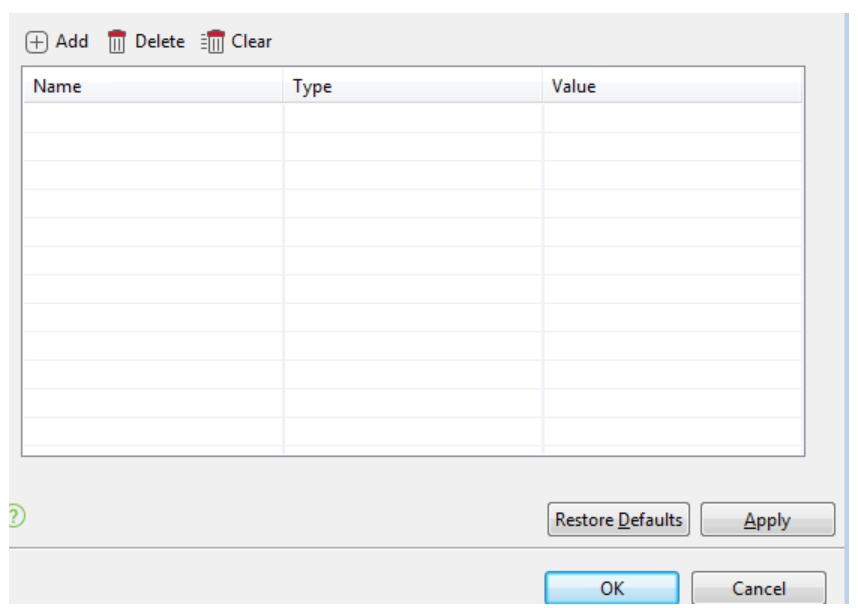
Access the Project > Settings > Desired Capabilities > Mobile > Android/iOS menu. You have the option to add, remove, or completely erase a capability.
-
Select the device to which the desired capabilities settings will be applied. Choose your device name from the drop-down menu after clicking Android/iOS.
- On the command toolbar, select Add.
- The list now includes a new row.
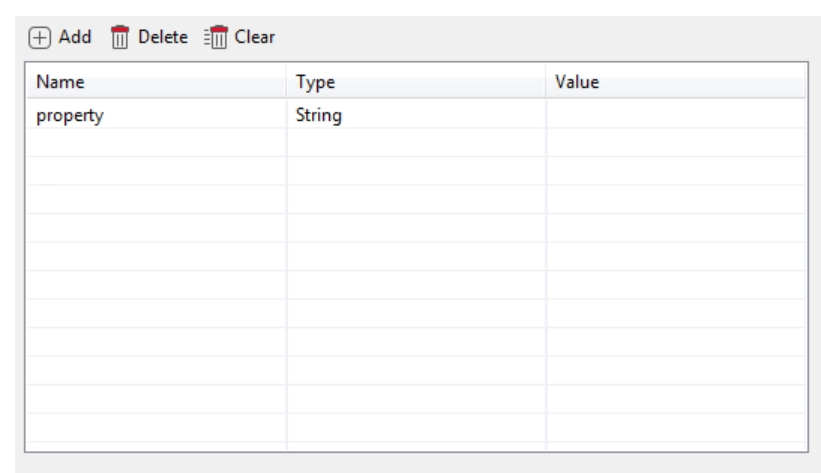
- The name, Type, and Value of the property you intend to configure should be provided.
Example 1: Enable Unicode input
The desired capability settings for Android to enable Unicode input are displayed in the example below. Click Add after selecting the device name, then enter the values as follows:


Example 2: Start the device in a certain orientation


Example 3: Set screenshot save directory
The needed capabilities settings for Android to specify the screenshot save directory. And are demonstrated in the example below. Click Add after selecting the device name, then enter the values as follows:





 5+ registered

