Get a skill gap analysis, personalised roadmap, and AI-powered resume optimisation.
Introduction
Creating a game from scratch is an exciting way to bring programming concepts to life, and one classic project for beginners and intermediate developers alike is the Snake Game. This retro game, where players guide a growing snake to eat food without colliding with itself or the boundaries, is both simple in concept and rewarding to build.
In this blog post, we will guide you through step-by-step instructions to build a basic snake game with Python and Tkinter.
How to Build Snake Game in Python?
Create a game window using Pygame or Turtle. Initialize variables for snake position, length, and food location. Use a game loop to:
Handle keyboard inputs for direction
Update snake position and check collisions
Grow snake when food is eaten
Draw everything on screen
Check for game over conditions (wall/self collision)
Use lists/arrays to track snake body segments.
Prerequisites
Before diving into building the Snake Game, there are a few prerequisites that will help you get started smoothly:
Basic Knowledge of Python: Familiarity with Python syntax and fundamental concepts like loops, functions, and conditionals is essential, as these form the backbone of the game logic.
Understanding of pygame Library: The pygame library is a popular tool for developing 2D games in Python. If you’re new to pygame, it’s recommended to review its basics, such as setting up a window, handling events, and drawing shapes.
Python Installed: Ensure you have Python installed on your system. You can download it from Python's official website.
Installing pygame: You’ll need to install the pygame library to create the game. You can install it by running the following command in your terminal: pip install pygame
Text Editor or IDE: A code editor like Visual Studio Code, PyCharm, or any other IDE of your choice will make coding, testing, and debugging much easier.
Explanation of the Code
This code is importing two modules into the current Python script, tkinter and random.
tkinter, imported with the alias tk, is a standard Python library for creating graphical user interfaces (GUIs) in desktop applications. This module enables programmers to create windows, buttons, text boxes, menus, and other GUI elements that users can interact with.
random is a standard Python library module that provides various functions related to random number generation. Functions like random.randint() and random.choice() are frequently used in games and simulations to generate random values or select a random item from a sequence.
import tkinter as tk
import random
Once imported, these modules can be called in the script to use their functionalities. For example, tk.Tk() would create a new window object using the tkinter library, while random.randint(1, 10) would generate a random integer between 1 and 10 using the random module.
This code is defining several constants for a game or application.
"BOARD_WIDTH" and "BOARD_HEIGHT" are both set to 600, indicating the width and height (in pixels) of the game board or application window.
"CELL_SIZE" is set to 20, likely representing the size (in pixels) of individual cells on the game board.
"INITIAL_SPEED" is set to 200, which may represent an initial game speed (perhaps measured in milliseconds between updates).
"OBSTACLE_COUNT" is set to 8, possibly indicating the number of obstacles that will be generated during the game.
"COLORS" is set to a list of four strings: "green", "red", "blue", and "yellow". These colors could be used to represent different elements of the game (e.g. players, obstacles, etc.)
"DIRECTIONS" is a dictionary where the keys are strings representing directions ("Up", "Down", "Left", and "Right") and the values are tuples representing horizontal and vertical movement associated with each direction.
This code defines a class called Snake, which holds information about the game snake.
__init__(self, canvas) is the constructor method that initializes instances of the class. The canvas argument represents the game board on which the snake will be drawn.
self.head_x and self.head_y are the x and y coordinates of the snake's head, while self.body is a list containing tuples representing the positions of each segment of the snake's body.
Self.direction is set to the value DIRECTIONS["Right"], indicating that the snake initially moves to the right. This value comes from the DIRECTIONS dictionary defined earlier, where "Right" maps to the tuple (1, 0).
Finally, self.color is set to "black", indicating the color that will be used to draw the snake on the canvas.
# Snake class to hold information about the snake
class Snake:
  def __init__(self, canvas):
      self.canvas = canvas
      self.head_x = BOARD_WIDTH // 2
      self.head_y = BOARD_HEIGHT // 2
      self.body = [(self.head_x, self.head_y)]
      self.direction = DIRECTIONS["Right"]
      self.color = "black"
Overall, this class sets up the initial state of the snake at the start of the game, including its starting position, direction, and appearance.
Moves the snake in the current direction
This code defines a method move within the Snake class that describes how to move the snake on the game board. Here's what the code does, line by line:
new_head_x is set to the x-coordinate of the new position of the snake's head after moving one step in the current direction. It does this by multiplying the current direction's x-component by the CELL_SIZE, which represents the width and height of each cell on the game board. The result of this multiplication is then added to the current x-coordinate of the snake's head.
new_head_y is calculated in a similar way, using the y-component of the current direction rather than the x-component.
The following if block checks if the snake has collided with a wall or itself. If any of these conditions are met, the method returns False to signal that the game is over. Specifically, the method checks if the new position of the snake is outside the boundaries of the game board (i.e., it has hit a wall), or if the snake's head is intersecting with any part of its body besides the tail.
Next, the method updates the snake's body: it adds the new head position to the front of the body list (self.body.insert(0, (new_head_x, new_head_y))) and removes the last element from the list if the snake hasn't eaten food in the most recent turn (self.body.pop()). This keeps the length of the snake's body constant, except when it eats food.
Finally, the method updates the head coordinates of the snake as well (self.head_x = new_head_x and self.head_y = new_head_y) and returns True to signify that the method was successful and the snake has moved. Overall, this method implements the core logic for moving the snake in the game.
  def move(self):
      new_head_x = self.head_x + CELL_SIZE * self.direction[0]
      new_head_y = self.head_y + CELL_SIZE * self.direction[1]

      # Check if the snake has collided with the wall or itself
      if (new_head_x < 0 or new_head_x >= BOARD_WIDTH or
          new_head_y < 0 or new_head_y >= BOARD_HEIGHT or
          (new_head_x, new_head_y) in self.body[:-1]):
          return False

      # Update the body of the snake
      self.body.insert(0, (new_head_x, new_head_y))
      if len(self.body) > 1:
          self.body.pop()

      # Update the head of the snake
      self.head_x = new_head_x
      self.head_y = new_head_y

      return True
Changes the direction of the snake when arrow keys are pressed
This code defines a method change_direction within the Snake class that allows the user to change the direction of the snake using arrow keys or WASD keys. Here's what the code does, line by line:
 # Change the direction of the snake
    def change_direction(self, event):
        for key in DIRECTIONS:
            if event.keysym == key:
                new_direction = DIRECTIONS[key]
                if (new_direction[0] != -self.direction[0] and
                    new_direction[1] != -self.direction[1]):
                    self.direction = new_direction
                    break
The method is called whenever an event occurs (represented by the event argument). In this case, it is assumed that the event will be a keystroke from the user.
The for loop iterates over the keys in the DIRECTIONS dictionary, which maps strings ("Up", "Down", "Left", and "Right") to tuples representing the movement associated with each direction.
The if statement checks if the key pressed by the user matches one of the directions listed in DIRECTIONS. If so, the new_direction variable is set to the corresponding tuple value.
The next if block checks if the new direction is opposite to the current direction (i.e., moving left while currently moving right). If the conditions are not met, then the snake's direction is updated to the new direction (self.direction = new_direction) and the loop is exited (break).
Overall, this method allows the user to change the direction of the snake on the game board by pressing arrow keys or WASD keys, as long as the new direction is not opposite to the current direction.
Draws the snake on the canvas
The code defines a function called draw which is a method of a class (the class is not shown in the code provided). This method loops through each segment stored in the body attribute of the class instance to draw a rectangle on a canvas.
  # Draw the snake on the canvas
  def draw(self):
      for segment in self.body:
          x = segment[0]
          y = segment[1]
          self.canvas.create_rectangle(x, y, x+CELL_SIZE, y+CELL_SIZE, fill=self.color, outline="")
For each segment, the method sets the x and y coordinates of its top left corner based on the coordinates stored in the segment object. Then, using the create_rectangle method of the canvas object, it draws a rectangle starting from (x, y) with a width and height of CELL_SIZE. The rectangle is filled with the color specified in the self.color attribute and has no outline.
Checking if the Snake has Eaten the Food
The code defines a function called check_food that takes a food object as an argument. This method checks if the head of the snake (represented by its head_x and head_y attributes) is at the same location as the food object.
 # Check if the snake has eaten the food
  def check_food(self, food):
      return self.head_x == food.x and self.head_y == food.y
If the head's coordinates match those of the food, the function returns True, indicating that the snake has eaten the food.
Otherwise, it returns False, meaning the snake hasn't reached the food yet.
This function can be used in a game or simulation to determine whether the snake has eaten the food or not. If True is returned, then the game logic will update the score, remove the food and create a new one, and increase the length of the snake.
Grows the snake by one segment
The code defines a function called grow which is a method of a class. This method grows the snake by one segment by adding a new segment to the end of its body.
First, it retrieves the x and y coordinates of the last segment in the snake's body (which should be its tail) using indexing with negative numbers. It then appends a new tuple containing these coordinates to the body attribute of the snake object.
 # Grow the snake by one segment
  def grow(self):
      tail_x = self.body[-1][0]
      tail_y = self.body[-1][1]
      self.body.append((tail_x, tail_y))
This effectively adds a new segment to the end of the snake's body, which will make it appear longer when drawn on the screen. This method can be used when the snake has eaten food, to increase its length by one segment.
Checks if the snake has collided with an obstacle
The code defines a function called check_obstacle that takes a list of obstacle coordinates as an argument. This method checks if the head of the snake is colliding with any of the obstacles by checking if its (head_x, head_y) coordinates are present in the obstacle_list.
  # Check if the snake has collided with an obstacle
  def check_obstacle(self, obstacle_list):
      return (self.head_x, self.head_y) in obstacle_list
If the coordinates of the snake's head match any of the coordinates in the obstacle list, the function returns True, indicating that a collision has occurred. Otherwise, it returns False, meaning the snake has not collided with any of the obstacles.
This function can be used in a game or simulation to detect whether the snake has collided with an obstacle, such as a wall or another object. If True is returned, then the game logic will handle the collision, which might involve ending the game or decreasing the player's score.
Food Class
Initializes the food object with its attributes
This code defines a class called Food that will be used to represent food in a game or simulation.
The __init__ method is called when a new Food object is created and initializes its attributes. The canvas argument is required, which specifies the canvas object on which the food will be drawn. The initial x and y coordinates are set to 0. The color attribute is set to a random color chosen from a list of COLORS.
The last line of the constructor calls the draw method of the Food object to actually draw it on the screen immediately after it is created.
# Food class to hold information about the food
class Food:
  def __init__(self, canvas):
      self.canvas = canvas
      self.x = 0
      self.y = 0
      self.color = COLORS[random.randint(0, len(COLORS)-1)]
      self.draw()
This class can be used alongside the Snake class to implement a game where the snake must eat the food to grow and increase the player's score. The Food objects will be created and placed randomly on the screen, and the Snake object will need to detect when it collides with them to handle the collision and update the game state accordingly.
Moves the food to a new location
The code defines a method called move that is a part of the Food class. This method moves the food object to a new random location on the screen.
First, the method clears the previously drawn food from the canvas using the delete method and passing "food" argument as an identifier for the specific food object.
Next, it calculates new x and y coordinates by multiplying a randomly generated number in range (0, BOARD_WIDTH // CELL_SIZE - 1) and (0, BOARD_HEIGHT // CELL_SIZE - 1) with the CELL_SIZE, which is the size of each cell on the board.
  # Move the food to a new location
  def move(self):
      self.canvas.delete("food")
      self.x = (random.randint(0, BOARD_WIDTH // CELL_SIZE - 1)) * CELL_SIZE
      self.y = (random.randint(0, BOARD_HEIGHT // CELL_SIZE - 1)) * CELL_SIZE
      self.draw()
Then, the method updates the x and y attributes of the Food instance with the newly calculated values. Finally, it calls the draw method to draw the food object at the new location on the canvas.
This method can be used in a game or simulation where the player must collect the food object to score points.
Draws the food on the canvas
The code defines a method called draw that is a part of the Food class. This method draws an oval shape on the canvas object representing the food.
It uses the create_oval method of the canvas object to draw an oval starting at (x,y) and gets its width and height by adding CELL_SIZE pixels to each of the x and y coordinates. The contents of the oval are filled with the color specified in the color attribute and there is no outline around the oval.
The tags parameter is used to add a tag to the food object, which can be useful when manipulating or deleting it later on. In this case, the tag is set to "food".
  # Draw the food on the canvas
  def draw(self):
      self.canvas.create_oval(self.x, self.y, self.x+CELL_SIZE, self.y+CELL_SIZE, fill=self.color, outline="", tags="food")
Overall, this method creates an oval shape representing the food object and adds it to the canvas so that it can be displayed on the screen. This method is then usually called in the constructor and in the move method to redraw the food object at its current location.
Obstacle Class
Initializes the obstacle object with its attributes
The code defines a class called Obstacle that will be used to represent obstacles in a game or simulation.
The __init__ method is called when a new Obstacle object is created and initializes its attributes. The canvas argument is required, which specifies the canvas object on which the obstacle will be drawn. The initial x and y coordinates are set to 0. The color attribute is set to a fixed color (brown in this case).
The last line of the constructor calls the draw method of the Obstacle object to actually draw it on the screen immediately after it is created.
# Obstacle class to hold information about the obstacles
class Obstacle:
  def __init__(self, canvas):
      self.canvas = canvas
      self.x = 0
      self.y = 0
      self.color = "brown"
      self.draw()
This class can be used alongside the Snake class to implement a game where the snake must avoid obstacles as it moves around the board. The Obstacle objects will be created and placed randomly on the screen, and the Snake object will need to detect when it collides with them to handle the collision and update the game state accordingly.
Moves the obstacle to a new location
This is a Python code defining a method named move for an object.
When called, the method deletes the "obstacle" element from a canvas using self.canvas.delete("obstacle").
Next, it generates new random X and Y locations for the obstacle using the random.randint() method. The randomly generated X and Y values are restricted to fall only within the boundaries of the board by dividing the board width and height by the size of each cell (CELL_SIZE) and subtracting 1 from the range.
  # Move the obstacle to a new location
  def move(self):
      self.canvas.delete("obstacle")
      self.x = (random.randint(0, BOARD_WIDTH // CELL_SIZE - 1)) * CELL_SIZE
      self.y = (random.randint(0, BOARD_HEIGHT // CELL_SIZE - 1)) * CELL_SIZE
      self.draw()
Once the new location has been determined, the method updates the obstacle's position by setting the self.x and self.y attributes to the newly generated positions.
Finally, the draw() method is called to redraw the obstacle at its new location on the canvas.
Draws the obstacle on the canvas
This Python code defines a method named draw for an object.
When called, the draw method draws an obstacle on a canvas. The rectangle is drawn using the create_rectangle() method of the canvas widget.
# Draw the obstacle on the canvas
  def draw(self):
      self.canvas.create_rectangle(self.x, self.y, self.x+CELL_SIZE, self.y+CELL_SIZE,
                                      fill=self.color, outline="", tags="obstacle")
The rectangle's dimensions are determined by four parameters:
self.x: represents the x-coordinate (horizontal) position where the top-left corner of the rectangle will be drawn.
self.y: represents the y-coordinate (vertical) position where the top-left corner of the rectangle will be drawn.
self.x+CELL_SIZE: represents the x-coordinate of the bottom-right corner of the rectangle.
self.y+CELL_SIZE: represents the y-coordinate of the bottom-right corner of the rectangle.
The parameter fill sets the color to fill within the rectangle while the outline parameter specifies the outline color of the rectangle. Here, the fill attribute is set to self.color, which is likely defined somewhere else in the code.
Finally, the created rectangle is given the tag "obstacle" so that it can be manipulated later if needed.
Initializes the game and sets up the canvas, snake, food and obstacle objects
This Python code defines a class named Game.
The __init__ method is the constructor for the Game class, and it initializes some variables and sets up the game environment.
First, it creates a window using the tk.Tk() method and stores it in a self.window variable.
It then creates a Canvas widget inside the window with the BOARD_WIDTH and BOARD_HEIGHT dimensions and packs it into the window. The canvas is stored in a self.canvas variable.
Next, it creates a Snake object with the canvas as an argument and stores it in a self.snake variable. It also creates a Food object with the canvas and stores it in a self.food variable.
It sets self.obstacle_list to an empty list and initializes self.score, self.high_score, self.speed and self.level variables with their respective initial values.
Then, it calls the setup_obstacles() method to set up obstacles in the game.
Finally, it sets self.paused to False.
After that, the arrow keys are bound to the snake movement by calling the change_direction method of self.snake when one of these keys is pressed. The spacebar key is bound to toggle the pause state by calling the toggle_pause method.
Overall, this code sets up the game's environment by creating necessary objects, variables and defining key bindings.
Toggles pause on the game when the space bar is pressed
This code defines a method named toggle_pause for the Game class in Python.
When called, this method toggles the paused state of the game. It does so by using a logical not operator to reverse the current value of self.paused. If self.paused is currently True, then calling this method will switch it to False, and vice versa.
def toggle_pause(self, event):
      self.paused = not self.paused
This method is bound to the spacebar key in the __init__ method and can be used to pause or resume the game as needed. When paused, the game should stop updating and remain frozen until it is unpaused again.
Sets up the given number of obstacles in the game
This Python code defines a method named setup_obstacles for the Game class.
When called, this method creates obstacles in random positions on the game board. It does so by iterating OBSTACLE_COUNT times and creating an Obstacle object each time with the canvas widget as input.
def setup_obstacles(self):
      for i in range(OBSTACLE_COUNT):
          obstacle = Obstacle(self.canvas)

          # Check if the obstacle overlaps with the snake or the food
          while self.snake.check_obstacle(self.obstacle_list) or \
              (obstacle.x, obstacle.y) == (self.food.x, self.food.y):
              obstacle.move()

          # If the current level is 2, generate additional obstacles
          if self.level == 2:
              for j in range(2):
                  obstacle2 = Obstacle(self.canvas)

                  # Check if the obstacle overlaps with the snake, food or other obstacles
                  while self.snake.check_obstacle(self.obstacle_list) or \
                      (obstacle2.x, obstacle2.y) == (self.food.x, self.food.y) or \
                      (obstacle2.x, obstacle2.y) in self.obstacle_list:
                      obstacle2.move()

                  # Add the new obstacle to the list
                  self.obstacle_list.append((obstacle2.x, obstacle2.y))

          # Add the original obstacle to the list
          self.obstacle_list.append((obstacle.x, obstacle.y))
Then it checks if the position of obstacle overlaps with either the snake or the food location using the check_obstacle method of self.snake. If there is any overlap, the obstacle is moved to a new location using the obstacle.move() method until it is not overlapping with the snake or food locations anymore.
Once a valid position is found, the Obstacle object's position is added to the self.obstacle_list. This list stores obstacle positions that will be used to check for collisions and update the game when necessary.
Overall, this code sets up obstacles in the game by creating Obstacle objects, checking for overlaps and storing their positions in a list.
Updates the scores every time the snake eats the food
This Python code defines a method named update_score for the Game class.
When called, it increases the current score by 1 by incrementing self.score.
If the score is a multiple of 10 (i.e., self.score % 10 == 0), then the player progresses to a new level. In this case:
It increments self.level by 1.
Sets the speed to 200.
Deletes all existing obstacles from the game board using self.canvas.delete("obstacle").
Clears the obstacles list with an empty list.
Calls the setup_obstacles() method to generate new obstacles in random positions.
def update_score(self):
      self.score += 1

      if self.score % 10 == 0:
          if self.level < 3:
              self.level += 1
          else:
              print("Game over")
          self.speed = 200
          self.canvas.delete("obstacle")
          self.obstacle_list = []
          self.setup_obstacles()


      #  code for initializing the game window and canvas
      if len(Game.high_scores) < 10: # check if there are less than 10 high scores
          Game.high_scores += [0] * (10 - len(Game.high_scores)) # pad with zeros


      # Update the current score and the highest score
      if self.score > self.high_score:
          self.high_score = self.score

          if self.high_score > Game.high_scores[-1]:
              Game.high_scores.append(self.high_score)
              Game.high_scores = sorted(Game.high_scores, reverse=True)[:10]

      self.window.title(f"Snake - Level {self.level} - Score {self.score} - High Score {Game.high_scores[0]}")
It then checks if the current score is greater than the previous high score. If so, it updates the value of the high score with the current score.
Finally, using the window.title() method, it updates the game's window title with the current level, score and high score information.
Overall, the method updates the score information and manages level progression, obstacle generation and updates the window title accordingly.
Main game loop that checks for user inputs, updates the display, and moves the snake
This code defines a method called game_loop which contains the logic for the game.
The first if statement checks if the paused boolean variable is False, which means that the game is not paused. If it is True, then the game is paused and nothing happens.
def game_loop(self):
      if not self.paused:   # Pause game if paused is True

          # Move the snake
          if not self.snake.move():
              # Open a new window with restart option
              loss_window = tk.Toplevel()
              loss_window.geometry("400x200")  # set width to 300 pixels and height to 200 pixels
              loss_label = tk.Label(loss_window, text="You lost!")
              loss_label.pack()
              restart_button = tk.Button(loss_window, text="Restart", command=self.restart_game)
              restart_button.pack()

              return

          # Check if the snake has collided with an obstacle
          if self.snake.check_obstacle(self.obstacle_list):
              # Open a new window with restart option
              loss_window = tk.Toplevel()
              loss_window.geometry("400x200")  # set width to 300 pixels and height to 200 pixels
              loss_label = tk.Label(loss_window, text="You lost!")
              loss_label.pack()
              restart_button = tk.Button(loss_window, text="Restart", command=self.restart_game)
              restart_button.pack()
              return


          # Check if the snake has eaten the food
          if self.snake.check_food(self.food):
              self.snake.grow()
              self.food.move()
              self.update_score()

          # Draw the snake, food, and obstacles
          self.canvas.delete("all")
          self.snake.draw()
          self.food.draw()
          for obstacle in self.obstacle_list:
              self.canvas.create_rectangle(obstacle[0], obstacle[1],
                                          obstacle[0]+CELL_SIZE, obstacle[1]+CELL_SIZE,
                                          fill="brown", outline="")
              # obstacle.draw()

      # Update the game speed and schedule the next loop iteration
      self.window.after(self.speed, self.game_loop)
The next block of code moves the snake by calling its move() method. If the move() method returns False, then the snake has collided with something and the player has lost the game. In this case, a new window pops up that displays a message saying "You lost!" along with a Restart button. Clicking on the Restart button calls restart_game() method to start the game again.
The next block of code checks whether the snake has collided with any obstacle. If there is an obstacle in the way, the player loses the game and a new window pops up displaying a message saying "You lost!" along with a Restart button. Clicking on the Restart button calls restart_game() method to start the game again.
The next block of code checks if the snake has eaten the food. If the snake eats the food, it grows longer, the food moves to a new location, and the score updates.
Finally, the code draws the snake, the food, and all obstacles on the canvas. The delete("all") method clears the canvas before drawing the updated version of the objects. Afterward, the after() method schedules the next iteration of the game_loop function after a certain time interval specified by the speed attribute
Restarts the game if the player loses
This code defines a method called restart_game which is called when the player loses the game and clicks on the Restart button. This method performs the following actions:
  def restart_game(self):
      # Destroy current window
      self.window.destroy()
      if self.score > self.high_score:
          self.high_score = self.score
      self.score = 0

      # Create new instance of Game class
      new_game = Game()

      # Start the game loop
      new_game.game_loop()
First, it destroys the current window which means that it closes the window displaying "You lost!" message along with the Restart button.
Then, it checks whether the player's score is higher than the high score. If it is, then it replaces the high score with the player's score.
Next, it resets the player's score to zero.
Afterward, it creates a new instance of the Game class which effectively starts the game again from the beginning.
Finally, it calls the game_loop() function on this new instance of the Game class which runs the game loop and starts the game.
Running Game Loop with the game as an instance of the Game class
game = Game()
game.game_loop()
game.window.mainloop()
Frequently Asked Questions
What are some popular Python libraries that can be used with Tkinter for building GUI applications?
There are several popular Python libraries that can be used in conjunction with Tkinter for building GUI applications, including Pillow for image manipulation, Pygame for gaming applications, OpenCV for computer vision applications, and Matplotlib for data visualization.
How can I create responsive and scalable user interfaces with Python and Tkinter?
To create responsive and scalable user interfaces with Python and Tkinter, it's important to use appropriate layout managers such as pack, grid, and place to ensure that your GUI elements are arranged and sized correctly. Additionally, it's important to use appropriate event bindings and threading to ensure that your application responds quickly and efficiently to user input.
Which Python libraries are commonly used for developing the Snake Game?
The pygame library is commonly used for developing the Snake Game in Python, as it provides tools for handling graphics, sounds, and user input. Other standard libraries like random are also used for generating random positions for the food.
What is the role of the game loop in the Snake Game?
The game loop is crucial in the Snake Game, as it continuously updates the game state, processes player input, checks for collisions, and redraws the screen. This loop keeps the game running smoothly, enabling real-time interactions and dynamic gameplay.
Conclusion
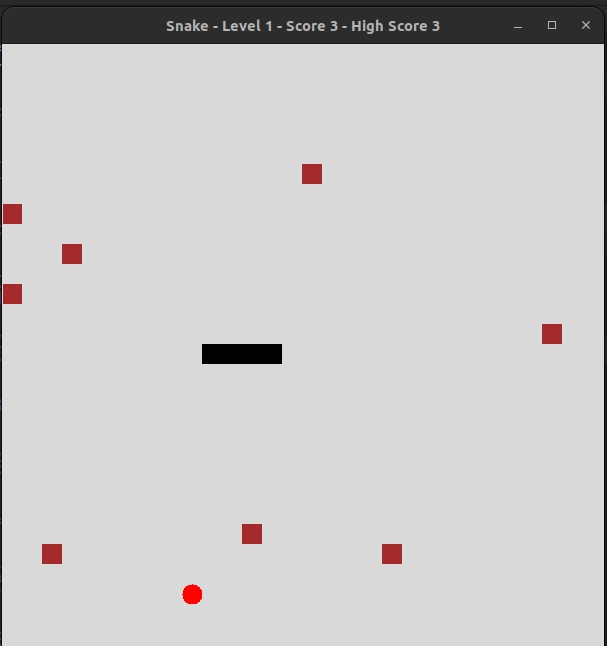
In conclusion, we have built a classic Snake Game using Python's tkinter module. The game consists of a snake that moves around the canvas to collect food and avoid obstacles. Throughout the course of this project, we used different programming concepts such as classes, functions, loops, and events.
Additionally, we implemented features such as updating the score, increasing the game level, adding obstacles, and restarting the game.
This is just one example of what can be done with Python, and there are endless possibilities for what you can create.









 1+ registered

