Do you think IIT Guwahati certified course can help you in your career?
Introduction
Whenever we are using websites, we surely come across pop-ups. Sometimes they suddenly appear to us, leaving us surprised, and at times, they pop up to make our work easier. We have to deal with pop-ups in Katalon Studio too. Today let us find out about Solving Pop-up dialog issue with Katalon Studio.
Solving Pop-up Dialog Issue with Katalon Studio
When we are doing automation testing in Katalon Studio, we have to deal with many types of problems from time to time. Pop-up dialog issue is also one such issue. However, we have to handle it a bit differently compared to normal test objects. In the article, we will find out the ways to take care of and deal with pop-up controls.
About a Pop-up
A pop-up is a small window which appears in the user interface. This may be with or without an intentional action from the user. Technically speaking, a pop-up is a graphical display area which comes in the foreground of the current interface.
Issues with Pop-ups
The issue with pop-ups is that they often appear unexpectedly. There is no guaranteed way to take care of this except to study the application's behaviour and insert scripts to manage the scenario. Another problem with pop-ups is that they are not generated by the AUT. Therefore we have to deal with them using specific keywords.
The following are some regularly used pop-ups that may cause issues in the test web automation:
New browser window.
Alert: An alert box is usually used to ensure that information or a message gets to the user.
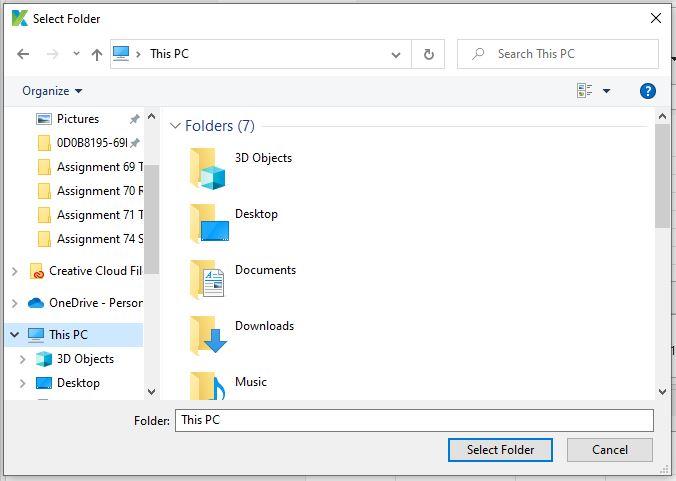
Native Window dialog: This dialog box is common while testing file uploading.
Custom modal dialog: A modal dialog is a pop-up window or a dialog box that appears on top of the current page.
Suggested Solution for Handling Pop-ups
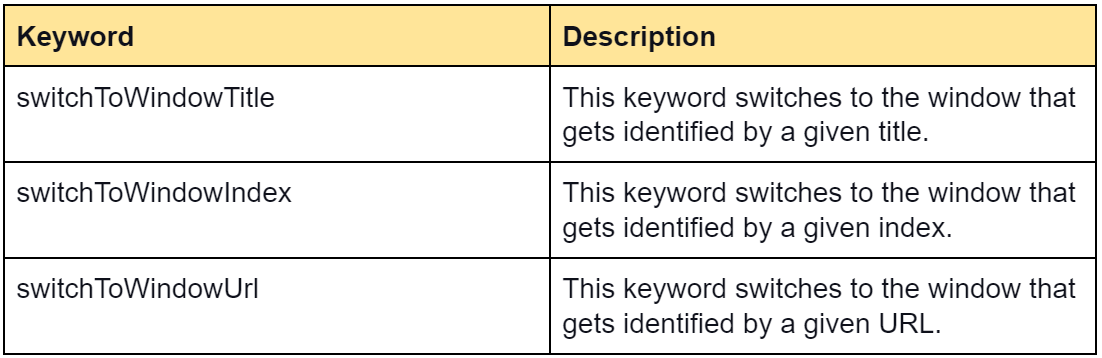
To manage such pop-ups as we have described, we must first capture them with Katalon Studio's Object Spy feature. Then, if appropriate, we use Katalon Studio's "Switch To..." keywords to set focus to the desired pop-up according to our needs. We can use the keywords in different ways and cases as required.
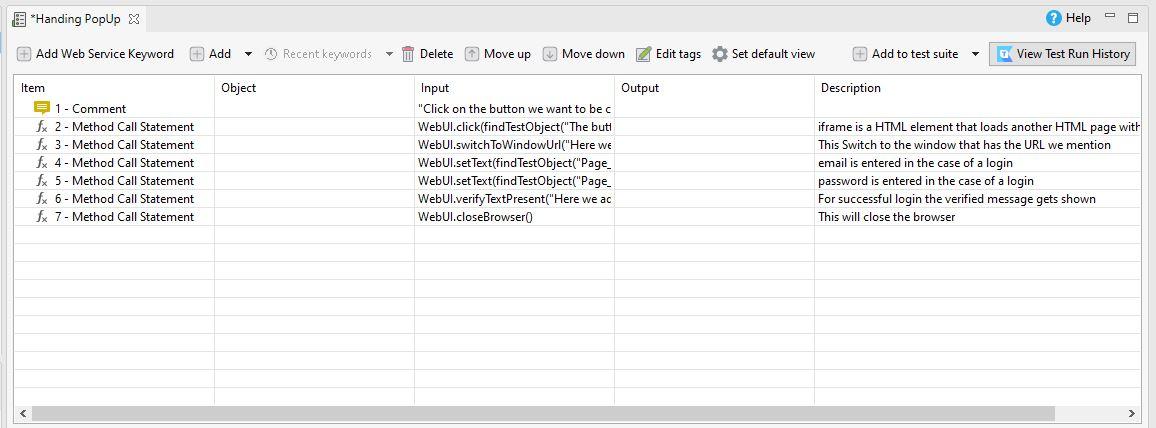
We can see in the screenshot below that by using simple scripts. We are able to handle a pop-up. Here we have used the Switch To Window Title keyword.
'Click on the button we want to be clicked in the iframe'
'iframe is an HTML element which loads another HTML page within the document.'
WebUI.click(findTestObject('The button in iframe gets mentioned here'))

'This Switch to the window that has the title we mention'
WebUI.switchToWindowUrl('Here we will write the title of the window we want to switch to')

'email is entered in the case of a login'
WebUI.setText(findTestObject('Page_Share a link on on the website to login/the object name for login email goes here'), email)

'password is entered in the case of a login'
WebUI.setText(findTestObject('Page_Share a link on on the website to login/the object name for login password goes here'), password)

'For a successful login, the verified message gets shown'
WebUI.verifyTextPresent("Here we add the text we want to verify if present or not",false)

'This will close the browser'
WebUI.closeBrowser()
If we want to, we can use the following keywords too:
Return to The Default Window
We can use the Switch To Default Content keyword to return to the default window or the parent window.
For example:
'This Opens the browser and then navigates to a site that has an iframe'
'iframe is an HTML element which loads another HTML page within the document'
WebUI.openBrowser(GlobalVariable.G_SiteURL)


'this will switch to our target iframe'
WebUI.switchToWindowTitle('add the iframe here')

'This will Switch us back to the default content'
WebUI.switchToDefaultContent()

'this will Close the browser'
WebUI.closeBrowser()
In the above code:
Interacting with Native Windows Dialog
Users can use the Upload File keyword to interact with native Windows dialogs, such as file uploading. We will see an example below:
'This will open the browser and go to a site that has the upload control option'
WebUI.openBrowser('Here we will put the URL to our target website')

'We can use the Upload File keyword to deal with the dialogue that appears. It should be noted that the keyword will go ahead to click on the Choose File button as stated'.
WebUI.uploadFile(findTestObject('choosefile_button'), 'Here we will put the directory of the file to be uploaded example: C:\\codingNinjas.png')

'this will close the browser'
WebUI.closeBrowser()
In the above code:
As previously noted, users can alter the browser's Desired Capabilities to stop pop-ups from appearing.
Frequently Asked Questions
How do we use the spy web utility in Katalon?
We can open the Spy Web Utility from the main toolbar. To do this, we have to click on the Spy Web button. In the Object Spy dialog that appears, we will enter the URL of the application under test (AUT) and the web browser. To begin capturing, we have to click the Start button.
How do we capture an image In Katalon Studio?
We can Select the captured object in the Captured Objects window and click the Add Screenshot button in the bottom right corner. We can also pick Capture by right-clicking on the web element.
Is Katalon capable of parallel execution?
The April 2021 version of Katalon TestOps gives us the option to execute test suites in parallel. This removes the requirement to run test suites sequentially and optimises continuous testing for a quicker and more effective test cycle.
Conclusion
We read about Solving Pop-up dialog issues with Katalon Studio in the blog. We read about the different relative problems arising and saw the various keywords and how to use them. Refer to our courses and explore Coding Ninjas Studio to find more exciting stuff. You can also look into the interview experiences and solve different problems. Look into our Guided paths, test series, libraries and resources to know more.











 5+ registered

