Do you think IIT Guwahati certified course can help you in your career?
Introduction
Have you ever opened a gift box and found another gift box inside it? Now imagine you opened a gift box and found another gift box within it. iFrame works in a similar way. It is an HTML document put inside another HTML document. But sometimes, finding out the text inside the iFrame is challenging. This causes some issues. Let us have a look at how we can handle the iFrame issues with Katalon Studio.
About Iframe
An iframe, also known as Inline Frame, is an HTML document that gets embedded within another HTML document. The iframe HTML element is frequently used to insert material from a different source onto a Web page, for example, an advert.
Handling iFrame issue with Katalon Studio
The HTML iframe is a common form of control used on a website. And when testing, this control must be handled in a precise way. Text and objects within iframes can be a bit tough to verify. For example, even if we can see text in an iframe, automated technologies may not be able to recognise it. We must instruct the script on how to navigate the iframe structure of a website, with that to select the relevant iframe containing the text and its object. This blog will show us how we can handle iframe issues in Katalon Studio.
Importance of Knowing How to Test Iframes
Text and objects within iframes can be tough to verify. For example, even if we can see text in an iframe, automated technologies may not be able to recognise it. We must instruct the script on how to navigate the iframe structure of a website and select the relevant iframe having the text and its object. That is why we should know how to test Iframes.
How to Identify an Iframe
Iframes can be identified in two ways:
If we right-click on an element and see the tag name iframe, the element is considered to be in a frame.
If we right-click on a page and find one of the options below in the context menu, then we can say that the element is available in frames.
a) This frame
b) View frame source
c) Reload frame
Usage Example 1
Let us see and Usage example.
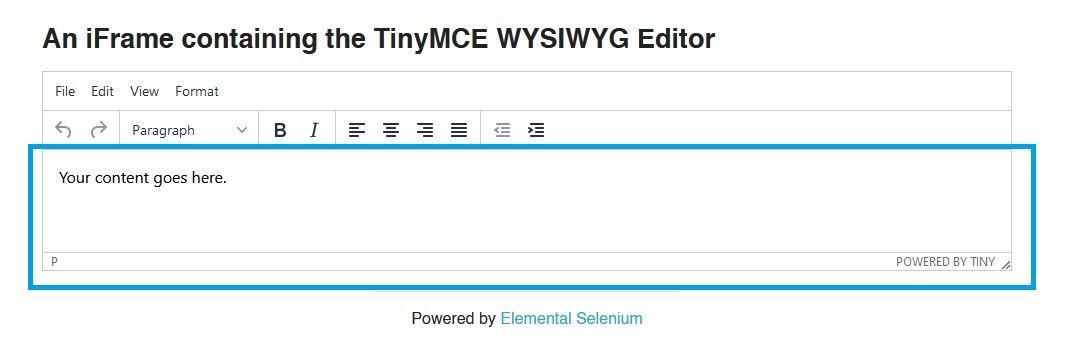
1. Here, let us take an example that we want to capture the Comment text field of a certain website. We may use Katalon's Web Object Spy and test if it can detect the iframe in the region highlighted in Blue.
2. Now, after the Comment iframe gets captured. After this, Katalon will show all of its child elements in the Object Spy dialog.
3. When we save the captured item to Katalon Studio, the iframe will get included as well.
4. Then, using the Set Text keyword, we may add text to the Comment box. This is, of course, by specifying the child element.
Usage Example 2
Let us have a look at the second example.
1. Here, let us take an example that we want to capture the JQueryUI's Drag and Drop example. Where we are able to drag the 'Drag me around' object to other areas of the iframe.
2. As usual, we will use the Object Spy to capture the iframe. The Object Spy can find, capture, and display all of the elements in an iframe.
3. The iframe is included as the item's parent element when we save the captured object to Katalon Studio.
4. If we do not provide the iframe parent for an element, then we must use the Switch To Frame keyword. This is to have Katalon focus on the parent iframe before we may interact with the element.
Script Mode
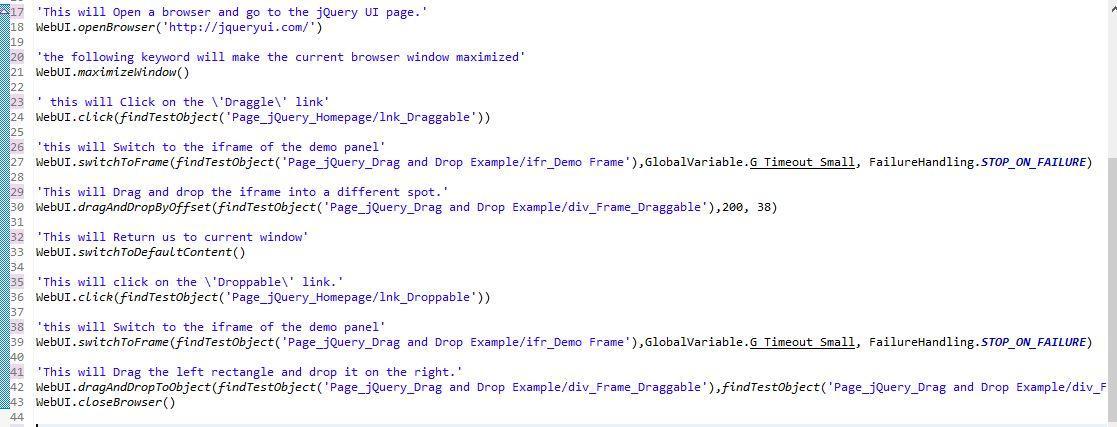
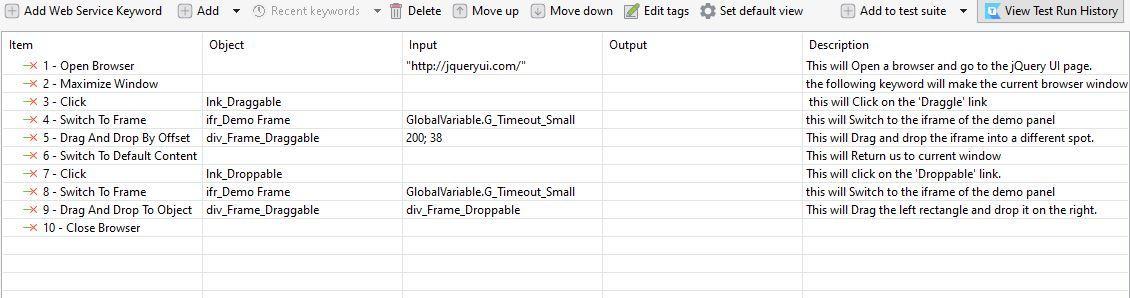
The following code shows how we can switch to the parent frame before dragging and dropping elements within the iframe:
'This will Open a browser and go to the jQuery UI page.'
WebUI.openBrowser('http://jqueryui.com/')

WebUI.maximizeWindow ' Maximise current browser window' ()

' this will make us click on the 'Draggle' link.'
WebUI.click(findTestObject('Page jQuery Homepage/lnk Draggable'))

'Switch to Demo panel iframe'
WebUI.switchToFrame(findTestObject('Page jQuery Drag and Drop Example/ifr Demo Frame'),GlobalVariable.G Timeout Small, FailureHandling.STOP ON FAILURE),GlobalVariable.G Timeout Small, FailureHandling.STOP ON FAILURE)

'This will Drag and drop the iframe into a different spot.'
findTestObject('Page jQuery Drag and Drop Example/div Frame Draggable'),200, 38)

'This will return us to the current window'
WebUI.switchToDefaultContent()

'This will click on the 'Droppable' link.'
WebUI.click(findTestObject('Page jQuery Homepage/lnk Droppable'))

'This will switch to Demo panel iframe'
WebUI.switchToFrame(findTestObject('Page jQuery Drag and Drop Example/ifr Demo Frame'),GlobalVariable.G Timeout Small, FailureHandling.STOP ON FAILURE),GlobalVariable.G Timeout Small, FailureHandling.STOP ON FAILURE)

'This will Drag the left rectangle and drop it on the right.'
WebUI.dragAndDropToObject(findTestObject('Page jQuery Drag and Drop Example/div Frame Droppable'), FailureHandling.STOP ON FAILURE)
WebUI.closeBrowser()
Manual Mode
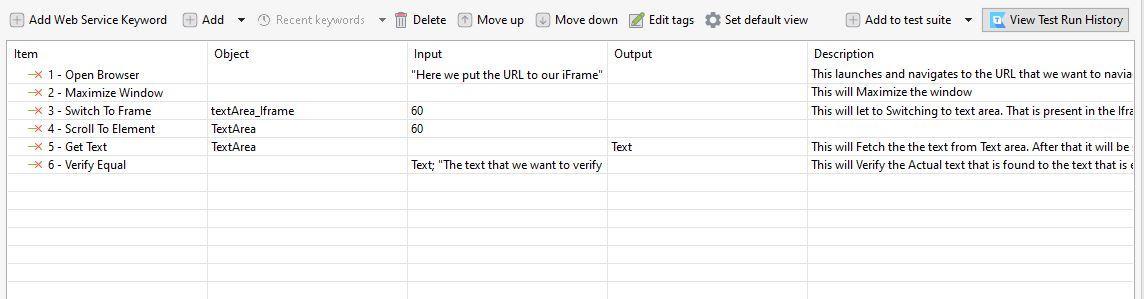
Usage Example 3 Switch To Frame
We can switch between frames using the switchTo() method. After that, we can go ahead with the action on that element. If we want to get a text in the Text Area, then we cannot get it directly by taking the XPath of the element. Because it is available in the iframe, we must first switch to the frame before we can obtain the text of the element.
Script Mode
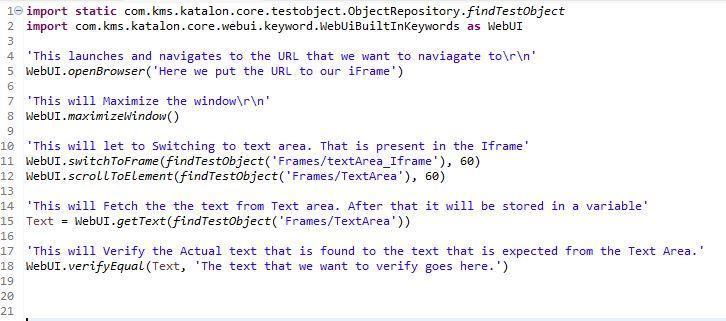
import static com.kms.katalon.core.testobject.ObjectRepository.findTestObject
import com.kms.katalon.core.webui.keyword.WebUiBuiltInKeywords as WebUI

'This launches and navigates to the URL that we want to navigate to\r\n'
WebUI.openBrowser('Here we put the URL to our iFrame')

'This will Maximise the window\r\n'
WebUI.maximizeWindow()

'This will let to switch to the text area. That is present in the Iframe'
WebUI.switchToFrame(findTestObject('Frames/textArea_Iframe'), 60)
WebUI.scrollToElement(findTestObject('Frames/TextArea'), 60)

'This will Fetch the text from the Text area. After that, it will be stored in a variable'
Text = WebUI.getText(findTestObject('Frames/TextArea'))

'This will Verify the Actual text that is found to the text that is expected from the Text Area.'
WebUI.verifyEqual(Text, 'The text that we want to verify goes here.')
Manual Mode
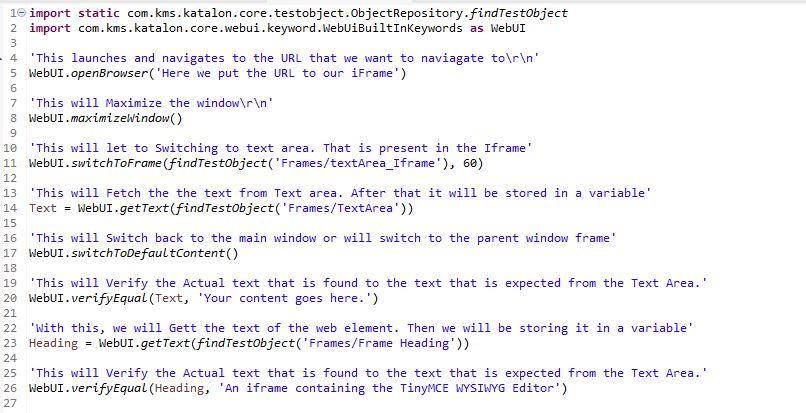
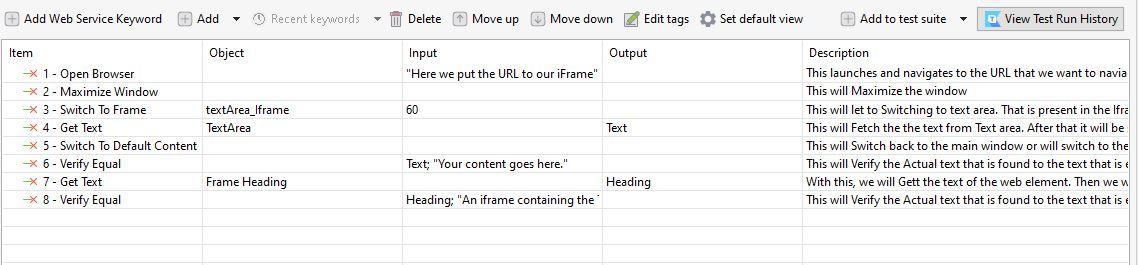
Usage Example 4 Switch to Default Content
When we switch to frames to handle some features, we must switch to the parent node to access more application features. If we do not return to the parent node, our code searches for the next locators within the same frame.
If we want to return to the parent window or main window frame, we use the switch.
Script Mode
import static com.kms.katalon.core.testobject.ObjectRepository.findTestObject
import com.kms.katalon.core.webui.keyword.WebUiBuiltInKeywords as WebUI

'This launches and navigates to the URL that we want to navigate to\r\n'
WebUI.openBrowser('Here we put the URL to our iFrame')

'This will Maximise the window\r\n'
WebUI.maximizeWindow()

'This will lead to switching to the text area. That is present in the Iframe'
WebUI.switchToFrame(findTestObject('Frames/textArea_Iframe'), 60)

'This will Fetch the text from the Text area. After that, it will be stored in a variable'
Text = WebUI.getText(findTestObject('Frames/TextArea'))

'This will Switch back to the main window or will switch to the parent window frame'
WebUI.switchToDefaultContent()

'This will Verify the Actual text that is found to the text that is expected from the Text Area.'
WebUI.verifyEqual(Text, 'Your content goes here.')

'With this, we will Get the text of the web element. Then we will be storing it in a variable'
Heading = WebUI.getText(findTestObject('Frames/Frame Heading'))

'This will Verify the Actual text that is found to the text that is expected from the Text Area.'
WebUI.verifyEqual(Heading, 'An iframe containing the TinyMCE WYSIWYG Editor')
Manual Mode
Common Exceptions
When the target frame to be switched to does not exist, the NoSuchFrameException or InvalidSwitchToTargetException exceptions are thrown.
Frequently Asked Questions
What is iframe?
An iframe, also known as Inline Frame, is an HTML document that gets embedded within another HTML document. The iframe HTML element is frequently used to insert material from a different source onto a Web page, for example, an advert.
What is Katalium in Katalon Studio ?
Katalium is a framework that serves as a blueprint for TestNG and Selenium-based test automation projects.
Why shouldn't we use iFrames excessively?
We should not overuse iFrame or use it excessively. This is because it can cause our page to load slowly and offer a security concern, especially if we include content from a suspicious site. Thus we should consider an iFrame as a component of our content but not of the site.
Conclusion
In the article, we read about the ways of handling the iFrame issues with Katalon Studio. We also saw different examples and their two different modes. Refer to our courses and explore Coding Ninjas Studio to find more exciting stuff. You can also look into the interview experiences and solve different problems. Look into our Guided paths, test series, libraries and resources to know more.









 5+ registered

