Do you think IIT Guwahati certified course can help you in your career?
Introduction
If you are a testing engineer, you must have worked with various testing platforms and heard of a testing platform known as Katalon Studio. Katalon Studio is an open-source automation testing software tool for web and mobile applications developed by Katalon Inc. in the year 2015. It is designed to create and reuse automated test scripts for User Interfaces (UIs) without coding.
In this blog, we will discuss how to integrate TestLink into Katalon studio. But before that, let’s get familiar with TestLink.
What is TestLink?
TestLink is a popularly used web-based open-source test management tool. It is maintained and developed by Teamtest. The Testlink tool supports test plans, test projects, test cases, test suites, and user management, along with several reports and statistics.
If you want to learn more about TestLink and its features, follow this Wikipedia Article.
Now, we are familiar with the TestLink tool. Let’s learn how to integrate TestLink with Katalon studio.
TestLink Intergration
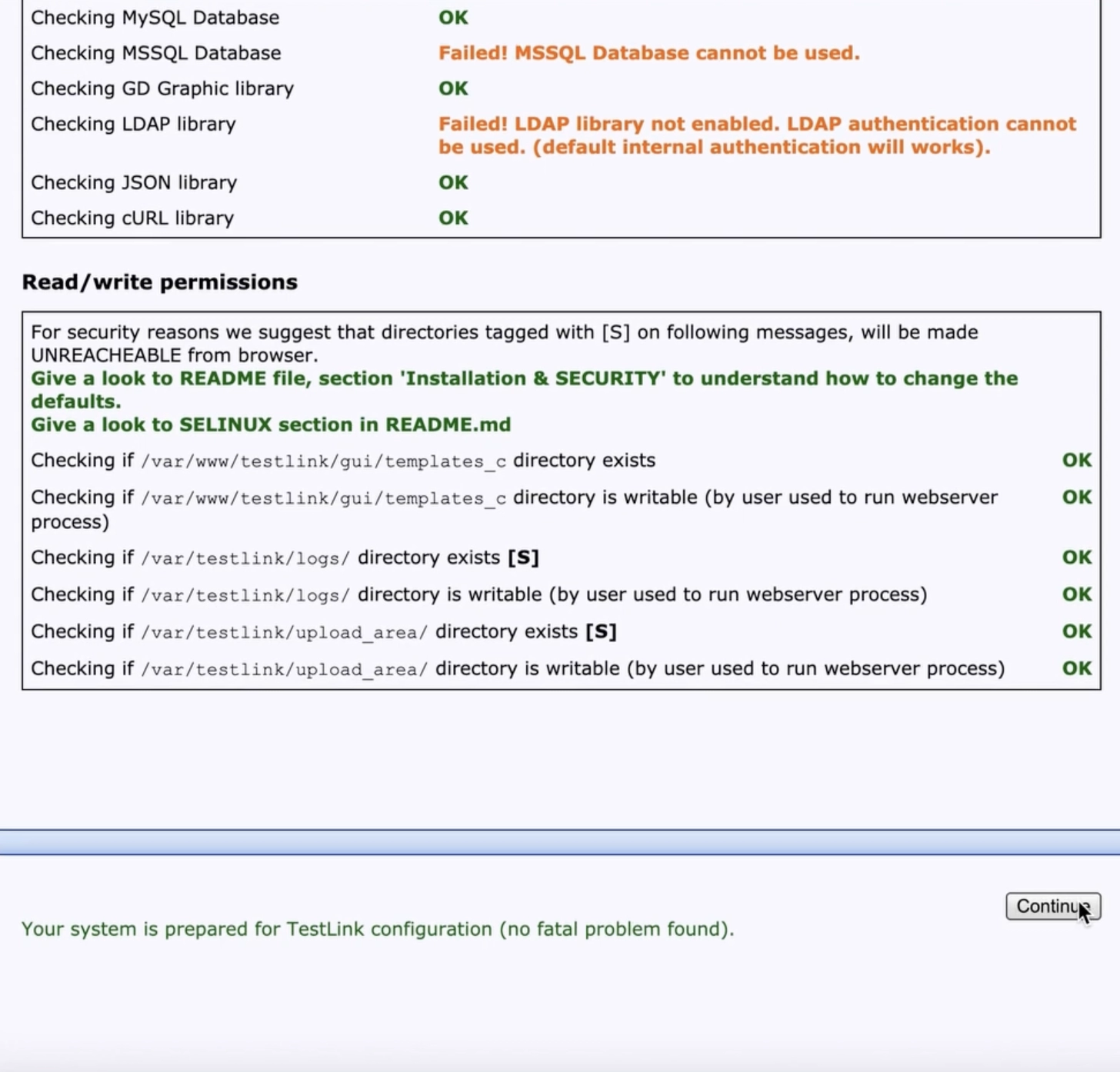
To integrate TestLink with the Katalon studio, follow the steps below:
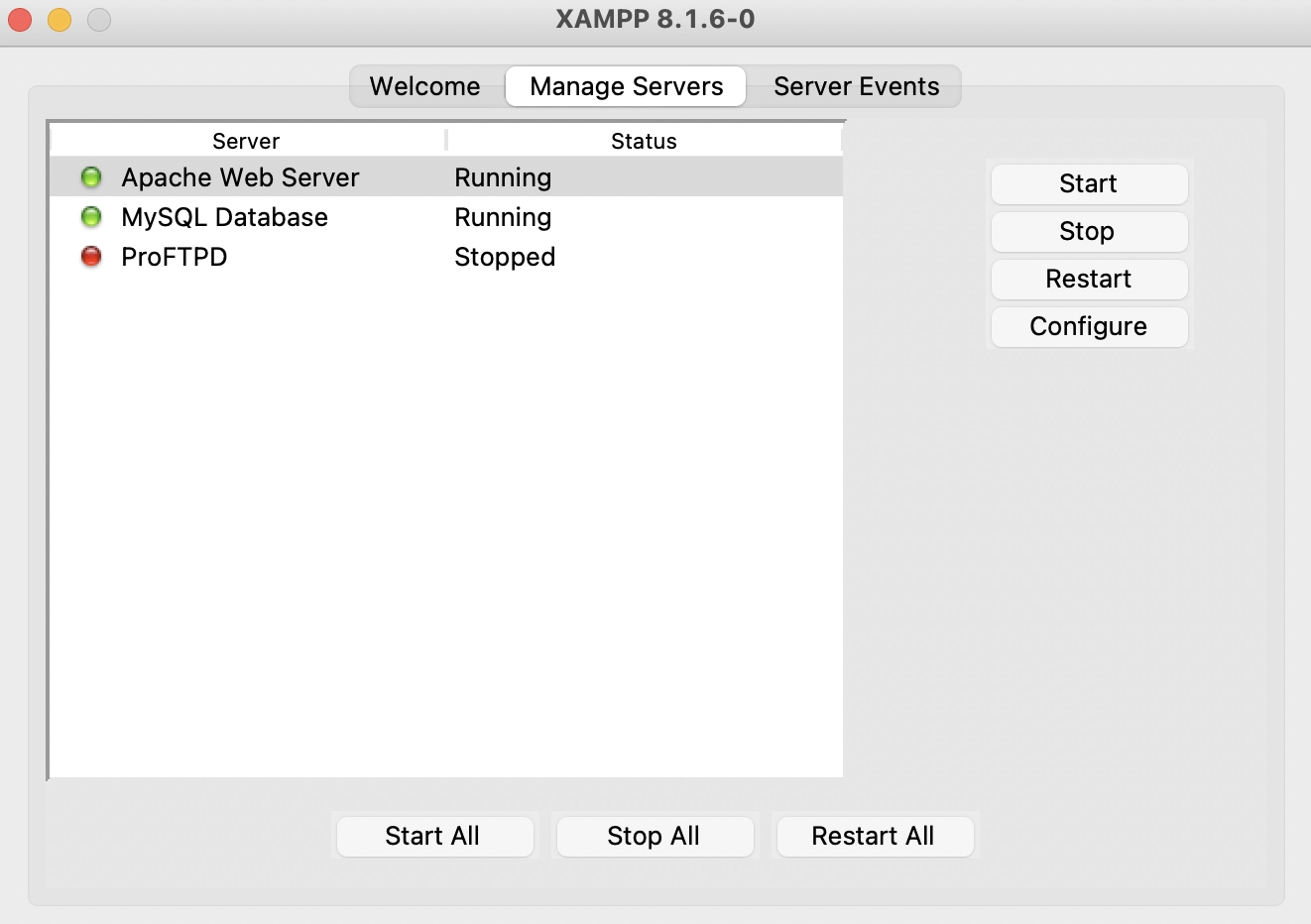
Step 2: Once the XAMPP is installed successfully. The Tomcat server will be started by default. You need to start the MySQL and Apache services from XAMPP Control Panel.
Step 3: Now, download the latest version of TestLink from SourceForge.
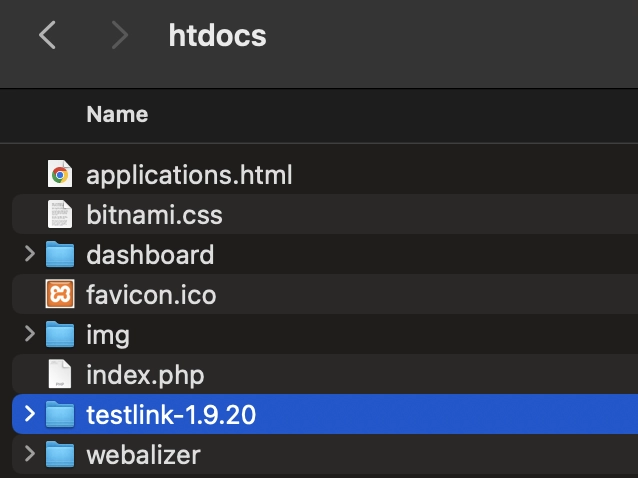
Step 4: Once the TestLink has been installed successfully. Extract the test link and place it in XAMPP’s htdocs folder.
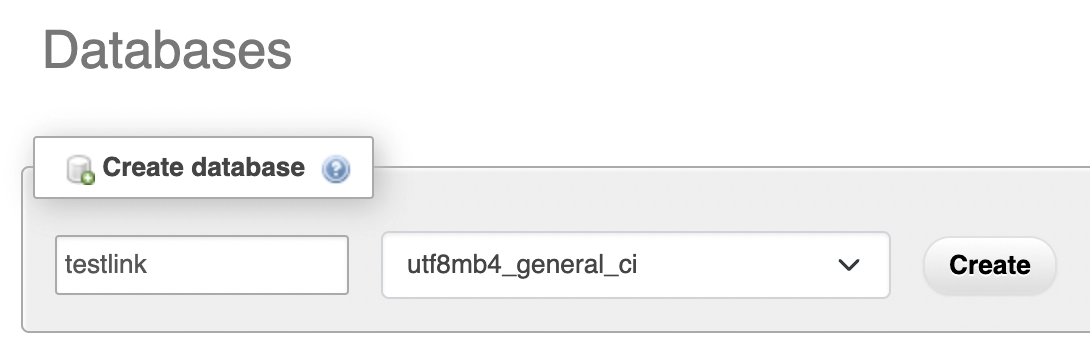
Step 5: Go to the link http://localhost/phpmyadmin/ in any preferred browser. Create a new database named testlink from the database menu.
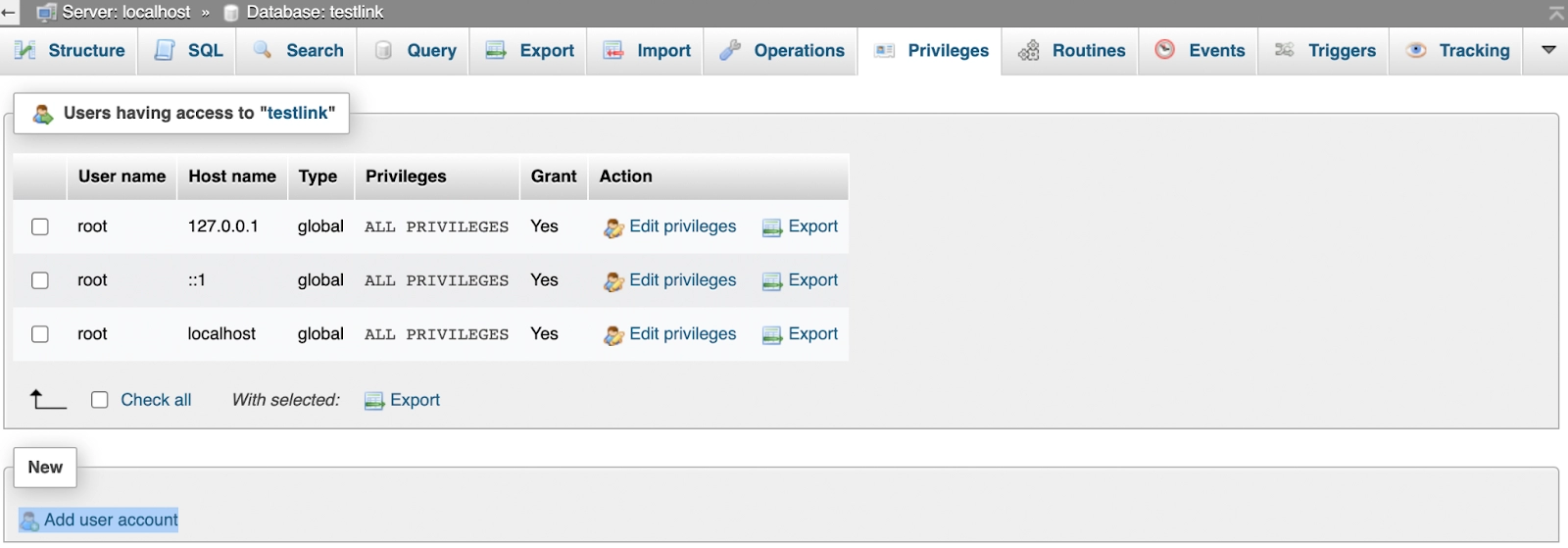
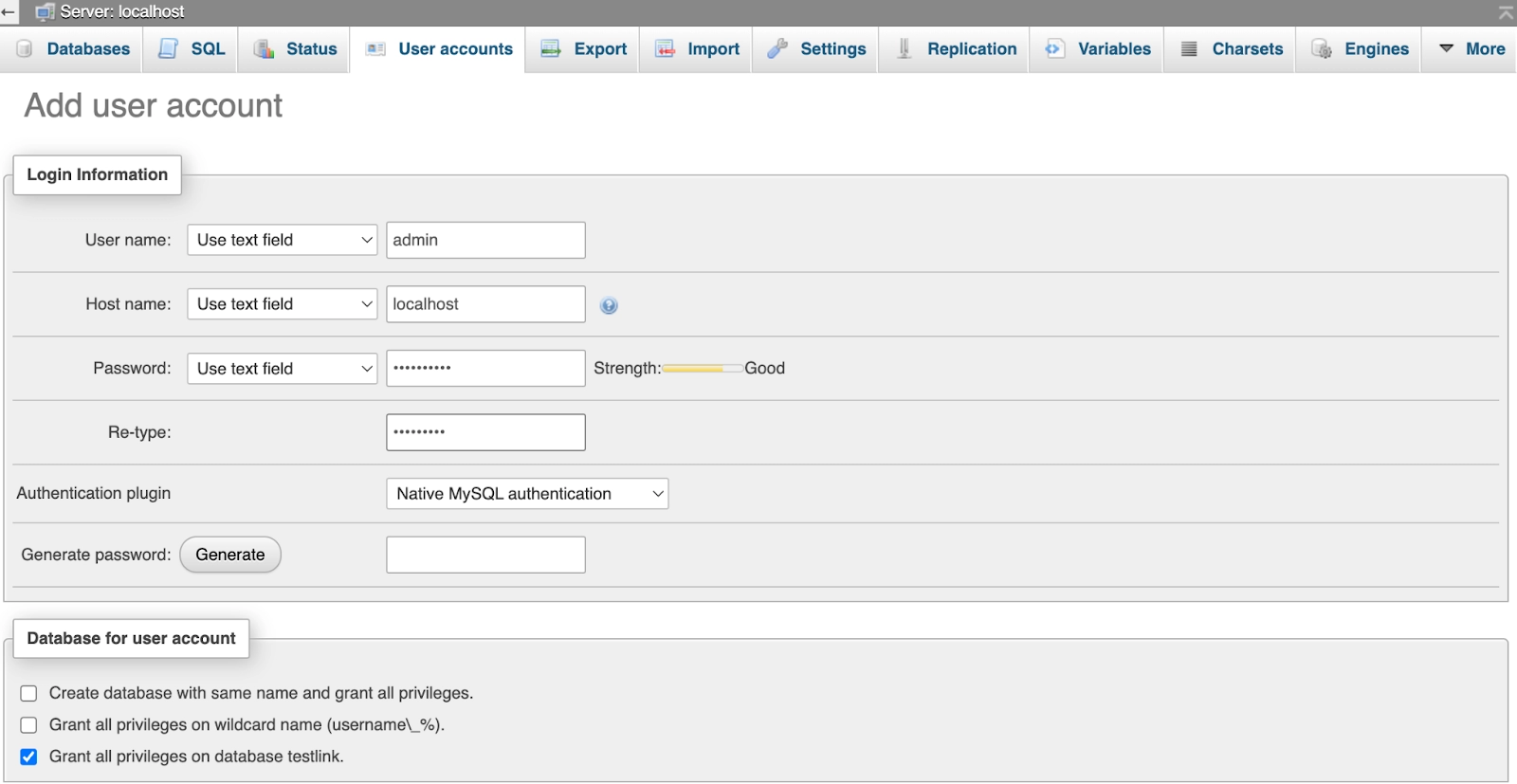
Step 6: Now, add a user account for the testlink database by clicking on the Privileges tab.
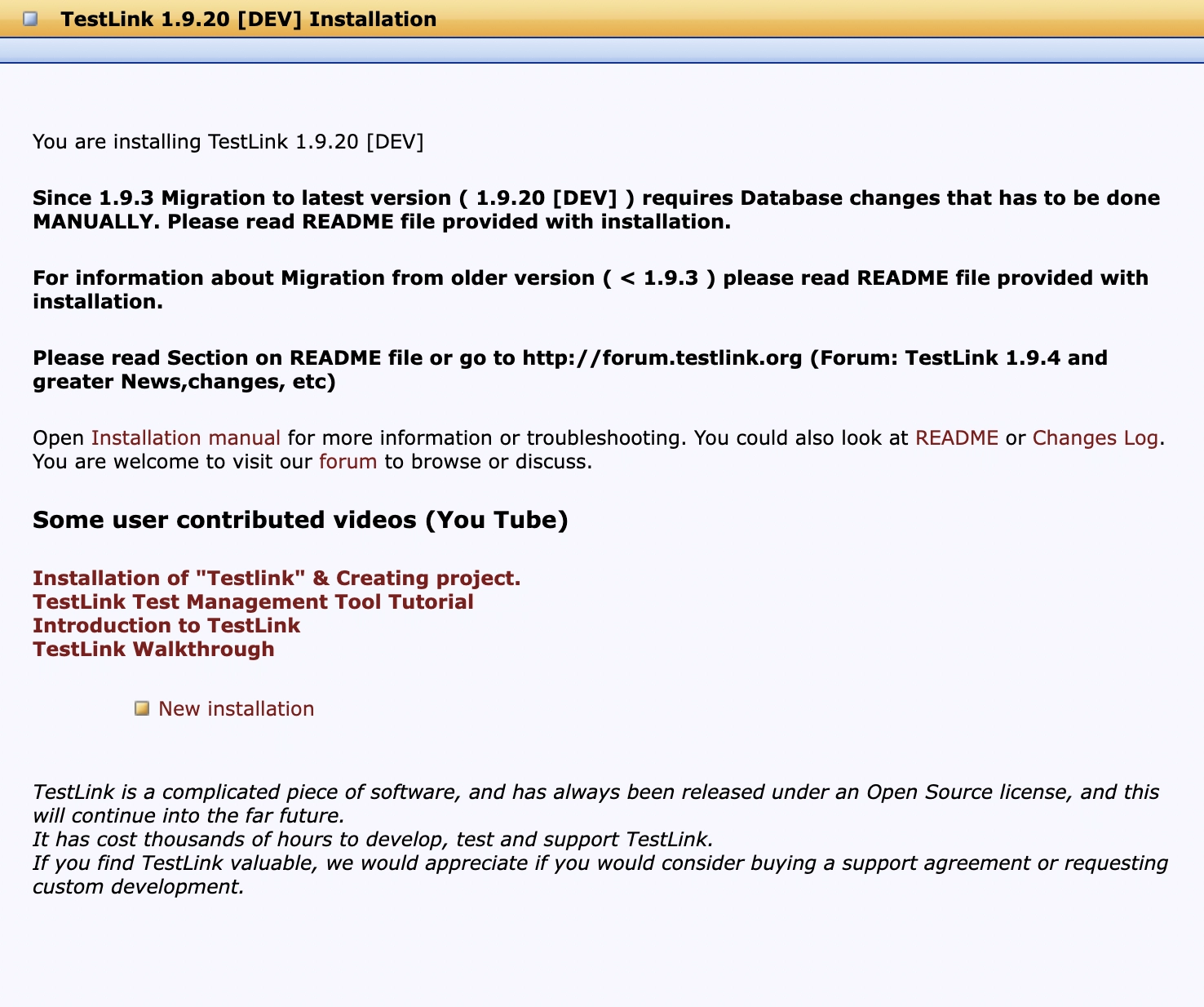
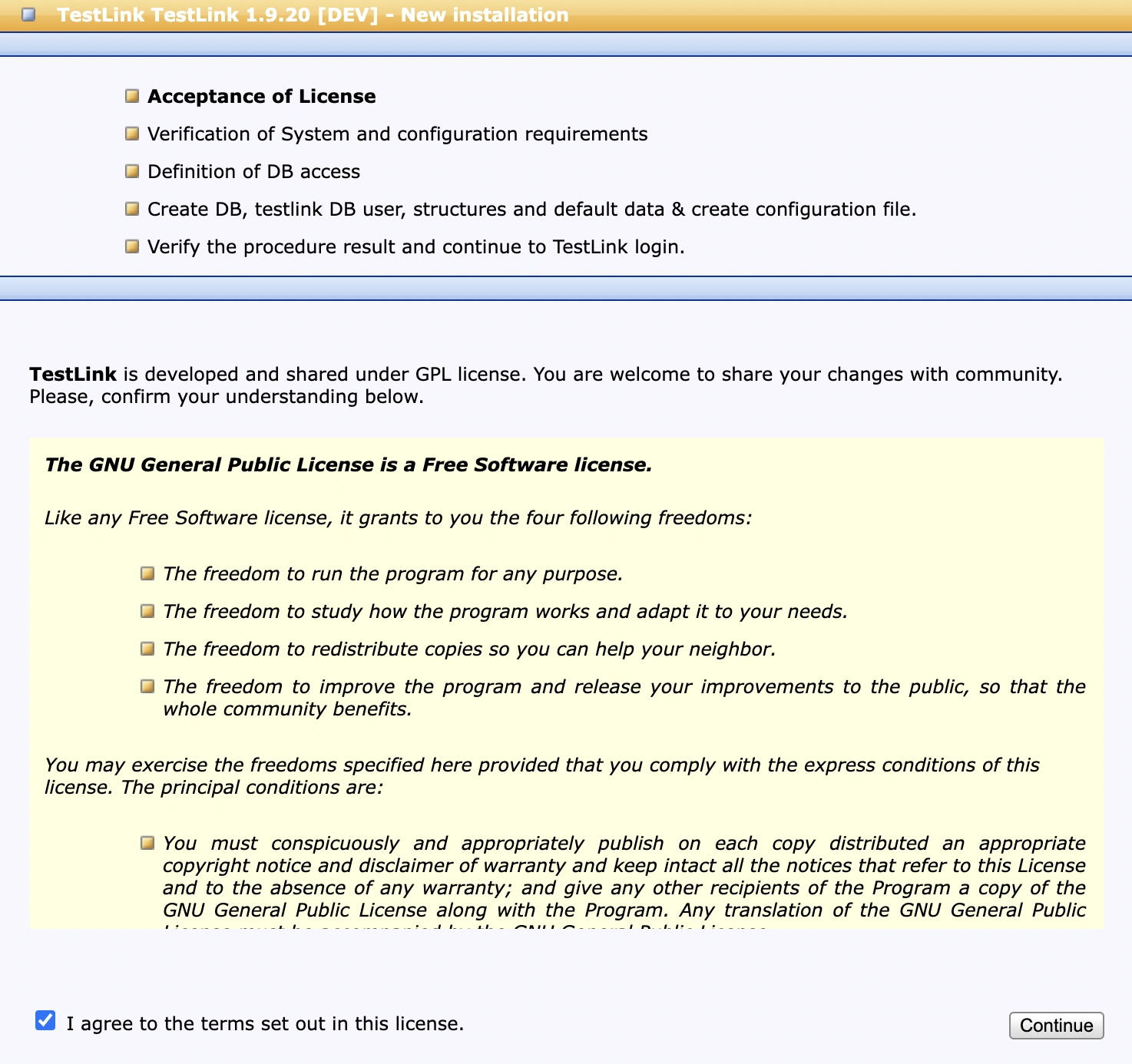
Step 8: Check the “I agree to the terms set out in this license” checkbox and then click on the “Continue” button.
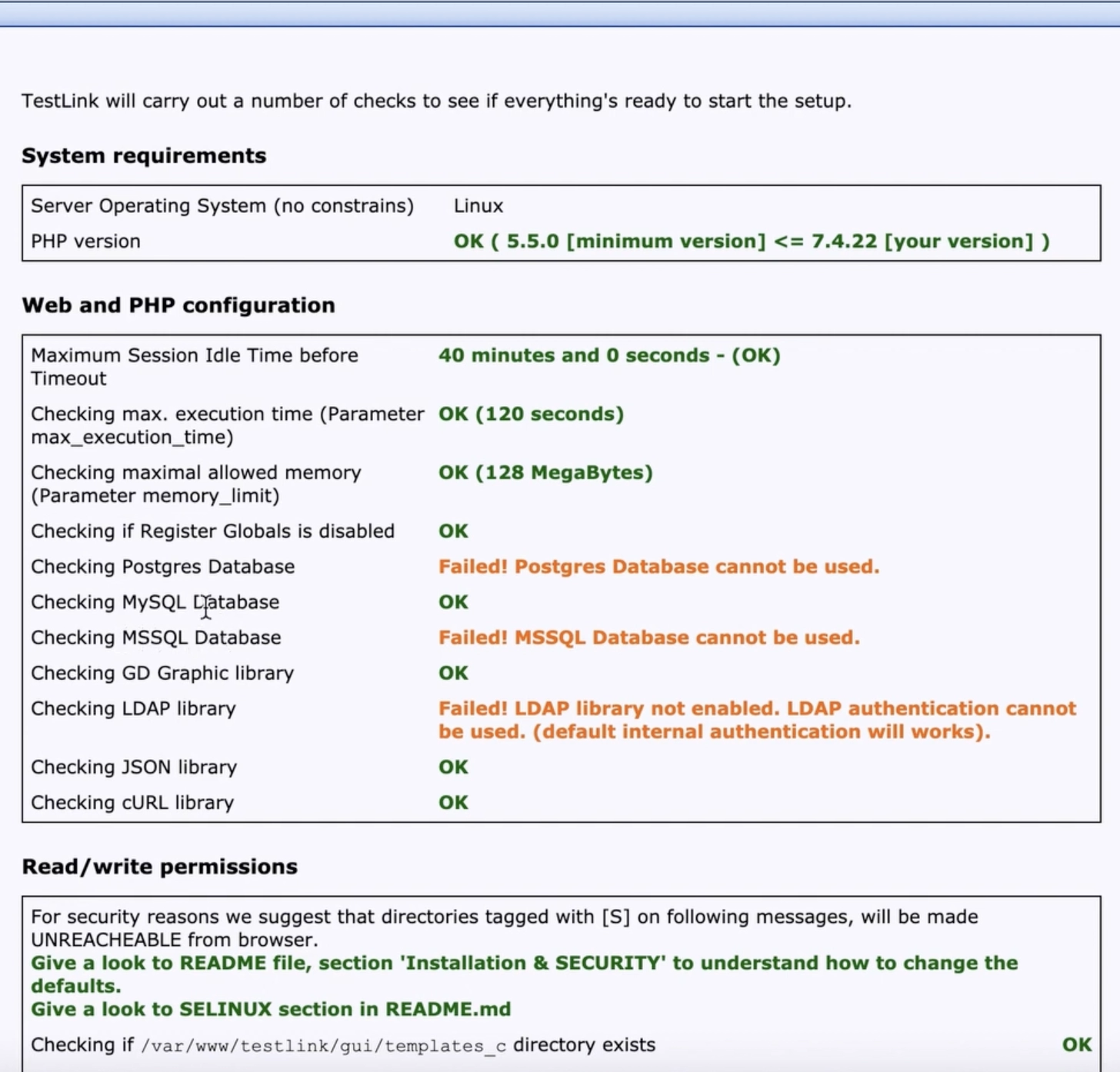
Step 9: There will be some permission that may fail. So you need to Navigate to the testlink package and open the ‘config.inc.php’ file. Update the following parameters:-
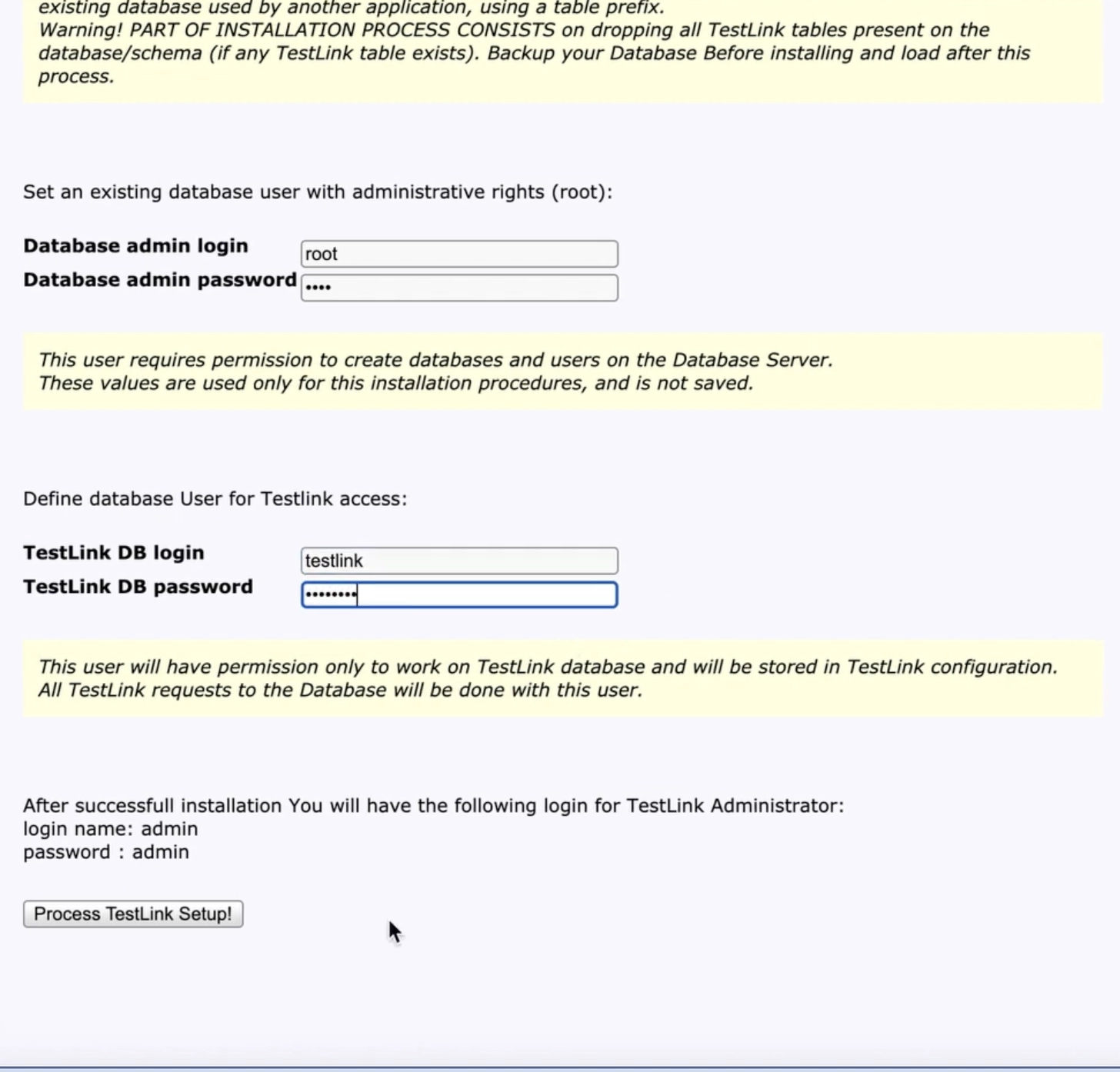
Step 10: Again click on the “Continue” button. You will be navigated to the page where the Database name, Database admin login, Database admin password, TestLink DB login, and TestLink DB password will be required to fill.
Enter the Database name as testlink.
Enter the Database admin login as admin.
Enter the Database admin password as admin.
Enter the TestLink DB login and password as you have set in the TestLink database created in the step 6.
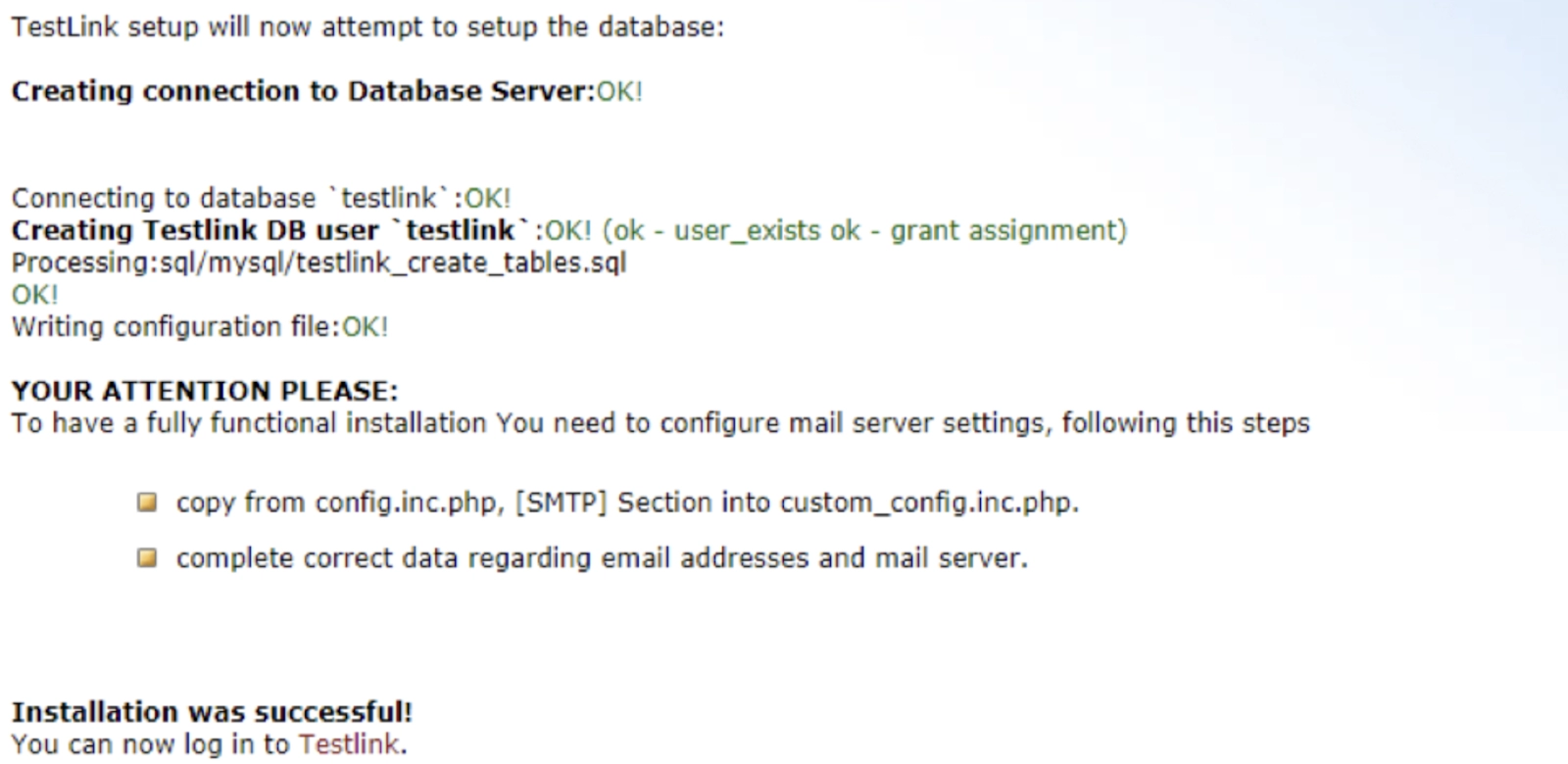
Step 11: Click on the ‘Process TestLink Setup!’ button. If the installation is successful, the following page will appear.
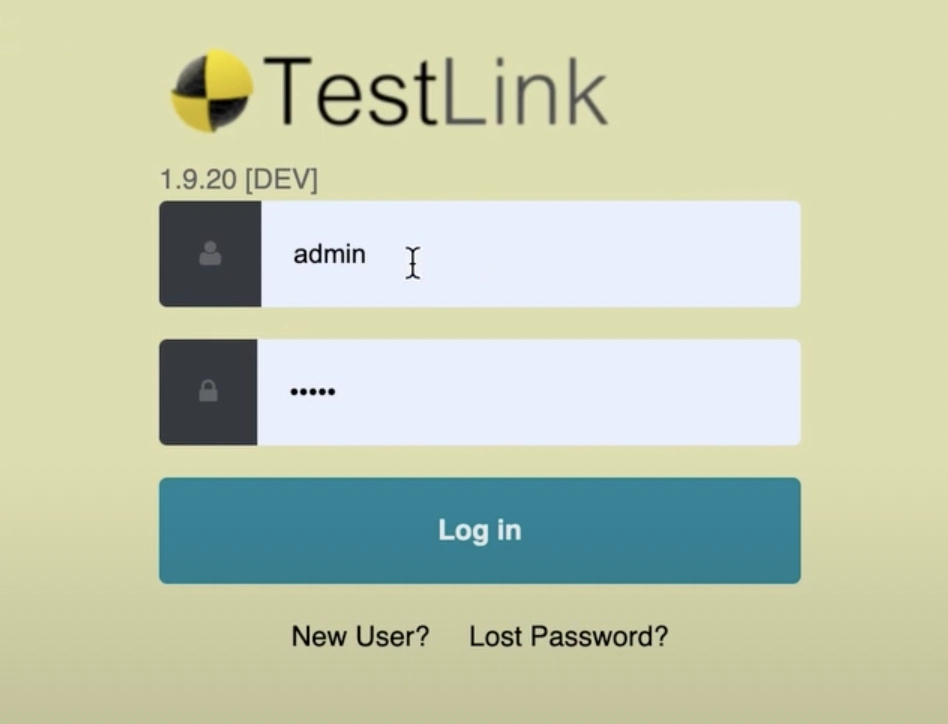
As of now, we have successfully installed the TestLink tool. We can now login to TestLink.
Once you successfully login, it prompts you to create a Test Project. Now you can create a Test Plan, Build, and Test suite with Test cases by selecting the corresponding links from the Dashboard.
Katalon Studio is an open-source automation testing software tool for web and mobile applications developed by Katalon Inc. in the year 2015. It is designed to create and reuse automated test scripts for User Interfaces (UIs) without coding.
What is an Appium Server?
Appium is an open-source tool for automating mobile web, native, and hybrid applications on Android mobile, iOS mobile, and Windows desktop platforms.
What is TestLink?
TestLink is a popularly used web-based open-source test management tool. It is maintained and developed by Teamtest. The Testlink tool supports test plans, test projects, test cases, test suites, and user management, along with several reports and statistics.
What is XMAPP?
XAMPP is a pen-source cross-platform web server solution stack package developed by Apache Friends.
What is an API?
API stands for Application Programming Interface, which allows two or more computer applications to communicate with one another.
Conclusion
In this article, we have extensively discussed how to integrate TestLink in Katalon studio. I hope you enjoyed reading this article on TestLink Integration in Katalon Studio.







 8+ registered