Get a skill gap analysis, personalised roadmap, and AI-powered resume optimisation.
Introduction
Tic Tac Toe is a simple and classic two-player game in which players take turns placing their symbol (either "X" or "O") on a 3x3 grid. The game's objective is to get three symbols in a row, either horizontally, vertically, or diagonally.
In this blog post, we will go over a Python implementation of the game using the Tkinter library to create a graphical user interface (GUI).
Python is a high-level programming language known for its simple syntax, readability, and versatility. It is widely used in various fields, such as web development, data analysis, machine learning, and scientific computing, to name a few.
What is Tkinter?
Tkinter is a Pythonlibrary that provides a set of tools for creating graphical user interfaces (GUIs) for desktop applications. It is one of the most commonly used GUI libraries for Python and is included with most Python installations. With Tkinter, you can create windows, buttons, labels, menus, and other graphical elements to build a GUI for your Python application.
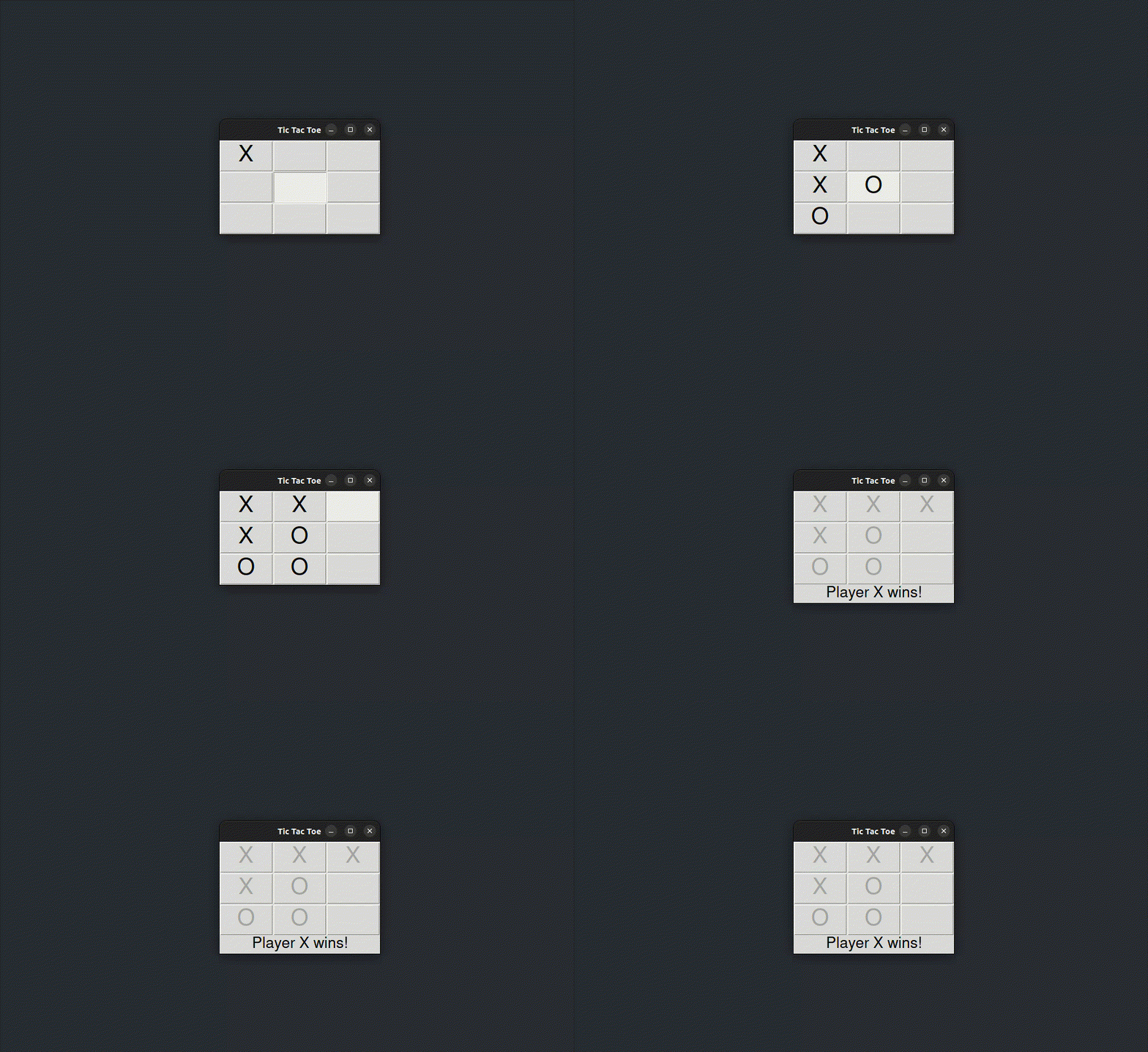
In this blog post, we will explore how to create a Tic Tac Toe game using Python and Tkinter. We will go through the steps of building a simple and classic two-player game, in which players take turns placing their symbol on a 3x3 grid.
The game aims to get three symbols in a row, either horizontally, vertically, or diagonally. We will use the Tkinter library to create the graphical user interface for the game.
To follow along with this tutorial, you should have a basic understanding of Python programming and some familiarity with the Tkinter library. By the end of this tutorial, you will have a working Tic Tac Toe game that you can play with your friends and family!
First, we will create a class for the Tic Tac Toe game. In the __init__ method of the class, we will initialize the game window and set the window title to "Tic Tac Toe." We will also create a 3x3 grid of buttons using a nested loop and the Button class from Tkinter.
import tkinter as tk

class TicTacToe:
    def __init__(self, master):
        # Initialise the game window
        self.master = master
        self.master.title("Tic Tac Toe")

        # Create the buttons for the game board
        self.buttons = []
        for row in range(3):
            button_row = []
            for col in range(3):
                # Each button has a command that calls the handle_click method
                button = tk.Button(
                    self.master,
                    text="",
                    font=("Helvetica", 30),
                    width=3,
                    height=1,
                    command=lambda row=row, col=col: self.handle_click(row, col)
                )
                # Position the button in the game grid
                button.grid(row=row, column=col, sticky="nsew")
                button_row.append(button)
            self.buttons.append(button_row)
You can also try this code with Online Python Compiler
Note that each button has a command that calls the handle_click method with the row and column indices of the button as arguments. This method will be called whenever a player clicks on a button, and it will update the game board and switch to the other player's turn.
We will also keep track of the current player with an instance variable called current_player, which will be set to "X" at the start of the game.
class TicTacToe:
    def __init__(self, master):
        # Initialize the game window
        self.master = master
        self.master.title("Tic Tac Toe")

        # Keep track of the current player (either "X" or "O")
        self.current_player = "X"
You can also try this code with Online Python Compiler
2. Next, we will create a method called handle_click that takes the row and column indices of the clicked button as arguments. In this method, we will check if the clicked cell is empty, and if so, update the game board and switch to the other player's turn.
class TicTacToe:
    def __init__(self, master):
        # Initialize the game window...

        def handle_click(self, row, col):
        # Check if the clicked cell is empty
        if self.buttons[row][col]['text'] == "":
            # Update the board and the button text with the current player's symbol
            self.buttons[row][col].config(text=self.current_player)
            # Switch to the other player's turn
            self.switch_player()
You can also try this code with Online Python Compiler
Note that we are using the config method to update the text of the clicked button to the current player's symbol.
3. The switch_player() method: The switch_player() method is responsible for alternating between "X" and "O" after each move. If the current player is "X", it sets self.current_player to "O"; otherwise, it sets it to "X".
def switch_player(self):
    # Alternate between "X" and "O" after each move
    if self.current_player == "X":
        self.current_player = "O"
    else:
        self.current_player = "X"
You can also try this code with Online Python Compiler
4. The check_win() method: The check_win() checks if any player has won the game. It does this by checking each row, column, and diagonal for three of the same symbol in a row. If it finds a winning combination, it returns True; otherwise, it returns False.
def check_win(self):
    # Check if any row has three of the same symbol in a row
    for i in range(3):
        if self.board[i][0] == self.board[i][1] == self.board[i][2] != "":
            return True
    # Check if any column has three of the same symbol in a row
        if self.board[0][i] == self.board[1][i] == self.board[2][i] != "":
            return True
    # Check if the diagonal from top-left to bottom-right has three of the same symbol
    if self.board[0][0] == self.board[1][1] == self.board[2][2] != "":
        return True
    # Check if the diagonal from top-right to bottom-left has three of the same symbol
    if self.board[2][0] == self.board[1][1] == self.board[0][2] != "":
        return True
    # If no winning combination is found, return False
    return False
You can also try this code with Online Python Compiler
5. The check_tie() method: The check_tie() method checks if the game is tied. It does this by checking if all cells are filled. If all cells are filled and no player has won, it returns True; otherwise, it returns False.
def check_tie(self):
    # Check if all cells are filled
    for i in range(3):
        for j in range(3):
            if self.board[i][j] == "":
                return False
    # If all cells are filled and no one has won, the game is tied
    return True
You can also try this code with Online Python Compiler
6. The game_over() method: The game_over() method is called when the game is over (either because a player has won or the game is tied). It disables all buttons and displays a message announcing the winner or declaring a tie.
def game_over(self):
    # Disable all buttons and display a message announcing the winner
    for row in self.buttons:
        for button in row:
            button.config(state="disabled")
            if self.check_win():
                winner = self.current_player
                message = f"Player {winner} wins!"
            else:
                message = "It's a tie!"
    # Create a label to display the game-over message
    msg_label = tk.Label(self.master, text=message, font=("Helvetica", 20))
    msg_label.grid(row=3, column=0, columnspan=3)
You can also try this code with Online Python Compiler
We will now add the methods to the TicTacToe class that we created in the previous code snippets to complete the game implementation.
The full code for the game is shown below:
import tkinter as tk

# Define a class for the Tic Tac Toe game
class TicTacToe:
  def __init__(self, master):
      # Initialize the game window
      self.master = master
      self.master.title("Tic Tac Toe")

      # Keep track of the current player (either "X" or "O")
      self.current_player = "X"

      # Initialize the game board as an empty 3x3 array
      self.board = [
          ["", "", ""],
          ["", "", ""],
          ["", "", ""]
      ]

      # Create the buttons for the game board
      self.buttons = []
      for row in range(3):
          button_row = []
          for col in range(3):
              # Each button has a command that calls the handle_click method
              button = tk.Button(
                  self.master,
                  text="",
                  font=("Helvetica", 30),
                  width=3,
                  height=1,
                  command=lambda row=row, col=col: self.handle_click(row, col)
              )
              # Position the button in the game grid
              button.grid(row=row, column=col, sticky="nsew")
              button_row.append(button)
          self.buttons.append(button_row)

  def handle_click(self, row, col):
      # Check if the clicked cell is empty
      if self.board[row][col] == "":
          # Update the board and the button text with the current player's symbol
          self.board[row][col] = self.current_player
          self.buttons[row][col].config(text=self.current_player)
          # Check if the current player has won or the game is tied
          if self.check_win() or self.check_tie():
              # If so, call the game_over method
              self.game_over()
          else:
              # If not, switch to the other player's turn
              self.switch_player()

  def switch_player(self):
      # Alternate between "X" and "O" after each move
      if self.current_player == "X":
          self.current_player = "O"
      else:
          self.current_player = "X"

  def check_win(self):
      # Check if any row has three of the same symbol in a row
      for i in range(3):
          if self.board[i][0] == self.board[i][1] == self.board[i][2] != "":
              return True
      # Check if any column has three of the same symbol in a row
          if self.board[0][i] == self.board[1][i] == self.board[2][i] != "":
              return True
      # Check if the diagonal from top-left to bottom-right has three of the same symbol
      if self.board[0][0] == self.board[1][1] == self.board[2][2] != "":
          return True
      # Check if the diagonal from top-right to bottom-left has three of the same symbol
      if self.board[2][0] == self.board[1][1] == self.board[0][2] != "":
          return True
      # If no winning combination is found, return False
      return False

  def check_tie(self):
      # Check if all cells are filled
      for i in range(3):
          for j in range(3):
              if self.board[i][j] == "":
                  return False
      # If all cells are filled and no one has won, the game is tied
      return True

  def game_over(self):
      # Disable all buttons and display a message announcing the winner
      for row in self.buttons:
          for button in row:
              button.config(state="disabled")
              if self.check_win():
                  winner = self.current_player
                  message = f"Player {winner} wins!"
              else:
                  message = "It's a tie!"
      # Create a label to display the game-over message
      msg_label = tk.Label(self.master, text=message, font=("Helvetica", 20))
      msg_label.grid(row=3, column=0, columnspan=3)

# Create the main window and start the game
root = tk.Tk()
game = TicTacToe(root)
root.mainloop()
You can also try this code with Online Python Compiler
Python Tkinter can be used to create simple games, but it may not be the best choice for complex games that require advanced graphics and performance. Dedicated game engines or frameworks like Pygame or Unity are better suited for complex game development.
Should I learn Tkinter or pygame?
If you want to create desktop GUI applications with a graphical interface, you should learn Tkinter. If you want to create games or interactive multimedia applications, you should learn Pygame.
Is tkinter front end or backend?
Tkinter is a front-end user interface (UI) library for Python.
Which is the easiest GUI in Python?
Tkinter is often considered the easiest GUI toolkit in Python, especially for beginners.
Conclusion
In conclusion, Python and Tkinter are powerful combinations for creating graphical user interfaces. With its simplicity and ease of use, Python has become popular for developers looking to create GUI applications. Tkinter provides a robust and versatile framework for easily building interactive user interfaces.
Whether you're a seasoned developer or just starting out, learning Python and Tkinter can be valuable to your skill set. With its vast community and resources, there are countless opportunities to learn and improve your knowledge.









 7+ registered

