Do you think IIT Guwahati certified course can help you in your career?
Introduction
Hello ninja, We all upload our pictures and files to cloud storage tools like google cloud or amazon, etc., to keep our files safe and easily accessible. The same way testers upload their test execution results to test management tools.
In this article, we will learn how to view test execution results. We also learn about these tools' basics and how to upload Katalon Studio test execution results to qTest and Katalon TestOps.
About Katalon Studio
Doing everything manually is tiring and time-consuming for developers. A work like testing multiple aspects every time you make changes would become a problem. As a solution to this, Katalon Studio offers Testing Automation. It has a rich set of features to allow test automation. This includes scaling, managing, and collaboration. You can perform the entire test cycle in Katalon Studio.
Katalon Studiois a software tool for automated testing. It is used for web, API, mobile, and desktop application testing. Katalon platform provides various tools like Katalon Studio, Katalon Studio Enterprise, Katalon Runtime Engine, Katalon TestCloud, Katalon TestOps, and Katalon Recorder.
It was developed in January 2015 by Katalon and Inc.
Test execution in Katalon
Firstly, let's learn some basics.
A test case in katalon is the recipe to execute a test that consists of commands to perform on a project for a specific purpose.
Test suites in katalon are a collection of test cases.
Test execution refers to the process of building and managing, and running the test.
You can build a test in Katalon in the groovy language and instruct the platform to perform specific actions on your project. To manage the test, you change the test properties in the “execution information” bar.
For test execution in Katalon, you follow the below-given steps.
Open a test suite.
From the main toolbar, select the ‘run command.’
A dropdown will appear. Select the different environments for the execution of the test suite. The environments offered by katalon are Browsers, Mobile Devices, Windows, Remote, and Custom.
Once you have executed the test, the “JOB PROGRESS” is triggered automatically. It is a pop-up box that displays the current status of the test and gives you instantaneous details of the test throughout the test execution.
Test Execution Results
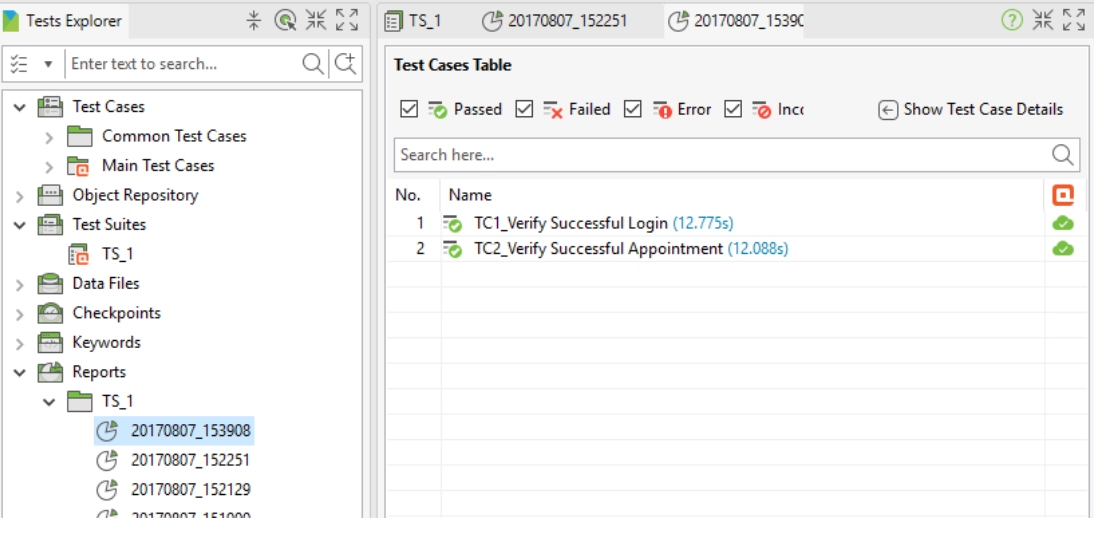
To view the instantaneous results of a test, you can refer to the JOB PROGRESS box. This box automatically appears when we execute a test. But when you want to view test execution results of a past test, you refer to the results tab at the bottom of the screen. It is shown in the image below.
Credit: Katalon studio docs
It majorly has two sections:
Test cases table.
Summary, execution setting, and execution environment.
The table below shows the functions of different sections while you view test execution results in Katalon.
The above table must have cleared how to view test execution results in Katalon. Now that you know how to view them in katalon. Let us learn to upload Katalon Studio test execution results to qTest and TestOps in detail. But first, let’s learn a few things about qTest.
About qTest
qTest is a management tool for tests. You can navigate through different tests and test execution-related information easily. It has advanced the testing domain of technology. It was developed by QASymphony. It is cloud-based.
It helps in several aspects, such as project management, bug tracking, test management, rapid development, etc.
qTest provides a free trial for 14 days. Only four users can use the qTest free trial version. You will need a business email id and the below-shown information to get the qTest free trial.
You get the free license if you use a business email Id. qTest supports various browsers. It can also be integrated with multiple tools, such as Katalon Studio.
Upload Results to qTest
To let anyone view test execution results without granting permission or exposure to the whole project, you can simply upload results to qTest. First, you must ensure that the qTest of version 1.0 and above is integrated with Katalon studio to proceed further. You can view test execution results in several aspects in the qTest once tests are uploaded.
Credit: Katalon studio docs
The below table shows all the elements that can be seen and analyzed in qTest.
You can upload Katalon Studio test execution results to qTest in two ways:
Upload automatically.
Upload manually.
We will discuss both methods to upload Katalon Studio test execution results to qTest in detail.
Upload Results Automatically
The steps to upload Katalon Studio test execution results to qTest automatically are:
Go to Project > Settings > Plugins > qTest.
Tick the box “Automatically submit test run results” by clicking on it.
Go to results at the bottom of the screen.
Test execution result window opens.
Credit: Katalon studio docs
Click on the test you want to view test execution results in qTest for and click on show test case details.
Test case log appears. Go to the integration tab.
The qTest test execution results are displayed.
Upload Results Manually
The steps to upload Katalon Studio test execution results to qTest manually for Test cases are as follows:
Go to the results tab at the bottom of the screen.
Right-click on the test result you want to upload in the test case table.
A drop-down box will appear.
Credit: Katalon studio docs
Click on qTest.
A drop-down option will appear.
Click on upload.
View test execution results in the qTest test runner to ensure complete uploading.
The steps to upload Katalon Studio test execution results to qTest manually for Test suites are as follows:
Go to the test explorer panel.
Go to reports.
Right-click on the test suite to be uploaded.
Credit: Katalon studio docs
A drop-down box will appear.
Click on qTest.
A drop-down option will appear.
Click on upload.
View test execution results in the qTest test runner to ensure complete uploading.
You can also upload your test execution results to one of Katalon's tools for easy access and management. We will learn how to upload Katalon Studio test execution results to Katalon TestOps in detail in the following sections. But first, let’s learn a few basic things about Katalon TestOps.
About Katalon TestOps
The field of TestOps in Katalon Studio focuses on managing testing operations to scale code quality, teams, and activities. It includes all testing activities and assists teams in better planning, organizing, and managing tests and gaining insights that boost ongoing work.
With the aid of cognitive analytics and continuous test execution, Katalon TestOps is a collection of cloud-based services that may be used to streamline software quality.
TestOps Center: Katalon Studio, JUnit, TestNG, and Jira are just a few of the quality data sources that may be connected and gathered through the TestOps Center. You can keep an eye on and enable analytics for your projects using TestOps Center.
TestOps CI: Using Kubernetes, CircleCI, and TestOps CI, you can manage test environments and schedule remote executions on local workstations. Its deployment and configuration are simple so that QAs can concentrate on testing tasks.
TestOps Reports: offer comprehensive views and dynamic perspectives on your automated testing operations.
TestOps Vision:Thisvisual-based testing tool uses AI to quickly find new GUI bugs in application code.
To send test results to Katalon TestOps for system testing and reports, you must set up TestOps integration in Katalon Studio. The steps are:
Go to Projects in the Katalon studio.
A drop-down with options will appear.
Click on settings.
A drop-down with options will appear.
Click on integration.
A drop-down with options will appear.
Click on Katalon TestOps.
A pop-up window will appear. Click on enable integration. You can also select the manual or automatic mode of uploading test execution results.
Katalon TestOps will be successfully integrated with katalon studio to manage test execution results.
Upload Results to TestOps
The steps to upload Katalon Studio test execution results to Katalon TestOps are as follows:
Log into Katalon TestOps with the same email Id and password as of Katalon Studio.
The main screen of Katalon TestOps appears. This screen displays all the uploaded test execution results.
Head back to katalon studio.
Go to reports.
Click on the test result to be uploaded.
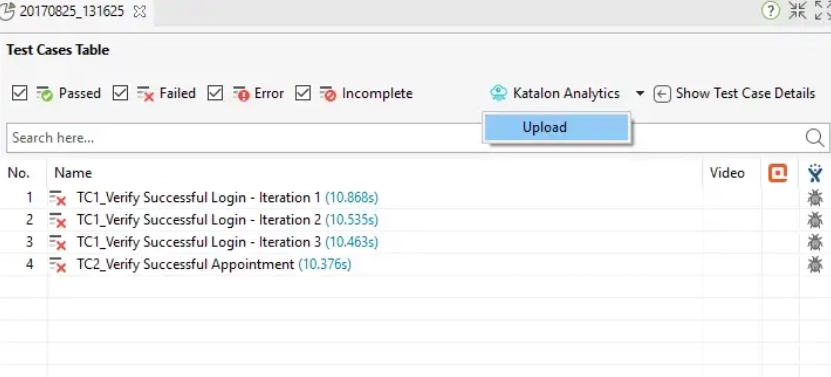
Click on the Katalon TestOps at the top right of the screen.
Credit: Katalon studio docs
A drop-down with options will appear.
Click on upload.
View test execution results in the Katalon TestOps test runner to ensure complete uploading.
Application for Uploading Test Results
We can simply view and manage our test execution results in Katalon studio. Then why do we need to upload Katalon Studio test execution results to qTest, Katalon TestOps, or any other tool? A few applications for uploading test execution results are given below:
Test management becomes more accessible as Katalon studio mainly focuses on test execution rather than results.
Test execution results can easily be forwarded and analyzed using these tools.
No need to give authority to an entire project to evaluate test execution results if we upload the results to other tools.
Platforms like qTest are easier to learn and manage.
The workload can be divided among teams without granting each one authentication.
Easy accessibility of test results.
Frequently Asked Questions
What is the difference between Katalon and Selenium?
Selenium is faster than Katalon, but the difference in speed can only be seen if the test cases are too long.
What language does katalon use?
Katalon uses Groovy language, which is built on top of java.
Is katalon studio free?
Katalon Studio has a free version with limited features. You can also try a 30-day free trial for the premium plan.
What is automated testing?
It is a process of double-checking products/ software to ensure they meet strict requirements.
Does the user need to be proficient in coding to use Katalon?
Katalon Studio provides a dual scripting interface where you can choose the interface according to the technical knowledge of the tester. It has a simple interface with no coding requirements.
Conclusion
In this article, we learned the basics about test execution results in katalon and how to upload Katalon Studio test execution results to qTest and katalon TestOps. We also learned how to view test execution results along with brief basics about qTest and Katalon TestOps.
Do you want to know more about katalon studio and how it works? Refer to









 1+ registered

