Do you think IIT Guwahati certified course can help you in your career?
Introduction
For both novice and experienced testers, Katalon Studio is an all-in-one test automation solution for API, web, mobile, and desktop. With the help of the Windows spy software, test objects may be easily captured, and you can define various object attributes and locator techniques. You are given an introduction to the Windows spy utility in Katalon Studio in this article.
The Windows spy utility
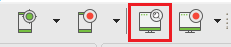
From the main toolbar, select the Spy Windows Object button to launch the utility.
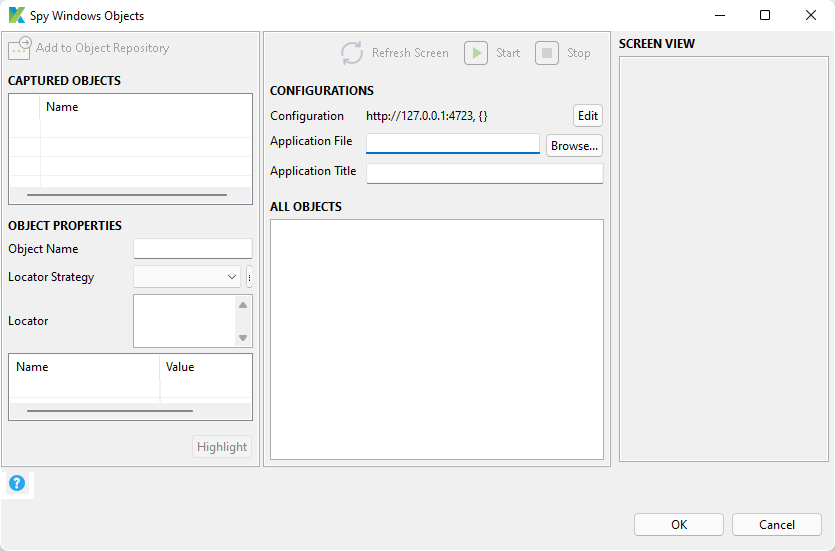
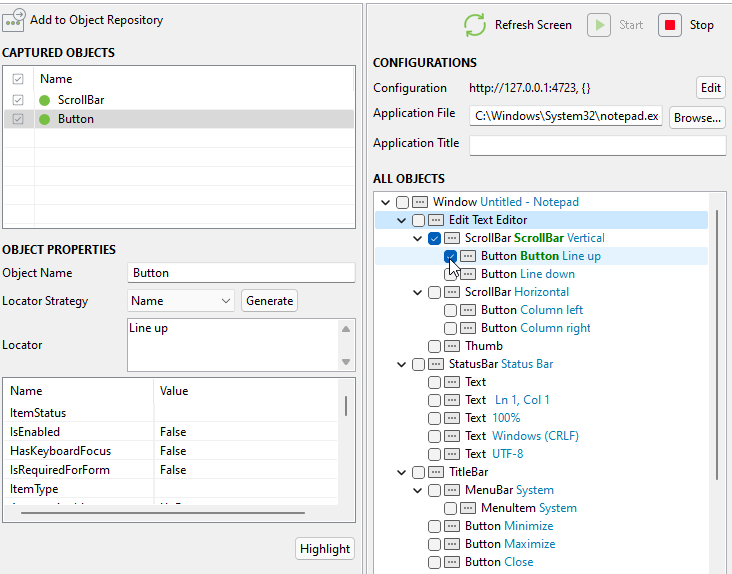
As shown below, the Spy Windows Objects dialogue box appears:
Configurations
You can specify this under the Configurations section.
Configuration: WinAppDriver URL and needed capabilities are configured.
Application File: The exact location of the testing device's Windows executable file (*.exe). To find the application file for Windows users, select the Browse... option.
The tool records all available Windows objects on the active window of the application under test (AUT) and presents them in the All Objects section when the AUT is launched.
All objects
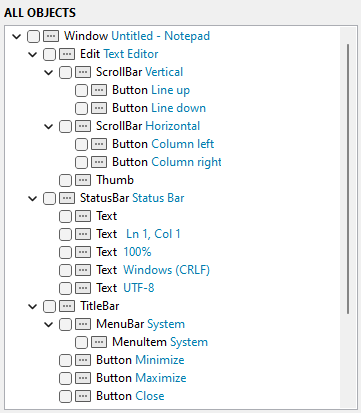
The All Objects section displays a tree of every object in the AUT, along with the tag names and associated Windows element names (highlighted in blue).
Simply select the checkbox to the left of the desired Windows object to add it. The newly added object is then shown in the section for captured objects.
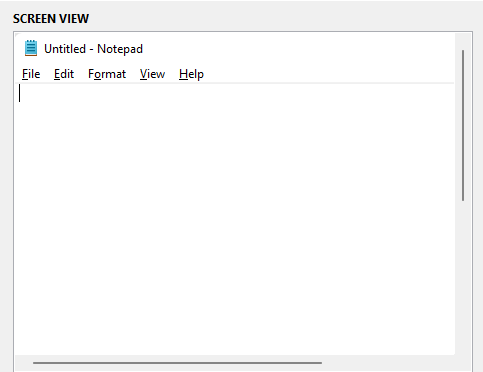
Screen view
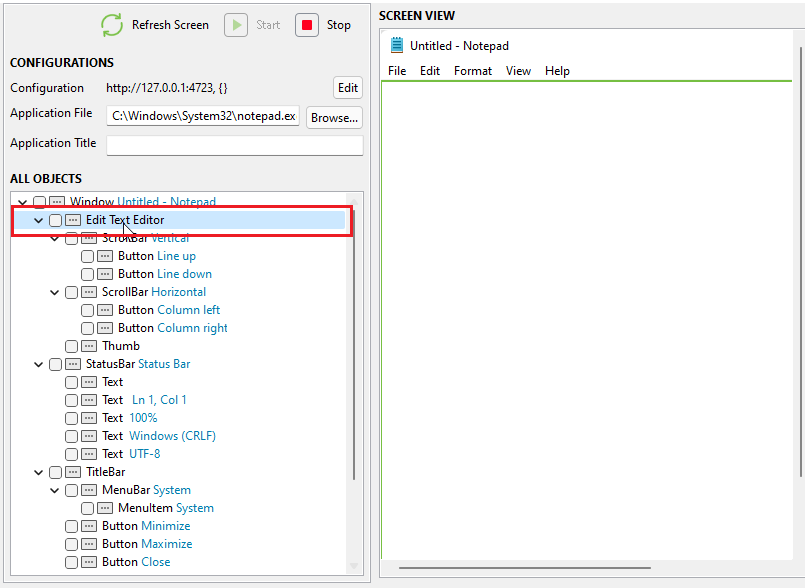
The position of the associated element in the Screen View is highlighted when an object is selected in the All Objects section. This aids in verifying the chosen Windows component.
Captured objects
All of the Windows items you want to add to the Object Repository are displayed in the Captured Objects section.
Click on a captured object to see more information about it. The Object Properties section contains detailed information.
Before adding an object to the Object Repository, you can view and edit the object's name, locator, and properties.
Object properties
You can set up the following data in the Object Properties section:
Object Name: The name of the Windows object.
Locator Strategy: The type of object locator to identify the Windows element is called a locator strategy. Click the Generate button to create the object locator of the selected locator type.
Locator: a customizable item locator that is generated.
Properties table: The entire object's properties are listed in the properties table.
Click OK and choose the target folder to save the objects in if you wish to add them to the Object Repository.
View and edit the captured objects
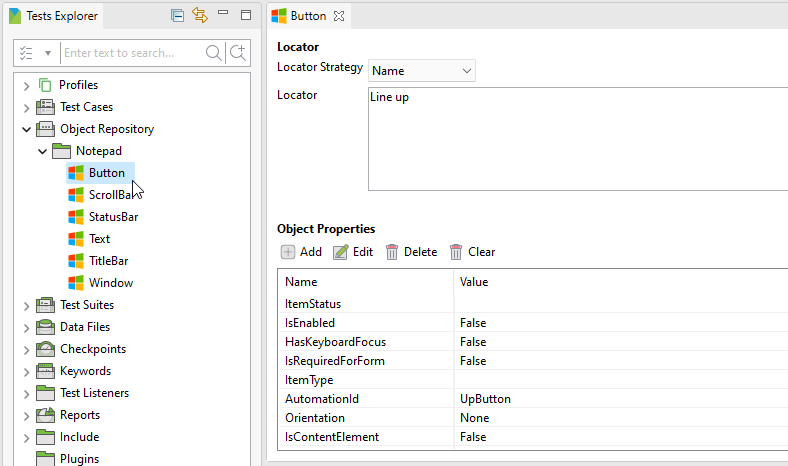
In the Object view, you may see and modify the location and characteristics of a captured object.
The necessary Windows object can be chosen by going to Tests Explorer > Object Repository. The following information about a captured object is shown in the Object view:
You can examine and edit the following in the Object view:
Locator: The object's locator as well as its locator type.
Object properties: An object's characteristics.
The Windows record utility
Click Record Windows Action in the main toolbar to launch the program.
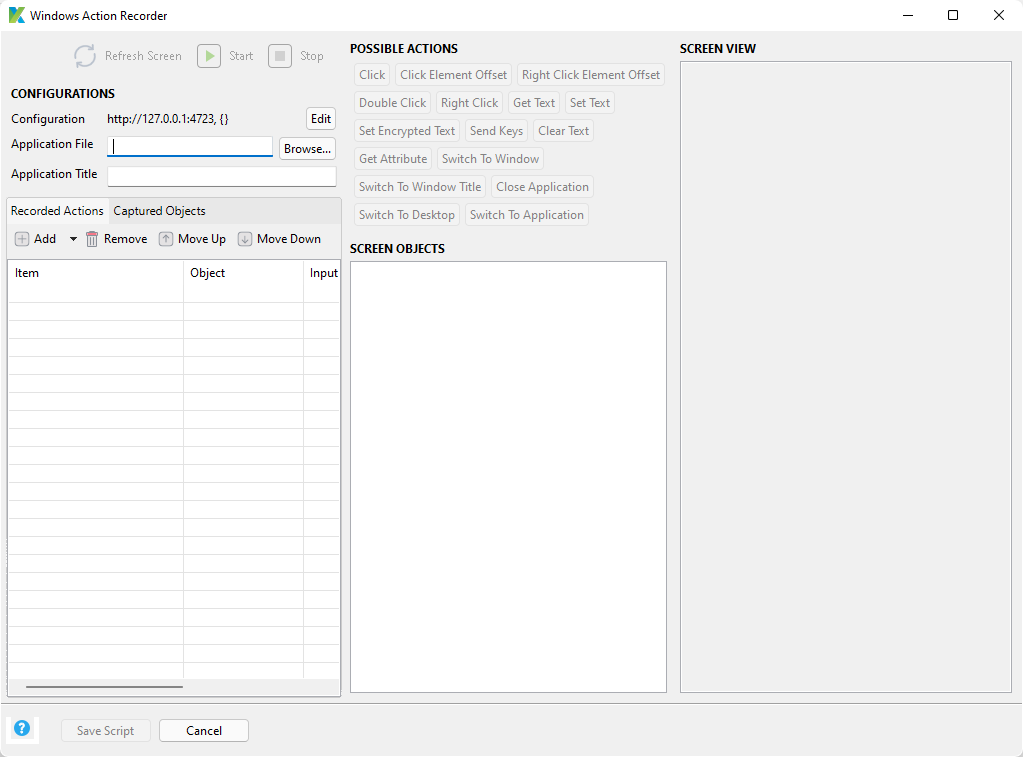
The following describes how the Windows Action Recorder dialogue looks:
Configurations
You can see detail under the CONFIGURATIONS section.
Configuration: WinAppDriver URL and needed capabilities are configured.
Application File: The exact location of the testing device's Windows executable file (*.exe). For Windows users, locate the application file by clicking the Browse... button.
Recorded actions
The recorded actions are shown in the Recorded Actions tab after you have interacted with the application under test (AUT) using the built-in actions.
Captured objects
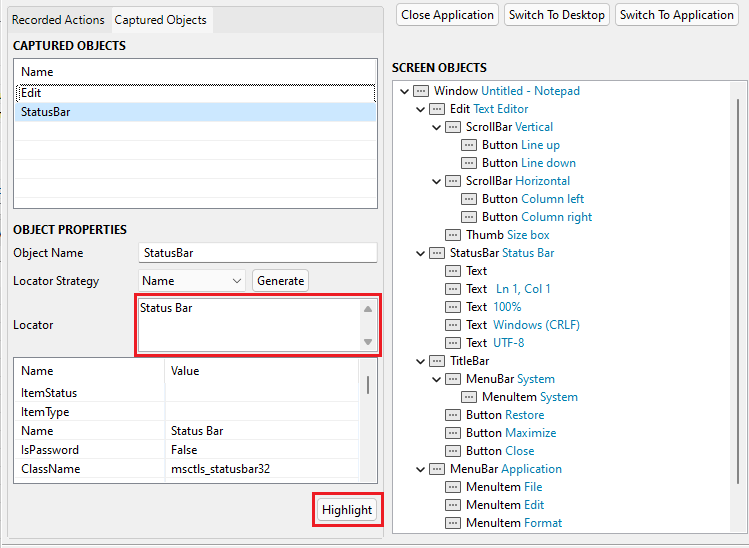
The Windows objects that were recorded during the recording session are shown in the Captured Objects tab. The object name, locator, and properties are all editable.
The locator of an object can be changed in the Object Properties, and you can click Highlight to make sure the new locator correctly identifies the connected object.
Screen View
When you press the Start button to record or the Refresh Screen button to recapture the application screenshots, the screenshots are displayed in the Screen View. A screenshot's dimensions match those of the application window that is running on the testing machine.
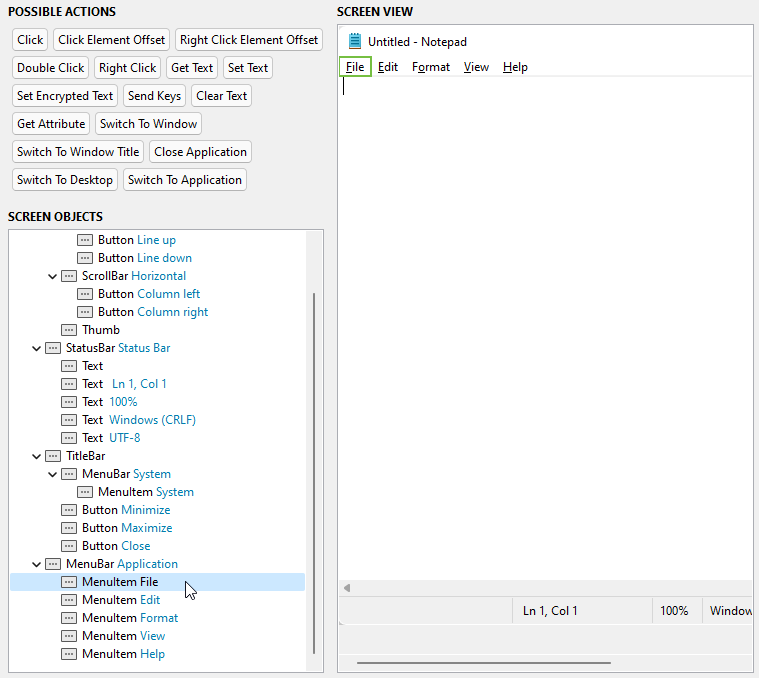
Screen Objects
A tree of all the Windows items you can interact with is displayed in the Screen Objects section. You can click the Refresh Screen button to update this tree view.
On the Screen View, the highlighted object is denoted by a green border.
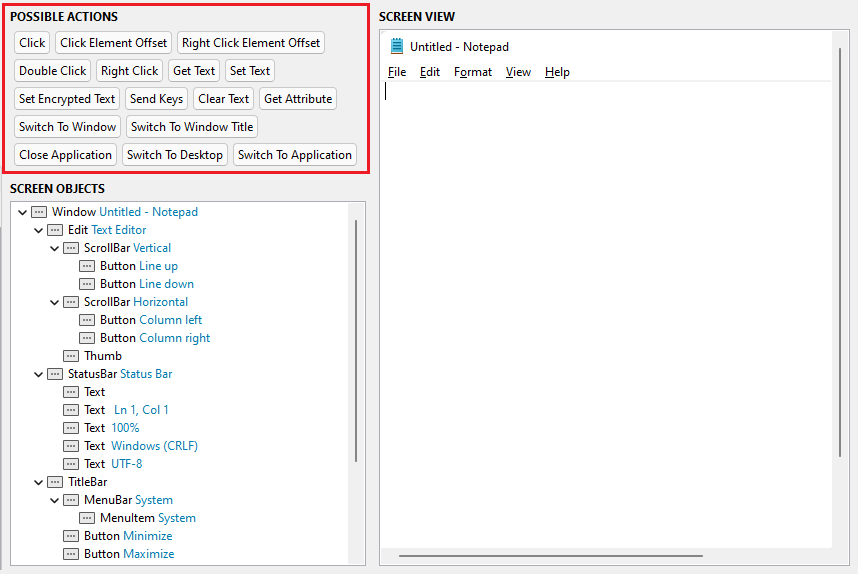
Possible Actions
You can interact with the AUT by using the built-in Windows actions listed in the Possible Actions.
Frequently Asked Questions
Which framework is used in Katalon Studio?
Groovy is a Java-based language used by Katalon Studio. It requires the loading of numerous libraries in order to parse test data, test objects, and logging.
What is the purpose of Katalon Studio?
Without requiring coding, Katalon enables the creation and reuse of automated UI test scripts.
Is Java supported by Katalon?
To operate a Katalon Studio instance and create test applications. Katalon Studio makes use of the standard embedded Java Runtime Environment (JRE) version 8.










 7+ registered

