Do you think IIT Guwahati certified course can help you in your career?
Introduction
Doing everything manually is tiring and time-consuming for developers. Work like testing multiple aspects or importing requests and responses every time you make changes would become a problem. As a solution to this, Katalon Studio offers Automation. It has a rich set of features to allow test and import automation. This includes scaling, managing, and collaboration. You can perform the entire test and import cycles in Katalon Studio.
What are Windows Objects?
A Windows Object is an open window in a browser. The browser creates it by default. There are several properties and methods of Windows Objects. You may only find it necessary sometimes to use these properties and methods. These properties and objects are used to make any required changes to the default Windows object. There are three categories of Windows Objects- kernel, graphics device interface (GDI), and user. Each of these categories is used while performing a specific task or while doing necessary work. You can choose among these categories based on the activity you wish to perform.
In detail, this article will discuss the process to capture windows objects using the Windows Spy Utility in Katalon Studio. We will also learn how to configure the Windows Spy Utility. So, without further ado, let’s start.
Pre-preparation to capture Windows Objects in Katalon Studio
Ensure that you have Katalon Studio version of 7.0 or above in your system.
WinAppDriver is running successfully on your system.
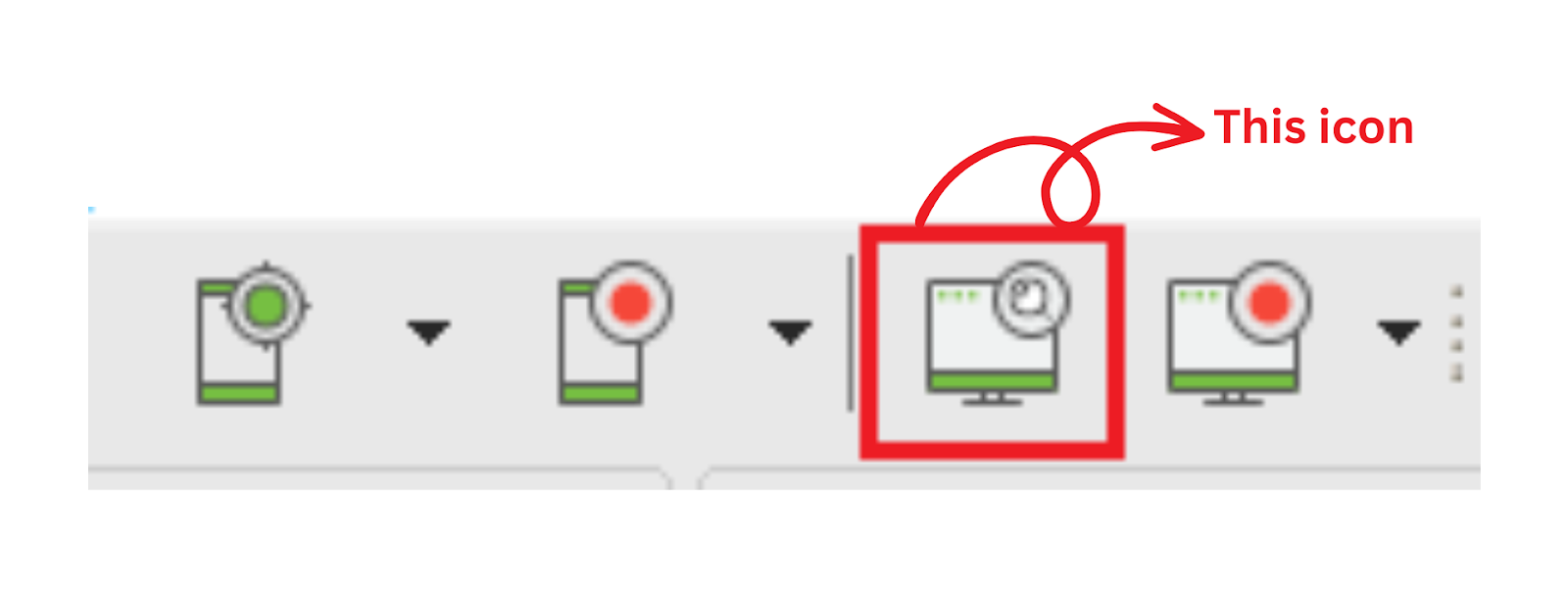
Open the Spy Windows Objects dialog box beforehand to use any utility. For that, click on the Spy Windows Objects icon from the main toolbar.
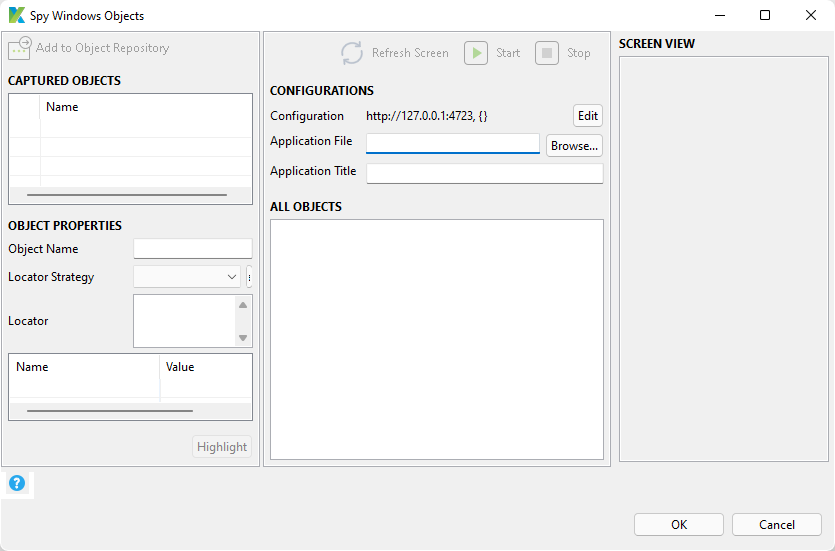
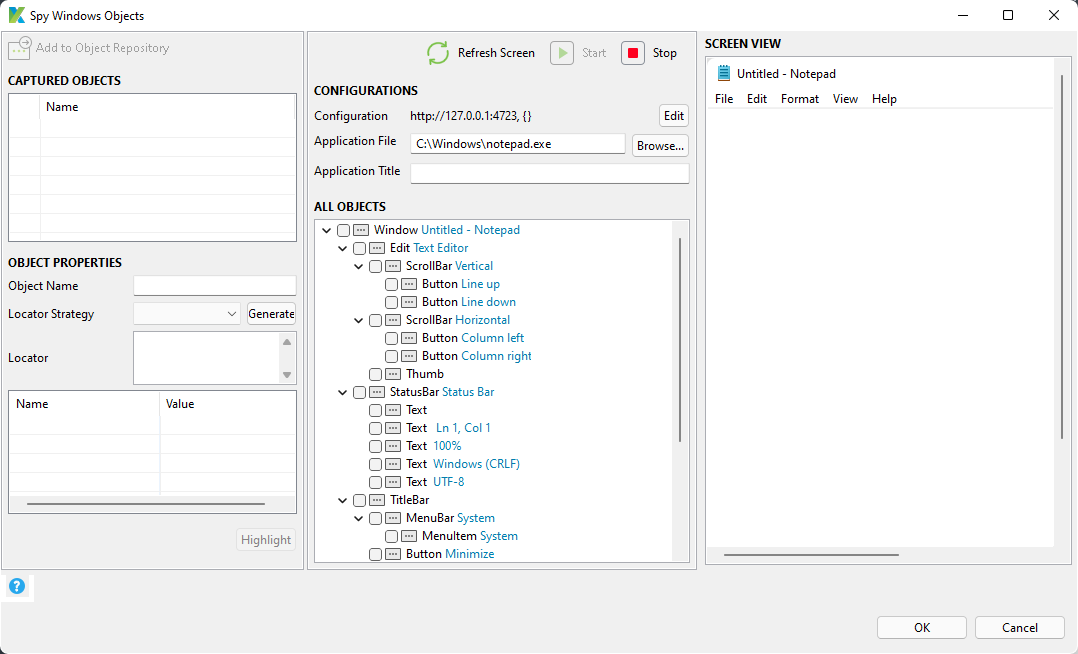
You will see a Windows Spy Utility dialog box as shown below.
To configure any Windows Spy Utility in Katalon Studio, you must specify the following fields in the Configurations section.
Configuration
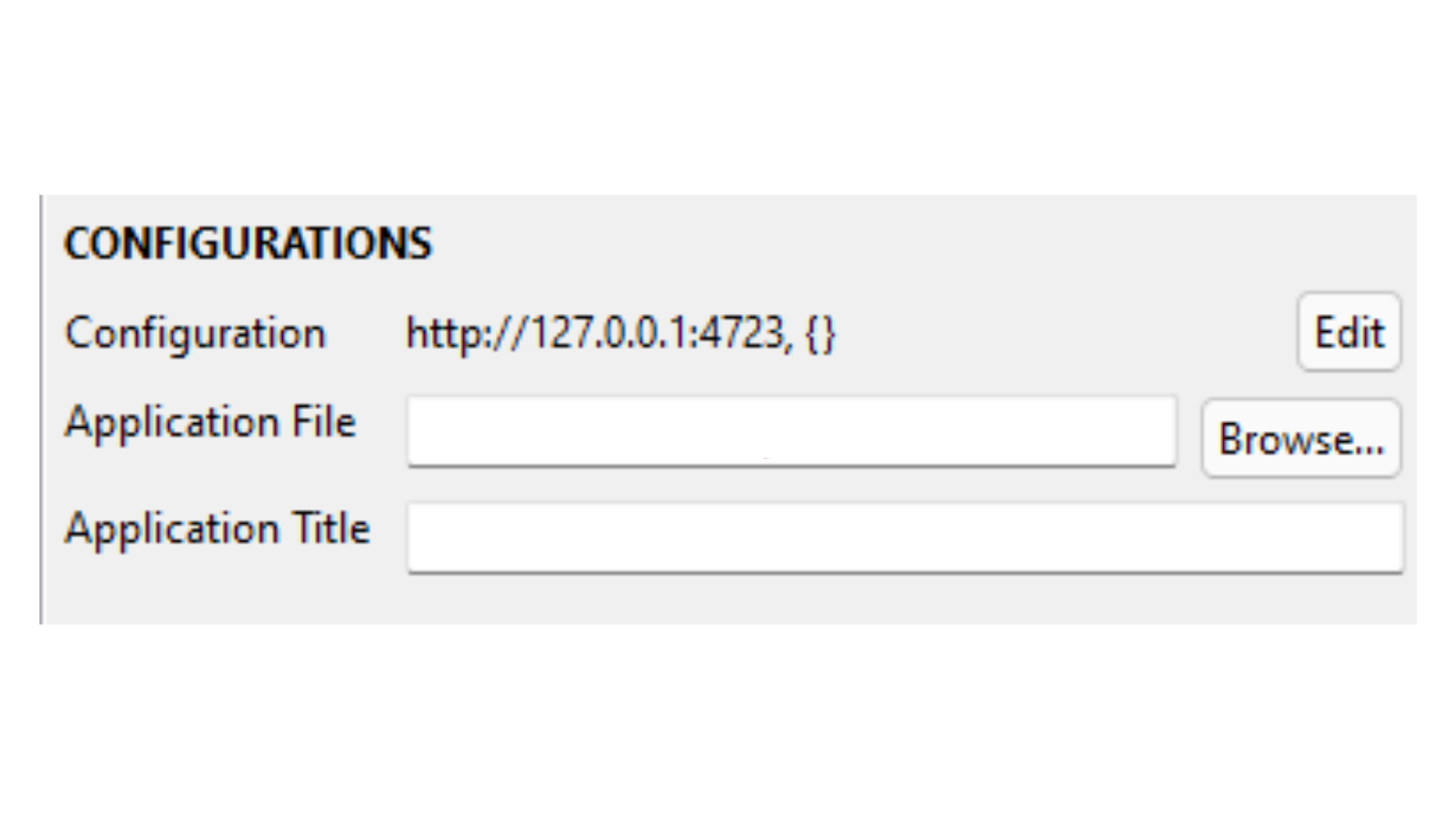
It must contain the WinAppDriver URL and other desired capabilities as required. This can be edited any time user want to make changes.
2. Application File
It contains the absolute path to any Windows Executable file (*.exe) of the testing machine. You can click on Browse button beside the field to find the desired application file.
An example Configurations section is shown below.
Capture Windows Objects in Katalon Studio
To capture Windows Objects in Katalon Studio. You must follow these steps.
1. Start with initiating the connection to the WinAppDriver using the Start button. You will see an opened windows of the previously executed AUT in the Screen View section. Use the example image below for your reference.
2. You will see all the available objects on the Windows in the All Objects section. You can verify any object just by clicking on it. The utility with a green border in Screen View highlights the object being verified.
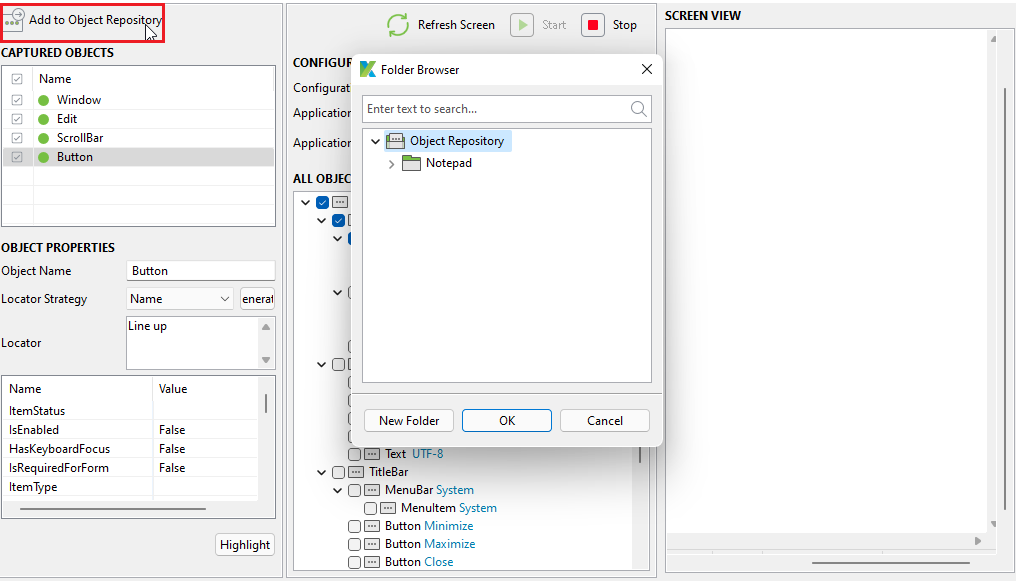
3. Click on the Add to Object Repository button to save the captured objects.
4. Select your desired folder from the opened dialog and click Ok.
5. The captured objects are added to the Object Repository of the selected folder.
6. Click on Ok at the end of the dialog to end the capturing session.
Frequently Asked Questions
How are failures handled in Katalon?
Failures in Katalon are handled by an optional parameter ‘FailureHandling’. It defines the actions to be performed if any failure occurs. The three options in Katalon for Failure Handling are Stop on Failure, Continue on Failure, and Optional.
What skills does a user need to have to use Katalon Studio?
Katalon Studio has a simple interface with no advanced skills requirements. You get a dual scripting interface where you can select the interface based on the technical knowledge of the tester.
Describe Katalon Recorder.
Katalon Recorder is an extension available for Firefox, Edge, and Chrome. It is one of the most popular, straightforward, and highly user-friendly Record and Playback Extensions.
Discuss Manual View vs Script View in Katalon.
The Manual View is quite basic. It allows you to use simple keyword-driven configuration for generating automated tests and, thus, requires no coding.
The Script View is specially designed for advanced users and programmers. They must be familiar with modifying and writing test scripts using Groovy or Java.
Conclusion
Overall, we understood the process to capture windows objects using the Windows Spy Utility in Katalon Studio. We will also learn how to configure the Windows Spy Utility.
Visit our website to read more such blogs. Make sure you enroll in our courses, take mock tests, solve problems, and interview puzzles. Also, you can pay attention to interview stuff- interview experiences and an interview bundle for placement preparations. Do upvote our blog to help fellow ninjas grow.







 7+ registered

