Table of contents
1.
Introduction to Katalon
2.
Testing Shadow DOM Elements
2.1.
Shadow DOM 
3.
Web Image-based Testing
3.1.
Enabling Image-based Object Recognition 
3.2.
Capturing Screenshots for Object Recognition 
3.2.1.
With Built-in tools
3.3.
Adding Image Locators to Objects
3.3.1.
Versions Before 7.6
3.3.2.
Versions After 7.6
3.4.
Reducing Image-Based Testing Failures
4.
Frequently Asked Questions 
4.1.
What is Katalon Studio?
4.2.
What is Shadow DOM?
4.3.
How can you reduce image-based testing failure?
5.
Conclusion
Last Updated: Aug 13, 2025

Automation testing of Shadow DOM elements and Image based Testing with Katalon Studio

Career growth poll
Do you think IIT Guwahati certified course can help you in your career?

Introduction to Katalon

Katalon is an automating testing software that lets the users test web, mobile or desktop applications and APIs without coding, to deliver efficient and robust software to the consumers. The software is built over the Selenium and Appium automation frameworks, and makes testing convenient and code-free. 
 

Katalon


Testing Shadow DOM Elements

Shadow DOM 

Shadow DOM is a powerful code encapsulation feature which helps DOM elements contain child nodes and CSS. But it is tough to test when automating testing is performed as the elements inside a shadow root do not exist in the main DOM.  

Katalon Studio provides Shadow DOM testing, and the step-by-step implementation of the same is given below on the demo site Books. All the elements of this website are under a shadow root. We will identify and verify shadow DOM objects:
 

  1. Create a new project in the Katalon Studio. Go to File > New > Project. We name the project Shadow DOM testing. 
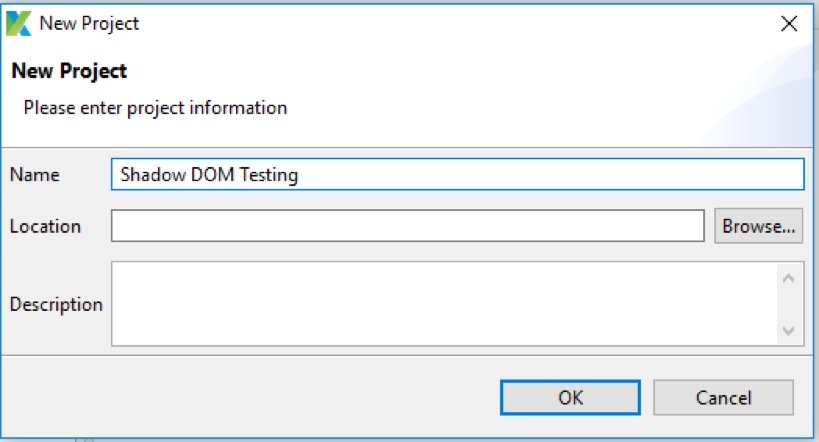
step1


2. Navigate the search bar in the demo website by clicking right-click> Inspect. The element is highlighted. 

step 2


3. There are two Shadow DOM objects that need to be identified:

  • The parent object’s property. Here, ‘book-app’ is the parent object.
     
step3


  • The child object’s property. The child object is the shadow DOM elements we inspect. Here we look at the elements of the search bar.
     
step3


4. We now return to the Katalon Studio framework to define object properties.

As we know, Katalon Studio supports the following selection methods to create the object properties: XPath, Attributes, CSS, and Image. We will use the Attribute method. 


 a. Create a parent object:

  • Go to File > New > Test Object. Name it as book_app.
  • Click Add Property in the Object’s Properties > Add section. 
  • Fill it as given below: 
name condition and values


  • After clicking OK, the ‘apptitle’ property appears in the Object’s Properties section. 
  • To generate a select locator for the object, check the tickbox Detect object by?
     
detect object by


 b. Creating the Child Object 

  • Go to File > New > Test Object. Name it as input.
  • Click Add Property in the Object’s Properties > Add section. 
  • Fill it as given below: 
item values
  • To generate a select locator for the object, check the tickbox Detect object by?
  • Once we have defined the property, go to Settings > Shadow DOM parent > Browse. An Object Repository Browser dialogue will open up.
  • Now choose book_app object as the parent and click OK
  • The input object identifies book_app as its Shadow Root Parent now. 
     
shadow root parent


5. Create a new test case. Go to File > New > Test Case. We name ours Shadow DOM Test.
 

6. Switch to the Script tab and copy-paste the given code in the test script:
 

import static com.kms.katalon.core.testobject.ObjectRepository.findTestObject

import com.kms.katalon.core.webui.keyword.WebUiBuiltInKeywords as WebUI

//Open the browser and navigate to the AUT website
WebUI.openBrowser('https://books-pwakit.appspot.com/explore?q=')

//Input text into the search bar
WebUI.setText(findTestObject('Object Repository/input'), 'hello World')

//Delay 5s to view the result
WebUI.delay(5)

//Close the browser to clean up
WebUI.closeBrowser()


code

7. Go to the main toolbar and click Run> Chrome 

Katalon Studio will now input the text “hello world” into the search bar.
 

webpage that opens up


Web Image-based Testing

You can associate Test Objects with images with image locators in Katalon Studio. So, you can perform image-based testing when elements of the web app under tests retain the appearance even after the underlying structure might have changed.
 

Given below is the method to configure image-based object recognition and reduce the chances of failure of image-based testing.
 

Enabling Image-based Object Recognition 


To enable image-based object recognition, go to Project > Settings > Self-Healing > Web UI > Test Execution. 

project settings


For versions below 7.6, go to Project > Settings > Execution and check Enable Image Recognition to turn it on, as image-based object recognition is disabled by default.  

project settings

Capturing Screenshots for Object Recognition 

With Built-in tools

Katalon Studio includes an Add Screenshot button in both Web Recorder and Spy Utility. 
 

  1. Open Spy Web Utility. From the main toolbar, select Spy Web 
spy web

2. In the Object Spy dialogue, mention the URL of the AUT and the web browser. To start capturing, click on the Start button.


3. To capture the screen image, hover your mouse over the web element and press the combination of \ keys. Or, right-click on the web element and select Capture.

4. Now, in the captured objects view, select the captured image. In the bottom right corner, click the Add Screenshot button.

5. After the message “Screenshot taken!” is received, click on the Save button and save the captured object as its screenshot. 

object spy

Adding Image Locators to Objects

Versions Before 7.6

After capturing a screenshot using the Web Recorder/Spy utility, The screenshot property of Katalon Studio contains the absolute path to the captured screenshot.

To enable an image locator: 
 

  1. Select your object in the Object Repository.
  2. Select Attributes as the Selection Method.
  3. Tick the screenshot property in the Object’s Properties table.
selection method


NOTE: if you're adding screenshots using other tools, make sure you provide the absolute path to the screenshot in the path property when you enable the image locator.  


Versions After 7.6

After capturing your screenshot, Katalon Studio automatically adds an image locator to the associated object. 

To use the image locator of an object:


  1. Select the object in the Object Repository 
  2. In the Object view, navigate to Selection Method and select the Image option.
screenshot capturing before 7.6


Reducing Image-Based Testing Failures

Chances of failure of image testing can be reduced in the following two ways:
 

  • Screen Resolution: It is recommended to capture screenshots and execute tests on the same device for the best results, as the screen resolution of the screenshot-capturing device affects the accuracy of image comparison.
  •  Capture Tool: For better results, use built-in capture tools in Web Recorder and Spy utility as they can automatically reduce the captured image size.
     

Frequently Asked Questions 

What is Katalon Studio?

Katalon is an automating testing software, that lets the users test web, mobile or desktop applications and APIs without coding, to deliver efficient and robust softwares to the consumers.
 

What is Shadow DOM?

Shadow DOM is a powerful tool for web developers which helps in the encapsulation of code. It lets developers nest CSS and child nodes in the DOM. 
 

How can you reduce image-based testing failure?

There are two ways to minimise failure. One, make sure the screenshot capturing device and the testing device are the same, as the screenshot resolution plays a role in the accuracy of image comparison. The second is to use inbuilt tools for screenshot capturing.


Conclusion

In this blog, we learnt how Shadow DOM testing can be done using Katalon Studio. We also learnt how to perform web image-based testing and capture screenshots using in-built tools. Along with this, visit our platform Coding Ninjas Studio to read informational articles on important computer fundamentals like DBMSDSACompetitive ProgrammingPythonJava, etc. Happy Coding!!

thank you image


Live masterclass