Do you think IIT Guwahati certified course can help you in your career?
Introduction
Katalon is an automating testing software that lets the users test web, mobile or desktop applications and APIs without coding to deliver efficient and robust software to the consumers. The software is built over the Selenium and Appium automation frameworks, making testing convenient and code-free.
This blog goes through the steps to use Spy Web Utility, used to capture objects, and Record Web Utility, used as an automated test script.
Spy Web Utility
Spy Web Utility helps you capture objects flexibly by specifying properties and locating methods. Given below are the steps to be followed for the same:
Capturing Objects Using Spy Web Utility
Click on the Spy Web button from the main toolbar.
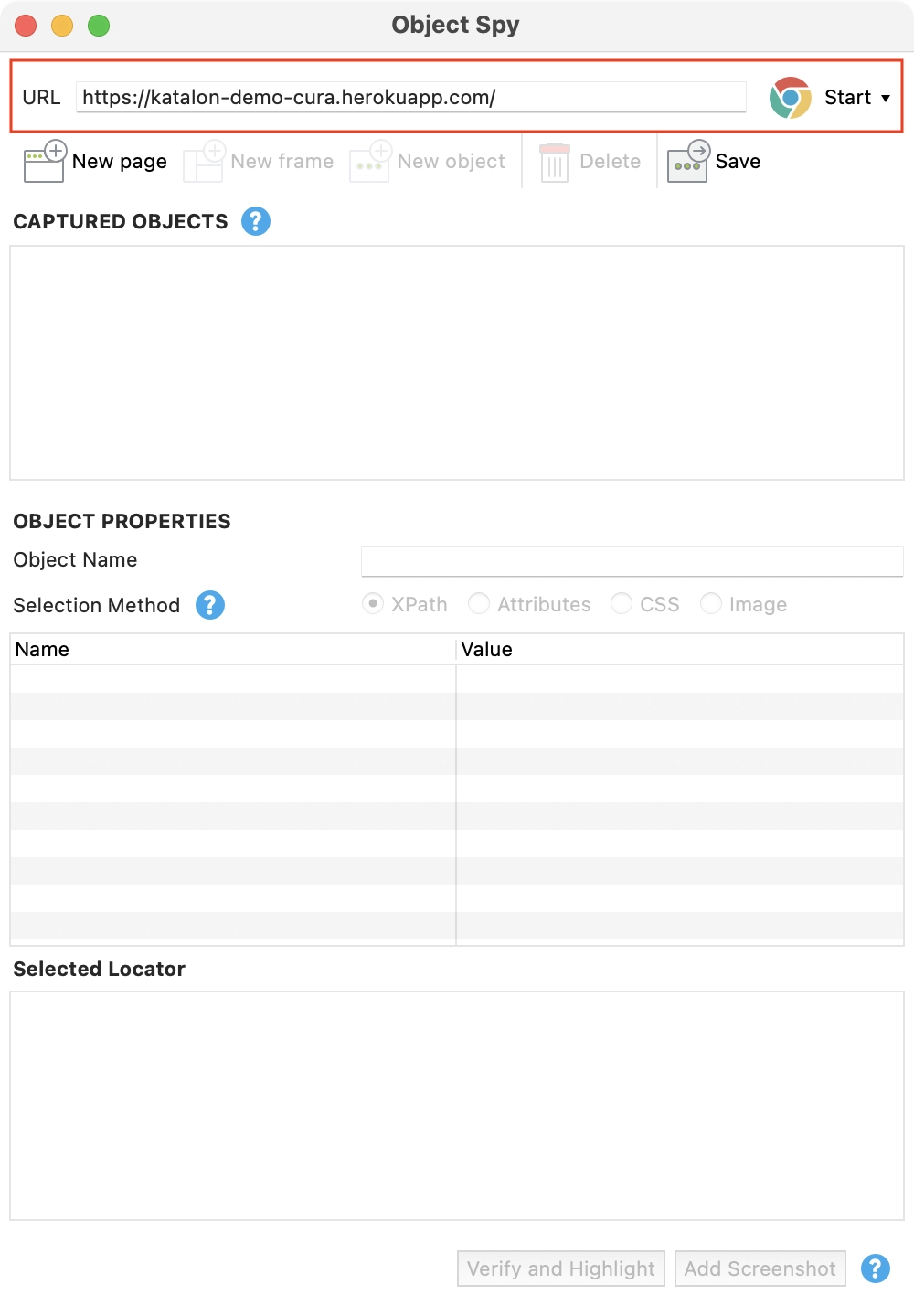
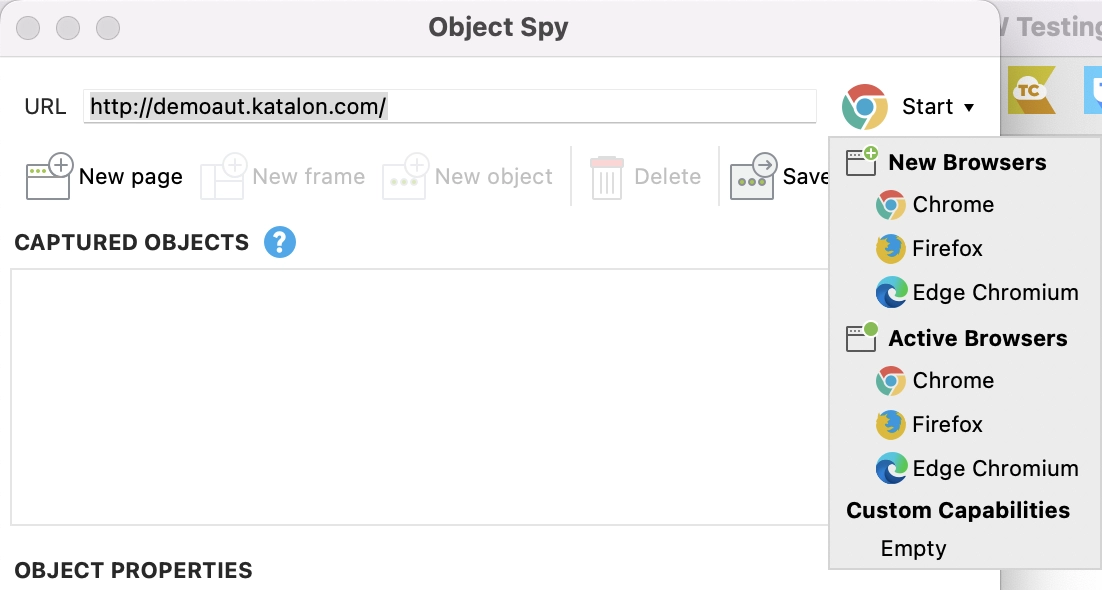
2. Specify the URL of the application under test (AUT) on the Object Spy dialogue. Click on the Start button to start capturing.
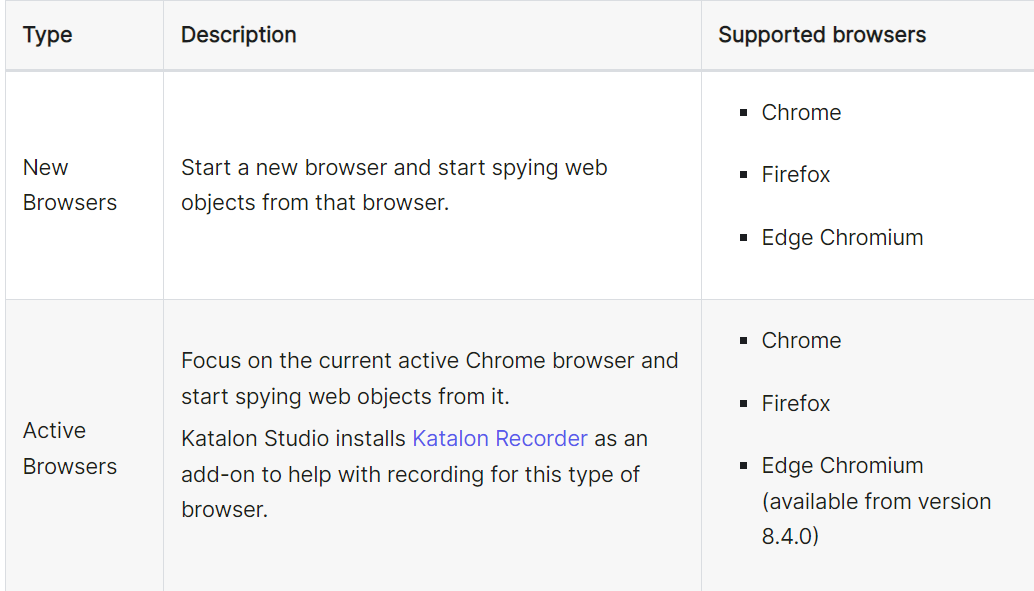
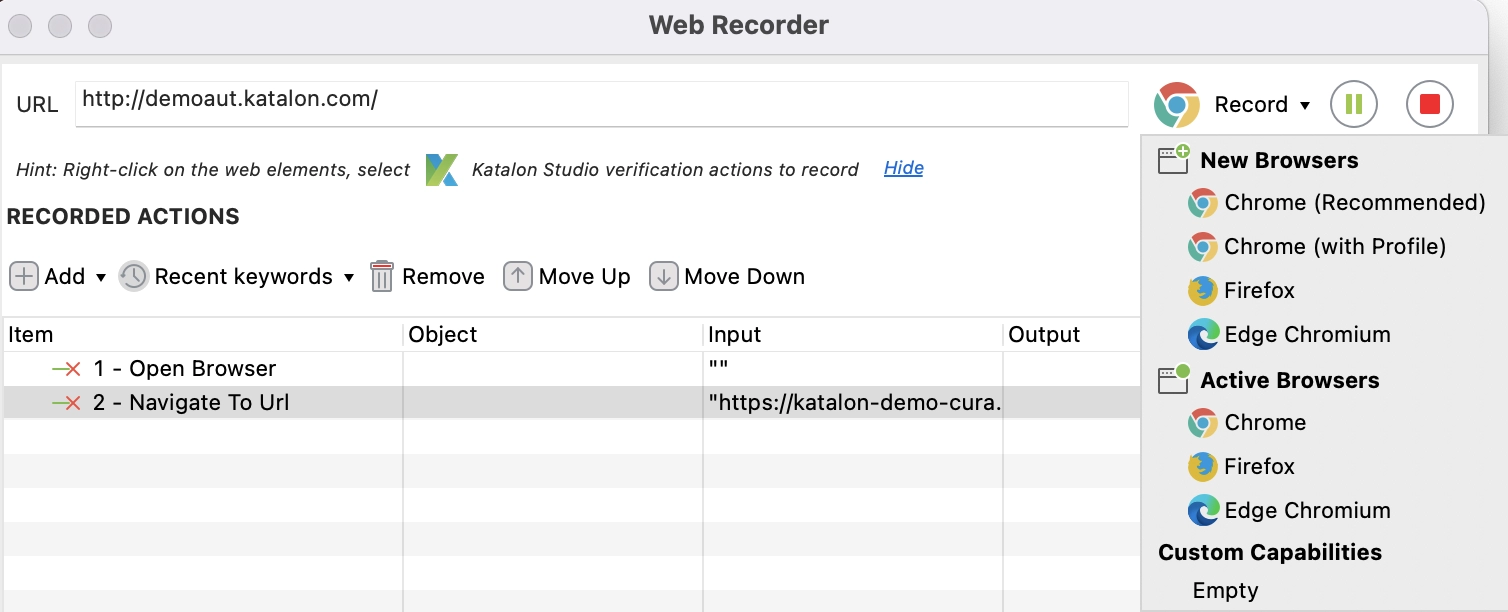
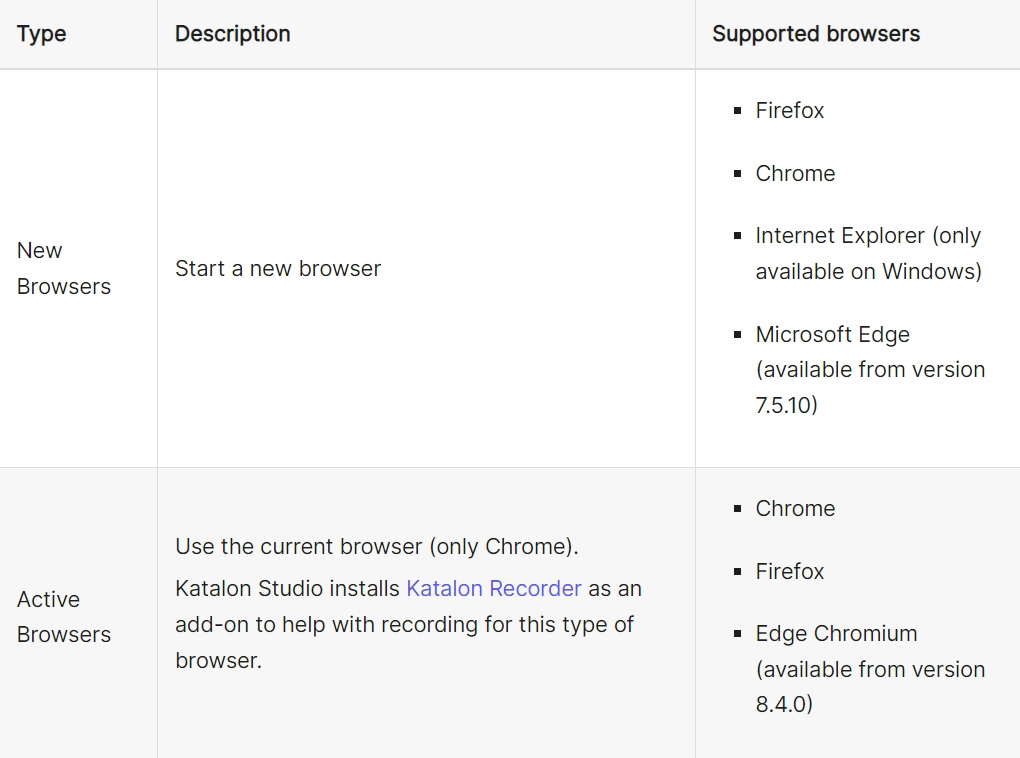
There are two options for web browsers: New Browsers and Active Browsers.
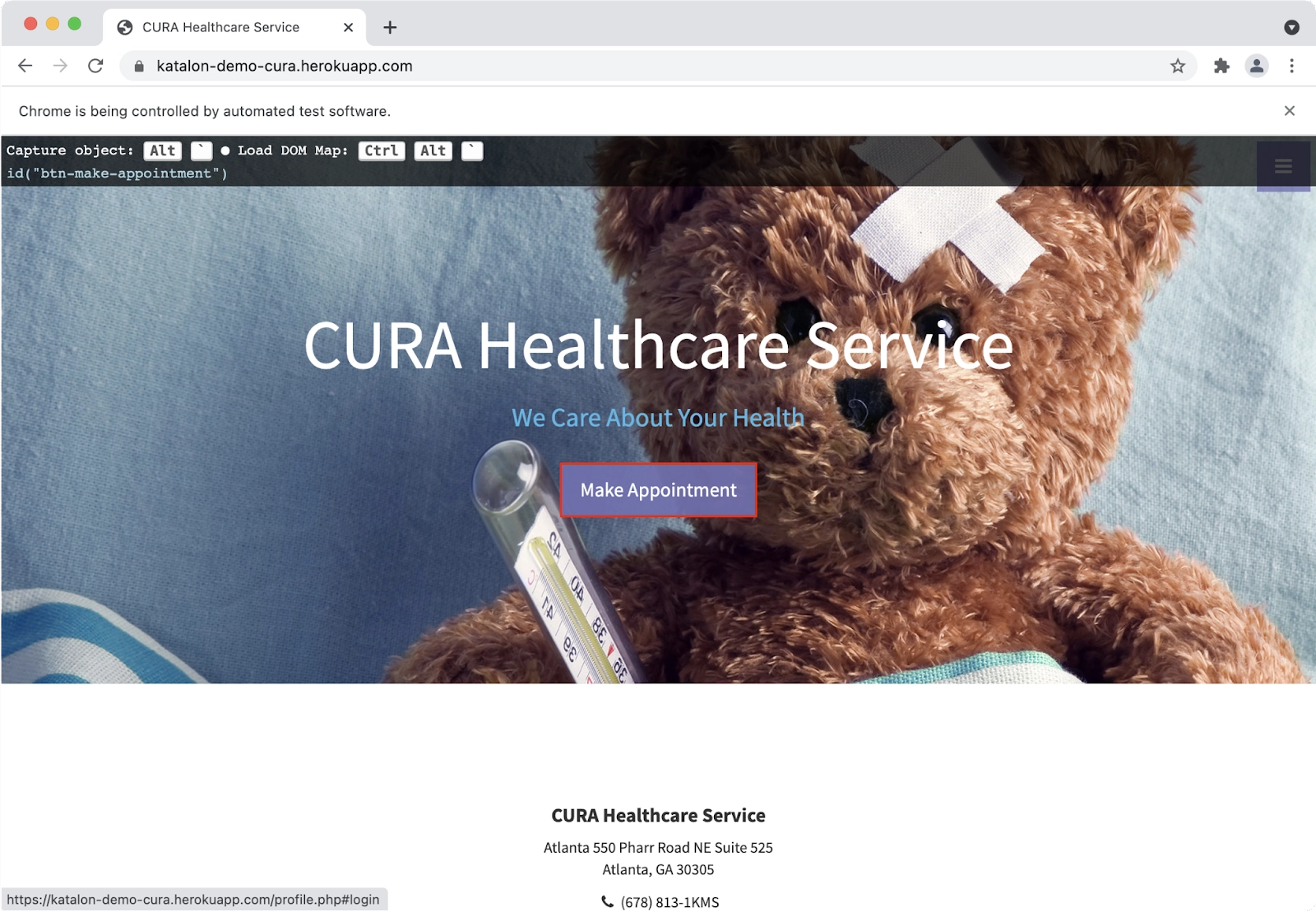
3. Katalon Studio will now launch the selected browser. Hover the cursor over the web element that is to be captured.
The web object will be highlighted in a red border. You will see an overlay pane at the top edge showing the relevant XPath information,
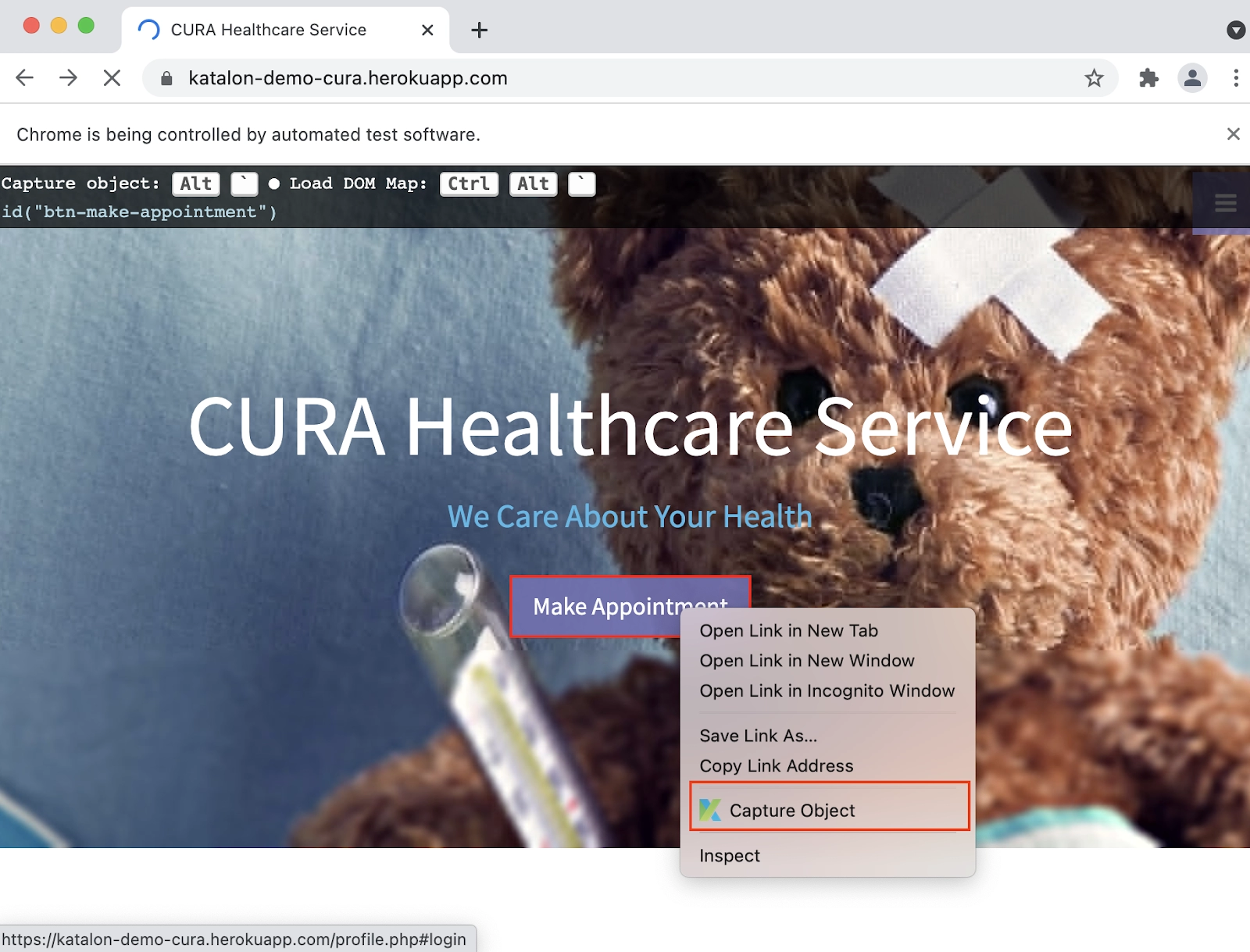
Now, right-click on the web element and select Capture. Alternatively, <Alt + ‘> can be used to do the same
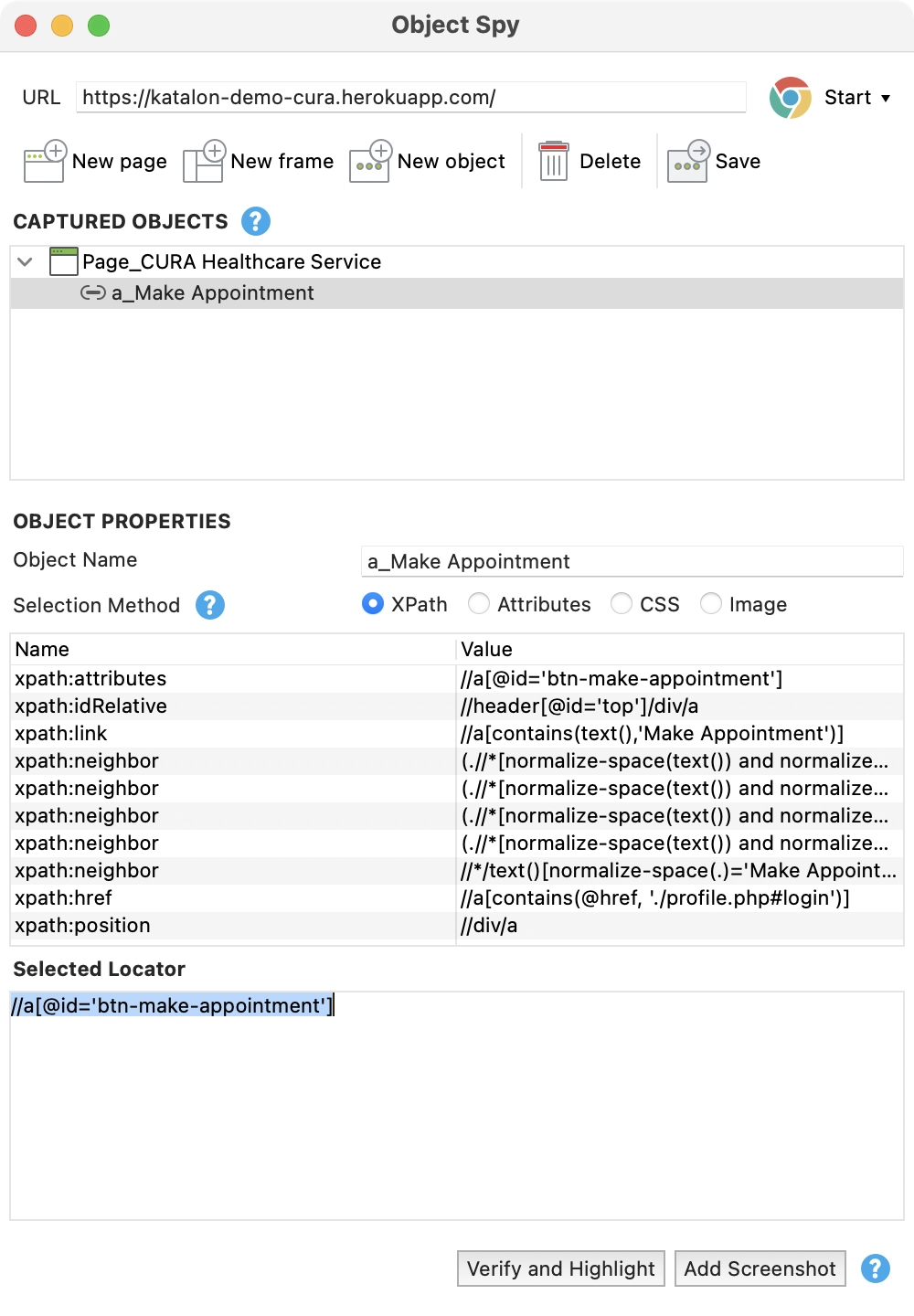
4. You will see the captured object appears in the Object Spy dialogue
5. Click on the Save button. This adds the object to the Object Repository.
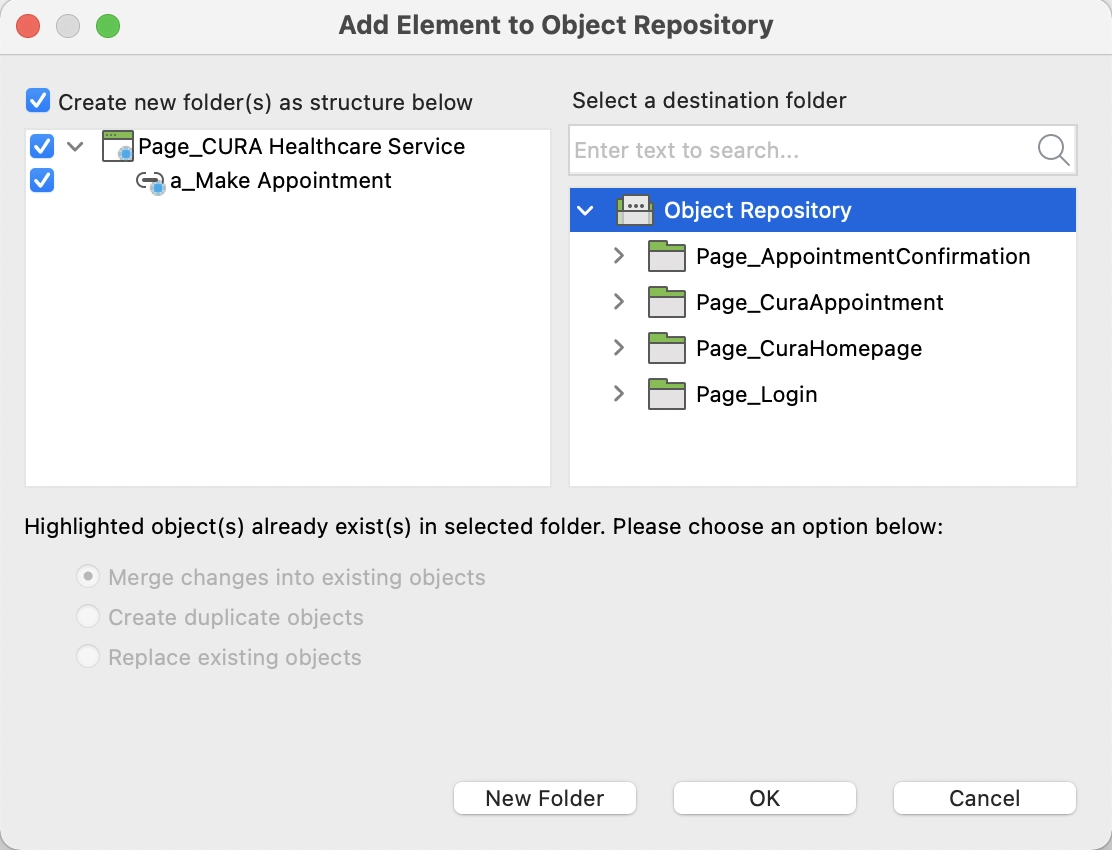
6 . You can now see the object in the Object Repository window. Select the save folder from the right pane, and clock on OK when done.
7. The captured objects are successfully added to the Object Repository accordingly.
Manually Defining Additional Objects
Adding a Page element: Click on the New Page button from the toolbar to manually add a new Page element. Web objects need a web page to hold them.
Adding a Frame element (optional): You need a frame to locate an element if it is nested. Frames are web elements that contain many other web objects.
Adding an Object element: Click on the New Object button. This manually adds a web object. Click on Delete to remove any element.
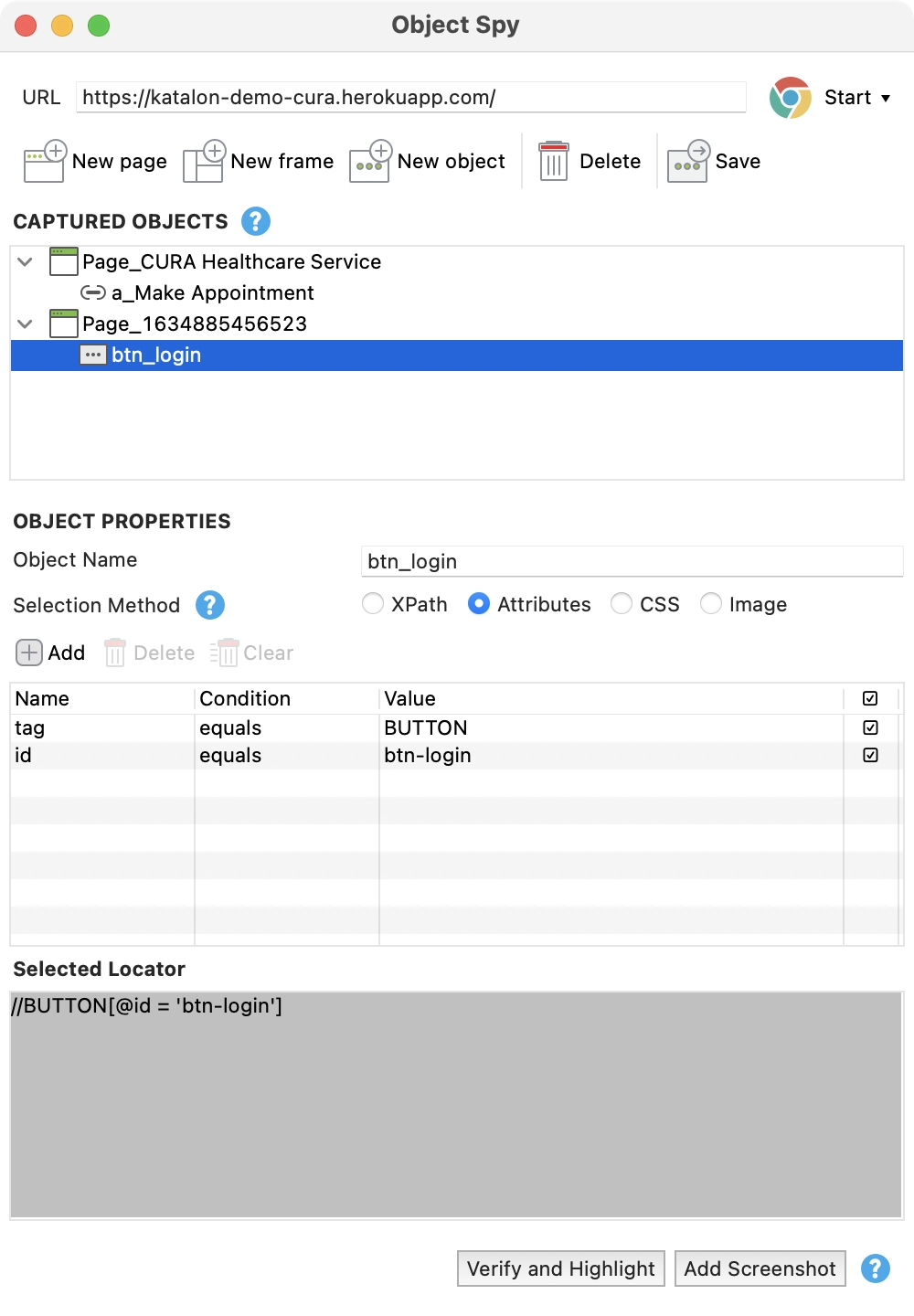
Provide the object name for the recently added object in the Object Repository section. Choose Selection Method options and then provide the Properties of the new object.
We define a button element with the Attributes selection method in our example. Chosen properties are tag and id.
Selection Method
These are the methods Katalon Studio uses to detect web elements:
Attributes: A user can specify the properties of an object in the Properties Grid.
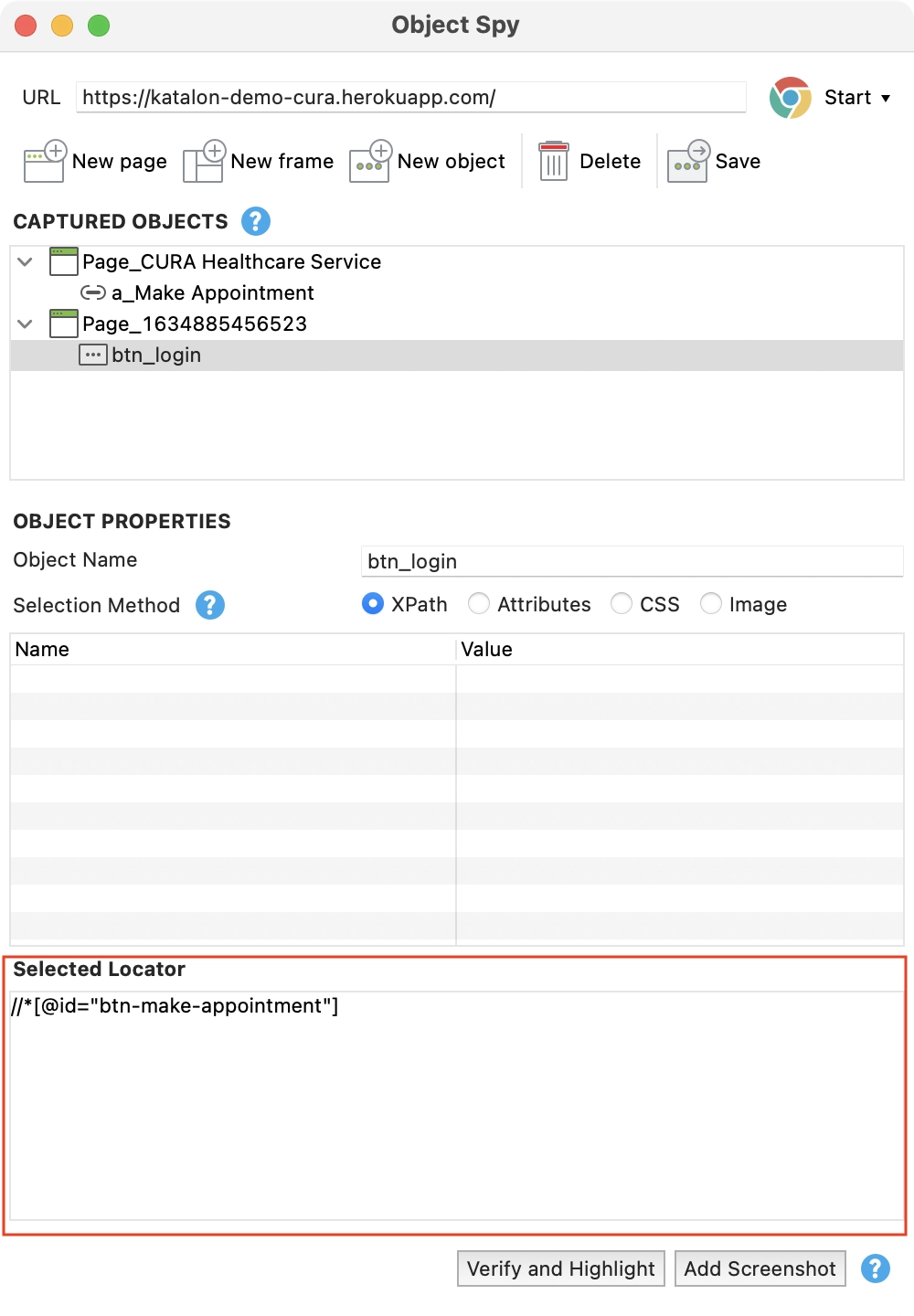
XPath/ CSS: An XPath or CSS selector of an object can be input into the Selector Locator section.
Image: Users need to provide an image path to detect a web element using its image. That can be provided in the Selected Locator section.
Properties Grid
All the properties of the selected object are displayed here. A user can manually edit the property values here.
Selected Locator
Users can adjust the current selector of an object or add a selector using this editable text field. It can be done using either an XPath or a CSS selector. By providing a path to the image of the web element. A user can select the object using its image.
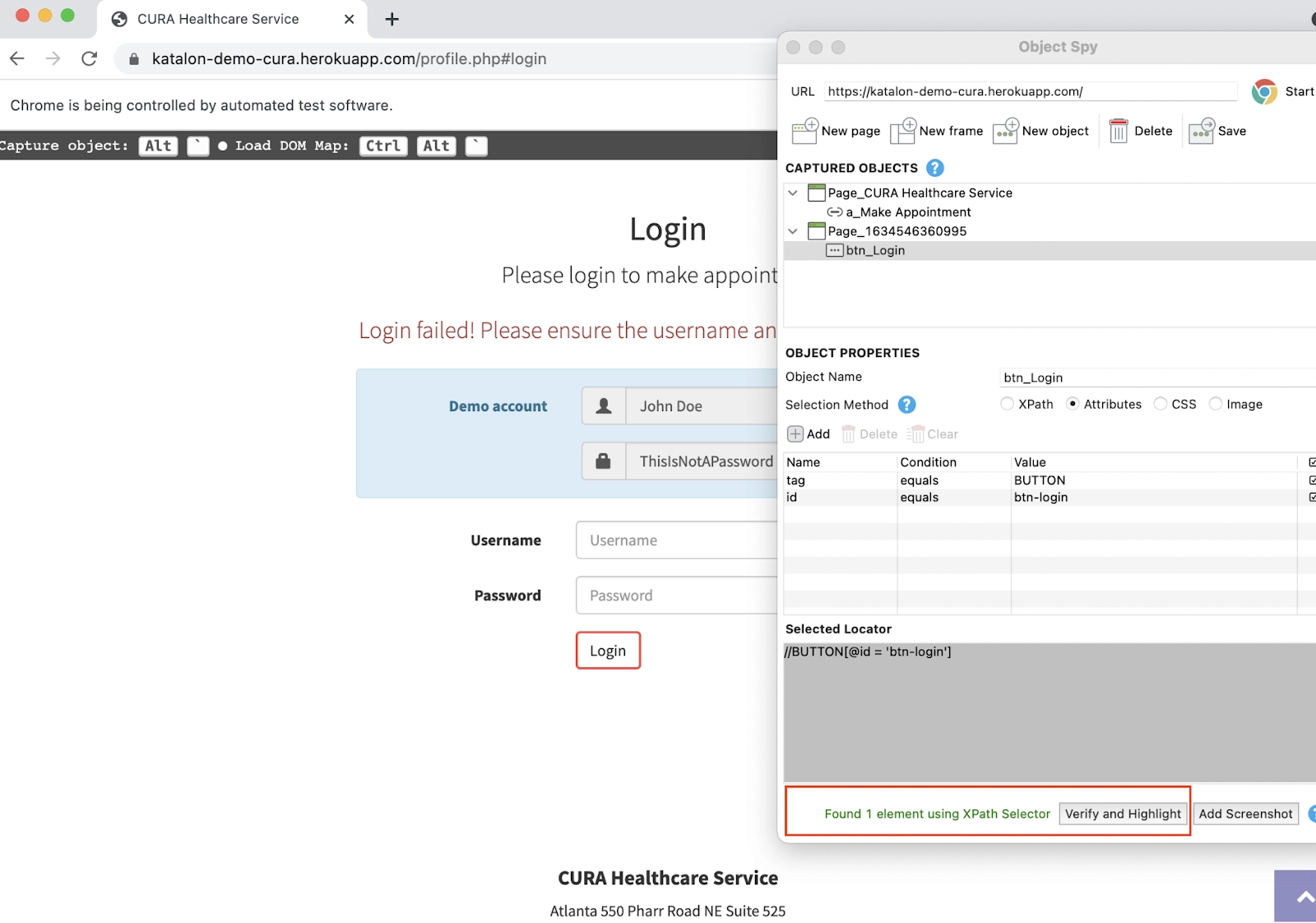
To verify the object, click the Verify and Highlight button.
When an object with the matched properties is found, it is highlighted in red in the browser, displaying the message Found X element using XPath Selector.
2. Click Save after finishing to add the object to the Object Repository.
Getting Web Element XPath or CSS Locator
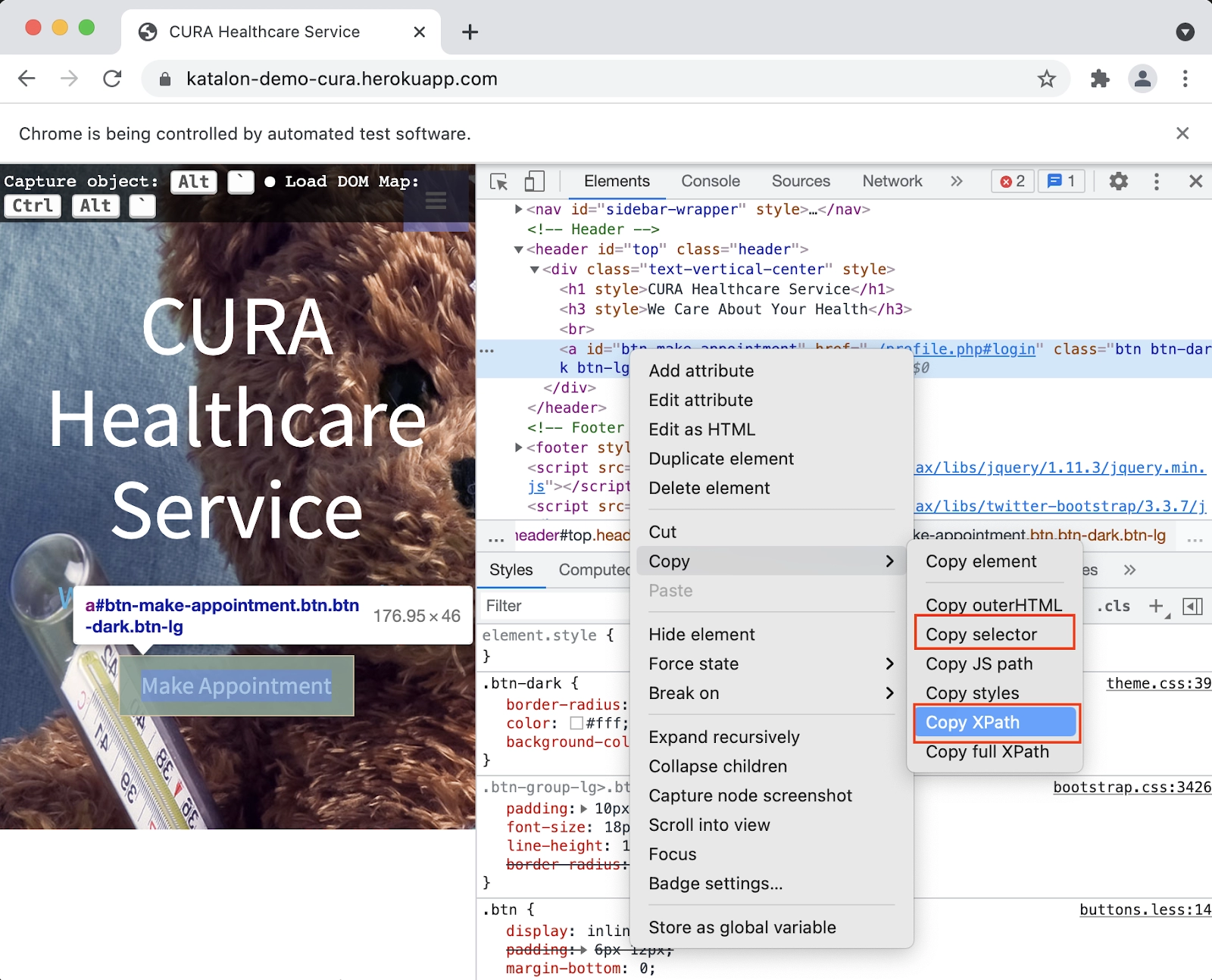
Right-click on the target web element in the open browser and click on Inspect.
In the inspect window, the selected element will be highlighted, showing the location of the target element. Select Copy > Copy XPath or Copy Selector.
3. Go to the Object Spy window and paste the copied content in the Selected Locator or the Object Properties section.
4. To check if the studio can locate the object, click the Verify and Highlight button.
5. After finishing, click Save and add the object to the Object Repository.
Record Web Utility
The easiest way to create an automation test script for a tester is test recordings. The tester needs to manually interact with their website and perform all the desired actions as a real user while the Katalon Recorder Utility records them.
Below is a tutorial showing how to record test scripts, along with an insight into each panel of the Katalon Web Recorder.
Recording a New Test Case
To record a new test case:
Open the web recorder by clicking on the Web Record Utility
Enter your web application URL
To start recording, select a browser. (Chrome or Firefox type is recommended) The default browser of Kataon Studio is Chrome, as you can see its icon in the top right corner. The default browser can be changed by going to Project/Settings/Execution/Default execution or clicking on the drop-down button and selecting your preferred browser.
4. The browser instance launches automatically. The web page will take some time to load.
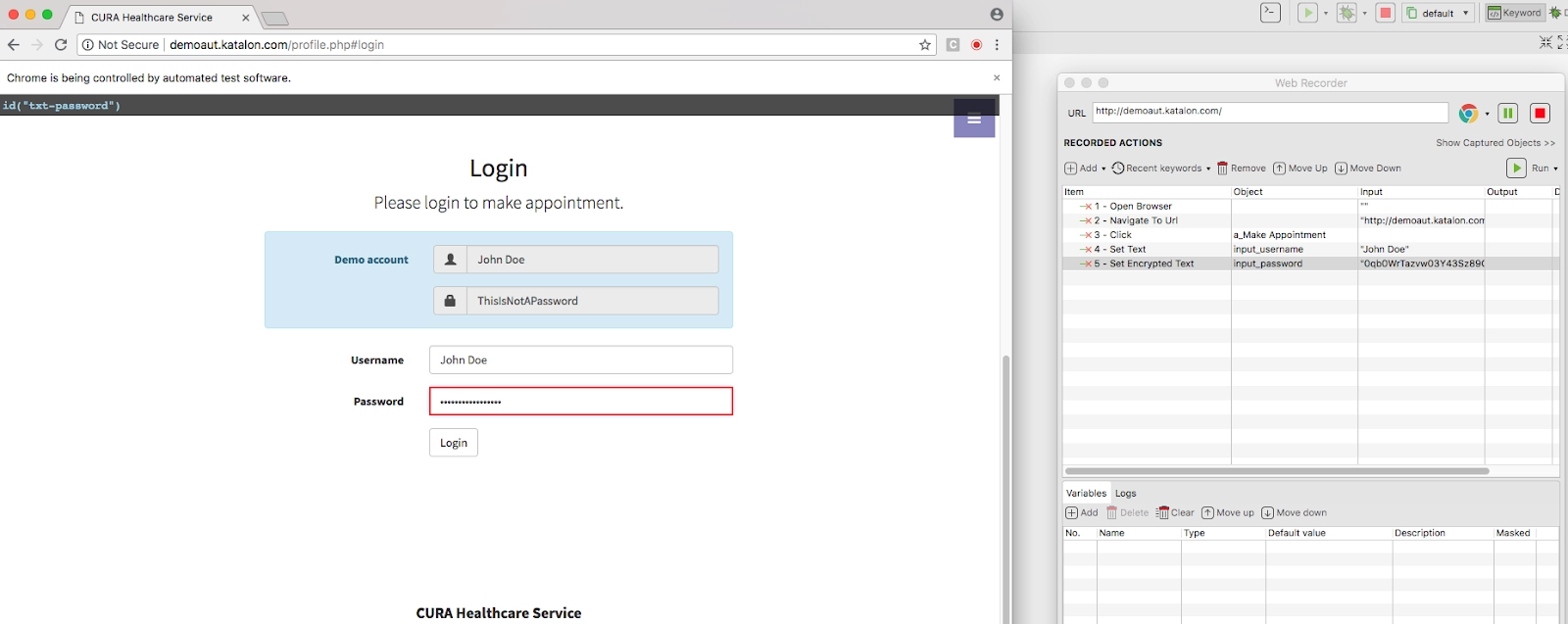
5. When you hover over an element, the browser will display its corresponding XPath on the top of the page.
NOTE: Objects can be captured using hotkey: <Alt + back quote>. The object that is captured will be highlighted with a green border.
6. You can now test the features by interacting with the webpage. The recorded steps will be generated automatically in Recorded Actions. For example, if you try to sign in with the provided credentials when you type in a password field, the Katalon Web Recorder uses the Set Encrypted Text keyword. The input is encrypted for security.
7. Stop recording and save your script.
While recording, Katalon captures all the objects you have interacted with. When the test script is saved, the Katalon Web Recorder exports the list of objects that were used in the test case. Choose a directory where you want your test objects to stay in to continue.
Recording Using an Existing Test Case
For more efficiency, existing test cases can be modified instead of making new ones. So instead of creating new test cases whenever a change is to be made to the UI, the old one can be modified according to one’s convenience.
Open an existing test case.
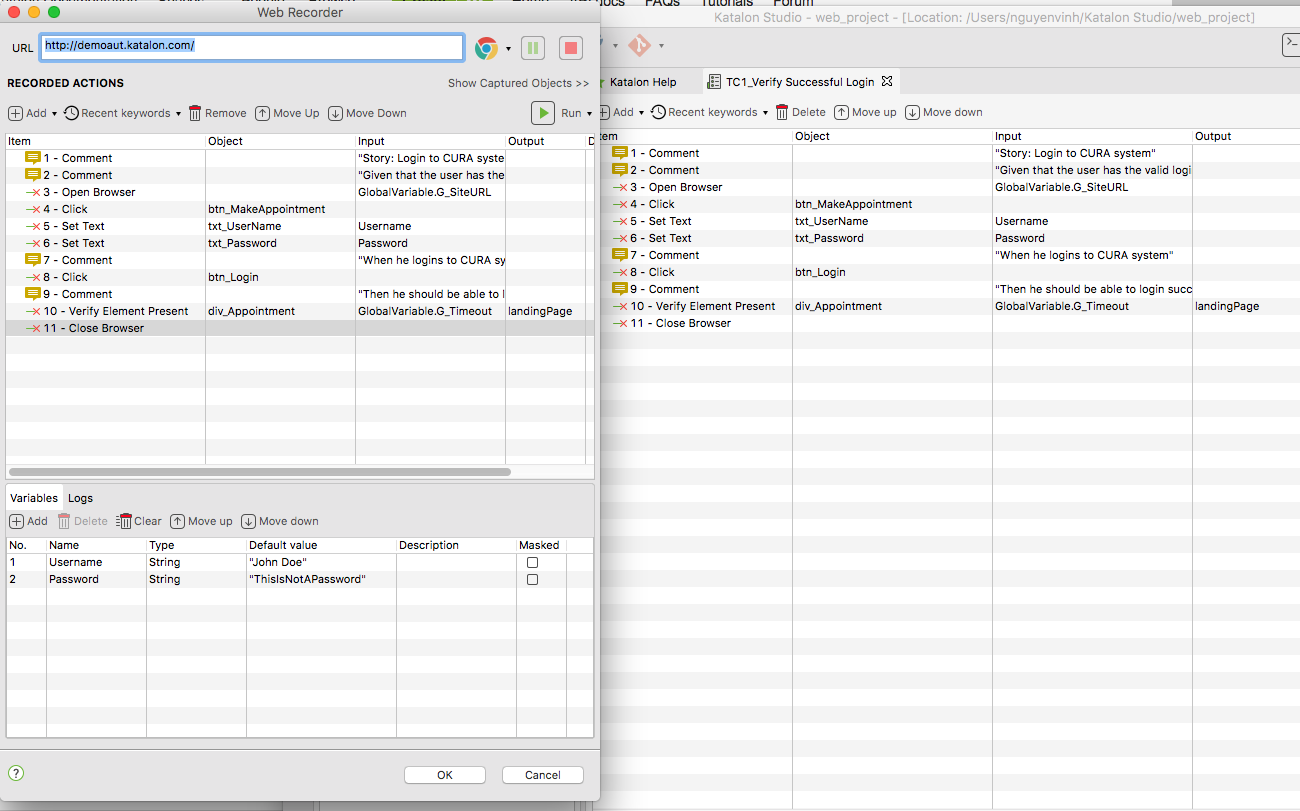
Click on the Record icon and open the Web Recorder. The existing test steps are imported to the Recorded Actions and Variables tabs.
3. Interact with the AUT
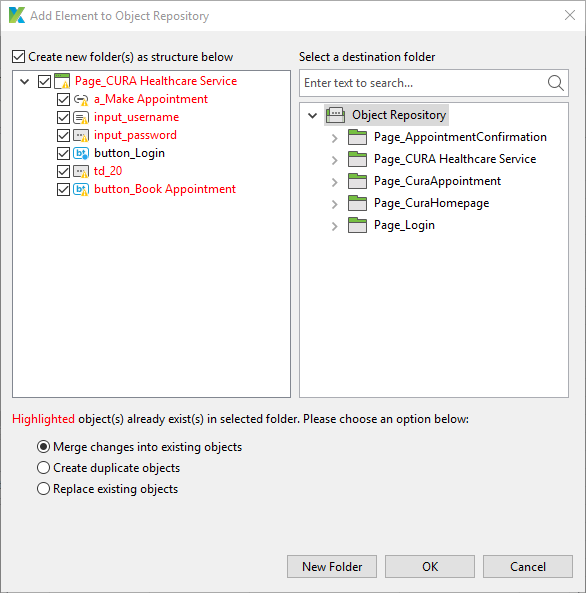
Katalon Studio automatically detects similar existing objects when you save the script. It then asks you for further actions to optimise the Object Repository.
Validate UI Elements
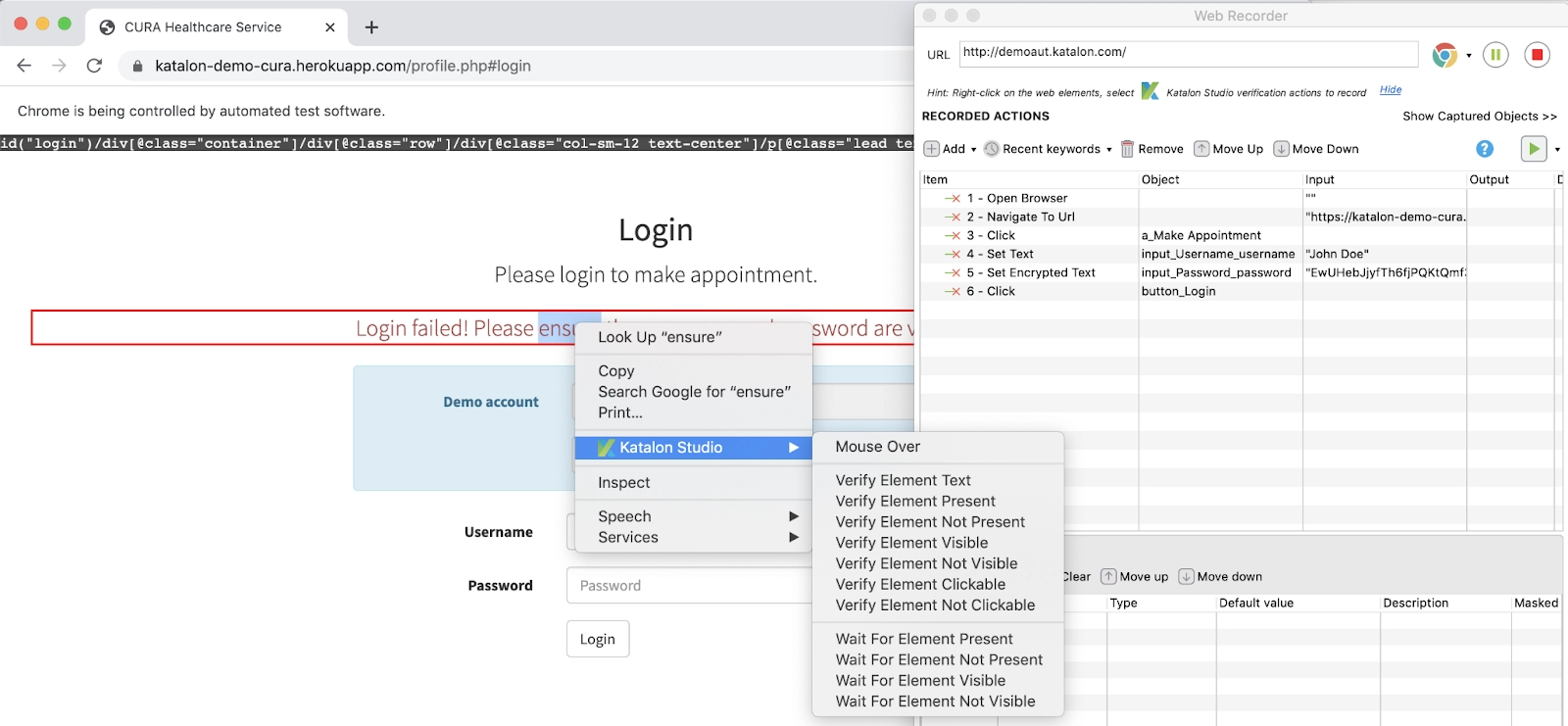
If you enter the incorrect credentials, you can validate and check if the website warns the user by displaying an error message denoting a failed login attempt.
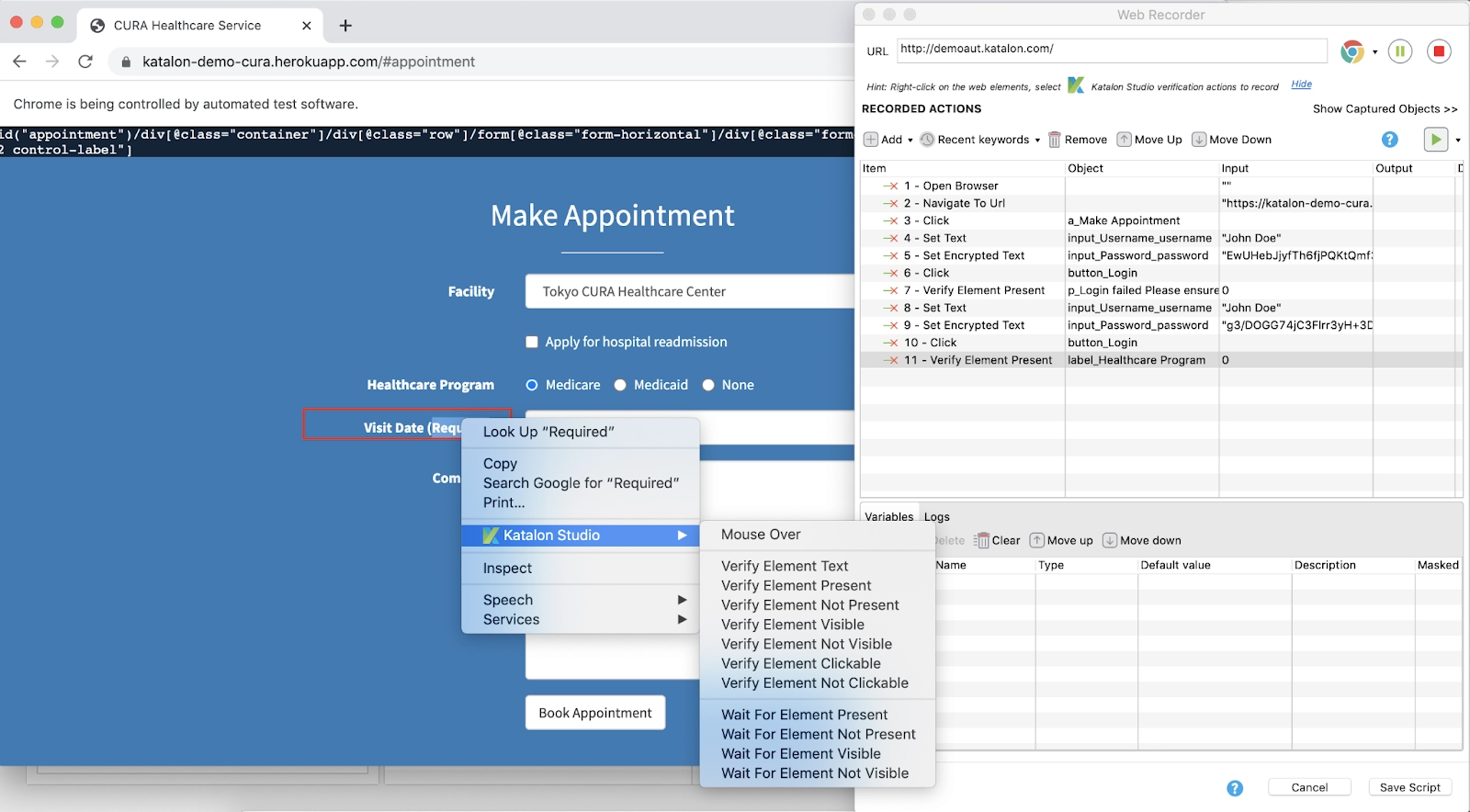
You can also verify if the next page is correct after a successful login by checking if a specific UI element is present.
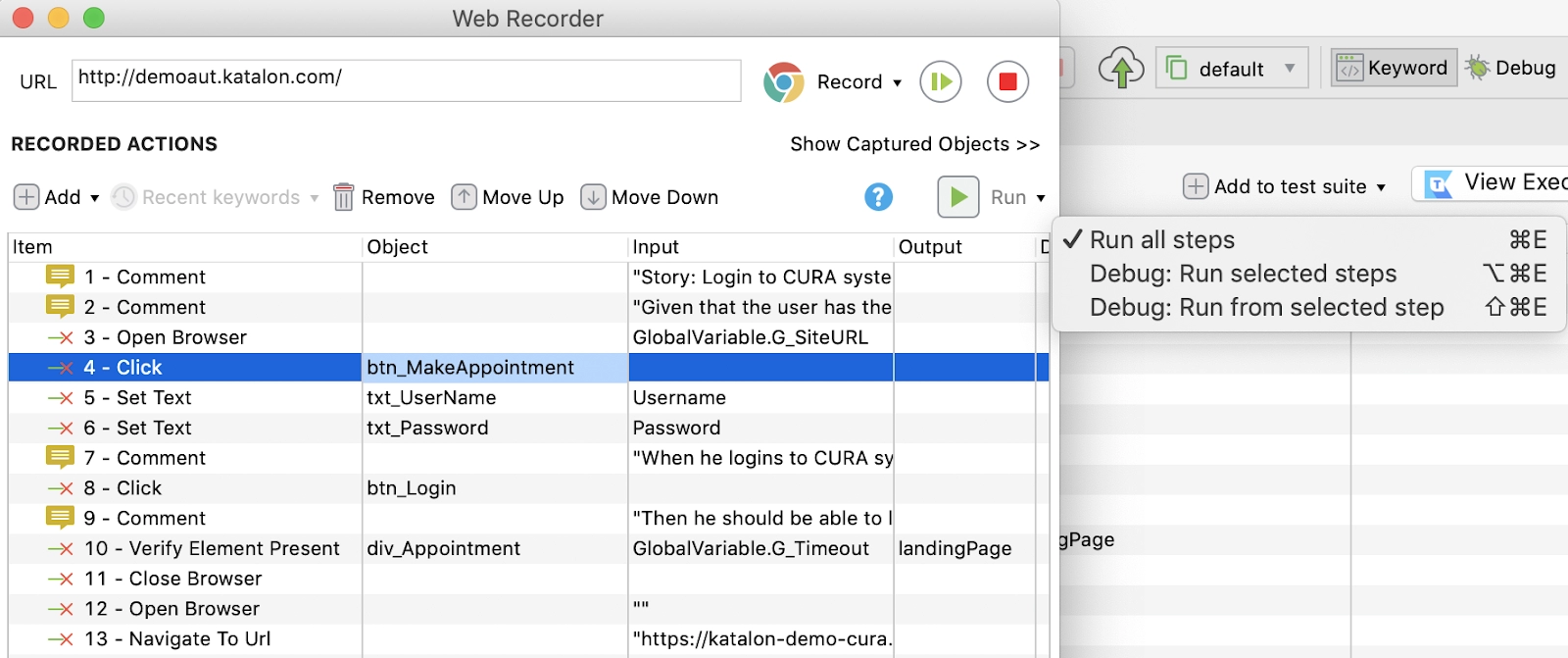
Run options can be found in the drop-down list of the Run button. The debug labels are advanced options for validating recorded script, and save you from running the entire test script from the start again and again if you have a Katalon Studio Enterprise license:
Run all steps: execute all steps enabled on the Web Recorder
Debug: execute the selected steps only.
Multiple steps can be selected by using the Ctrl or Shift key. They will be highlighted when they are selected.
Debug: Run from selected steps: execute the currently selected steps and the ones succeeding them.
Components of the Katalon Web Recorder Utility
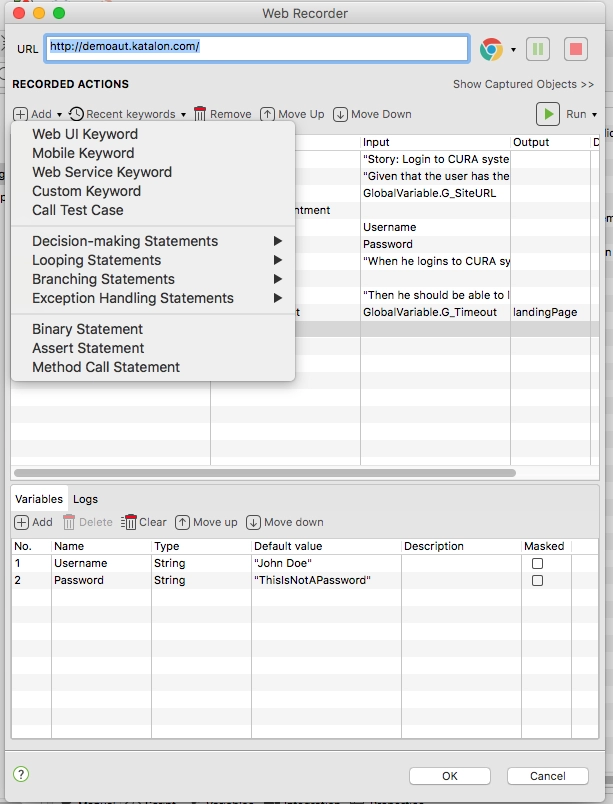
Recorded Actions
The same actions that are available for Katalon Studio’s built-in keywords are available in the Katalon Web Recorder Utility. You can add an action, use custom keywords or even call another test case.
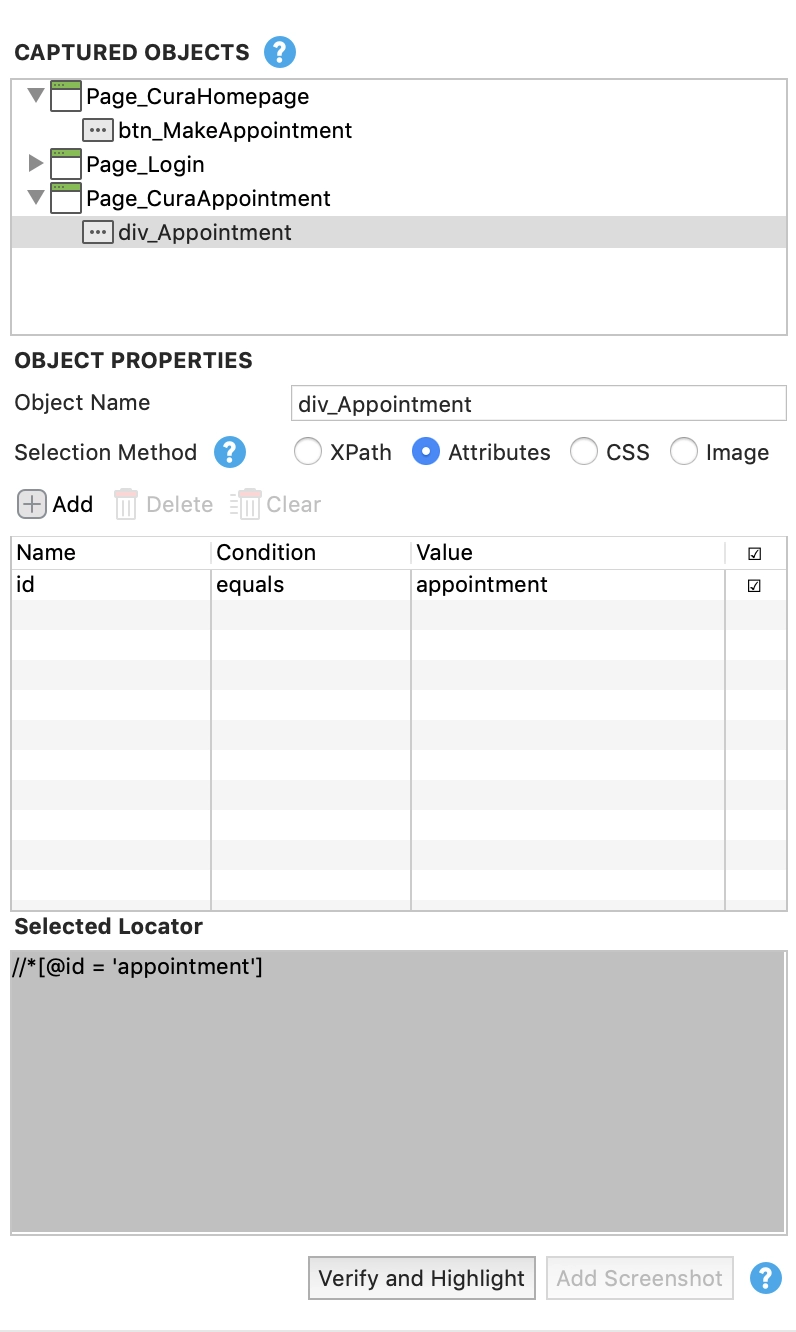
Captured Objects
Katalon will capture all objects that have been interacted with during your recording. Katalon web Recorder exports a list of the objects used in the test case when the script is saved.
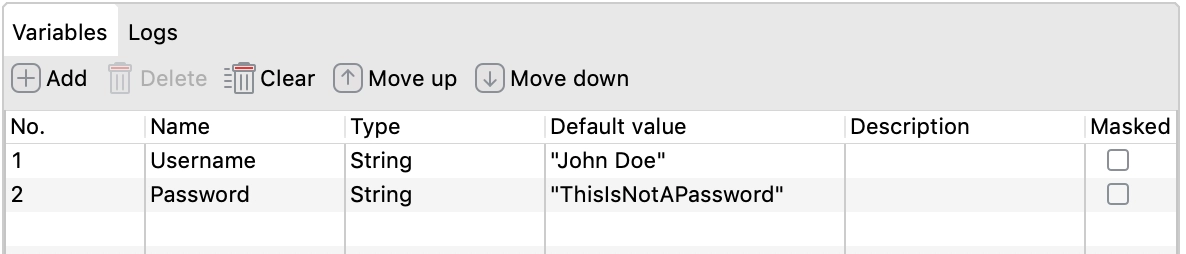
Variables
Variables that are related to your recording can be managed directly.
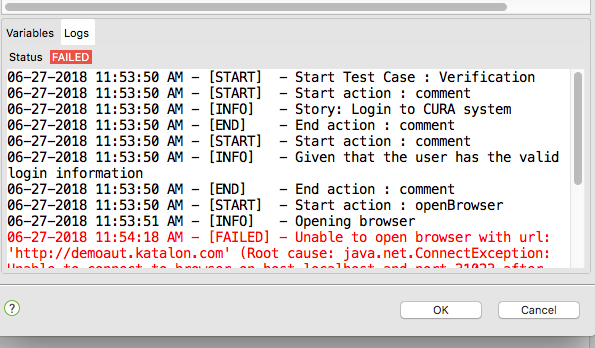
Logs
You can assess the execution of the running recorded actions by looking at their real-time detailed logs. They are displayed on the Logs tab.
Frequently Asked Questions
What is Katalon Studio?
Katalon is an automating testing software, that lets the users test web, mobile or desktop applications and APIs without coding, to deliver efficient and robust softwares to the consumers.
What is Spy Web Utility?
Spy Web Utility helps you capture objects flexibly by specifying properties and locating methods.
What is Record Web Utility?
The easiest way to create an automation test script for a tester is test recordings. The tester needs to manually interact with their website and perform all the desired actions as a real user while the Katalon Recorder Utility records them.
Conclusion
In this blog, we learnt how to use the Spy and Record Web Utility in Katalon Studio. We saw the practical demonstration of the features using examples and how these features help in testing. Share and upvote this article if you found it helpful. Apart from this, visit our platform Coding Ninjas Studio to read informational articles on important computer fundamentals like DBMS, DSA, Competitive Programming, Python, Java, etc. Happy Coding!!









 5+ registered

