Do you think IIT Guwahati certified course can help you in your career?
Introduction
Azure App Service is a one-of-a kind cloud service that allows you to rapidly and easily build enterprise-ready web and mobile apps for any platform or device, then deploy them on a scalable and reliable cloud infrastructure. In this article, we will learn about the Azure app service backup in detail. The Azure Backup service makes backing up, and recovering data from the Microsoft Azure cloud simple, secure, and cost-effective. For more information about Azure app service backup, let's dive into the article.
Azure App Service Backup
Backing up and scaling an App service is much easier than backing up and scaling a virtual machine. We could quickly build app backups using the backup and restore in-app feature service. This backup of the app service will also include app configuration, file content, and, if desired, the database associated with our app. We can use the app service to back up our data. The backup information for the App service will be as follows:
Configuration of the app
Content of file
App connection with the database
We can take backup in various ways: manually, partial backup, and automation based on the schedule. A storage account will be used to store the backup. Regarding restoration, we can use the backup to restore an app with its connected database to its prior state on-demand, or we can use the backup to construct an entirely new app. Only apps in the standard and premium categories have backup and restoration capabilities.
Scaling
The Azure app services can be scaled in two ways:-
Scale-up: When we scale up our app service plan, we can obtain additional CPU, RAM, and disc space, as well as other features like dedicated virtual machines, custom domains, certificates, staging slots, auto-scaling, and many more things, depending on the pricing tier we choose.
Scale-out: Scale-out refers to increasing the number of virtual machine instances that execute our software to scale out to any number of instances depending on the pricing tier. We can expand to a hundred instances if we use app service environments in an isolated tier.
Apart from that, another critical aspect of scaling to keep in mind is Auto Scaling. We may expand our app services in various methods, including automatically, manually, pre-set matrices, and scheduled.
Scaling the App Service using Azure Portal
Step 1: Open an app service you've already built or build a new one.
Step 2: On the left toolbar, select scale-up.
Step 3: Choose a pricing tier and then click "Apply."
Step 4: It's up and running, and you can scale it out and set it up for auto-scaling based on certain predetermined conditions.
Restrictions and Requirements
To use the Backup & Restore feature, the App Service plan must be in the Standard, Premium, or Isolated tier. For further information on upgrading your App Service plan to a higher tier, see Scale up an app in Azure. Each premium and isolated tier has more daily backups than the Standard tier.
You'll need an Azure storage account and a container from the same subscription as the app you're backing up. For more information on Azure storage accounts, see Azure storage account overview.
App and database data can be backed up to 10 GB, with the database backup up to 4 GB. You will receive an error message if the backup size exceeds this limit.
For MySQL backups, TLS-enabled Azure Database isn't supported. If a backup is configured, it will fail.
Backups of PostgreSQL are not supported with TLS-enabled Azure Databases. If a backup is configured, it will fail.
Without any settings, MySQL databases created in the application are automatically backed up. Manually configuring in-app MySQL databases, such as adding connection strings, may cause backups to fail.
Using a backup destination that is protected by a firewall is not recommended. If a backup is configured, it will fail.
A storage account with a private endpoint cannot be used to backup or restore data.
Creating manual backup
Navigate to your app's page in the Azure portal and click Backups. The Backups page is now visible. Source
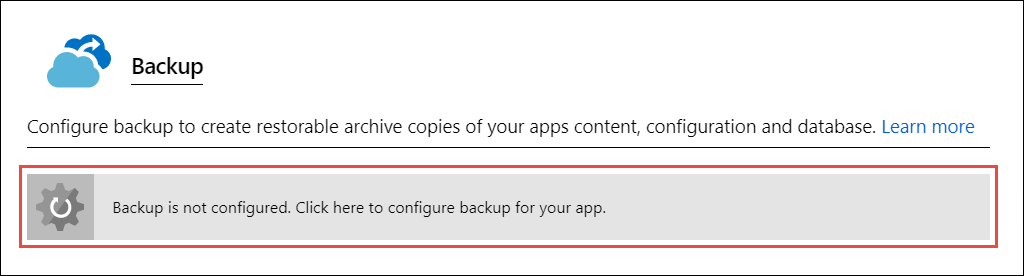
Select backup is not configured on the Backup page. To set up a backup for your app, go here.
Go to the Backup Configuration page to configure a storage account and select Storage not configured.
Select a Storage Account and Container for your backup destination. The storage account and the app you wish to back up must be on the same subscription. On the respective pages, you can create a new storage account or a new container if you choose. Click Select when you're finished.
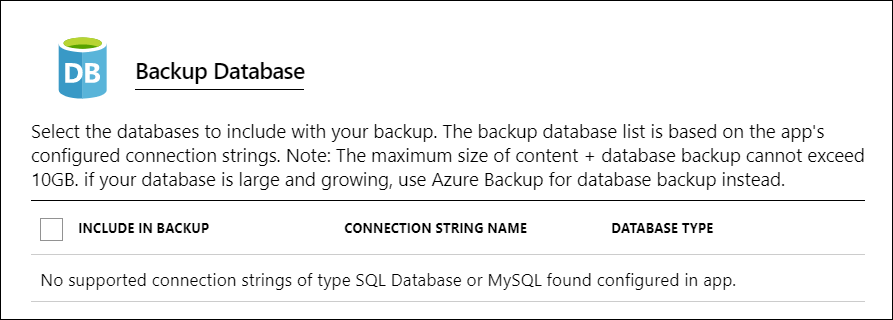
You can configure Backup Database on the Backup Configuration page that is still open, select the databases you want to backup (SQL Database or MySQL), and click OK.
Click Save on the Backup Configuration page.
Click backup on the Backups page.
You can do a manual backup at any moment after configuring the storage account and container. Backups made manually are kept indefinitely.
Creating automated backups
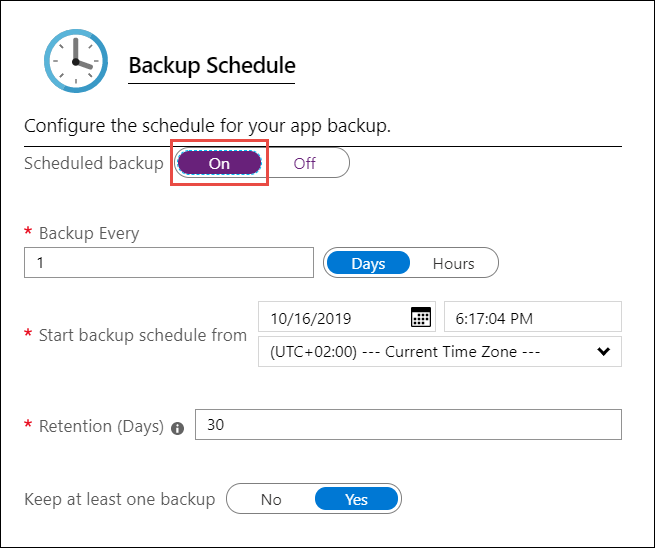
In the Backup Configuration page, set Scheduled backup to On.
Configure the backup schedule as desired and select OK.
Set Scheduled backup to "On" on the Backup Configuration page.
Select OK after configuring the backup schedule as desired.
Creating Partial Backups
You may not always want to back up your entire app. Listed below are a few examples:
You create weekly app backups that include static content that doesn't change, such as old blog entries or photographs.
Your app contains more than 10 GB of data (the maximum amount you may back up at one time).
The log files are not to be backed up.
You can choose which files you want to back up with partial backups.
How are backups kept?
The backups for your app are available on the Containers page of your storage account and in your app after you've made one or more backups. Each backup in the storage account comprises an a.zip file containing the backup data and an.xml file containing a manifest of the.zip file contents. You can unzip and explore these files if you want to access your backups without restoring the program. The database backup for the app is located in the.zip file's root directory. This BACPAC file (no file extension) may be imported into SQL Database.
Troubleshooting
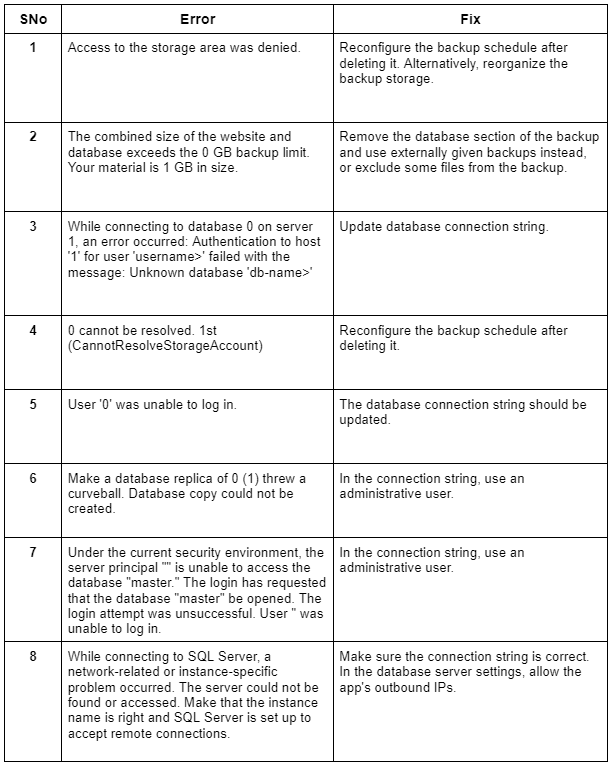
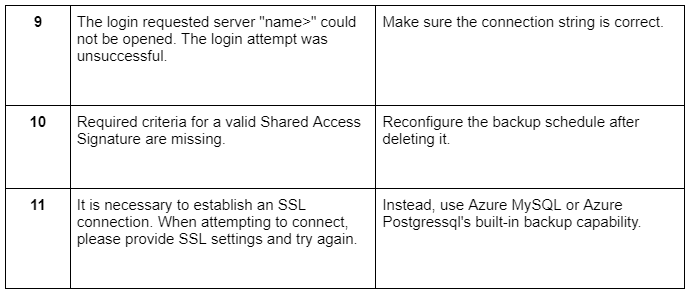
Each backup's status is displayed on the Backups page. You can get more information about a failed backup by clicking on it. To troubleshoot your backup, refer to the table below. Open a support ticket if the failure isn't documented in the table.
Frequently Asked Questions
Is there a backup option in Azure?
The Azure Backup service makes backing up, and recovering data from the Microsoft Azure cloud simple, secure, and cost-effective.
What can Azure Backup do for you?
Backup options in Azure range from "standard" Windows or Linux computers to fine-grained protection for Exchange, SQL, and SharePoint services. You can backup Hyper-V, VMWare, or even the system state and perform a bare-metal recovery if necessary.
Is Azure Backup available as a platform-as-a-service?
Azure backup is built from the ground up as a first-class PaaS service in Azure that delivers on the cloud promises customers to anticipate as they cloud change their IT infrastructure.
What is the architecture of Azure Backup?
Each VM drive is backed up in parallel, which optimizes the backup. Azure backup reads the blocks on the disc for each disc being backed up and only uploads the data blocks that have changed (the delta) since the previous backup. Data from snapshots may not be copied to the vault right away.
Conclusion
In this article, we have extensively discussed the Azure App Service Backup. Various ways to configure backup, troubleshooting, restrictions, and requirements are also covered in the blog.










 1+ registered

