Do you think IIT Guwahati certified course can help you in your career?
Introduction
Azure DevOps offers developer services that enable teams to organize their work, collaborate on code development, and create and deploy apps. Azure DevOps fosters a collaborative culture and practices that bring together software engineers, project managers, and contributors. Through this article, we will learn in detail about Azure Feeds, Project-scoped feeds, organization feeds, Feed views and various other related concepts.
What are Artifact-Feeds?
Artifacts Feeds are organizational frameworks that enable you to store, organize, and group your packages while controlling who has access to them. Feeds are not affected by package type. The following package types may be stored in a single feed: npm, NuGet, Maven, Python, and Universal.
Project-scoped vs Organization-scoped feeds
Previously, all feeds were scoped to an organization and could be seen and accessed from any project within that organization via the Azure Artifacts portal. We introduced project-scoped feeds alongside the launch of public feeds. This sort of feed is only available within the hosting Project.
Note: Only feeds specific to a project can be made public.
Public feeds
Public feeds are used to share your packages with everyone who has access to the Internet. Users will not be required to be members of your organization or firm. They may access the packages even if they do not have an Azure DevOps account. Public feeds are project-scoped feeds that inherit the hosting Project's visibility settings.
There are a few things to keep in mind regarding public feeds:
Only inside public projects may public feeds be produced.
Public feeds do not replace current package management services (NuGet.org, npmjs.com, etc.).
Upstream sources are not permitted for public streams.
Currently, the general public cannot download universal packages. For public access, all additional package kinds are supported.
Note: All feed views in a public project are accessible to everyone on the Internet.
Create public feeds
In a public project, public feeds are project-scoped feeds.
Select Artifacts
Creating Artifacts Feeds
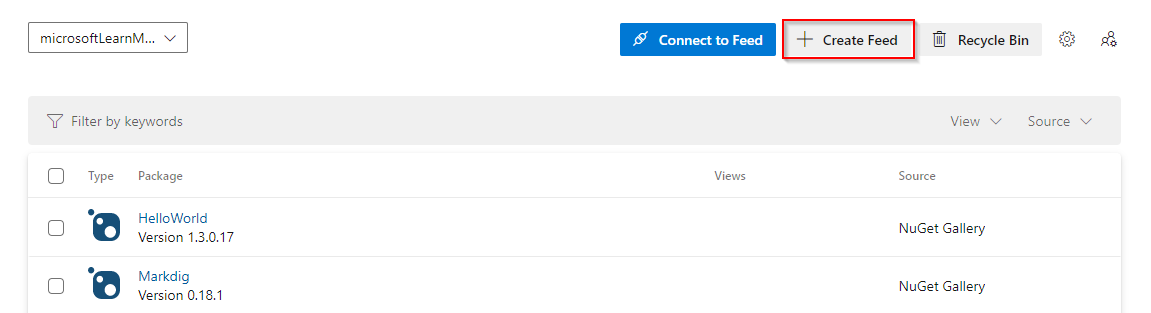
Select Create Feed
\
Give your feed a name, and then pick Project as the scope of your feed.
Choose Artifacts, then your feed from the dropdown menu.
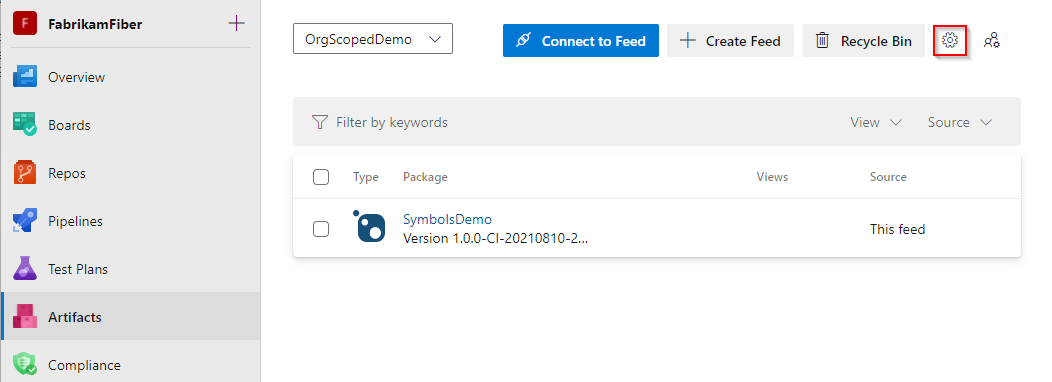
To access the settings for your feed, click the gear icon.
Choose Delete feed.
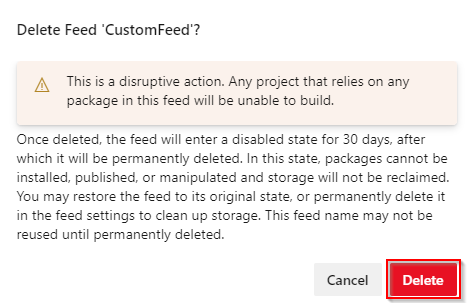
When you're finished, click Delete.
Restore deleted feeds
If you delete a feed by mistake, Azure Artifacts gives you 30 days to restore it to its original condition. After 30 days, the feed will be permanently erased. During the recovery window, the feed's name stays reserved, packages are unavailable for download, and write access to that feed is disabled.
The feeds pending permanent deletion may be viewed in the feed picker dropdown list under the Deleted Feeds page.
Choose Artifacts.
Select Deleted Feeds from the feed picker dropdown menu.
Users cannot read or recover the feed's packages once destroyed. After 15 minutes, the feed name will be available for reuse. A feed that is scheduled for deletion will continue to use storage space.
If you wish to delete your feed before the 30 days are over permanently, do the following:
Choose Artifacts.
Select Deleted Feeds from the feed picker dropdown menu.
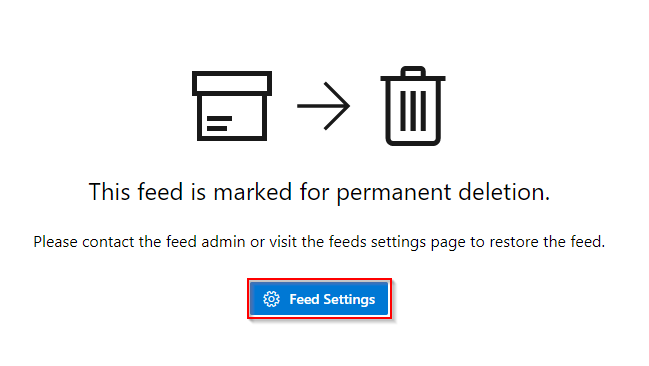
Choose the feed you wish to restore, then choose Feed Settings.
Select Permanently Delete Feed, followed by Delete.
Project-scoped feeds
Previously, Azure Artifacts feeds were organization-specific. Feeds produced using the web interface are now scoped to a project to enable public feeds and improve consistency with other Azure DevOps services.
New organizations will have one feed scoped to the organization by default, and any additional feeds generated will be scoped to a project. All current organization-scoped streams will remain organization-scoped.
Project-scoped vs organization-scoped feeds
The main difference between different types of feeds are as follows:
Visibility:
Project-scoped feeds inherit the Project's visibility. Feeds that are exclusive to an organization are always private by default.
Links:
Project-scoped feed URL includes the Project.
For Example: https://pkgs.dev.azure.com/<ORG_NAME>/<PROJECT_NAME>/_packaging/<FEED_NAME>/nuget/v3/index.json
Organization-scoped feed URL doesn't include a project.
The feeds dropdown menu contains a list of all organization-scoped feeds.
To see a project-scoped feed in the feed's list, browse to the Project that hosts the feed.
Connection:
While connecting to a private project scoped feed from an Azure DevOps pipeline in the same organization, but in a separate project, the Project to which the feed is scoped must allow access to the other Project's build service. Regardless of the scope of the feed, the build service must be independently added to the feed permissions.
Security policies
You may disable the Allow public projects policy in the Organization Policy Settings to provide an extra degree of protection to your project-scoped feed and protect its visibility.
You may also manually build a new organization-scoped feed using the Create Feed API. You must manually configure the default permissions for the new feed using either the Feed Permission API or the Artifacts feed settings.
What are Feed Views?
Developers can share a selection of package versions with their customers using feed views. Feed views are commonly used to distribute package versions tested and verified while withholding packages still in development or did not satisfy a specified quality threshold.
Default view
Artifacts streams have three views: @local, @prerelease, and @release. The last two are recommended views you may rename or remove as you see fit. The default view, @local, is often used in upstream sources. All packages uploaded directly to the feed and packages saved from upstream sources are included in the @local view.
Users connecting to a feed view can only utilize packages published to that view or packages already saved from upstream sources since feed views are read-only. Package graphs can help you understand how available packages are built.
Feed views and upstream sources
Feed views and upstream sources are intended to operate together to provide an enterprise-level solution for package sharing and consumption. Suppose you want other Azure Artifacts feeds to utilize your feed as an upstream source. In that case, you must make it visible to members of your Organization or Azure Active Directory, depending on your circumstance. If you pick the latter, all users in your company may access your feed, and all feeds in your organization and other organizations affiliated with the same Azure Active Directory tenant can upstream to your feed.
Release packages with feed views
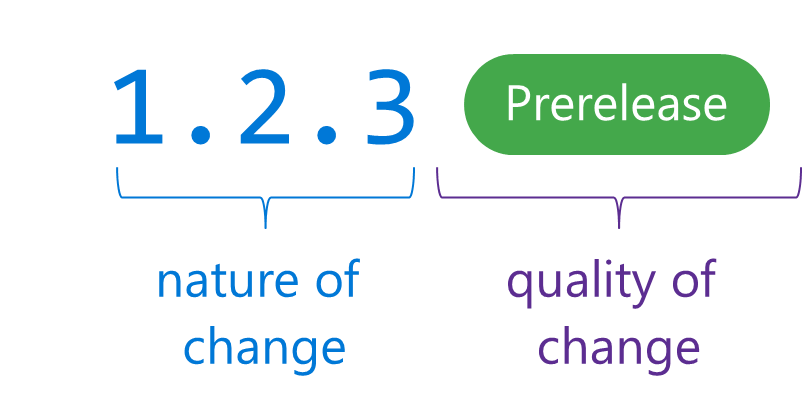
Three pieces of information must be conveyed when constructing release packages: the type of the change, the risk, and the change's quality.
The nature and danger of the change are related to the change itself, that is, what you set out to achieve, and they are both recognized at the start of the activity. This is the type of your modification if you're bringing new features, updating current functionality, or fixing issues. If you're still making modifications to your application's API, this is one aspect of the risk of your update. Many NuGet users utilize Semantic Versioning (SemVer) notation to represent these two bits of information. SemVer is a widely used standard that effectively communicates this sort of information.
Quality of the change
The overall quality of the modification is unknown until the validation procedure is completed. This happens once your modification has been developed and packaged. Because of this, communicating the quality in the version number, which is given before packaging and before validation, is impossible. There are workarounds for pre-validation (e.g., consume the build's DLLs directly before packaging and publish the packages to a "debug" or "CI" environment before validating and republishing to a "release" environment), but none that we've seen can truly guarantee that the built package will meet the correct quality standard.
The @Release view may be used to indicate the quality of your modifications. Using the @Release view, you may distribute packages that met your quality criterion while restricting your customers' access to only the package versions that have been tested, verified, and are suitable for consumption.
You may use Azure Artifacts to publish, consume, and store many sorts of packages in your feed. You can manage who may view your packages by setting up permissions for your feed.
Configure Azure Artifacts settings
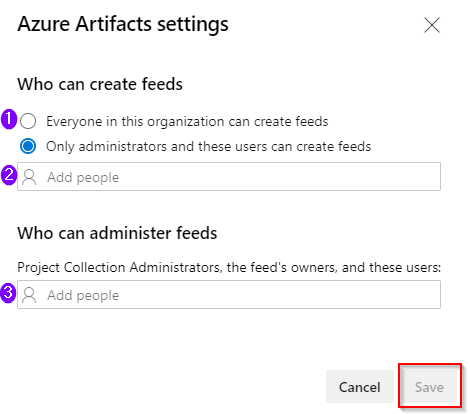
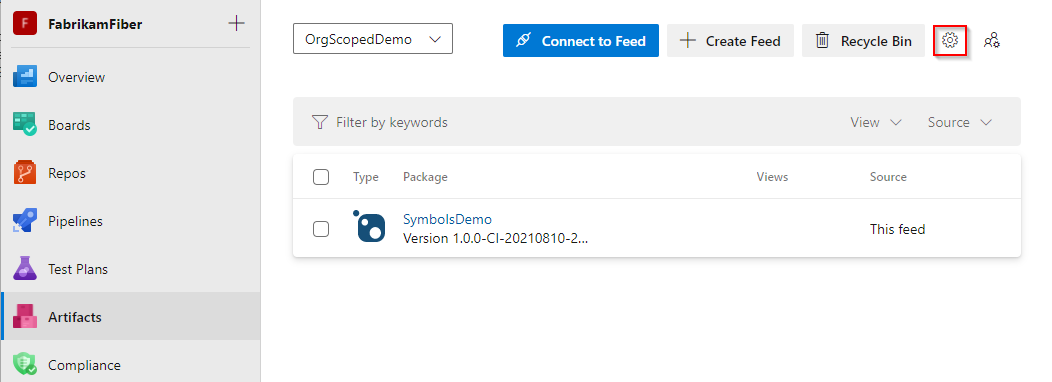
Select the Azure Artifacts settings icon on the right to see the Azure Artifacts settings.
Users in an Azure DevOps organisation have the ability to add new feeds by default. A user who establishes a feed is both the feed's owner and administrator.
New feeds can be created by users in this Azure DevOps organisation.
Only feed administrators and the people or groups listed below can create new feeds.
When users or groups are added here, they become administrators for all feeds in the organisation.
Configure feed settings
To access your feed's settings, click the gear button.
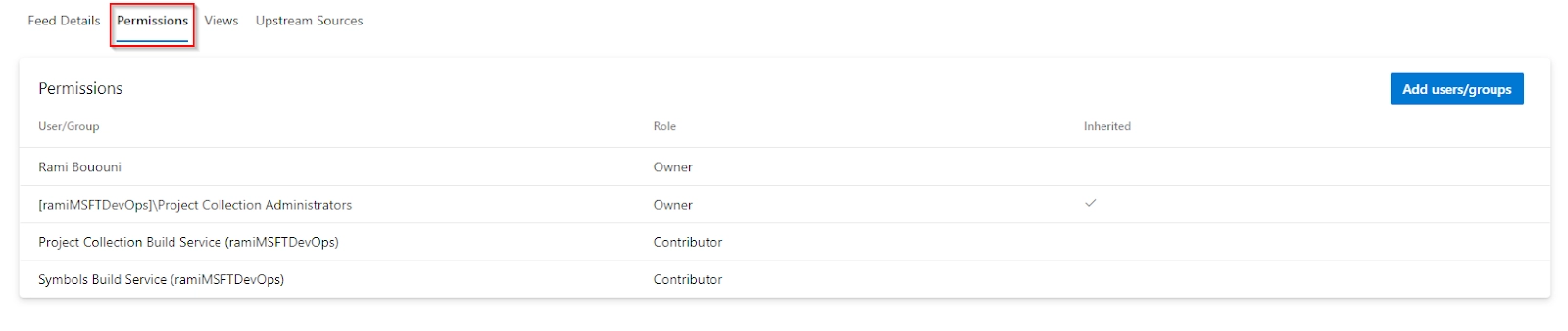
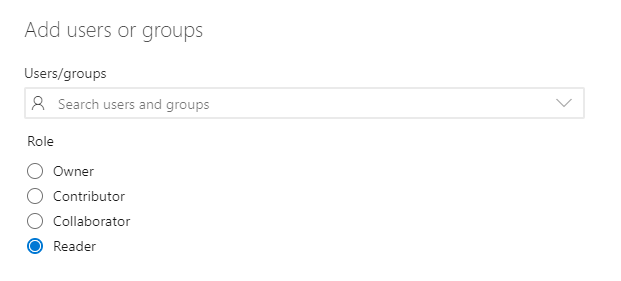
Select Permissions, followed by Add users/groups.
Add new users/groups and then choose their Role.
When you're finished, click Save.
Views permissions
Users can share specific packages while keeping others private using feed views. Sharing a package version that has previously been tested and validated while keeping packages under development private is a frequent use case for a feed view.
A feed has three views by default: @local, @prerelease, and @release. The last two are recommended views that you may rename or remove as you see fit.
The default view is @local, which contains all items published to the feed as well as any packages retrieved from upstream sources.
Simply choose a person or group from the permission table in your Feed Settings and click Delete to restrict access to your feed.
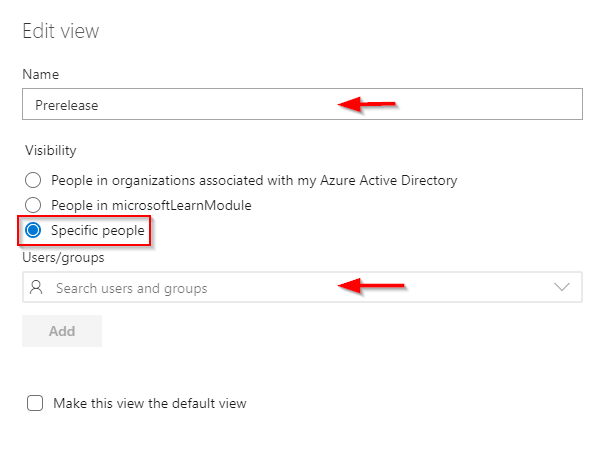
You may limit access to a view by making it visible only to certain persons, as seen below.
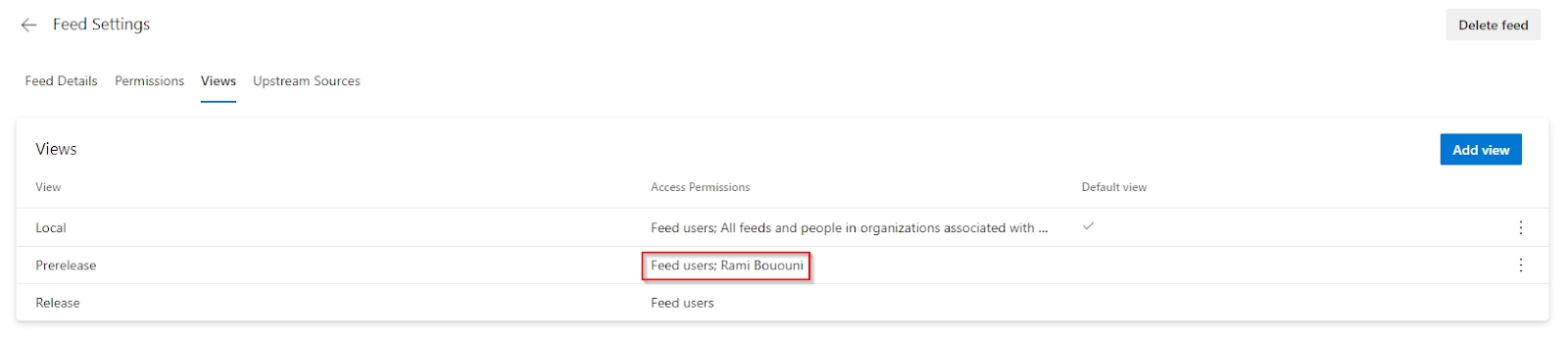
After limiting the display of your view to particular persons, the access permissions column should reflect your modifications.
Frequently Asked Questions
What are Azure Pipelines?
Azure DevOps Pipeline develops and tests code projects automatically. It is an Azure cloud service that works well with most project kinds and languages. This service aids in making code projects more accessible to other users.
What are Azure DevOps Projects?
The Azure DevOps Project provides a streamlined method for bringing existing code and Git repositories for constructing CI and CD pipelines to Azure.
What are Azure Test Plans?
Azure test plan provides browser-based test management via which we can manage all testing, such as exploratory and manual testing, continuous testing, and unit and functional testing. We can also ask or request feedback from stakeholders.
Conclusion
This article extensively discussed the Azure Feeds, Project-scoped feeds, organization feeds and Feed views. We hope this blog has helped you enhance your knowledge relating to Azure Artifact Feeds.












 1+ registered

