Do you think IIT Guwahati certified course can help you in your career?
Introduction
Katalon is an automating testing software that lets the users test web, mobile or desktop applications and APIs without coding to deliver efficient and robust software to the consumers. The software is built over the Selenium and Appium automation frameworks, making testing convenient and code-free.
This blog goes through the steps to use Spy Web Utility, used to capture objects, and Record Web Utility, used as an automated test script.
BDD Testing
The Behaviour Driven Development (BDD) testing framework helps in the creation of test cases in plain English. This framework focuses on the behaviour of the product and the user acceptance criteria. Cucumber is a BDD framework tool that uses an ordinary language parser called Gherkin, permitting script writing in English.
With BDD, you can:
Link and define steps
Add and create feature files
Run the feature files
Add the feature files to a test case
Upload and view BDD reports on TestOps
View BDD files generated from Katalon Studio
Adding Featured Files in Katalon
Given below is a step-by-step guide that demonstrated how to add featured files in Katalon Studio. To add a new feature:
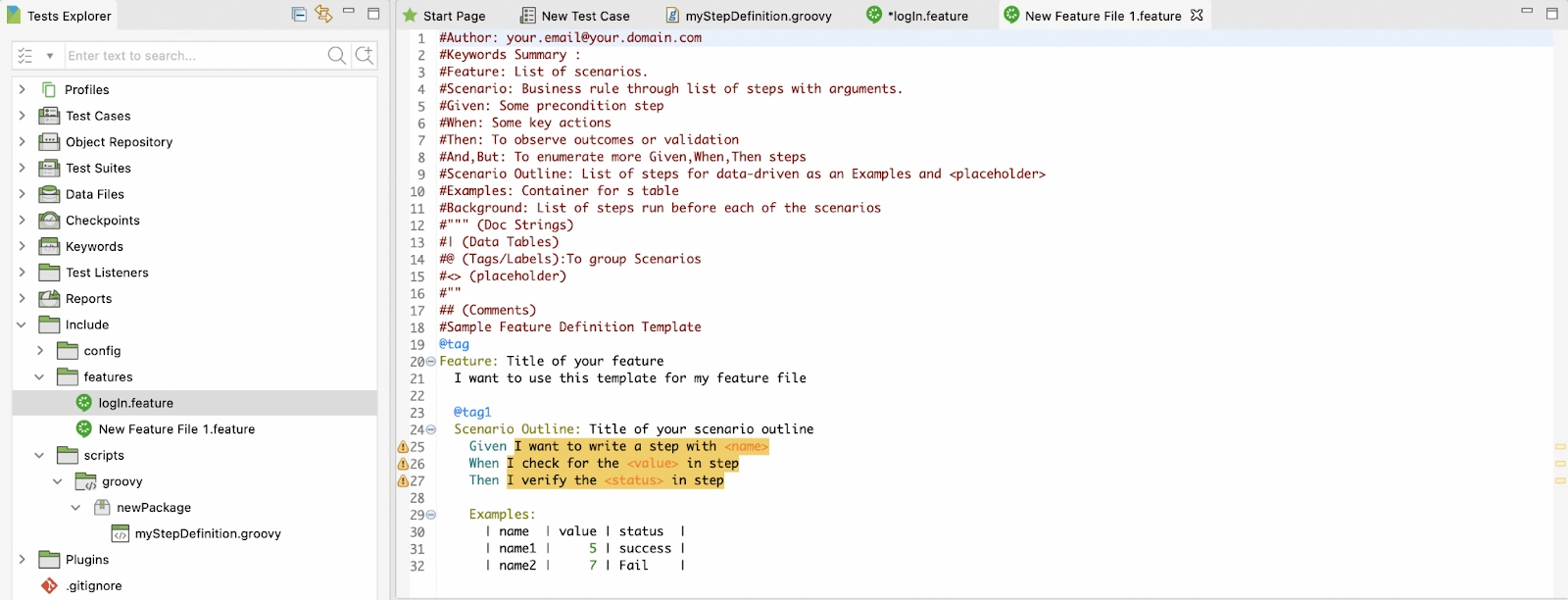
Open a Katalon Project. Go to Test Explorer > Include > features. After right-clicking on the features folder, choose New Feature File.
2. In the dialogue that appears, name your feature file. If you tick the option Generate sample Feature template, it ensures that the feature file will match the BDD convention, making the featured file creation simple and correct.
A new feature file is thus created
3. Now add your scenarios to the file in the following sample format:
Feature: scenarios’ list.
Scenario: list of steps with arguments.
Scenario Outline: Used when the test data is replaced with multiple data sets for each test script run.
Given: Precondition step.
When: key actions.
Then: observe outcomes or validation.
And, But: Given, When, Then steps.
Background: all steps run before each scenario.
Examples: Container for the dataset.
Tags/ Labels: grouping of relevant scenarios. It is a good method to organise features and scenarios. One feature or scenario can have multiple tags.
We have two scenario outlines: logging in with valid or invalid credentials. For each scenario, there will be specific steps like Given, When, Then like shown below:
Sample File Script:
#Author: your.email@.domain.com
#Keywords Summary :
#Feature: Scenarios’ list.
#Scenario: list of steps along with arguments.
#Given: Precondition step.
#When: Key actions.
#Then: To observe outcomes or validation.
#And,But: enumerating more Given,When,Then steps
#Scenario Outline: List of steps for data-driven as an Examples and <placeholder>
#Examples: Container for s table
#Background: List of steps run before each of the scenarios
#""" (Doc Strings)
#| (Data Tables)
#@ (Tags/Labels):To group Scenarios
#<> (placeholder)
#""
## (Comments)
#Sample Feature Definition Template
@Login
Feature: Login Feature


  As a user, I want to login to Cura System
  so that I can make an appointment.


  @Valid Credentials
  Scenario Outline: Login with valid credentials
    Given I navigate to Cura System homepage
    When I click Make Appointment button
    And I enter username <username> and password <password>
    And I click Log in button
    Then I should be able to login successfully


    Examples:
      | username | password           |
      | John Doe | ThisIsNotAPassword |


  @InValid Credentials
  Scenario Outline: Login with invalid credentials
    Given I navigate to Cura System homepage
    When I click Make Appointment button
    And I enter an invalid username <username> and password <password>
    And I click Log in button
    Then I should NOT be able to login successfully


    Examples:
      | username | password           |
      | Jane Doe | ThisIsNotAPassword |
Maintaining Feature Files
For easier management, it is a healthy practice to organise the feature files with a multi-level system. A feature file may contain multiple scenarios.
There are three options that help maintain the feature files. You can choose from the following options:
Defining Steps
After adding the feature files, you need to define the link to the steps before the usage of the feature file.
Every Gherkin step in the file needs to be associated with a set of programming code which can be executed by the Katalon Studio in the action of that step. These definitions can be made in the Keyword folder by leveraging the Script Mode. The Katalon Studio’s built-in keywords can be re-used in the Step Definitions file too. While executing any features, Katalon Studio also looks for the matching step definitions in the source folder.
For example, taking out two Login Scenarios: invalid and valid credentials. We have a total of 6 steps:
I navigate to the Cura Systems homepage
I click on the Make Appointment button
I enter the username <username> and password <password>
I click on the login button
I should be able to login successfully
I am not able to login successfully
Sample Script
class MyStepDefinition {


    /**
     * The step definitions below match with Katalon sample Gherkin steps
     */


    @Given("I navigate to the Cura Systems homepage")
    def I_navigate_to_Cura_System_homepage() {


        WebUI.openBrowser("https://katalon-demo-cura.herokuapp.com/")
        //WebUI.waitForPageLoad(30)
    }


    @When("I click on the Make Appointment button")
    def I_click_makeAppointment_button() {


        WebUI.click(findTestObject('Page_CURA Healthcare Service/a_Make Appointment'))
    }

    @And("I enter username (.*) and password (.*)")
    def I_enter_valid_username_password(String username, String password) {


        WebUI.setText(findTestObject('Page_CURA Healthcare Service/input_userName'), username)
        WebUI.setText(findTestObject('Page_CURA Healthcare Service/input_password'), password)
    }

    @And("I click on the login button")
    def I_click_login_btn() {


        WebUI.click(findTestObject('Page_CURA Healthcare Service/button_Login'))
    }

    @Then("I should be able to login succesfully")
    def I_login_successfully() {


        WebUI.click(findTestObject('Page_CURA Healthcare Service/button_Login'))
        WebUI.verifyTextPresent('Make Appointment', false)
        WebUI.closeBrowser()
    }


    @And("I enter an invalid username (.*) and password (.*)")
    def I_enter_invalid_username_password(String username, String password) {


        WebUI.setText(findTestObject('Page_CURA Healthcare Service/input_userName'), username)
        WebUI.setText(findTestObject('Page_CURA Healthcare Service/input_password'), password)
    }


    @Then("I am not able to login succesfully")
    def I_login_unsuccessfully() {


        WebUI.verifyTextPresent('Login failed! Please ensure the username and password are valid.', false)
        WebUI.closeBrowser()
    }


}
How to Define Steps
The steps need to be defined before use.
Follow these steps to create new step definitions:
Navigate to the Include/scripts/groovy folder in the Test Explorer. Right-click and choose New > Step Definition. The Keyword dialogue appears.
Enter the Class Name after choosing your Package. Optionally, you can enable the option to Generate sample @Given, @When, @Then steps.
3. Click OK after you’re done.
RESULT:
New step definition created
Settling the Default Package for Step Definitions in Katalon Studio
Use CucumberKW.GLUE = ['package1', 'package2'] to define the location of a step definition. The default value is all the packages, which implies that the test engine takes time to scan all existing packages. When you define specific locations, it reduces the execution time by narrowing down the search.
Put the script of directing to a package in a test listener.
After creating the feature files, you can put them into use.
Run a Feature File
To run a feature file, go to the desired Feature file, and click the Run button on the main toolbar.
Including Feature Files in Test Cases
If you want to include your Cucumber feature file in a test case, you can use
cucumber keywords in the same. Cucumber libraries need not be imported into Katalon Studio.
After executing the BDD tests, you can view the BDD report files on Katalon Studio or upload the View Reports on Katalon TestOps.
Frequently Asked Questions
What is Katalon Studio?
Katalon is an automating testing software, that lets the users test web, mobile or desktop applications and APIs without coding to deliver efficient and robust softwares to the consumers.
What is BDD?
The Behaviour Driven Development (BDD) testing framework helps create test cases in plain English. This framework focuses on the behaviour of the product and the user acceptance criteria.
What is Cucumber?
Cucumber is a BDD framework tool that uses an ordinary language parser called Gherkin, permitting script writing in English.
Conclusion
In this blog, we learnt how to use the BDD testing framework with Cucumber as a BDD tool to create test cases in Gherkin. Like and share this article if it served its purpose and you found it informative. Additionally, visit our platform Coding Ninjas Studio to read informational articles on important computer fundamentals like DBMS, DSA, Competitive Programming, Python, Java, etc. Happy Coding!!












 7+ registered

