Do you think IIT Guwahati certified course can help you in your career?
Introduction
We all must agree that testing is integral to developing web applications. It informs us whether the task is performing as per our expectations or not before it is launched.
Katalon, a platform for Automation Testing, is used to test web applications, APIs, and mobile and desktop applications. It is a powerful automation tool designed to generate and reuse automated test scripts for the User Interface without any need to code.
In detail, this article will discuss several modules involved in putting Native Windows Recorder in Katalon Studio. This includes the pre-preparation part, procedures for two types of recording and executing a test case. So, without further ado, let’s start.
Pre-preparation for putting Native Windows Recorder in Katalon Studio
There are a few prerequisites that have to be fulfilled for putting Native Windows Recorder in Katalon Studio.
Katalon Studio version 7.0.0 or above to support recording utility for Desktop apps testing.
Katalon Studio version 7.5.0 or above to support Native Windows Recorder for Windows machines.
An active Katalon Studio Enterprise license.
An active system with Windows Operating system.
An already set up WinAppDriver directory. If you have not installed it in your system, open Katalon Studio, select Tools> Windows> Install WinAppDrivers to install the directory.
An already installed Microsoft .NET framework or above.
Types of Recording
The new-generation Native Windows Recorder provides you a hassle-free recording experience. This experience is similar to any Web Recorder. There are two types of recording available in Katalon Studio- Basic Recording and Coordinate Recording. Both these types are explained in this article further.
Basic Recording
To start basic recording in Katalon Studio, follow these steps.
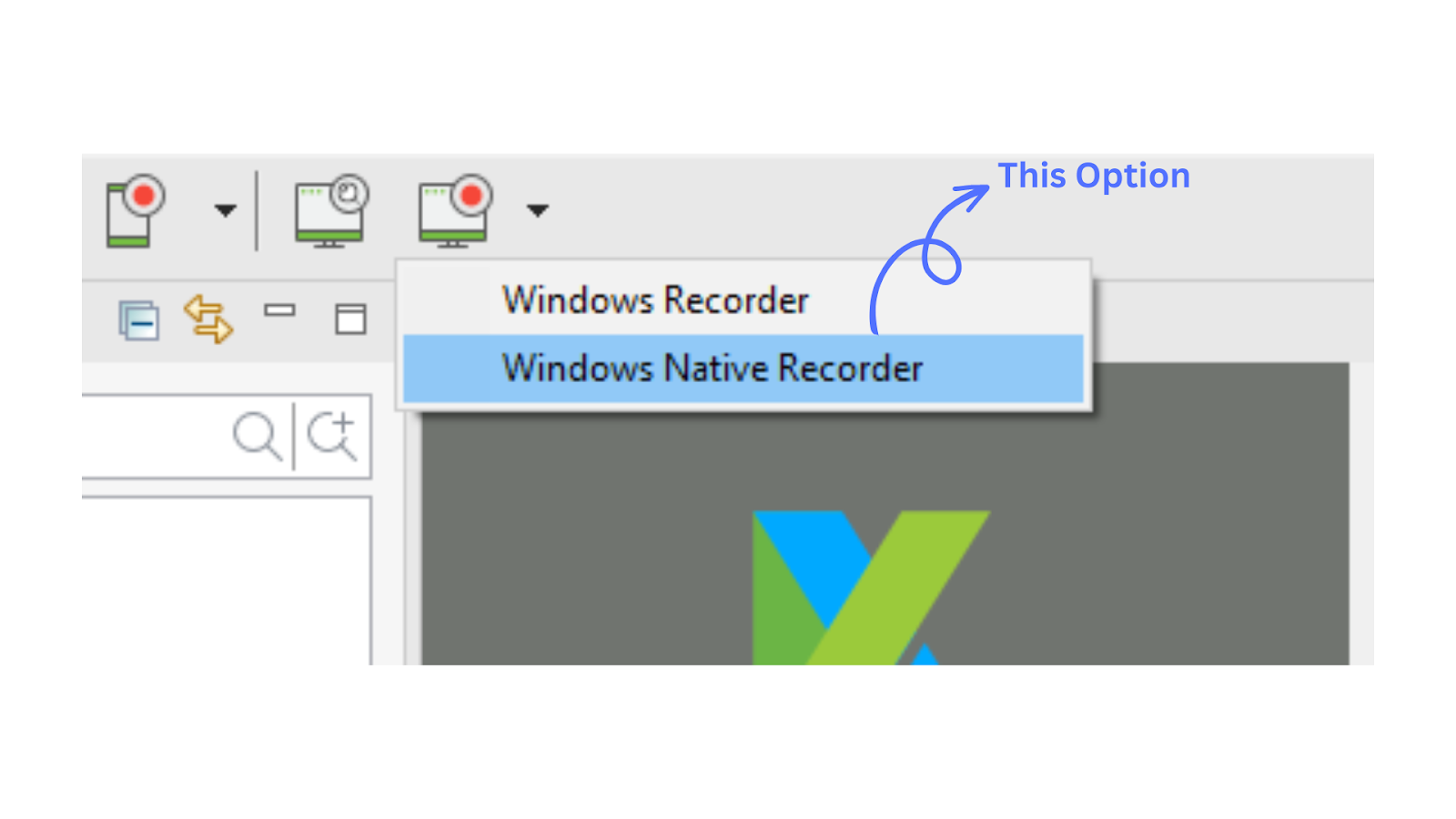
1. Right click on the Windows Recorder icon and choose Native Windows Recorder option. This will open the Native Windows Recorder windows.
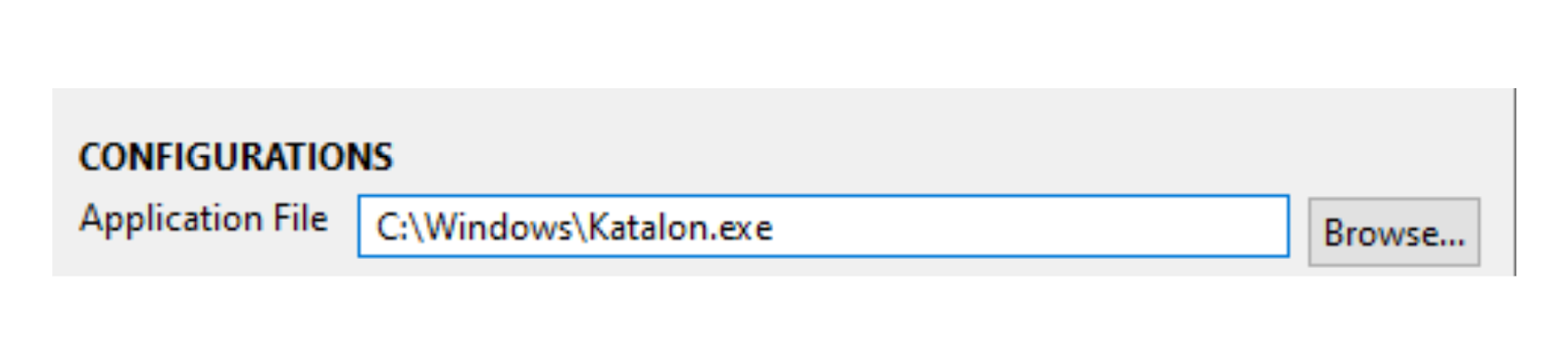
2. A dialog box will open. To configure any recording utility in Katalon Studio, you must specify the following field in the Configurations section.
Application File: It contains the absolute path to any Windows Executable file (*.exe) of the testing machine. You can click on the Browse button beside the field to find the desired application file.
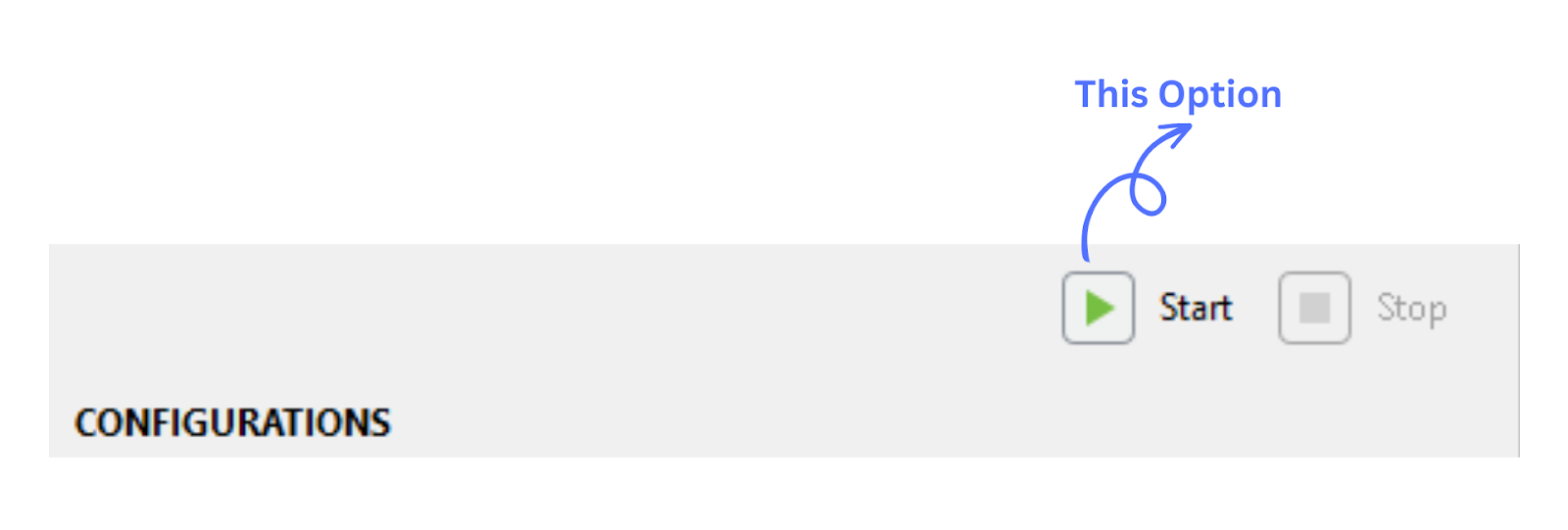
3. Click on Start button to open the specified Windows application.
4. When you select an element of the AUT, the Katalon Studio highlights the identified object with a red rectangle.
5. If you perform any action on the AUT, that action gets recorded in the Recorded Actions section. This list of actions will be the same as Katalon Studio’s built-in keywords list.
6. The user has an option to add any action, call some test cases, or use a few custom keywords.
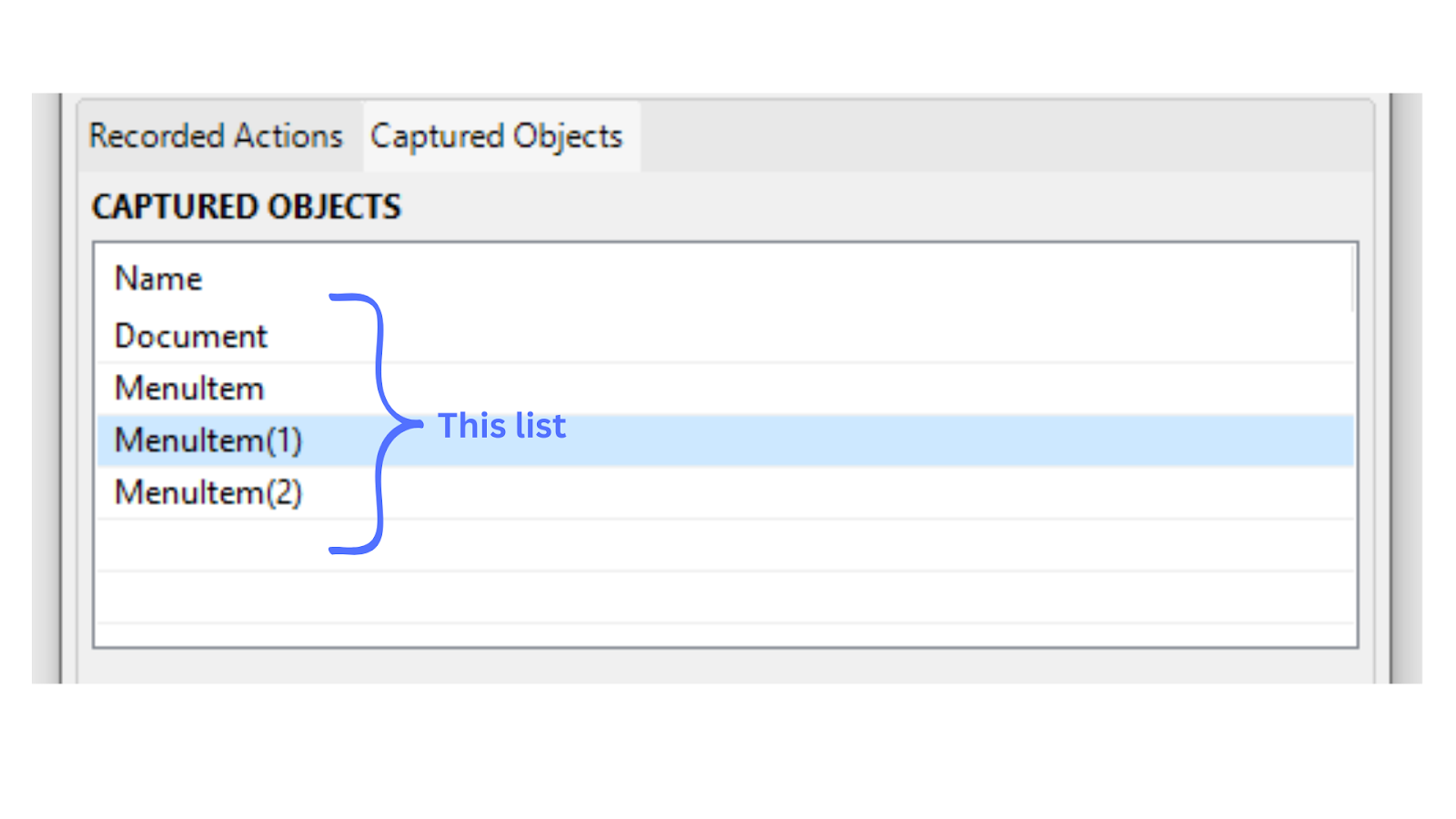
7. In the Captured Objects section of the Configurations window, you will also be able to see the captured elements during the recorded session.
8. You can customise the locator of the captured object by altering it from the Locator tab of Object Properties.
9. When you are done with the above processes, click Ok.
10. Now you will be notified to save the captured objects in the Object Repository of the Katalon Studio. You can choose an existing folder or create a new one. After that, click Ok.
11. When you are done with the recording session, export the recorded steps to a new test case.
12. The recorded actions and objects are saved in a selected test case.
Coordinate Recording
If you enable the coordinate-based recording in the Native Windows Recorder of the Katalon Studio, the click and rightClick actions are recorded as clickElementOffset and rightClickElementOffset, respectively. The supported keywords for both these actions are:
Click Element Offset
Right-click Element Offset
The Katalon Studio records an element’s relative coordinates and selector while performing coordinate-based recording. For example, once you have decided that you want to click on the red X part to close a tab in the Notepad, the Katalon Recorder records those button offsets. In this case, the button offsets will be the relative coordinates of the top left corner of the screen where red X part is present. A set of parameters representing an X and Y offset is saved in clickElementOffset property. The Katalon Studio uses these parameters to identify the exact location for performing a click action while runtime.
If the element’s offsets are not present in the scenario, the test engine can only click on the button’s center. This will return a failed test.
Test Case Execution
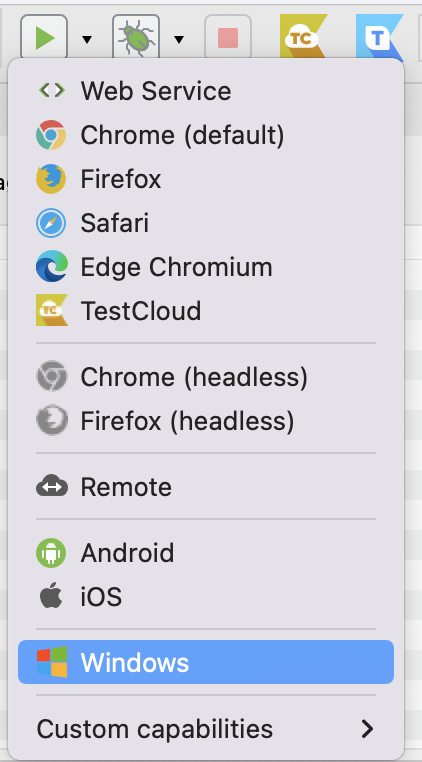
Ensure that you have turned on the WinAppDriver before executing any test case. To run any test case, click on the Run button on the main toolbar and select the Windows icon. You will see a Windows test being executed with recorded steps accordingly.
Frequently Asked Questions
Which framework do we use in Katalon Studio?
We use the Groovy framework in Katalon Studio. Groovy is a Java-based framework that requires the loading of several libraries. These libraries are used to parse test data, objects, and logging.
Define Unit Testing.
A unit is the smallest testable component of an application. These components are examined separately and individually for the proper execution of software.
Do you have any idea about Katalium?
The name Katalium is made up of two terms- Katalon and Selenium. Katalium is a framework that facilitates designing TestNG and Selenium-based test automation projects.
Describe Katalon Recorder.
Katalon Recorder is an extension available for Firefox, Edge, and Chrome. It is one of the most popular, straightforward, and highly user-friendly Record and Playback Extensions.
Conclusion
Overall, we understood several modules involved in putting Native Windows Recorder in Katalon Studio. This includes the pre-preparation part, procedures for two types of recording and executing a test case.
Visit our website to read more such blogs. Make sure you enroll in our courses, take mock tests, solve problems, and interview puzzles. Also, you can pay attention to interview stuff- interview experiences and an interview bundle for placement preparations. Do upvote our blog to help fellow ninjas grow.










 7+ registered

