Do you think IIT Guwahati certified course can help you in your career?
Introduction
Katalon is an automating testing software that lets the users test web, mobile or desktop applications and APIs without coding to deliver efficient and robust software to the consumers. The software is built over the Selenium and Appium automation frameworks, making testing convenient and code-free.
Creating Test Cases using Record and Playback
The Web Recorder Utility function captures your actions on the webpage and automatically converts them into runnable code. This is the easiest way for automation testers to start learning test automation.
Functionalities can be automated by recording your actions that have to be performed iteratively. This function allows you to record and run the same tests on multiple browsers.
Recording Test with the Record Web Function
Example: making an appointment
Launch the application under test
Click on the Make Appointment button
Enter valid credentials
Make the appointment
Now, we will follow the steps given below to learn the record and Playback features for web UI tests.
STEP 1: Launch Katalon Studio. Go to New> Test Case. Give your test case a name and click OK to create an empty test case.
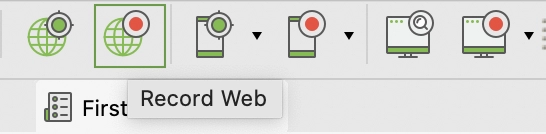
STEP 2: Click Record Web from the main toolbar
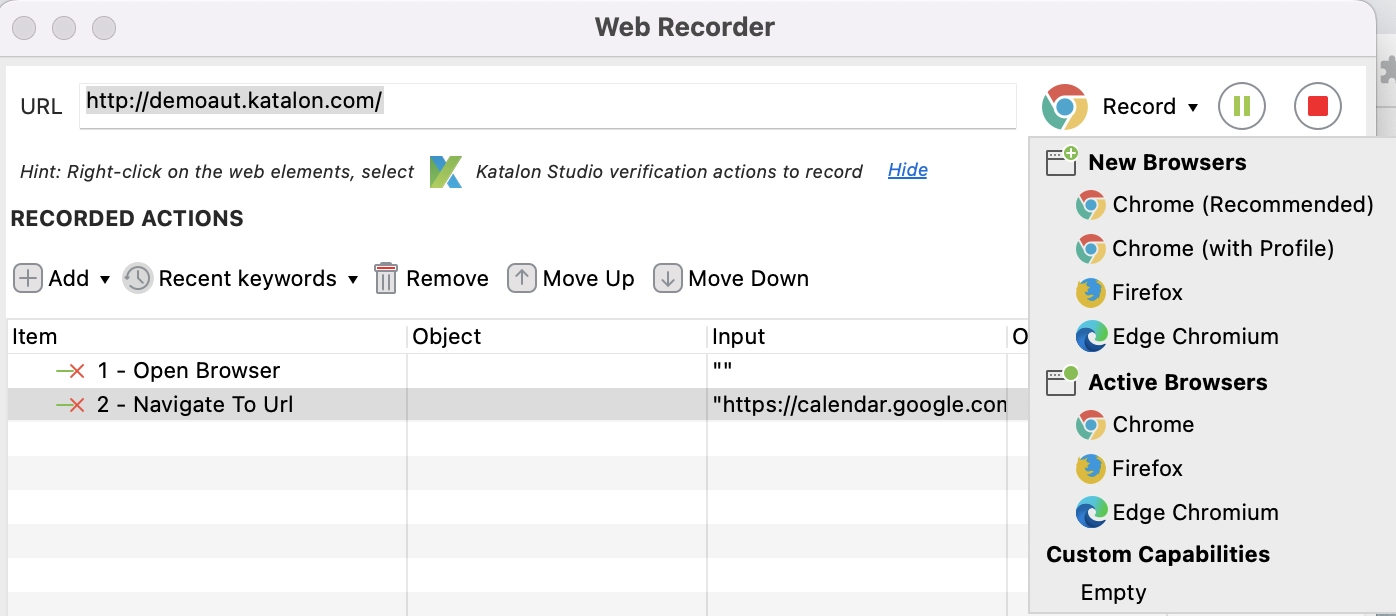
STEP 3: You will see the record dialogue displays.
STEP 4: After selecting your browser, click Record to start recording the test case.
STEP 5: After the application is launched, click on the Make Appointment button, which re-directs you to the Login Page.
STEP 6: Enter valid credentials, then click on Login.
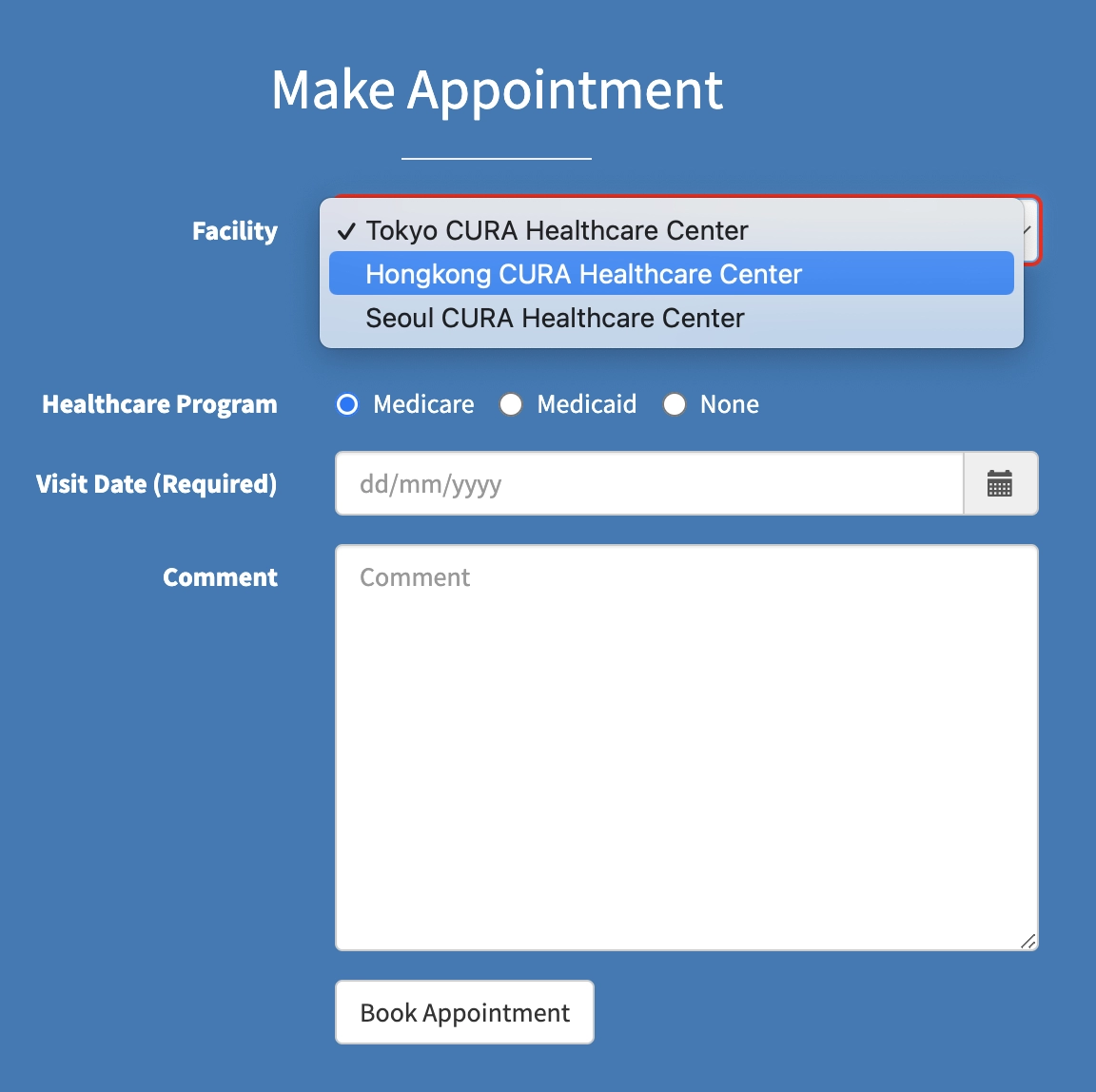
STEP 7: Once the Make Appointment page is loaded, select the value Hongkong CURA Healthcare Center from the facility dropdown.
STEP 8: Tick the Apply for Hospital Readmission checkbox.
STEP 9: Hover your cursor to click on the Medicaid checkbox.
STEP 10: Select a date by clicking on the calender icon next to the Visit Date(Required) field.
STEP 11: Now, enter your text in the comment field.
STEP 12: Click Book Appointment.
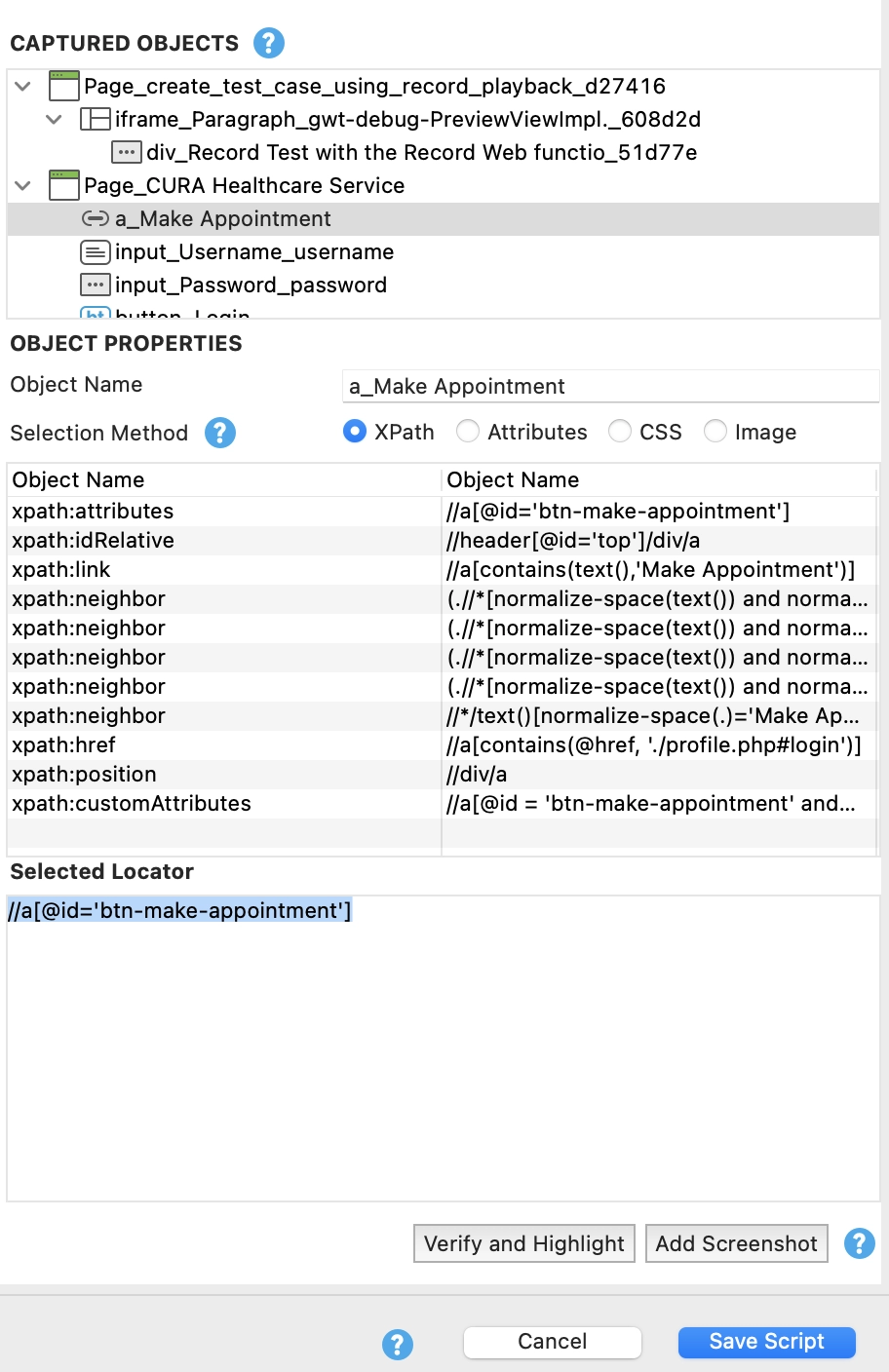
STEP 13: You can stop the recording anytime by clicking on Stop. You can also select the Selection Method for the captured objects. The Basic Mode is recommended for manual testers because Katalon Studio will automatically generate robust and reliable selectors for captured objects.
Advanced testers have the option to choose between CSS and XPath modes.
STEP 14: After finishing recording, click OK to save the actions.
The captured objects are recommended to be saved in the Object Repository, so they can be reused whenever needed. To store objects in your desired structure, you can create a folder also. Click OK to continue.
STEP 15: The recorded objects and actions are saved in the test case.
Now, click Run to execute the recorded test cases in your desired browser.
Script Code for Record and Playback
WebUI.openBrowser('')


WebUI.navigateToUrl('http://demoaut.katalon.com/')


WebUI.click(findTestObject('Page_CURA Healthcare Service/a_Make Appointment'))

WebUI.click(findTestObject('Page_CURA Healthcare Service (1)/button_Login'))

WebUI.selectOptionByValue(findTestObject('Page_CURA Healthcare Service (2)/select_facility'), 'Hongkong CURA Healthcare Center', true)

WebUI.click(findTestObject('Page_CURA Healthcare Service (2)/input_hospital_readmission'))

WebUI.click(findTestObject('Page_CURA Healthcare Service (2)/input_programs'))

WebUI.click(findTestObject('Page_CURA Healthcare Service (2)/div_input-group-addon'))

WebUI.click(findTestObject('Page_CURA Healthcare Service (2)/td_3'))

WebUI.setText(findTestObject('Page_CURA Healthcare Service (2)/textarea_comment'), 'Katalon')

WebUI.click(findTestObject('Page_CURA Healthcare Service (2)/button_Book Appointment'))

WebUI.closeBrowser()
Renaming Page Folders and Elements while Recording
To organise the test scripts in page object pattern, add the test objects in folders corresponding to their page. This helps in their reusability and maintainability.
Example: Logging in with valid data
Launch the test application
Click on the Make Appointment button
Enter valid credentials and login
STEP 1: Launch Katalon Studio. Go to File > New > Test Case. Give your test case a name and click OK, creating an empty test case.
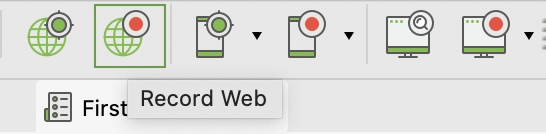
STEP 2: Click Record Web on the main toolbar.
STEP 3: Select a browser and click the Record button to start recording.
STEP 4: After your application is launched, click on the Make Appointment button, which redirects you to the Login page.
STEP 5: Rename the page from "Page_CURA Healthcare Service" to "Page_Home Page."
STEP 6: Select the a_Make Appointment element in the Captured Objects frame.
STEP 7: Rename the element from "a_Make Appointment" to "button_Make Appointment."
STEP 8: Go back to the recording browser and continue recording. Click Login.
STEP 9: Repeat these steps to change the object name and its folder.
STEP 10: Stop recording by clicking Stop. Then, click OK to save the recorded actions into Katalon Studio.
STEP 11: Recorded objects can be seen saved in the test case below:
Click Run to execute the recorded test cases in the browser.
Some actions like Web Table handling, switching to multiple frames, switching to windows, handling captcha, image recognition, and video playbacks cannot be validated in some scenarios.
Frequently Asked Questions
What is Katalon Studio?
Katalon is an automating testing software that lets the users test web, mobile or desktop applications and APIs without coding, to deliver efficient and robust softwares to the consumers.
What is Record Web Utility?
The easiest way to create an automation test script for a tester is test recordings. The tester needs to manually interact with their website and perform all the desired actions as a real user while the Katalon Recorder Utility records them.
Which actions can’t be recorded?
Some actions like Web Table handling, switching to multiple frames, switching to windows, handling captcha, image recognition, and video playbacks cannot be validated in some scenarios.
Conclusion
In this blog, we learnt how to create test cases and rename and edit them during runtime using Record and Playback in Katalon Studio. Share and like the article if you found it informative and helpful. Apart from this, visit our platform Coding Ninjas Studio to read informational articles on important computer fundamentals like DBMS, DSA, Competitive Programming, Python, Java, etc. Happy Coding!!













 5+ registered

