Do you think IIT Guwahati certified course can help you in your career?
Introduction
Have you ever thought about how Git commands are useful to us? Do you know how we can fetch and retrieve data from the remote repository using Git? If not, then don’t worry. We will clear all your doubts.
In this article, we will discuss about git pull and git fetch. We will discuss the major differences between them. We will also understand both of them with the help of an example. Moving forward, let’s first understand about Git.
About Git
Git is open-source software. It is used to manage source codes. It is a version control system. As it tracks all changes made in the source code. Git allows data integrity and manages workflows easily.
Git gives a way to coordinate among team members easily. Programmers can develop source code by collaborating through Git. Moving forward, let’s understand how to create a repository and add a file in the repository using git commands.
Using Git Commands
Let’s make a repository on GitHub and add a file in the repository using Git commands. Make a repository in which we will have a short letter for our ninjas. Let’s first create a repository with the name NinjaApp.
Now, create a text file with the name ninja.
Let’s push this letter into our created repository. Copy the .git link from here.
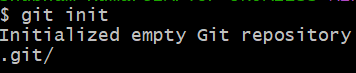
Now, use the command git init to initialize the empty git repository.
Run command git add ninja.txt. Then, run git status to see the changes to be committed.
To commit your changes. Run git commit -m “Adding a Letter for Ninjas”.
Now, run git remote add origin <SSH Link>. Then, run the command git push origin master.
Now, refresh your GitHub repository, and see the committed file with the below content.
Moving forward, let’s understand about git fetch.
git fetch
git fetch allows us to fetch all the changes to our local repository from the remote repository. Using the git fetch command, we can download all the latest changes that other developers have done on the remote repository. It doesn’t affect our working directory. As it never changes any of your local branches. You can also review and merge these changes using the git merge command.
When to use git fetch?
We must use the git fetch command to ensure whether any updations or changes are done on the remote repository after your last pull. If updations or changes are there, then it retrieves those changes. Moving forward, let’s see an example to understand about git fetch more clearly.
Example of git fetch
Let’s update our letter(ninja.txt) remotely. Add one more line inside the ninja.txt file.
And commit our changes.
Now, let’s use the git fetch command and check whether there are any changes in the remote repository or not.
In the above image, we can see there are some changes that are committed remotely. We can merge these changes using the command git merge origin/master.
We can also open our letter(ninja.txt) locally and check the updated file.
Moving forward, let’s understand about git pull.
git pull
git pull allows us to download all the changes to our local repository from the remote repository. Using the git pull command, we can download all the latest changes that other developers have done on the remote repository. The changes automatically get merged into our working directory. We didn’t get any chance to review the changes before merging. It only affects our current working branch, the rest of the branches will be unaffected. We can say that git pull includes functionalities of both git fetch and git merge.
Git Pull = Git Fetch + Git Merge
When to use git pull?
We must use the git pull command before doing our changes in our local repository. It brings all the updates and changes from the remote repository to our local repository. This ensures that your local repository is also updated. Moving forward, let’s see an example to understand about git pull more clearly.
Example of Git Pull
Let’s update our letter remotely again. Let’s add one more line inside the ninja.txt file.
And, commit our changes.
Now, let’s use the git pull command and check whether there are any changes in the remote repository or not.
In the above image, we can see there are some changes that are committed remotely. And these changes are merged directly into our local repository.
We can also open our letter(ninja.txt) locally and check the updated file.
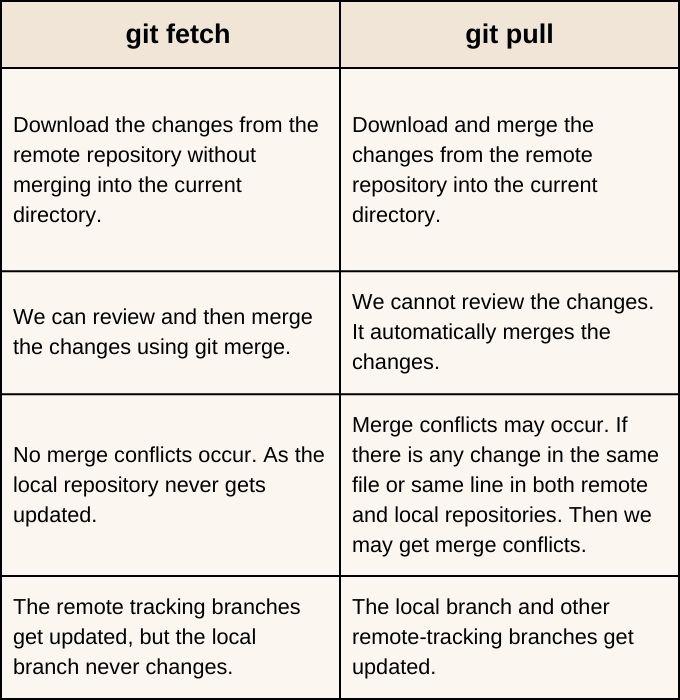
Difference Between git fetch and git pull
The commands git fetch and git pull have the following differences.
The command git fetch is used to download all the latest changes that other developers have done on the remote repository without affecting our working directory.
Why git pull command is used?
The command git pull is used to download all the latest changes that other developers have done on the remote repository. These changes automatically get merged into our working directory.
What is the syntax of git fetch?
The syntax of git fetch is git fetch.
What is the syntax of git pull?
The syntax of git fetch is git pull origin <branch name>.
Conclusion
In this article, we have discussed about git pull and git fetch. We have discussed the major differences between them. We have also understood both of them with the help of an example. To learn more about Git, you can check out our other articles:
We hope this article helped you in understanding about git pull and git fetch. You can read more such articles on our platform, Coding Ninjas Studio. You will find articles on almost every topic on our platform. Also, you can practice coding questions at Coding Ninjas to crack good product-based companies. For interview preparations, you can read the Interview Experiences of popular companies.
Happy Coding!
Live masterclass
Amazon-Ready Excel & AI Skills: Ace 20L+ Data Analyst Roles
by Prerita Agarwal
15 Oct, 2026
11:30 AM
Crack GenAI Interviews: Fix AI Hallucinations, Latency & Cost
by Shantanu Shubham
12 Oct, 2026
11:30 AM
PowerBI Dashboard Using T20 World Cup Data
by Sumit Shukla
13 Oct, 2026
11:30 AM
Build a GenAI Copilot: Upgrade from SDE to AI Engineer
by Saurav Prateek
14 Oct, 2026
11:30 AM
Amazon-Ready Excel & AI Skills: Ace 20L+ Data Analyst Roles
by Prerita Agarwal
15 Oct, 2026
11:30 AM
Crack GenAI Interviews: Fix AI Hallucinations, Latency & Cost










 5+ registered

