Do you think IIT Guwahati certified course can help you in your career?
Introduction
Are you ready to embark on a journey into data analysis and statistical computing? Look no further than the R Programming Language. When we start learning any programming language, the first task is understanding its syntax. As a convention, we follow a tradition to begin learning about the language by writing a Hello World program as our first basic program.
In this blog, we will help you write your first program in R. We will discuss in brief what R is and its syntax. We will write a basic program that prints "Hello World" as your first program in R.
Installation
We need to download R language and an IDE for its compilation to use and write your first program in R programming language. To download R on your computer, visit the following link: https://cran.rstudio.com/.
Note - You can select either of the three: Windows, Linux, or macOS, depending on your requirements. Download the latest version of R.
R only provides a basic command-line interface, so we will also download RStudio, an Integrated Development Environment (IDE). Visit the following link to download it: https://posit.co/download/rstudio-desktop/.
Similar to R, select and download it based on your requirement.
To know the installation process in detail, visit What is R Studio? Follow the instructions, and once the installation is complete, you're ready to move on to the next step.
Hello World program in R
We will write a program that prints "Hello World" as your first program in R. We will use the print() function in our program. The print() function prints the values onto the output screen. There is no need to import packages for the print() function; the following code will print Hello World.
print("Hello World")
The print() function also has arguments; we can use it if needed. For example, in the above program, the output will be printed with quotes by default, so we can remove it if needed.
print("HelloWorld", quote=FALSE)
Now, let us move to the next section and learn two ways to execute our code.
Using the R terminal
To open the R terminal, go to where you have installed R and launch R.exe in the bin folder. By default, the path for R.exe is as follows:
C:\Program Files\R\R-4.3.1\bin
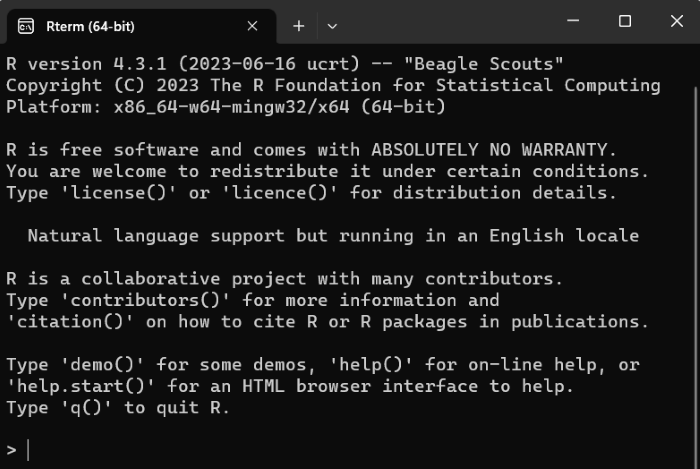
Here, the version might be different in your case. The following window will open after you open R.exe.
Write the code in the terminal window and press Enter to execute it.
Using the RStudio IDE
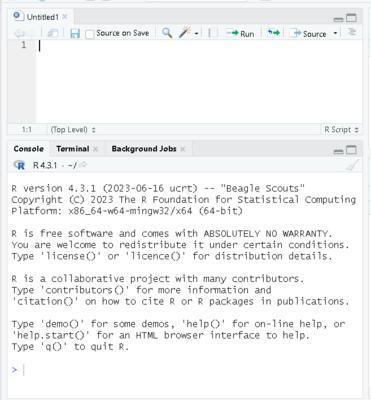
Launch the RStudio app, earlier installed on your computer. The following window will appear.
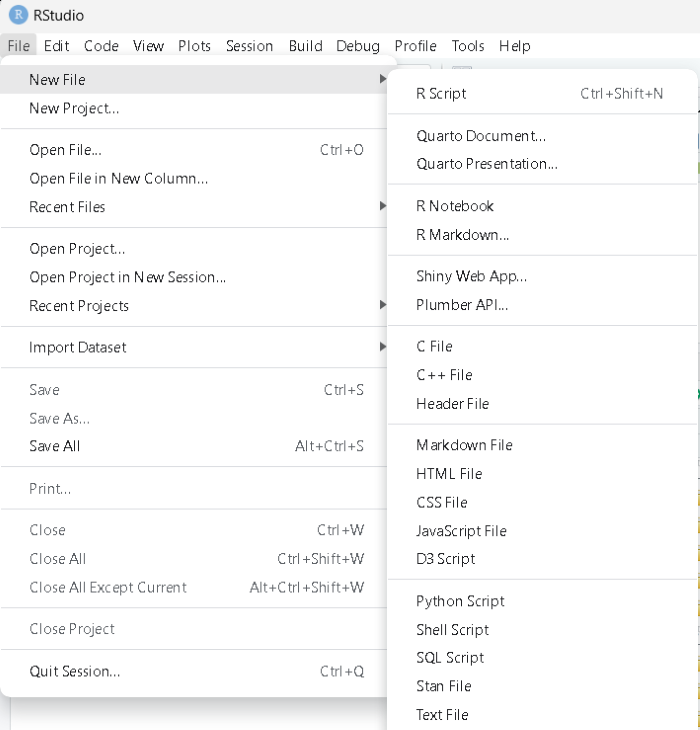
To create a new R Script file, go to the File tab. Select the New file option, and from the list Select R Script. We can also use the shortcut Ctrl + Shift + N.
A new window will open named Untitled1. You can save the file and name it according to your need.
Now, let us write our Hello World program code in the R Script file and execute it. To execute, click the Run option or use the shortcut Ctrl+ Enter, as shown below.
Basic Program in R
As you successfully executed the Hello World program as your first program in R. Let's now understand a brief about data types and variables and write a basic program to better understand the R programming language.
R is a dynamically typed language, meaning you don't have to declare the variable type explicitly. R will automatically detect the type based on the value assigned to it.
Some commonly used data types in R include numeric, character, logical, factors, etc. Let's declare a few variables and print them.
In the above code, we created three variables named "message,""number," and "is_true." The "<-" symbol is used for assignment in R. We assigned the string "Hello, R!!!" to "message," the number 42 to "number," and the logical value TRUE to "is_true." Enter the above code in the R Script file and Run it. The following image shows the output.
Frequently Asked Questions
What is R programming language?
R is a famous programming language designed for statistical computing and data analysis. It was created by Statisticians Ross Ihaka and Robert Gentleman at the University of Auckland in 1997. It provides a wide range of tools and libraries that make it easier to manipulate, visualize, and analyze data.
What are the features of R?
R is an open-source language allowing everyone to contribute towards its development. It provides multiple packages and libraries for various uses. R is an object-oriented programming language, efficient in software development. Some other R features are compatible with numerous platforms, and no compiler is needed.
Is R used for commercial purposes?
R is open-source software released under the GNU General Public License. It is free to use, modify, and distribute. We can use R for both personal and commercial purposes. R is a valuable tool many companies and organizations use in statistics and data analysis.
Conclusion
We expect this article was insightful and that you learned something new today. In this blog, we've taken our first steps into the world of R programming. We discussed the R and RStudio installation process and helped you write your first program in R. We also learned about the data types and variables.
Remember, practice makes perfect. The more you code in R, the more proficient you'll become. To learn more about R programming language, do visit.









 1+ registered

