Do you think IIT Guwahati certified course can help you in your career?
Introduction
Hello Ninja, I hope you are doing great. Do you know How to set up Rstudio in different operating systems? If not, don't worry. We are here to enrich your knowledge and clear all your doubts.
This article will discuss what Rstudio is and how to install Rstudio on Windows and Linux. Our blog will guide you to install Rstudio in your respective systems step-by-step.
What is R Programming Language?
R is a powerful Programming Language widely used by Statisticiansand Data Analysts. It was created by Statisticians Ross Ihaka and Robert Gentleman at the University of Auckland in 1997. R is an open-source language that implies anyone can access and contribute to its development. It has a bunch of existing libraries or packages, so we often save time by using these. These libraries provide various functionalities for domains, including Statistics and Data Analysis. Writing mathematical or statistical procedures in R Programming Language is easy, though the process may take time. We can interface R with other Programming Languages, such as C++, C, and Fortran, to provide fast implementations of subroutines.
What is Rstudio?
RStudio is a powerful and popular IntegratedDevelopmentEnvironment (IDE) for RProgramming Language. It provides a comprehensive set of tools and features that enhance the programming experience for R users. It is available in both commercial and open-source editions. It empowers us with features for development including code execution, debugging, and visualization. It offers two main variants: Rstudio Desktop and Rstudio Server. Rstudio Desktop is the old version of Rstudio that can be installed and run in our systems. The Rstudio server is the web based version of Rstudio and allows us to use Rstudio through a web browser.
How to Set Up RStudio on Windows?
Firstly we have to install R on our Windows. If you’ve already installed R in your system, you can directly jump to Step11 to learn how to install RStudio.
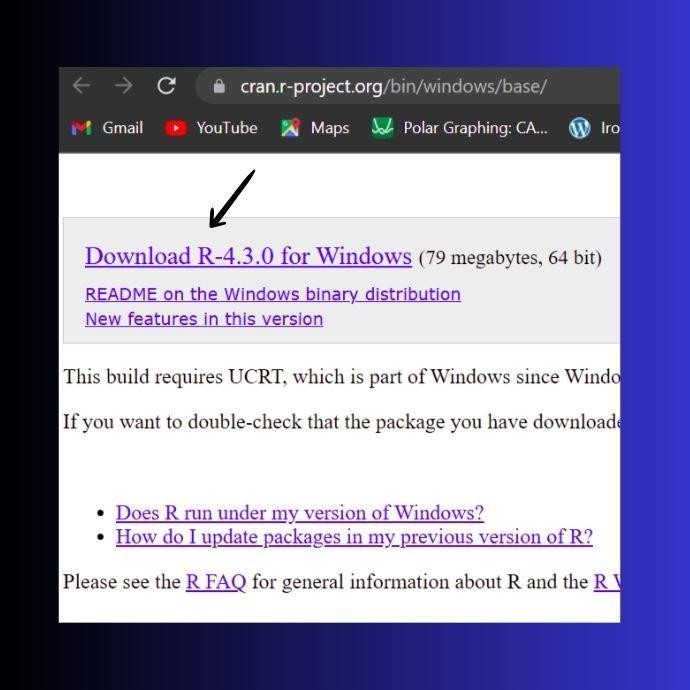
Step 1: Go to cran.r-project.org to download R in your systems. Click on “Download R-4.3.0 for Windows”. After this, the R installer .exe file will start downloading. The image below shows the webpage that will appear upon clicking the above link.
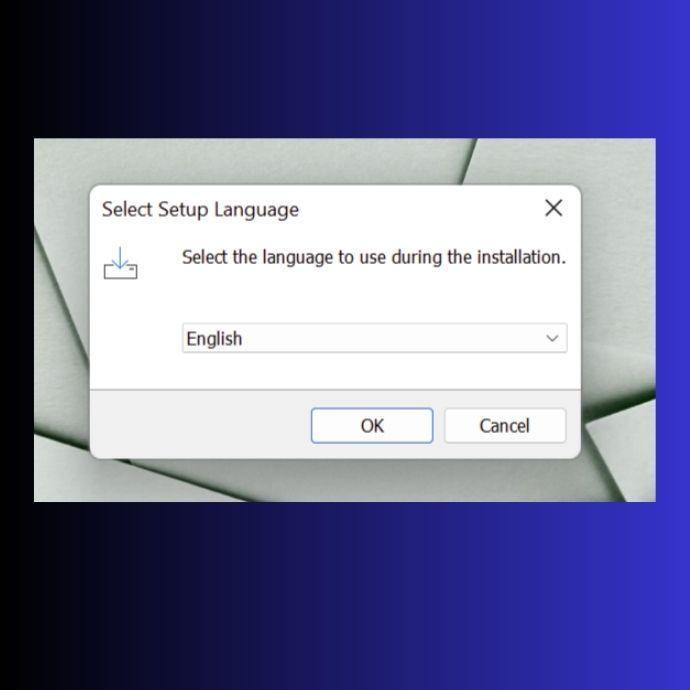
Step 2: Our next task is to install R on our Windows system. Select the language during the installation. By default, it shows English but you can select any language based on your convenience. After selecting the language, click on Ok button.
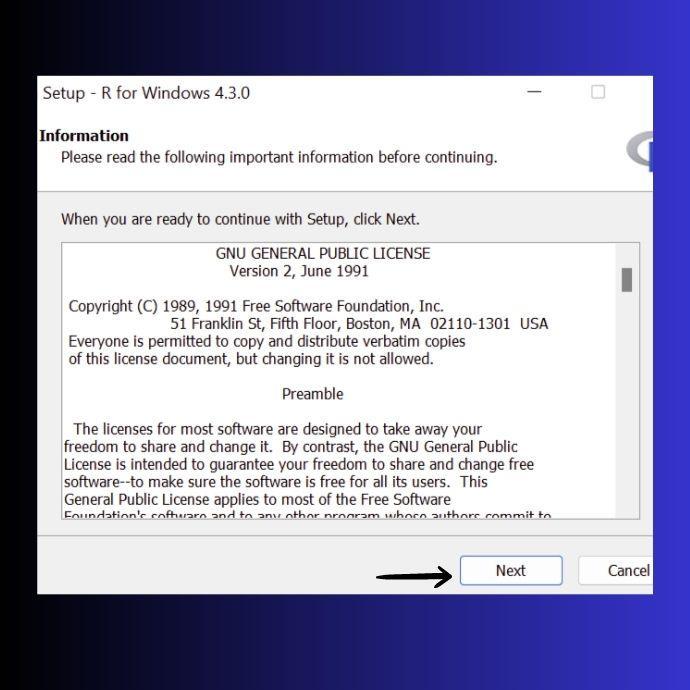
Step 3: Now you’ll be shown important information about R. You can scroll down and read it. After completing the reading part, click on Next button.
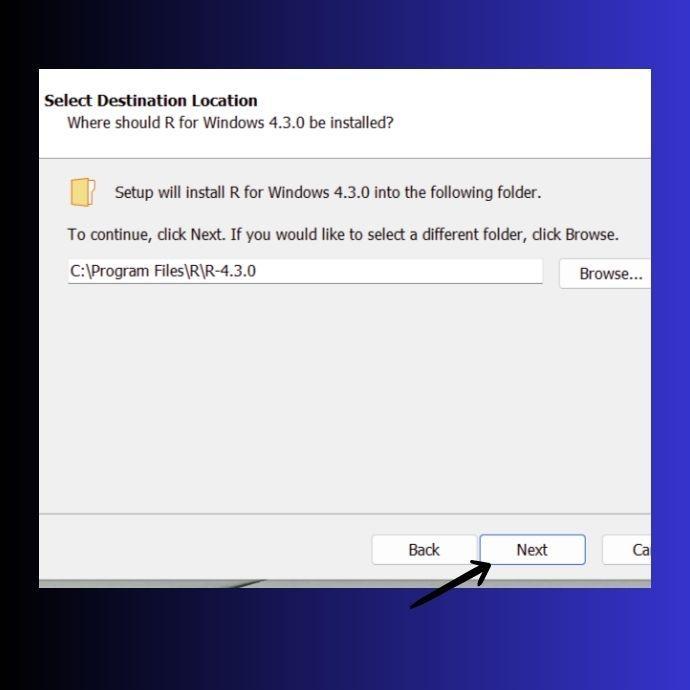
Step 4: In the image below, you can see, it is asking for the installation directory. You can change it using the browse button if desired. Alternatively, you can leave it as default.
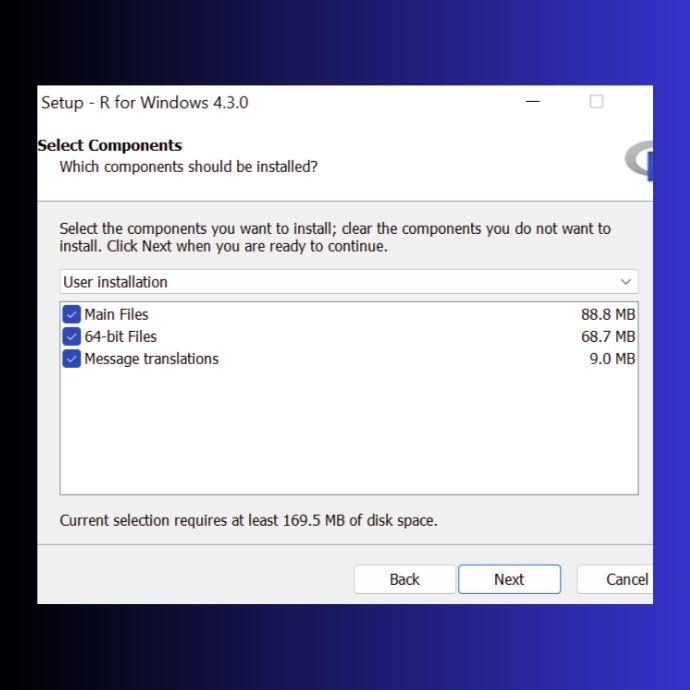
Step 5: You’ll be shown all the components of R. Make sure to tick mark all the components and move to the next page by clicking the Next button.
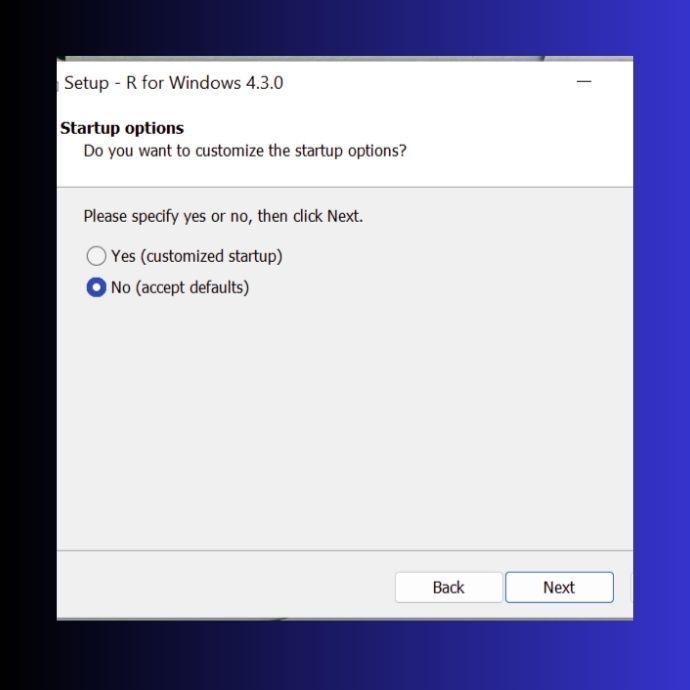
Step 6: Now, stick to the default Startup options by selecting No and clicking the Next button.
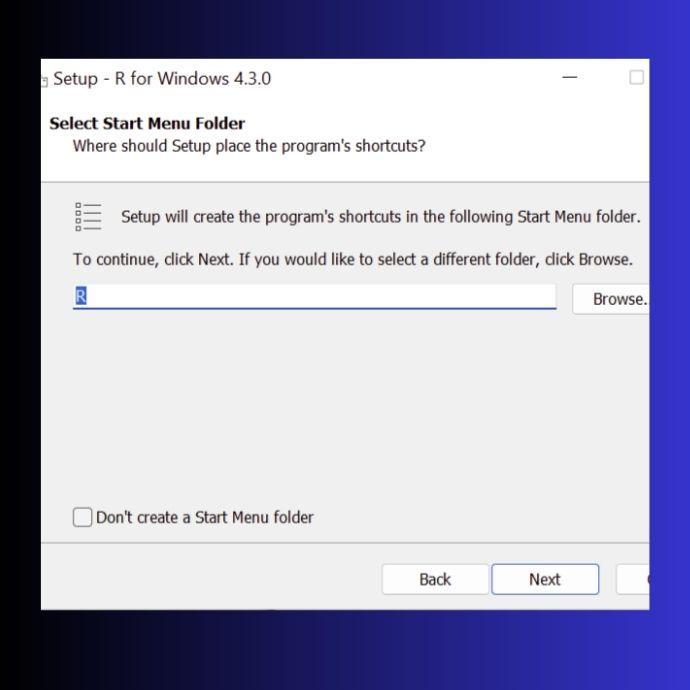
Step 7: Leave the Start Menu Folder as default. The image below shows that the default folder is R. You can select any other folder too. This folder will store all the shortcuts and program entries of R.
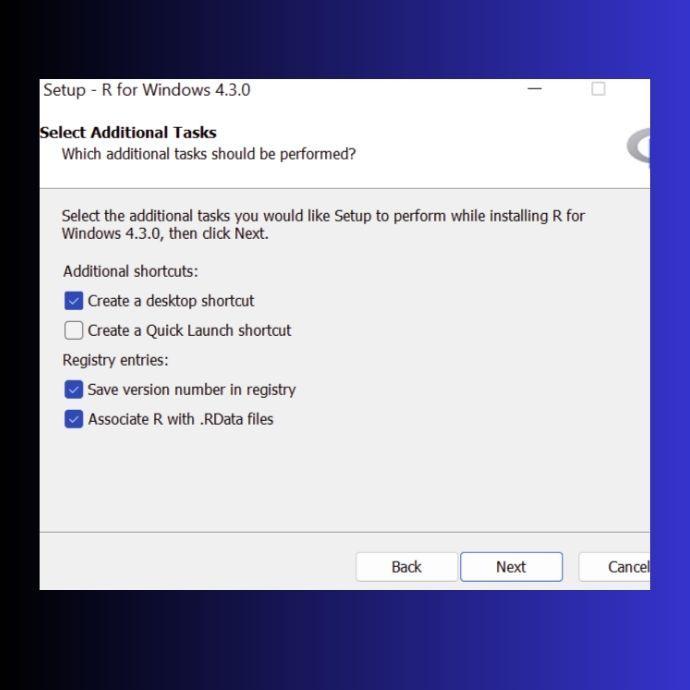
Step 8: To select the Additional Tasks, mark the options shown in the image below. These are the basic customizations for R.
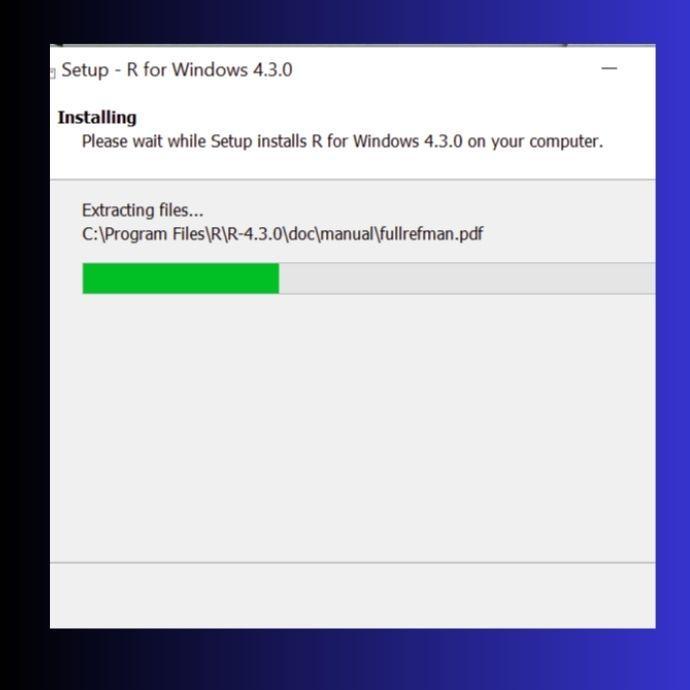
Step 9: Now, wait for the installation process to complete. This may take a few minutes as the necessary files are configured on your systems.
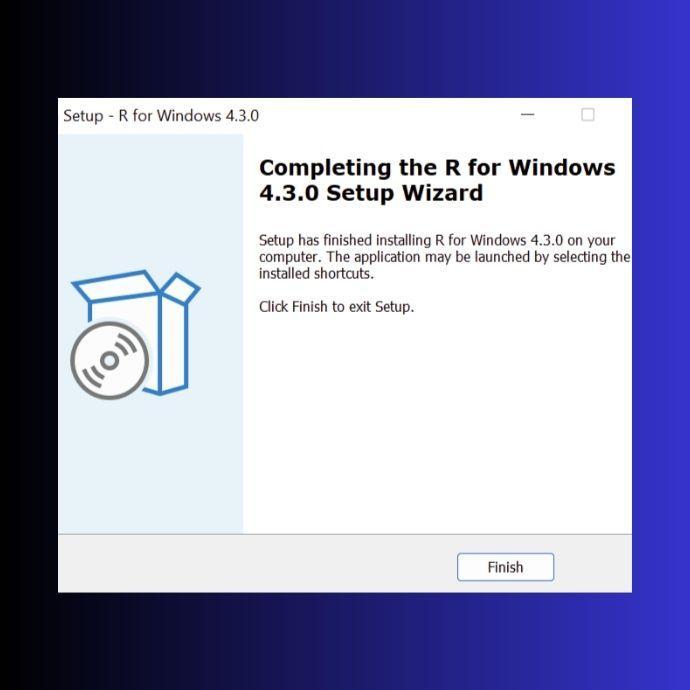
Step 10: Installation of R is completed.. Click on the Finish button and start downloading the R studio.
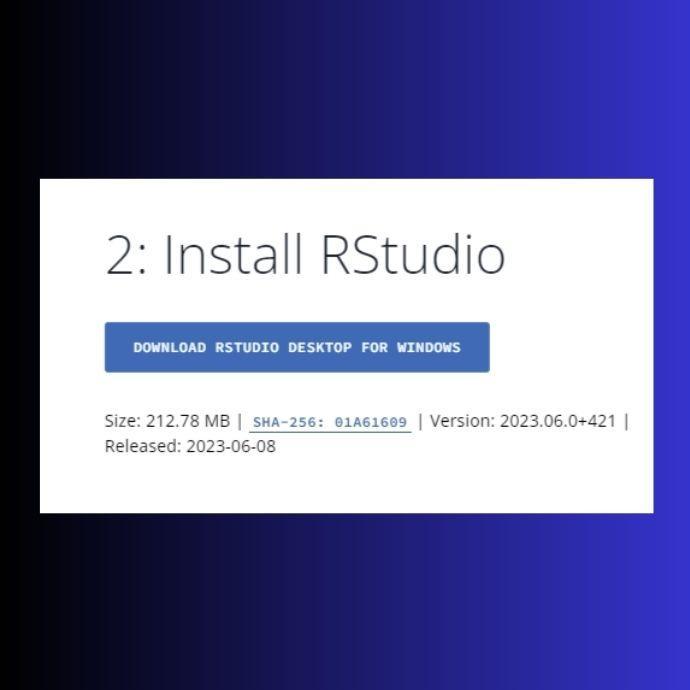
Step 11: Go toposit.co/rstudio-desktop to download RStudio in your systems. Click on “Download RStudio Desktop For Windows”. After this, the RStudio installer .exe file will start downloading.
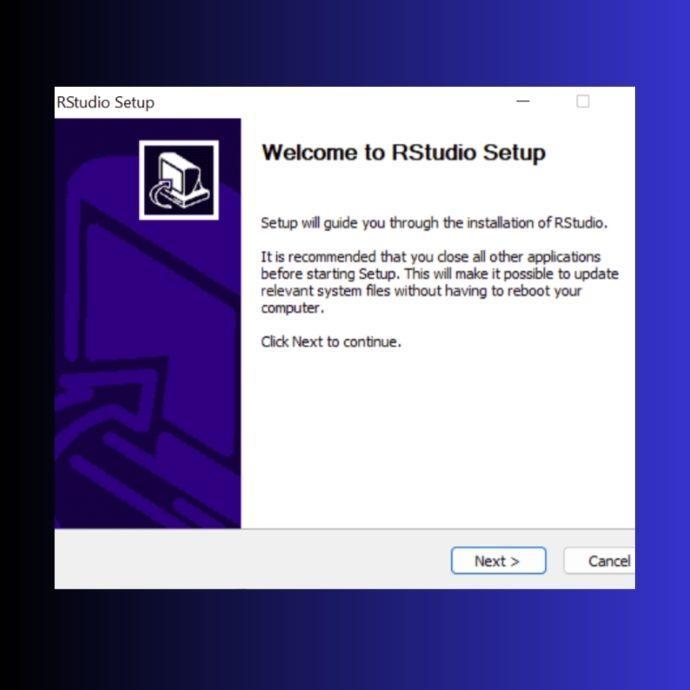
Step 12: Click on Next to go through the setup guide.
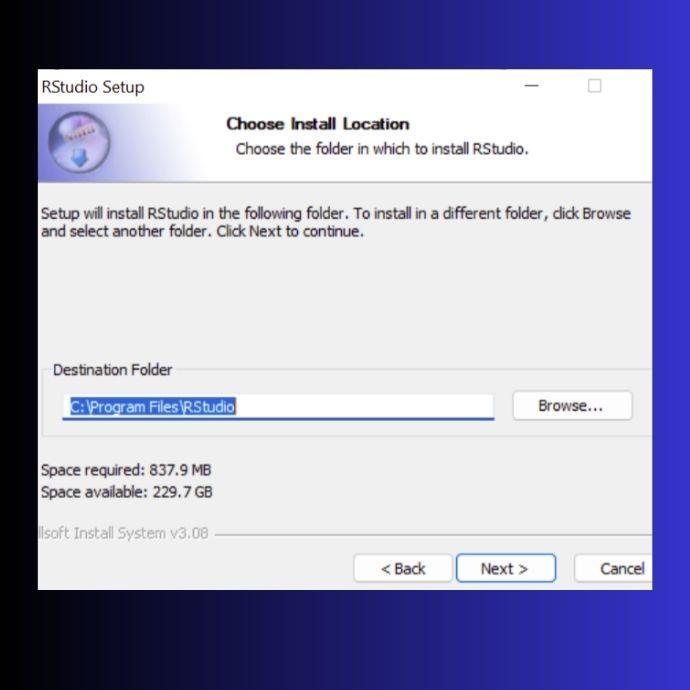
Step 13: Choose the Destination Folder by clicking the Browse button and navigate to the desired folder. Alternatively, you can keep this as default.
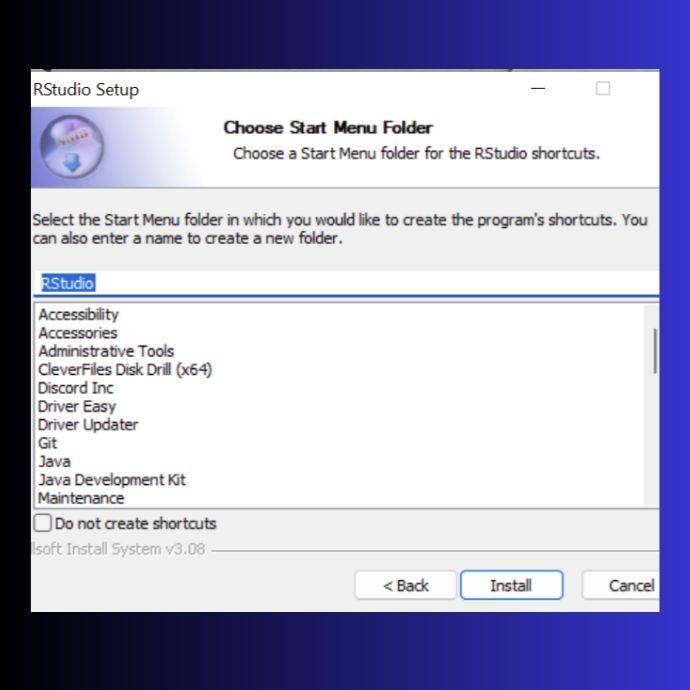
Step 14: Now, you must select the Start Menu Folder where program entries for RStudio will be placed. You can keep this as the default folder. After selecting the Start Menu Folder, click on Install button.
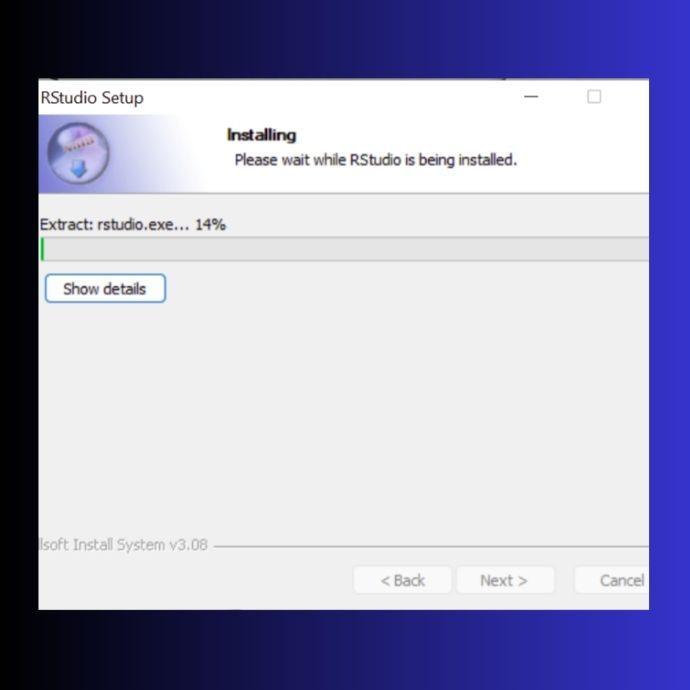
Step 15: Wait for the Rstudio installation to complete. It may take some time.
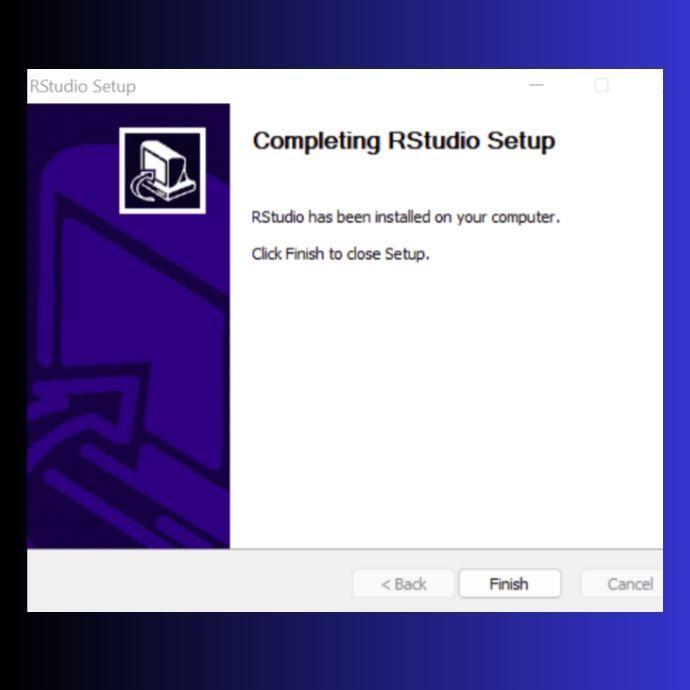
Step 16: Now, you are ready to go. RStudio is successfully installed in your systems. Write some code and enjoy your experience with RStudio.
How to Set Up RStudio on Linux?
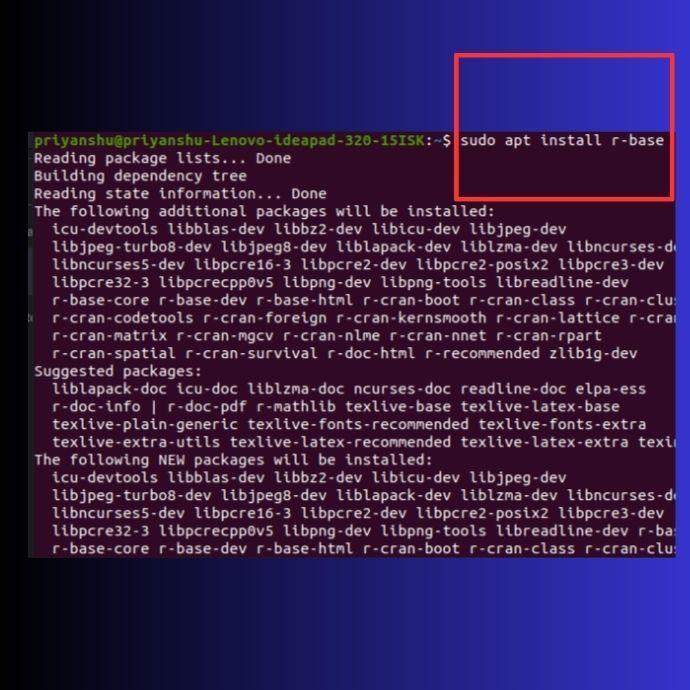
Step 1: First, we must install ther-base package and its dependencies from the official package repositories. This will install Ron our system.
Command used
sudo apt install r-base
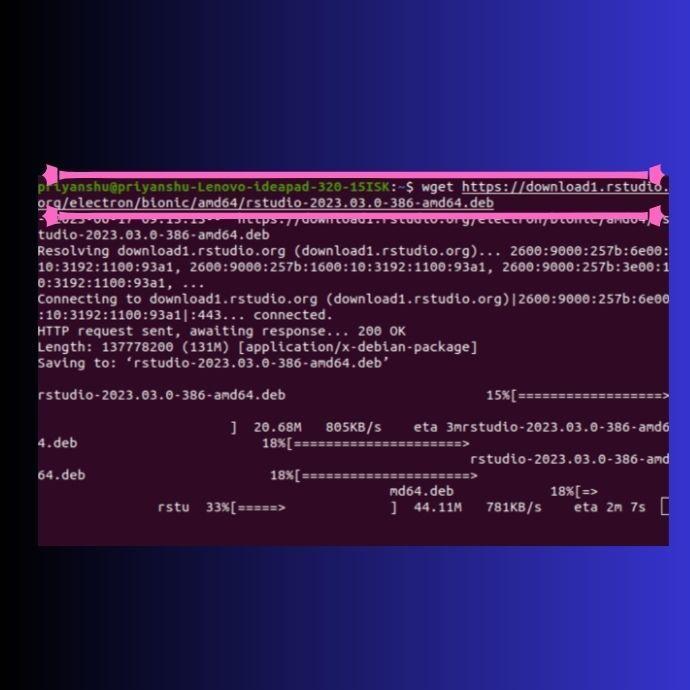
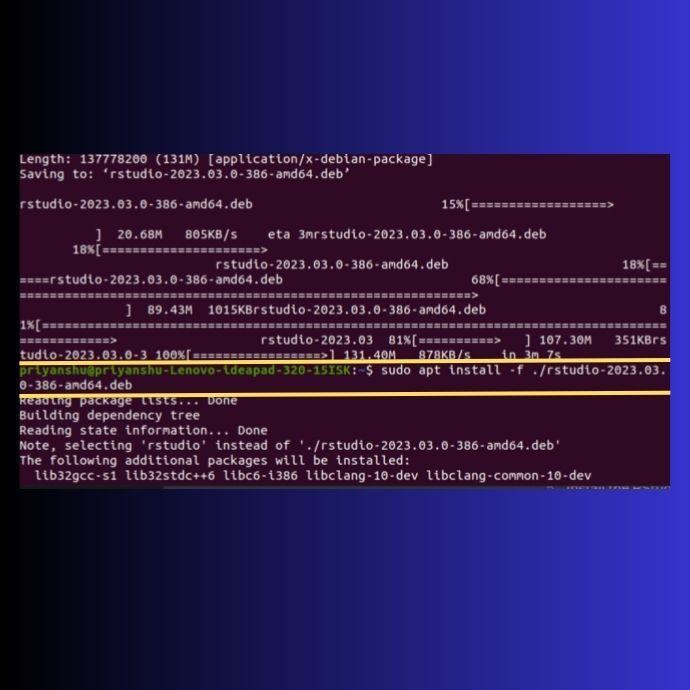
Step 2: Now download the RStudio package by running the ‘wget’ command.
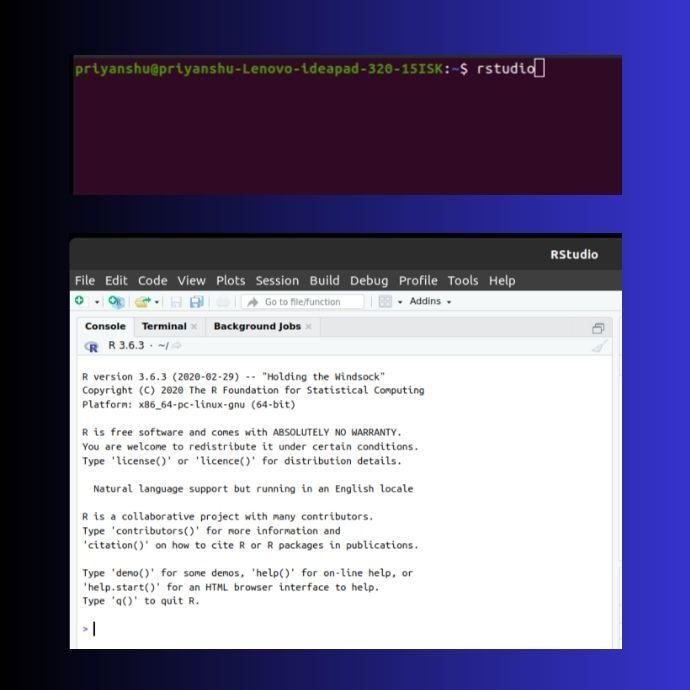
Step 4: After the installation, we can start RStudio and write code in it. The image below shows the command used to launch Rstudio and its interface.
Frequently Asked Questions
What is Rstudio?
Rstudio is an IDE for R Programming Language that provides a user-friendly interface for executing and debugging the R code. It offers a wide range of packages and is used for advanced purposes.
What is the “Start Menu Folder” in the RStudio setup?
The “Start Menu Folder” refers to the location where shortcuts and program entries are created. It is a convenient location to access Rstudio from the Start Menu of our Windows System.
How can you view the structure of the dataset in RStudio?
We can use the 'str()' function to view the dataset's structure in RStudio. It displays the data type of each variable and provides information about the variables in the dataset. By examining the structure, we can understand the data format.







 1+ registered

