Table of contents
1.
Introduction
2.
What is Katalon
3.
Configure Internet Options Settings
4.
Create Your Custom Keyword
5.
Let's use the custom keyword to execute test cases in IE mode.
6.
Frequently Asked Questions
6.1.
What language does Katalon use?
6.2.
How do we capture an image In Katalon Studio?
6.3.
What are the benefits of Katalon Studio?
7.
Conclusion
Last Updated: Mar 27, 2024
Medium

How to Execute the Test in Internet Explorer (IE) Mode in Microsoft Edge in Katalon?

Career growth poll
Do you think IIT Guwahati certified course can help you in your career?

Introduction

Hey Ninja!! Today we will learn how to use Katalon Studio to test cases in IE mode in Microsoft Edge.

How to Execute the Test in Internet Explorer IE Mode in Microsoft Edge in Katalon

We will first configure our internet settings for the IE mode, then create our custom keyword and use the custom keyword to execute the test in IE mode. But before we dive into the topic, let us first see what Katalon is.

What is Katalon

katalon

Katalon Studio is a software for automation testing created by Katalon, Inc. The software was initially released in January 2015. The software is built on top of the open-source automation frameworks Appium and Selenium with a specialised IDE interface to test desktop, mobile, web and APIs.

Now let us move on to the topic and configure our internet settings for the IE mode.

Configure Internet Options Settings

As Microsoft discontinued the internet explorer desktop application after June 15, 2022, it introduced the IE mode in Microsoft Edge for people or organizations who still need internet explorer.

Follow the instructions to configure the internet options for windows 11-

Step 1: First, Open Control Panel. Now go to Network and Internet > Internet Options.

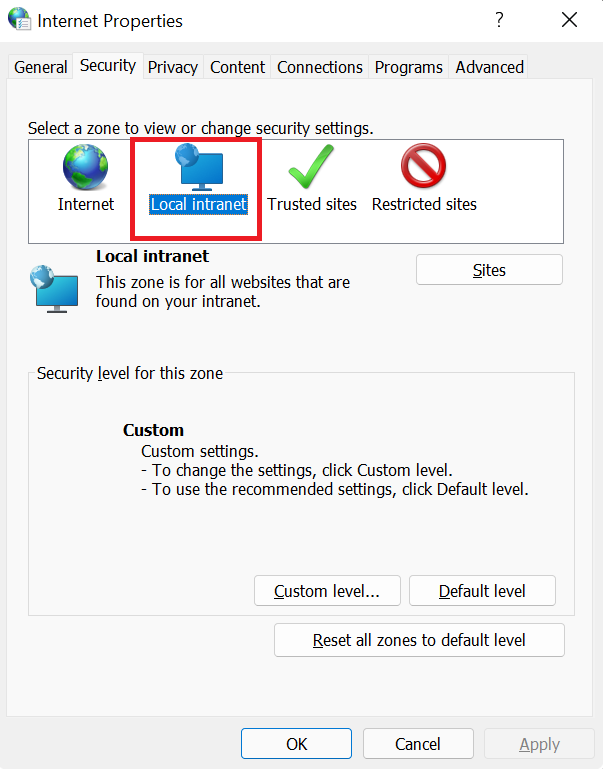
Step 2: Now, have a look at the Internet Properties dialog. Now, select the Security tab and choose Local intranet.

local intranet

Step 3:

  • Now, click the Sites button.
  • Enable Automatically detect intranet network.
  • Finally, click OK.
click ok

Create Your Custom Keyword

In the upcoming steps, we will create our custom keyword named EdgeBrowser.

Step 1: First, go to Tests Explorer > Keywords. Now, create a new keyword package packageName.

package name


Step 2: Now, we are going to create a new keyword class.

For that, right-click on the newly created package. Enter the class name(EdgeBrowser).

class name


Step 3: We need to add a script in the keyword class.

Open the EdgeBrowser.groovy file and paste the following code and save it.


EdgeBrowser.groovy

package packageName

import org.openqa.selenium.WebDriver
import com.kms.katalon.core.annotation.Keyword
import org.openqa.selenium.ie.InternetExplorerDriver
import org.openqa.selenium.ie.InternetExplorerOptions
import com.kms.katalon.core.webui.driver.DriverFactory

class EdgeBrowser {
	/**
	 * Test browser
	 */
	@Keyword
	def testBrowser(String theURL) {
		System.setProperty("webdriver.ie.driver", DriverFactory.getIEDriverPath())
		InternetExplorerOptions IEOObject = new InternetExplorerOptions()
		Map<String, Object> MapVar = (Map<String, Object>) IEOObject.getCapability("se:ieOptions")
		MapVar.put("ie.edgechromium", true)
		MapVar.put("ie.edgepath", "C:\\Program Files (x86)\\Microsoft\\Edge\\Application\\msedge.exe")
		IEOObject.setCapability("ignoreProtectedModeSettings", true)
		IEOObject.setCapability("ignoreZoomSetting", true)
		WebDriver WebDriverObject = new InternetExplorerDriver(IEOObject)
		WebDriverObject.get(theURL)
		DriverFactory.changeWebDriver(WebDriverObject)
	}
}

Let's use the custom keyword to execute test cases in IE mode.

We already updated our network settings for the IE mode and created our custom keyword for the test. It's time to execute the tests !!

Step 1: Open Katalon Studio. Create a new test case.

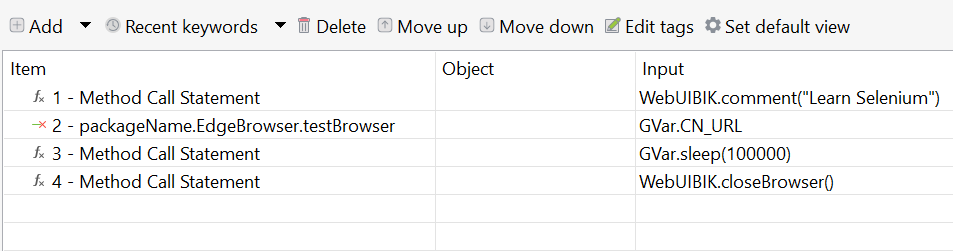
Step 2: Now, we need to modify the test case. First, open the test case, use the custom keyword we created, and open Microsoft Edge in IE mode.


Manual View:

manual view


Script View:

import internal.GlobalVariable as GVar
import com.kms.katalon.core.webui.keyword.WebUiBuiltInKeywords as WebUIBIK

WebUIBIK.comment('Learn Selenium')
CustomKeywords.'packageName.EdgeBrowser.testBrowser'(GVar.CN_URL)
GVar.sleep(100000)
WebUIBIK.closeBrowser()


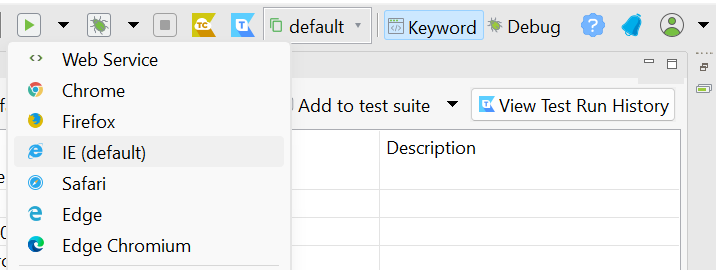
Step 3: Now save the test case. To run it in internet explorer mode, select the IE(default) option.

run


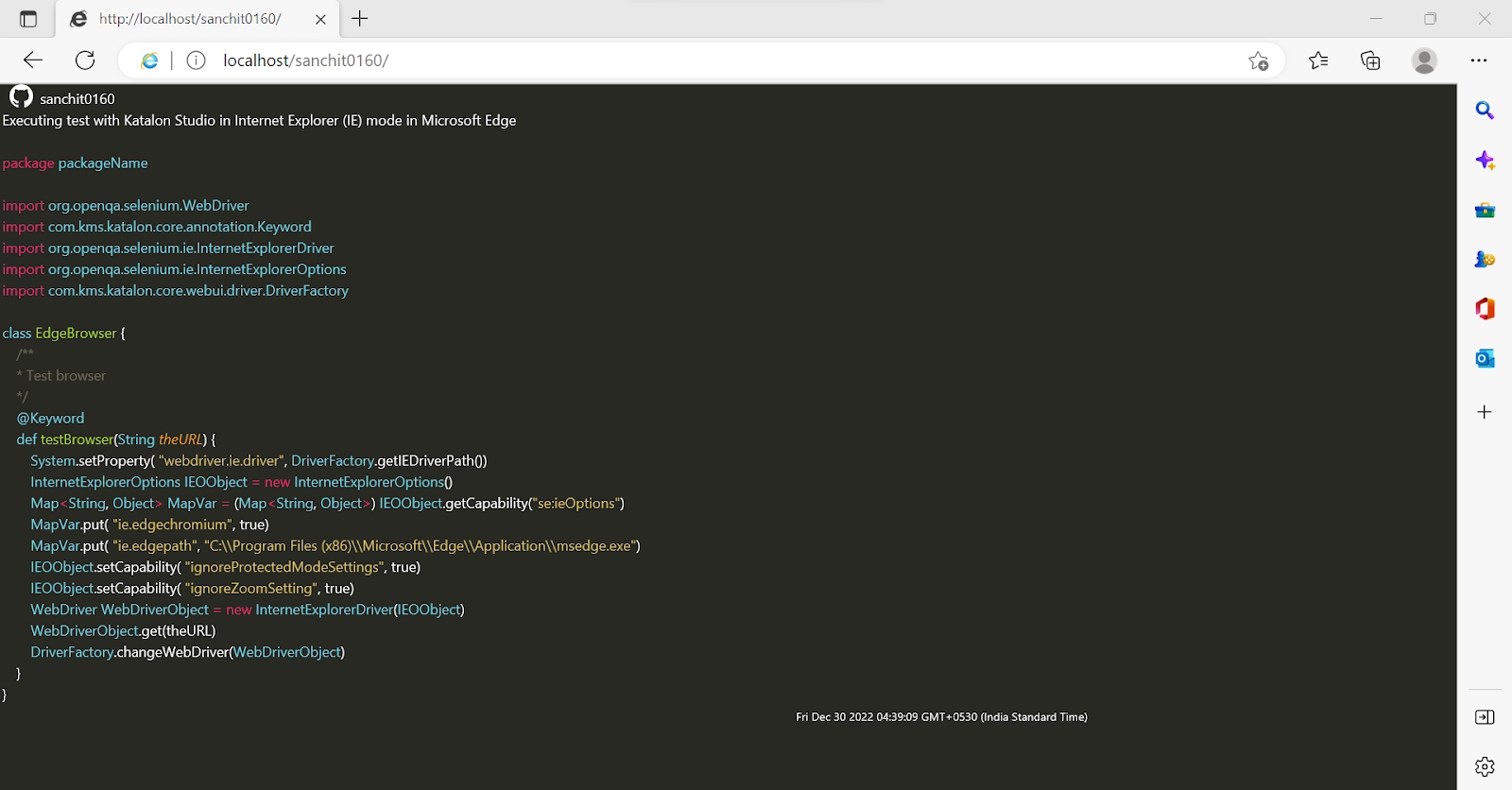
Output: A Microsoft Edge browser session in IE mode will be opened.

output


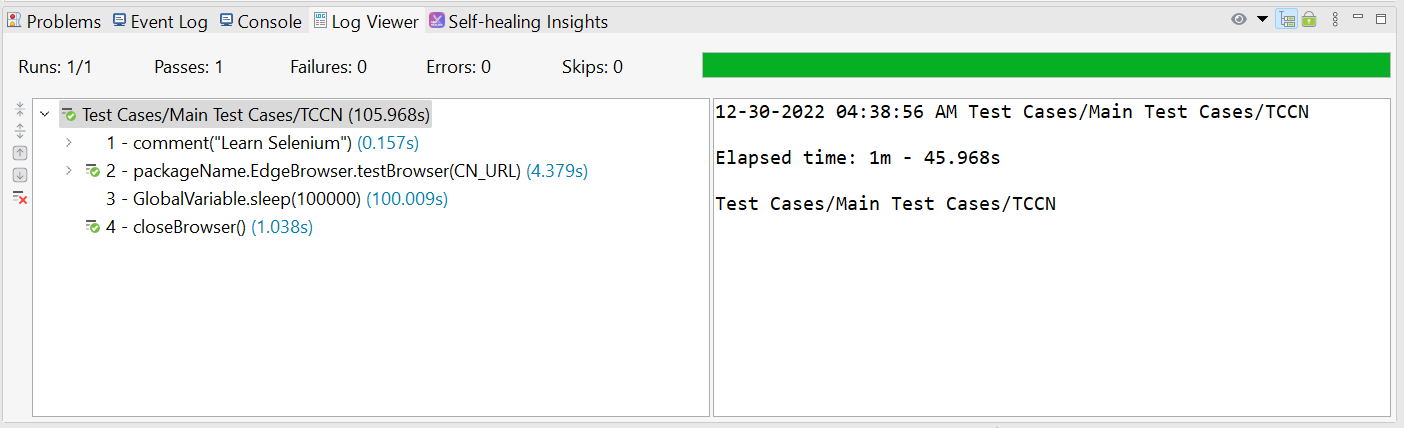
Step 4: We need to verify the results after executing the test. Use Log Viewer to verify the results.

log

Check out Microsoft Interview Experience to learn about their hiring process.

Frequently Asked Questions

What language does Katalon use?

Katalon Studio uses Groovy, a language built on top of Java. It has to load many libraries for parsing test data, objects, and logging.

How do we capture an image In Katalon Studio?

We can Select the charged object in the Captured Objects window and click the Add Screenshot button in the bottom right corner. We can also pick Capture by right-clicking on the web element.

What are the benefits of Katalon Studio?

Katalon is a cutting-edge, all-inclusive quality management tool that supports teams of any size in producing the best possible digital experiences.

Conclusion

This article taught us how to use Katalon Studio to test cases in IE mode in Microsoft Edge. We set up the IE mode in the Network settings, created a custom keyword, modified it according to our requirements, and used the custom keyword to execute the test case. We hope this blog was helpful. You can also refer to other similar articles.



You may refer to our Guided Path on Code Studios for enhancing your skill set on DSACompetitive ProgrammingSystem Design, etc. Check out essential interview questions, practice our available mock tests, look at the interview bundle for interview preparations, and so much more!

Happy Learning Ninja!

Live masterclass