Table of contents
1.
Introduction
2.
Image Editor
2.1.
Viewing Render result
2.2.
Viewing/Editing Texture Images
2.3.
UV Mapping
3.
External Image Editor with Blender
4.
Reloading Images in Blender
5.
Example
6.
FAQs
6.1.
How do you do UV mapping?
6.2.
What does UV stand for Blender?
6.3.
What are the basics of image editing?
7.
Conclusion
Last Updated: Mar 27, 2024
Easy

Image Editor

Author Amit Kumar
1 upvote
Career growth poll
Do you think IIT Guwahati certified course can help you in your career?

Introduction

The use of an external image editor can save a lot of trouble in many sets of circumstances & mainly, we’ll learn about UV mapping and reloading images in a blender. In this blog, we will learn about image editors in Blender. 

Image Editor

Image edit, modify or generate internally to the blender; in this place, view rendered images, edit images being used as textures and learn how to perform UV mapping of meshes to texture images
 

                                                                   Source: ConceptArtEmpire

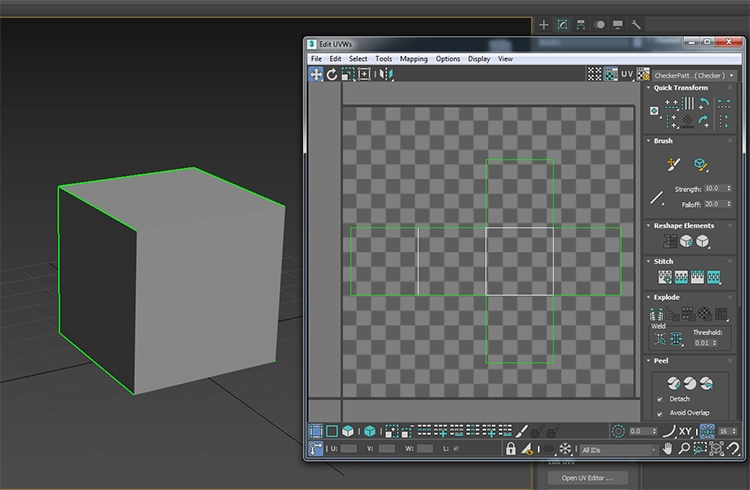
UV refers to the 2D model processing; the letters “U” & “V” denote the axes of 2D texture because the letters “X”, ”Y”, & ”Z” denote the 3D model. UV mapping refers to the technique used to ‘wrap’ a 2D image texture onto a 3D mesh.
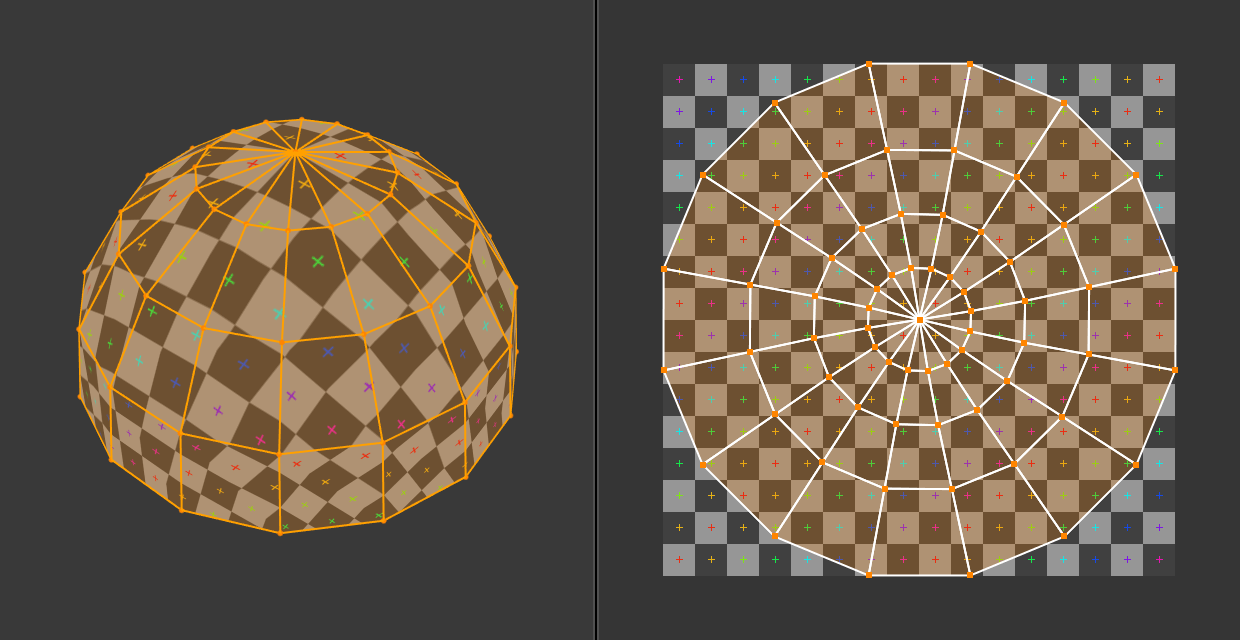
Source: Blender

In this image, we can easily see the “stretching” (technically called mapping) of the 3D part (XYZ) onto a 2D plane (i.e. the UV map).

Viewing Render result

                                                  Source: Wikibooks

We can easily see a different options menu in the window header in this image.

  • “Render result--- entry in the image-selection menu.”
  • “View--- only relevant to editable images, not the render result.”
  • “Slot--- select from any of 8 numbered slots. Each slot can hold a separate Render Result image.”
  • “RenderLayer and Combined--- view different render layers and render passes.”


The rightmost group of four icons makes an advance malfunction of the image into RGB channels with/without alpha transparency layer, alpha on its own, and Z (depth) buffer.              

Viewing/Editing Texture Images

                                                                                                                                                                                                                                Source: Wikibooks

  •  In this window header, we select another image or create a new one. Now the editing context, the menu becomes useful:                                    
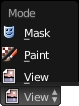
Source: Wikibooks 

The “Paint” menu is used to paint an image.

UV Mapping

                                                                     Source: Wikibooks

This window header selects a texture image and goes into Edit mode on a mesh in the 3D View window.
External Image Editor with Blender

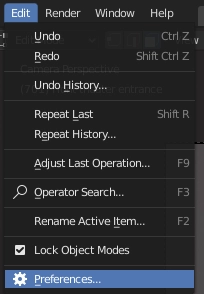
Click on that texture in a blender, then launch in an image editor. Select an Edit option, then go to the Preferences option                                             

         Source: Versluis

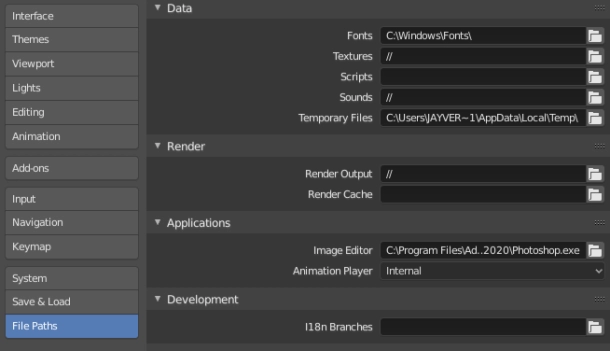
Under File Paths, used to select an application to be your go-to image editor.

                                                   Source: Versluis

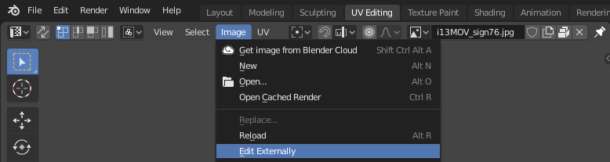
Users get confused and are scared to see so many options menus, but just expose these options more in Blender. Click on the Image option, then select Edit Externally.

                                                     Source: Versluis

Reloading Images in Blender

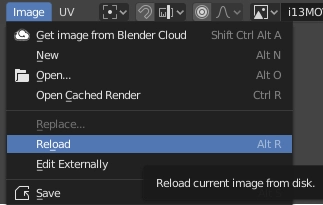
Once edited, save the image; it will not appear in Blender without saving. When refilling a photo, click on the image option, then reload will appear or press ALT+ R.                                

                        Source: Versluis

Also Read - Image Sampling

Example

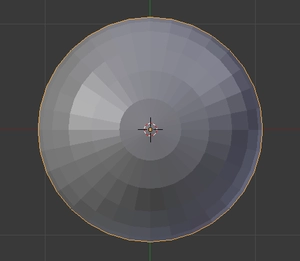
Add a sphere ( SHIFT + → Add → Mesh → UV Sphere).

                    Source: Wikibooks

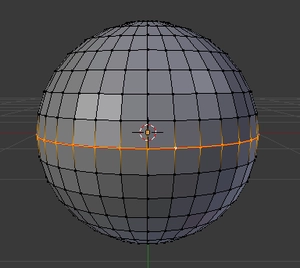
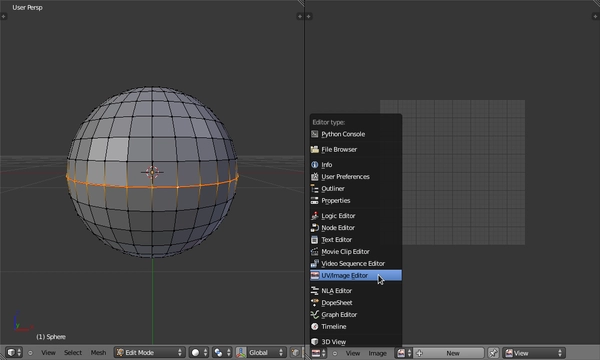
Mark a UV seam: select Mesh → Edges → Mark Seam. Then automatically, UV unwrapped to cut the mesh along these edges.                                    

                   Source: Wikibooks

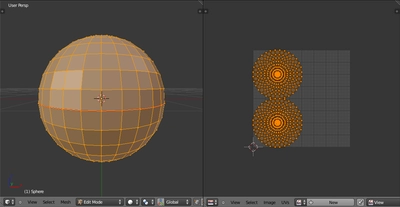
Unwrap the mesh: select "UV/Image Editor" or SHIFT+ F10                          

                                                    Source: Wikibooks

We need to select UV Editing from the Screen Layout dropdown in the UV/Image editor window.

                             Source: Wikibooks

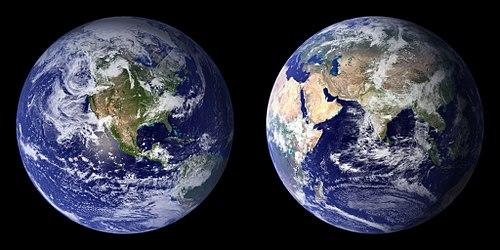
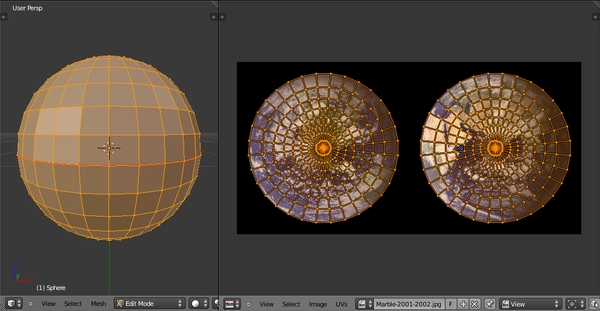
Apply an image: Open Image or press ALT+O

                                       Source: Wikibooks

Adjust the shape according to the user via [S]cale, [R]otate, [G]rab, [B]order selection, [A] Select/Deselect all.


                                                    Source: Wikibooks

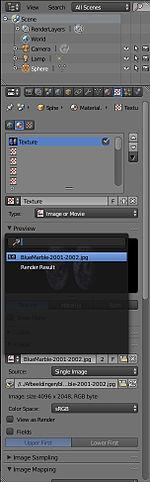
Admire our new creation: we need to add the texture to the sphere as new material. Create a unique texture and select the type to be 'Image or Movie'. 

  Source: Wikibooks

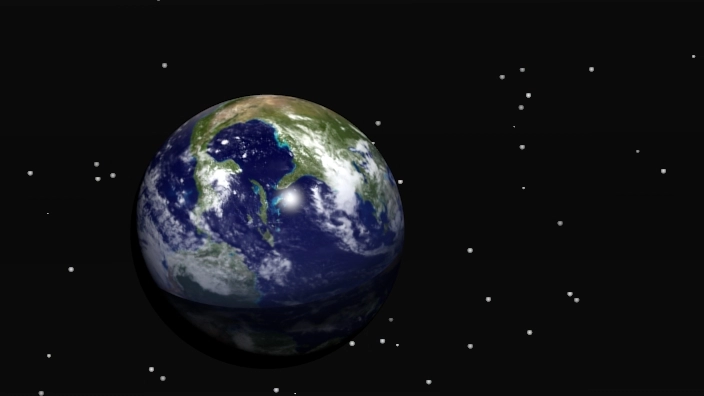
Now, click button F12 to render your scene!

                                                                   Source: Wikibooks

FAQs

How do you do UV mapping?

UV mapping refers to the technique used to ‘wrap’ a 2D image texture onto a 3D
mesh.    

What does UV stand for Blender?

UV refers to the 2D model processing; the letters “U” & “V” denote the axes of 2D texture because the letters “X”, ”Y”, & ”Z” denote the 3D model.

What are the basics of image editing?

Crop, adjusting white balance, colour vibrance and saturation, and exposure and contrast are the basics of image editing.

Conclusion

In this blog, we have extensively discussed image editor topics and their implementation in image editor software/tools. This article also explains how to use Blender's image editor to view and edit rendered images, edit images being used as textures, and perform UV mapping of meshes to texture images.

We hope that this blog has helped you enhance your knowledge regarding image editors and if you would like to learn more, check out our articles on AR/VR, attempt test-series, read interview experiences and much more.

For peeps out there who want to learn more about Data Structures, Algorithms, Power programming, JavaScript, or any other upskilling, please refer to guided paths on Coding Ninjas Studio. Enrol in our courses, go for mock tests, solve problems, and interview puzzles. Also, you can put your attention towards interview stuff- interview experiences and an interview bundle for placement preparations.

Do upvote our blog to help other ninjas grow. 

Happy Coding!

Live masterclass