




Introduction
Many shapes in the JavaFX package can be used in applications, including rectangles, circles, lines, ellipses, and more. Let's take a closer look at the rectangle's shape. A geometric figure called a rectangle has four sides, and the angle formed by the two adjacent sides is 900 degrees. The opposite sides of the rectangle shape are always equal, and the corners are sharp. This is a javafx.scene.shape.Rectangle class object that was instantiated. The next sections will cover JavaFX Rectangle's methods, constructors, and examples.
In general, a rectangle is a four-sided polygon with all interior angles being right angles and having two pairs of parallel and contemporary sides. Height and width are its two defining characteristics. Height is the rectangle's vertical length, and width is the length of the rectangle measured horizontally.
A class called Rectangle in JavaFX serves as the representation of a rectangle. This class is a part of the javafx.scene.shape package. You can build a Rectangle node in JavaFX by instantiating this class.
This class has four double datatype attributes precisely:
X – The x coordinate of the rectangle's upper-left starting point.
Y – The y coordinate of the rectangle's upper-left starting point.
Width − The width of the rectangle.
Height − The height of the rectangle.
How to create a rectangle?
Following are the steps to create a rectangle using JavaFX :
Create a Class
Create a Java class, and inherit the start() method from the package javafx.application's Application class, and then implement this method as shown below.
public class ClassName extends Application {
   @Override
   public void commence(Stage primaryStage) throws Exception {
   }
}
Create a rectangle
By instantiating the Rectangle class from the javafx.scene.shape package, you may build a rectangle in JavaFX. You can instantiate this class as shown below.
Rectangle rectangle = new Rectangle();Set the properties to the rectangle
Give the height and width of the rectangle that has to be drawn, as well as the x and y coordinates of the beginning point (upper left). The following code block illustrates how to set the properties x, y, height, and width using their respective setter methods.
Create a group object
In the start() method, instantiate the Group class from the javafx.scene package to produce a group object. In order to add the Rectangle (node) object to the group as described below, pass it as a parameter to the Group class's function Object()
line.setStartX(100.0);
line.setStartY(250.0);
line.setEndX(600.0);
line.setEndY(250.0);
Create a scene objects
By instantiating the Scene class from the javafx.scene package, you can create a Scene. Pass the Group object (root) that was created in the previous step to this class. You can pass an object of the Group class together with two double parameters representing the screen's height and width in addition to the root object, as seen in the example below.
Group root = new Group(rectangle);Set the title to stage
Use the setTitle() method of the Stage class to change the stage's title. A Stage object is used as the primary stage and is given as a parameter to the scene class's start method. Set the scene's title to Sample Application using the primaryStage object.
Scene scene = new Scene(group ,600, 300)Add the scene to the stage
Using the setScene() method of the Stage class, you may add a Scene object to the stage. Using the technique given below, add the Scene object that was ready in the preceding phases.
primaryStage.setTitle("Application Example");Display the content
The Stage class's show() method can be used to display the scene's contents.
primaryStage.show()Launch the application
The static method launch() present in the Application class should be called from the main function to start the JavaFX application.
public static void main(String args[]){
   launch(args);
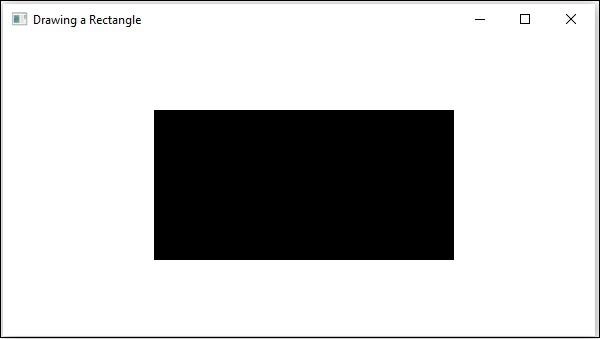
}


 7+ registered

