Do you think IIT Guwahati certified course can help you in your career?
Introduction
The JDialog class is used to build top-level Dialog windows that include various components like buttons, text fields, labels, etc.
A Dialog window is a separate sub-window from the main Swing Application Window that is used to provide brief notifications. The majority of dialog boxes inform users of errors or warnings. Still, dialogs can also display images, directory trees, or anything else that is compatible with the primary Swing Application that controls them.
Creating Dialogs
Several Swing Java component classes may instantly create and display dialogs, which is convenient. The JOptionPane class is used to build basic, conventional dialogs. You can use the Printing API to display a print dialog. Use the JDialog class directly to produce a customized dialog.
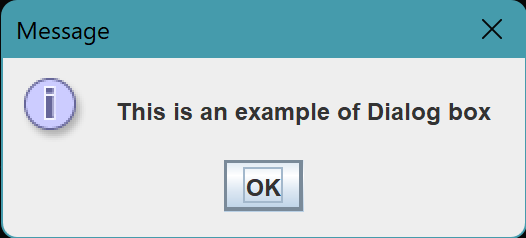
For simple dialogs, the code can be kept to a minimum. Here is an informative dialog as an illustration:
Here is the code to create it:
import java. awt.*;
import javax. swing.*;
public class DialogDemo
{
    public static void main (String[]args)
    {
        JFrame frame= new JFrame("Dialog box");
        JOptionPane.showMessageDialog(frame, "This is an example of Dialog box");
    }
}
You can also try this code with Online Java Compiler
The showXxxDialog method of JOptionPane is used to construct and display the dialog for the majority of simple modal dialogs. If you want your dialog to be internal, add Internal after the show — for example, showMessageDialog becomes showInternalMessageDialog.
The two most popular showXxxDialog methods are
showMessageDialog: A straightforward, one-button dialog is displayed via the showMessageDialog function.
showOptionDialog: The showOptionDialog method displays a customized dialog; it can include a rudimentary text message or a group of components, as well as a selection of buttons with custom button text.
The two other showXxxDialog methods used less frequently are
showConfirmDialog: The showConfirmDialog function requests confirmation from the user; it displays standard button text (such as Yes/No).
showInputDialog: The function showInputDialog is intended to show a modal dialog that requests a string from the user using a text field, a non-editable combo box, or a list.
JOptionPane
You can swiftly create and modify a variety of dialogs with JOptionPane. Laying up standard dialogs, providing icons, specifying the dialog's title and text, and altering the button text are all supported by JOptionPane. Other features let you choose which elements the dialog shows and where it should appear on the screen. You can instruct an option pane to open in a JInternalFrame rather than a JDialog.
When a JOptionPane is created, components are added to it, and their layout is decided by look-and-feel-specific code.
With the help of JOptionPane's icon support, you may quickly choose which icon the dialog displays. You can select one of the four predefined JOptionPane icons, a custom icon, or none (question, information, warning, and error).
Examples
Here are some examples of how to use showMessageDialog and showOptionDialog.
showMessageDialog
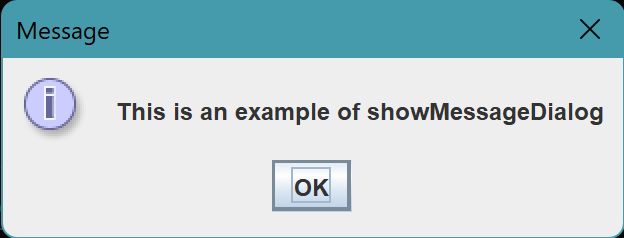
Default title and icon:
//default title and icon
JOptionPane.showMessageDialog(frame, "This is an example of showMessageDialog");
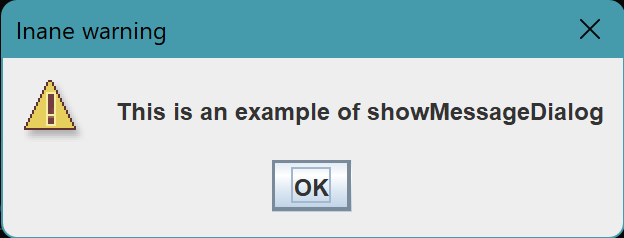
Warning icon:
//custom title, the warning icon
JOptionPane.showMessageDialog(frame, "This is an example of showMessageDialog", "Inane warning", JOptionPane.WARNING_MESSAGE);
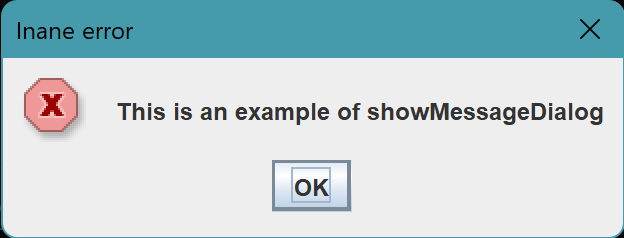
Error icon:
//custom title, error icon
JOptionPane.showMessageDialog(frame, "This is an example of showMessageDialog", "Inane error", JOptionPane.ERROR_MESSAGE);
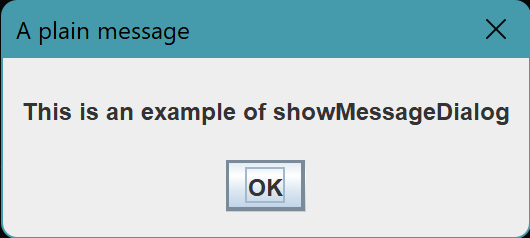
A plain message(No icon):
//custom title, No icon
JOptionPane.showMessageDialog(frame,"This is an example of showMessageDialog", "A plain message", JOptionPane.PLAIN_MESSAGE);
showOptionDialog
Object[] options = {"Yes, very much", "Need Improvement","Can't say"};
int n = JOptionPane.showOptionDialog( frame, "Do you like the content of this Blog"
+ "from coding ninjas", "A Silly Question", JOptionPane.YES_NO_CANCEL_OPTION,
JOptionPane.QUESTION_MESSAGE,null,options,options[2]);
You can also try this code with Online Java Compiler
The Java swing package includes JDialog. The dialog's primary goal is to expand it with new elements. JDialog can be altered to suit user requirements.
A JRootPane is the only child of the JDialog component. Any JDialog's children should be under the control of the contentPane. To make calling the relevant methods of the ContentPane easier, the add, delete, and setLayout methods of this class have been overridden.
Implemented Interface:
ImageObserver
MenuContainer
Serializable
Accessible
RootPaneContainer
WindowConstants
Syntax:
public class JDialog extends dialog implements WindowConstants, Accessible, RootPaneContainer
You can also try this code with Online Java Compiler
Creates a dialog with the owner, mode/modality, and title that are all specified.
Types of dialog windows:
Dialog windows come in two varieties:
Modal Dialog window: All user inputs are sent to a modal dialog window when it is open, and until the modal dialog is closed, other application areas remain unavailable.
Modeless Dialog window: The other components of an application can still be accessed, and inputs can be routed to them. In contrast, a modeless dialog window is open because it doesn't need to be closed.
Methods of JDailog
protected void dialogInit()
The constructors use this method to initialize the JDialog properly.
protected JRootPane createRootPane()
The constructor methods use this call to generate the default rootPane.
protected void processWindowEvent(WindowEvent e)
depending on the value of the defaultCloseOperation attribute handles window events.
public void setDefaultCloseOperation(int operation)
Sets the action that will take place automatically when the user clicks the "close" button on this dialog. You must select one of the options listed below:
DO_NOTHING_ON_CLOSE
HIDE_ON_CLOSE
DISPOSE_ON_CLOSE
By default, the value is set to HIDE_ON_CLOSE
public int getDefaultCloseOperation()
returns the action when the user clicks the "close" button on this dialog.
determines whether or not add and setLayout calls are routed to the contentPane.
protected boolean isRootPaneCheckingEnabled()
determines whether add and setLayout requests are routed to the contentPane.
public void setLayout(LayoutManager manager)
configures the LayoutManager. The call is conditionally forwarded to the contentPane by overriding.
public void remove(Component comp)
The given component is removed from the container. This will pass the call to the contentPane if comp is not the rootPane. Nothing will happen if comp is not a child of the JDialog or contentPane.
Example
import javax.swing.*;
import java.awt.*;
import java.awt.event.*;
public class CustomDialog {
    private static JDialog d;
    CustomDialog() {
        JFrame f= new JFrame();
        d = new JDialog(f , "Example JDailog", true);
        d.setLayout( new FlowLayout() );
        JButton b = new JButton ("OK");
        b.addActionListener ( new ActionListener()
        {
            public void actionPerformed( ActionEvent e )
            {
                CustomDialog.d.setVisible(false);
            }
        });
        d.add( new JLabel ("Click button to continue."));
        d.add(b);
        d.setSize(300,300);
        d.setVisible(true);
    }
    public static void main(String args[])
    {
        new CustomDialog();
    }  }
You can also try this code with Online Java Compiler
A Dialog window is a separate sub-window from the main Swing Application Window that is used to provide brief notifications. The majority of dialog boxes inform users of errors or warnings. Still, dialogs can also display images, directory trees, or anything else that is compatible with the primary Swing Application that controls them.
What is JDialog?
The JDialog class is used to build top-level Dialog windows that include various components like buttons, text fields, labels, etc. The Java swing package includes JDialog. The dialog's primary goal is to expand it with new components.
What are different ways to create Dialog in Java?
Several Swing component classes may instantly create and display dialogs, which is convenient. The JOptionPane class is used to build basic, conventional dialogs. You can use the Printing API to display a print dialog. Use the JDialog class directly to produce a customized dialog.
What is a Modal Dialog Window?
Modal Dialog window: All user inputs are sent to a modal dialog window when it is open, and until the modal dialog is closed, other application areas remain unavailable.
What is JDailog()?
It is the constructor for Jdialog class in Java. It allows creating a modeless dialog without a title or a designated Frame owner.










 5+ registered