Do you think IIT Guwahati certified course can help you in your career?
Introduction
Java Swing is a GUI toolkit and a part of JFC (Java Foundation Class) helpful in developing window-based applications. Java Swing is lightweight and platform-independent that contains various components and container classes. Furthermore, the Java swing library is built on the top of the AWT(Abstract Window Toolkit), an API completely written in Java. In every application, users can find an interactive and user-friendly interface that gives them the freedom to use the app.
There are several Swing components in Java like a scroll bar, button, text field, text area, checkbox, radio button, etc. These components jointly form a GUI that offers a rich set of functionalities and allows high-level customization.
What are Swing Components in Java?
A component is independent visual control, and Java Swing Framework contains a large set of these components, providing rich functionalities and allowing high customization. They all are derived from JComponent class. All these components are lightweight components. This class offers some standard functionality like pluggable look and feel, support for accessibility, drag and drop, layout, etc.
A container holds a group of components. It delivers a space where a component can be managed and displayed. Containers are of two types:
Top-level Containers
It inherits the Component and Container of AWT.
We cannot contain it within other containers.
Heavyweight.
Example: JFrame, JDialog, JApplet
Lightweight Containers
It inherits JComponent class.
It is a general-purpose container.
We can use it to organize related components together.
Example: JPanel
Features of Java Swing
Java Swing, part of the Java Foundation Classes (JFC), is a toolkit for building graphical user interfaces (GUIs) in Java. Here are some of its key features:
Rich Widget Toolkit: Swing provides a wide range of widgets, including buttons, text fields, tables, lists, and more, for developing comprehensive GUI applications.
Pluggable Look and Feel: Swing allows developers to customize the look and feel of GUI components, enabling them to create applications that can either blend in with the native platform or maintain a consistent appearance across all platforms.
Lightweight Components: Unlike AWT components, which are platform-dependent, Swing components are lightweight and written entirely in Java, offering more flexibility and a consistent behavior across different platforms.
MVC Architecture: Swing follows the Model-View-Controller (MVC) design pattern, separating the data (Model) from the user interface (View) and the control logic (Controller), facilitating easier maintenance and scalability of applications.
Advanced Graphics and Imaging Capabilities: Swing provides robust support for graphics and imaging, including easy incorporation of images, custom painting, and rendering.
Built-in Support for Threading: Swing is designed with thread safety in mind, offering features like the SwingWorker class to perform long-running tasks in the background and update the GUI when done.
Integration with Java 2D: Swing works seamlessly with Java 2D for sophisticated graphics and user interface components, allowing for high-quality, scalable graphics and text rendering.
Accessibility Support: Swing includes features to develop accessible applications, such as support for assistive technologies, making applications usable for people with disabilities.
Internationalization: Support for building applications that can be localized for various languages and regions, ensuring a wider reach of the application.
Top Swing components in Java are as follows
JButton
We use JButton class to create a push button on the UI. The button can include some display text or images. It yields an event when clicked and double-clicked. We can implement a JButton in the application by calling one of its constructors.
Syntax:
JButton okBtn = new JButton(“Click”);
This constructor returns a button with the text Click on it.
JButton homeBtn = new JButton(carIcon);
Returns a button with a car Icon on it.
JButton homeBtn2 = new JButton(carIcon, “Car”);
Returns a button with the car icon and text as Car.
Display:
JLabel
We use JLabel class to render a read-only text label or images on the UI. It does not generate any event.
Syntax:
JLabel textLabel = new JLabel(“This is 1st L...”);
This constructor returns a label with specified text.
JLabel imgLabel = new JLabel(carIcon);
It returns a label with a car icon.
The JLabel Contains four constructors. They are as follows:
JLabel()
JLabel(String s)
JLabel(Icon i)
JLabel(String s, Icon i, int horizontalAlignment)
Display:
JTextField
The JTextField renders an editable single-line text box. Users can input non-formatted text in the box. We can initialize the text field by calling its constructor and passing an optional integer parameter. This parameter sets the box width measured by the number of columns. Also, it does not limit the number of characters that can be input into the box.
Syntax:
JTextField txtBox = new JTextField(50);
It is the most widely used text component. It has three constructors:
JTextField(int cols)
JTextField(String str, int cols)
JTextField(String str)
Note: cols represent the number of columns in the text field.
Display:
JCheckBox
The JCheckBox renders a check-box with a label. The check-box has two states, i.e., on and off. On selecting, the state is set to "on," and a small tick is displayed inside the box.
Syntax:
CheckBox chkBox = new JCheckBox(“Java Swing”, true);
It returns a checkbox with the label Pepperoni pizza. Notice the second parameter in the constructor. It is a boolean value that denotes the default state of the check-box. True means the check-box defaults to the "on" state.
Display:
JRadioButton
A radio button is a group of related buttons from which we can select only one. We use JRadioButton class to create a radio button in Frames and render a group of radio buttons in the UI. Users can select one choice from the group.
Syntax:
JRadioButton jrb = new JRadioButton("Easy");
Display:
JComboBox
The combo box is a combination of text fields and a drop-down list. We use JComboBox component to create a combo box in Swing.
Syntax:
JComboBox jcb = new JComboBox(name);
Display:
JTextArea
In Java, the Swing toolkit contains a JTextArea Class. It is under package javax.swing.JTextArea class. It is used for displaying multiple-line text.
Declaration:
public class JTextArea extends JTextComponent
Syntax:
JTextArea textArea_area=new JTextArea("Ninja! please write something in the text area.");
The JTextArea Contains four constructors. They are as follows:
JTextArea()
JTextArea(String s)
JTextArea(int row, int column)
JTextArea(String s, int row, int column)
Display:
JPasswordField
In Java, the Swing toolkit contains a JPasswordField Class. It is under package javax.swing.JPasswordField class. It is specifically used for the password, and we can edit them.
Declaration:
public class JPasswordField extends JTextField
Syntax:
JPasswordField password = new JPasswordField();
The JPasswordFieldContains 4 constructors. They are as follows:
JPasswordField()
JPasswordField(int columns)
JPasswordField(String text)
JPasswordField(String text, int columns)
Display:
JTable
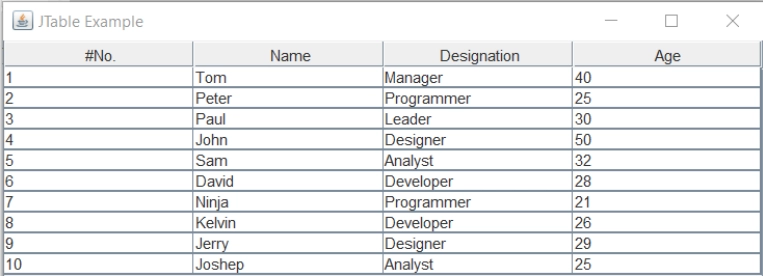
In Java, the Swing toolkit contains a JTable Class. It is under package javax.swing.JTable class. It is used to draw a table to display data.
Syntax:
JTable table = new JTable(table_data, table_column);
The JTable contains two constructors. They are as follows:
JTable()
JTable(Object[][] rows, Object[] columns)
Display:
JList
In Java, the Swing toolkit contains a JList Class. It is under package javax.swing.JList class. It is used to represent a list of items together. We can select one or more than one items from the list.
Declaration:
public class JList extends JComponent implements Scrollable, Accessible
Syntax:
DefaultListModel<String> list1 = new DefaultListModel<>();
list1.addElement("Apple");
list1.addElement("Orange");
list1.addElement("Banan");
list1.addElement("Grape");
JList<String> list_1 = new JList<>(list1);
The JListContains 3 constructors. They are as follows:
JList()
JList(ary[] listData)
JList(ListModel<ary> dataModel)
Display:
JOptionPane
In Java, the Swing toolkit contains a JOptionPane Class. It is under package javax.swing.JOptionPane class. It is used for creating dialog boxes for displaying a message, confirm box, or input dialog box.
Declaration:
public class JOptionPane extends JComponent implements Accessible
The JOptionPaneContains 3 constructors. They are as following:
JOptionPane()
JOptionPane(Object message)
JOptionPane(Object message, intmessageType)
Display:
JScrollBar
In Java, the Swing toolkit contains a JScrollBar class. It is under package javax.swing.JScrollBar class. It is used for adding horizontal and vertical scrollbars.
Declaration:
public class JScrollBar extends JComponent implements Adjustable, Accessible
Syntax:
JScrollBar scrollBar = new JScrollBar();
The JScrollBarContains 3 constructors. They are as following:
JScrollBar()
JScrollBar(int orientation)
JScrollBar(int orientation, int value, int extent, int min_, intmax_)
Display:
JMenuBar, JMenu and JMenuItem
In Java, the Swing toolkit contains a JMenuBar, JMenu, and JMenuItem class. It is under package javax.swing.JMenuBar, javax.swing.JMenu and javax.swing.JMenuItem class. The JMenuBar class is used for displaying menubar on the frame. The JMenu Object is used to pull down the menu bar's components. The JMenuItem Object is used for adding the labeled menu item.
JMenuBar, JMenu and JMenuItem Declarations:
public class JMenuBar extends JComponent implements MenuElement, Accessible
public class JMenu extends JMenuItem implements MenuElement, Accessible
public class JMenuItem extends AbstractButton implements Accessible, MenuElement
Syntax:
JMenuBar menu_bar = new JMenuBar();
JMenu menu = new JMenu("Menu");
menuItem1 = new JMenuItem("Never");
menuItem2 = new JMenuItem("Stop");
menuItem3 = new JMenuItem("Learing");
menu.add(menuItem1);
menu.add(menuItem2);
menu.add(menuItem3);
Display:
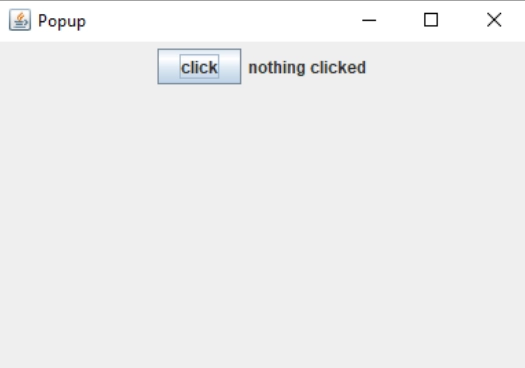
JPopupMenu
In Java, the Swing toolkit contains a JPopupMenu Class. It is under package javax.swing.JPopupMenu class. It is used for creating popups dynamically on a specified position.
Declaration:
public class JPopupMenu extends JComponent implements Accessible, MenuElement
Syntax:
final JPopupMenu popupmenu1 = new JPopupMenu("Edit");
The JPopupMenuContains 2 constructors. They are as follows:
JPopupMenu()
JPopupMenu(String label)
Display:
JCheckBoxMenuItem
In Java, the Swing toolkit contains a JCheckBoxMenuItem Class. It is under package javax.swing.JCheckBoxMenuItem class. It is used to create a checkbox on a menu.
Syntax:
JCheckBoxMenuItem item = new JCheckBoxMenuItem("Option_1");
The JCheckBoxMenuItemContains 2 constructors. They are as following:
JCheckBoxMenuItem()
JCheckBoxMenuItem(Action a)
JCheckBoxMenuItem(Icon icon)
JCheckBoxMenuItem(String text)
JCheckBoxMenuItem(String text, boolean b)
JCheckBoxMenuItem(String text, Icon icon)
JCheckBoxMenuItem(String text, Icon icon, boolean b)
Display:
JSeparator
In Java, the Swing toolkit contains a JSeparator Class. It is under package javax.swing.JSeparator class. It is used for creating a separator line between two
components.
Declaration:
public class JSeparator extends JComponent implements SwingConstants, Accessible
Syntax:
jmenu_Item.addSeparator();
The JSeparatorContains 2 constructors. They are as following:
JSeparator()
JSeparator(int orientation)
Display:
JProgressBar
In Java, the Swing toolkit contains a JProgressBar Class. It is under package javax.swing.JProgressBarclass. It is used for creating a progress bar of a task.
Declaration:
public class JProgressBar extends JComponent implements SwingConstants, Accessible
Syntax:
JProgressBar progressBar = new JProgressBar(0,2000);
The JProgressBarContains 4 constructors. They are as following:
JProgressBar()
JProgressBar(int min, int max)
JProgressBar(int orient)
JProgressBar(int orient, int min, int max)
Display:
JTree
In Java, the Swing toolkit contains a JTree Class. It is under package javax.swing.JTreeclass. It is used for creating tree-structured data. It is a very complex component.
Declaration:
public class JTree extends JComponent implements Scrollable, Accessible
Syntax:
JTree tree = new JTree(tree_style);
The JTreeContains 3 constructors. They are as follows:
JTree()
JTree(Object[] value)
JTree(TreeNode root)
Display:
JFileChooser
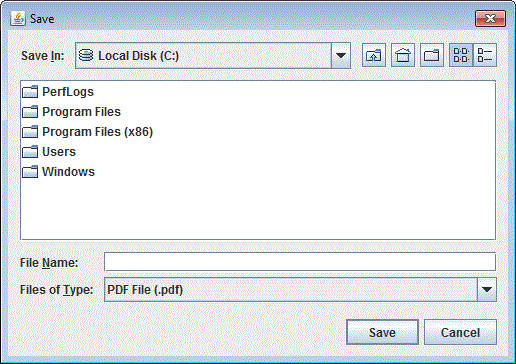
The JFileChooser class renders a file selection utility. This component lets a user select a file from the local system.
Syntax:
JFileChooser fileChooser = new JFileChooser();
JButton fileBtn = new JButton(“Select File”);
fileBtn.AddEventListner(new ActionListner(){
fileChooser.showOpenDialog();
})
var selectedFile = fileChooser.getSelectedFile();
The above code creates a file chooser dialog and attaches it to the button. The button click would open the file chooser dialog. The selected file is returned through the get file method chosen.
Display:
JTabbedPane
The JTabbedPane is another beneficial component that lets the user switch between tabs in an application. It is a handy utility as it allows users to browse more content without navigating to different pages.
Syntax:
JTabbedPane jtabbedPane = new JTabbedPane();
jtabbedPane.addTab(“Tab_1”, new JPanel());
jtabbedPane.addTab(“Tab_2”, new JPanel());
The above code creates a two-tabbed panel with headings Tab_1 and Tab_2.
Display:
JSlider
The JSlider component displays a slider that the user can drag to change its value. The constructor takes three arguments: minimum, maximum, and initial.
Syntax:
JSlider volumeSlider = new JSlider(0, 100, 20);
var volumeLevel = volumeSlider.getValue();
The above code makes a slider from 0 to 100 with an initial value set to 20. The value specified by the user is returned by the getValue method.
Display:
Difference between AWT and Swing
AWT (Abstract Window Toolkit) and Swing are both Java GUI (Graphical User Interface) toolkits that provide a set of classes and components to create desktop applications. The main differences between AWT and Swing are listed below:
Feature
AWT
Swing
Look and feel
Native
Cross-platform (customizable)
Performance
Faster (lightweight)
Slower (heavier)
Accessibility
Limited
More accessible
Component set
Limited
More comprehensive
Layout Managers
Limited
More comprehensive
Consistency across OS
Less consistent
More consistent
Support for advanced GUI
Limited
More advanced
2D graphics rendering
No
Yes
Event handling mechanism
Less flexible
More flexible
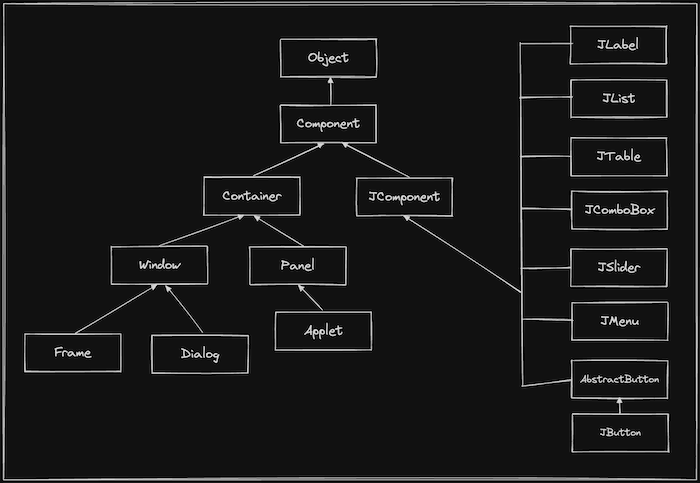
Hierarchy of Java Swing classes
The following diagram shows the hierarchy of Java Swing Classes:-
Java Swing Packages
Java Swing is part of the Java Foundation Classes (JFC) and provides a rich set of GUI components. The Swing packages include:
javax.swing: Contains classes for lightweight components that are platform-independent. It includes basic components like buttons (JButton), labels (JLabel), text fields (JTextField), and more complex ones like tables (JTable) and trees (JTree).
javax.swing.event: Provides interfaces and classes for dealing with different types of events generated by Swing components, such as changes in the model or user actions.
javax.swing.table: Contains classes and interfaces for creating and managing table components. It includes TableModel for managing the data and JTableHeader for the table column header.
javax.swing.tree: Includes classes and interfaces for creating and managing tree components, such as TreeNode for the nodes in the tree and TreeModel for managing the tree's data.
javax.swing.filechooser: Contains classes for creating a file chooser dialog box that allows users to select files or directories from the file system.
javax.swing.plaf: Stands for Pluggable Look and Feel. It contains classes and interfaces for customizing the appearance and feel of Swing components beyond the standard Java look and feel.
javax.swing.border: Provides classes and interfaces for defining and using borders around Swing components. Borders can be used to add lines, margins, or even complex graphical borders around components.
javax.swing.text: Contains classes and interfaces for handling text components in Swing. It includes document models, text components (JTextComponent and its subclasses like JTextArea, JTextField, JTextPane), and classes for managing and displaying styled text.
Commonly used Methods of Component class
The following are some commonly used methods of the component class:-
setVisible(boolean visible): This method makes a component visible or invisible
setEnabled(boolean enabled): This method allows you to enable or disable a component
setSize(int width, int height): This method sets the size of a component in pixels
setLocation(int x, int y): This method sets a component's position on its parent container
setBounds(int x, int y, int width, int height): This method combines setSize() and setLocation() to set both the size and position of the component in one call
repaint(): This method requests a repaint of the component. It is usually called to trigger the re-rendering of a component when its appearance needs to change
addMouseListener(MouseListener listener): This method is used to register a MouseListener to listen for mouse events on a component
Frequently Asked Questions
What are the benefits of using Swing components explain?
Swing components in Java offer a rich set of GUI elements that are lightweight, platform-independent, and customizable. They support pluggable look-and-feel, provide extensive event handling, and allow for a high degree of interactivity and visual consistency across different platforms.
How many components of Swing are there?
Swing is a GUI toolkit for Java that offers a wide range of components for building user interfaces. There are numerous components in Swing, including buttons, text fields, menus, tables, scroll panes, JTree and more.
How to use Swing components in Java?
To use Swing components in Java, import classes from the javax.swing package, create an instance of the component, set its properties, add it to a container, and then display the container. Add event listeners to handle user interaction with the component.
What are the 3 types of Java Swing containers?
The three types of Java Swing containers are: 1) Top-level containers such as JFrame, JDialog, and JApplet, 2) Content pane containers such as JPanel and JLayeredPane; and 3) Menu containers such as JMenu, JMenuBar, and JMenuItem.
Conclusion
This article gives information about Swing components in java. We see how one can utilize the functionality of interactive elements in Swing components in java to make extravagant GUIs.

















 1+ registered

