Do you think IIT Guwahati certified course can help you in your career?
Introduction
A Java Web application framework called JavaServer Faces (JSF) is based on UI components. JSF is a server-based framework, and the JSF UI components' state and prescribed life cycles are represented on the server. The Java EE standard includes JSF.
A conventional web container, like Tomcat or Jetty, is where a JSF application runs.
Using JSF's default features solely, this article offers an introduction to JSF.
JSF Application
Web pages containing JSF UI components make up a JSF application. Additionally, a JSF application needs some configuration files ("faces-config.xml" and web.xml).
Managed Bean: A Java class that will be dynamically constructed when the JSF application is running is represented by the data elements of the JSF application (managed beans and backing beans). Which scope the bean is valid for can be specified (Session, Request, Application, or none) switching between web pages
Ddata validators: Tools for examining the accuracy of user input
UI and model translation are done using data converters.
Managed beans are straightforward Java objects (POJOs) that can be utilized in JSF applications and are declared in "faces-config.xml." You could, for instance, define the Java object "Person." Once the object has been described in faces-config.xml, you can use the Person attributes in your JSF UI components, for example, by binding the object's value "firstName" to a JSF input field.
Create a JSF application
To create a JSF application, we are using NetBeans IDE 8.2. You can also refer to other Java IDEs.
Before we move on to our Java codes, you can brush up your Java skills by watching our Youtube video on Java.
Here, we're creating a project, which we'll then launch and test to see how its configuration settings work. So let's start by doing a new project.
Step 1: Create a New Project In NetBeans, go to the File menu and select New Project.
Step 2: Select Category Java Web and Project Web Application.
Step 3: Enter a project name.
Step 4: Select Server and Java EE Version.
Step 5: Select JSF Framework
Choose Your Preferred Page Language: JSP is the default language for presentation pages in earlier versions of the JSF framework. Currently, JSF includes the potent tool "Facelets" in versions 2.0 and later. Therefore, we have chosen page language as Facelets here. In the following chapter, we'll go into greater detail on Facelets.
After you're done, the IDE generates a JSF project for you, complete with a default index.xhtml file. Facelets pages are made using Xhtml, an extension of Html.
Run: You may now choose the run option after right-clicking the project to start your program. "Hello from Facelets" will be the default message that is produced.
JSF project has been successfully created. The following files are part of this project
Web.xml is located in the WEB-INF directory
index.xhtml is located in the Web Pages directory.
The project outputs index.xhtml each time we run it. We will now build an application that consists of a configuration file, two web pages, and a bean class.
To create a new application, the following procedures must be followed:
Creating user interface
Creating managed beans
Configuring and managing FacesServlet
Create User Interface
To render the input web page, we will utilise default page index.xhtml. Make the following changes to your index.xhtml source code:
index.xhtml
<?xml version='1.0' encoding='UTF-8' ?>
<!DOCTYPE html PUBLIC "-//W3C//DTD XHTML 1.0 Transitional//EN""http://www.w3.org/TR/xhtml1/DTD/xhtml1-transitional.dtd">
<html xmlns="http://www.w3.org/1999/xhtml"
xmlns:h="http://xmlns.jcp.org/jsf/html">
<h:head>
<title>User Form</title>
</h:head>
<h:body>
<h:form>
<h:outputLabel for="username">User Name</h:outputLabel>
<h:inputText id="username" value="#{user.name}" required="true" requiredMessage="User Name is required" /><br/>
<h:commandButton id="submit-button" value="Submit" action="response.xhtml"/>
</h:form>
</h:body>
</html>
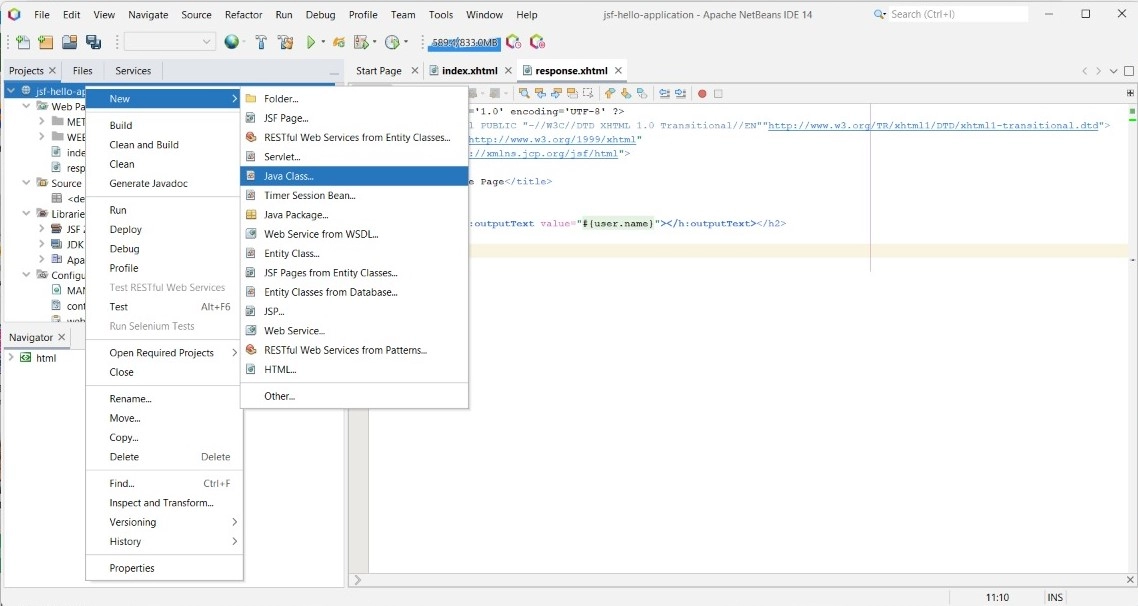
Create a second web page that produces the output
After creating response.xhtml page. Now, modify it's source code as the given below.
It is a Java class with getter and setter methods and properties. It serves as a Model in JSF. You can therefore utilize it to create your business logic.
After creating a Java class put the below code into your User.java file.
User.java
package managedbean;
Facelet Title
import javax.faces.bean.ManagedBean;
import javax.faces.bean.RequestScoped;
@ManagedBean
@RequestScoped
public class User {
String name;

	public String getName() {
   		return name;
	}
	public void setName(String name) {
   		this.name = name;
	}
}
You can also try this code with Online Java Compiler
A web.xml file in the project is used to set FacesServlet instances and is used to set up the application. Additionally, you can customize your application's welcome page and more.
The web.xml code for this application is shown below.
When we write CodingNinjas in the input text, this is the response page after submitting the input (index) page.
Frequently Asked Question
What is the JSF life cycle?
When the client sends an HTTP request for a page to the server, the JavaServer Faces application's lifecycle starts, and it ends when the server returns the page. There are two key stages to the JSF lifecycle: The phase of execution Rendering Stage.
What does JSF's managed bean mean?
A normal Java Bean class registered with JSF is the Managed Bean. In other terms, Controlled Beans is a JSF framework managed Java bean. Getter and setter functions, business logic, and even a backing bean are all included in managed beans (a bean contains all the HTML form values).
What is Facelet JSF?
Building component trees and JavaServer Faces views using HTML-style templates requires the usage of Facelets, a robust but lightweight page declaration language.
What does JSF's session scope mean?
You can create and bind objects to a session using the session scope. When this bean is used for the first time in an HTTP request, it is generated, and when the HTTP session is invalidated, it is deleted. Both JSF and CDI provide a request scope that performs similar duties.
What is JSF's most recent version?
JSF 2.3, which was introduced as a part of Java EE 8 in 2017, is the most recent JSF standard as of the time of this writing.
Conclusion
In this article, we have discussed JSF Application.







 1+ registered

