Table of contents
1.
Introduction
2.
h:selectOneMenu HTML Tag
2.1.
Rendered Output
2.2.
Tag Attributes
3.
Example Application
3.1.
UserInfo.java
3.2.
Main.xhtml
3.3.
Output.xhtml
4.
Frequently Asked Questions
4.1.
What is meant by JSF?
4.2.
What is “h:selectOneMenu” in JSF?
4.3.
What is the use of a combo box?
5.
Conclusion
Last Updated: Aug 13, 2025

JSF h:selectOneMenu

Career growth poll
Do you think IIT Guwahati certified course can help you in your career?

Introduction

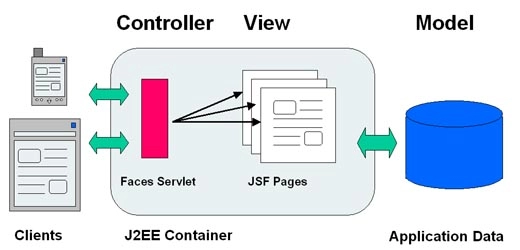
In this blog, we will learn about the JSF h:panelGrid. JSF (Java Server Faces) is a Java-based web application framework designed to build web-based user interfaces more accessible. The Java Community Process codified a definition for JavaServer Faces, a standardised display technology. The MVC design pattern separates model and display, allowing developers to concentrate on their primary competencies and communicate more effectively. The h:selectOneMenu tag creates an HTML input element of type "select" with an unspecified size. A single select HTML input element of type "select" with no specified size is rendered using the JSF h:selectOneMenu tag. This article describes the selectOneMenu function in JSF, beginning with the most straightforward statements and progressing to the most significant modules.
 

h:selectOneMenu HTML Tag

The Java Community Process codified a definition for JavaServer Faces, a standardised display technology. The MVC design pattern separates model and display, allowing developers to concentrate on their primary competencies and communicate more effectively. The h:selectOneMenu tag creates an HTML input element of type "select" with an unspecified size. A single select HTML input element of type "select" with no specified size is rendered using the JSF h:selectOneMenu tag.
 

Syntax

Code:

<h:selectOneMenu value = "#{userInfo.data}">
   <f:selectItem itemValue = "1" itemLabel = "Item 1" />
   <f:selectItem itemValue = "2" itemLabel = "Item 2" />
</h:selectOneMenu>

Rendered Output

Code:

<select name = "codingNinjas6:codinNinjas8">  
   <option value = "1">Item 1</option>
   <option value = "2">Item 2</option>
</select>

Tag Attributes

The message Tag properties are listed in the tables below:


S.NO.

ATTRIBUTES

DESCRIPTION

  1.  

title

A title that is used for accessibility. Browsers often generate tooltips for the value of the title.
2. 

border

The width of an element's border in pixels.
3. 

id

It is used as a component's identifier.
4. 

binding

The component that can use in a backing bean.
5. 

  rendered

It is a boolean tag attribute, where false reduces rendering.
6. 

styleClass

It is used as the class name for Cascading style sheet(CSS).
7.          value The value of a component, often a value binding.
8. 

bgcolor

It is used to change the background color for the table.
9. 

border

It is used to change the Width of the table’s border.
10. 

cellpadding

It is used to change the Padding around table cells.
11. 

cellspacing

It is used to change the spacing around table cells.
12. 

columnClasses

CSS classes for columns, separated by commas.
13.

columns

It is used to handle the number of columns in a table.
14. 

footerClass

It is the CSS class for the table footer.
15. 

headerClass

It is the CSS class for the table header.
16. 

rowClasses

CSS classes for columns, separated by commas.
17. 

frame

Valid values for the sides of the frame encircling the table to be drawn are none, above, below, hsides, vsides, lhs, rhs, box and border.
18. 

rules

Specification for cell-to-cell lines; permissible values include groups, rows, columns, and all.
19. 

summary

A summary of the table's purpose and structure as it relates to non-visual feedback such as speech.
20. 

dir

Textual direction Valid values are ltr (left to right) and rtl (right to left) (right to left).
21.

lang

The attributes and text of an element's base language.
22. 

onblur

The element's focus has shifted.

23.

onchange

The element's value shifts.

24. 

onclick

The mouse button is clicked over the element.

25. 

ondblclick

The mouse button is double-clicked over the element.

26. 

onfocus

The element is highlighted.

27. 

onkeydown

The desired key is pressed.

28.

onkeypress

The desired key is pressed and subsequently released.

29.

onkeyup

The desired key is released.

30. 

onmousedown

The desired element is selected with the mouse.

31.

onmousemove

The desired element has hovered over with the mouse.

32. 

onmouseout

The desired element's area is left by the mouse.

33. 

onmouseover

The mouse lands on the desired element.

34. 

onmouseup

The desired mouse button is released.

35.

onselect

An input field's text has been selected.

Example Application

To test the above tag, let's create a test JSF application.

  • According to the instructions in the JSF - First Application chapter, create a project called helloworld under the package com.codingNinjas.test.
  • Make the following changes to main.xhtml. Leave the remaining files alone.
  • As stated below, create output.xhtml and place it in the webapps directory.
  • As stated below, add UserInfo.java as a managed bean to the com.codingNinjas.test package.
  • Verify that the business logic is performing in line with the specifications by compiling and running the application.
  • Create the programme as a war file, then deploy it to the Apache Tomcat Webserver
  • Launch your web application using the proper URL as described in the final step below.


UserInfo.java

code:

package com.codingNinjas.test;
import java.io.Serializable;is 
import javax.faces.bean.ManagedBean;
import javax.faces.bean.SessionScoped;

@ManagedBean(name = "userInfo", eager = true)
@SessionScoped
public class UserInfo implements Serializable {
   private static final long serialVersionUID = 1L;
   public String Info = "1";

   public String getInfo() {
      return Info;
   }
   public void setInfo(String Info) {
      this.Info = Info;
   }
}

Main.xhtml

Code:

<?xml version = "1.0" encoding = "UTF-8"?>
<!DOCTYPE html PUBLIC "-//W3C//DTD XHTML 1.0 Transitional//EN"  
"http://www.w3.org/TR/xhtml1/DTD/xhtml1-transitional.dtd">

<html xmlns = "http://www.w3.org/1999/xhtml"
   xmlns:f = "http://java.sun.com/jsf/core"    
   xmlns:h = "http://java.sun.com/jsf/html">
   
   <head>
      <title>JSF h:selectOneMenu</title>
   </head>
   
   <h:body>
      <h2>h::selectOneMenu example</h2>
      <hr />
     
      <h:form>
         <h3>Combo Box</h3>  
         <h:selectOneMenu value = "#{userInfo.data}">
            <f:selectItem itemValue = "1" itemLabel = "Item 1" />
            <f:selectItem itemValue = "2" itemLabel = "Item 2" />
            <f:selectItem itemValue = "3" itemLabel = "Item 3" />
            <f:selectItem itemValue = "4" itemLabel = "Item 4" />
            <f:selectItem itemValue = "5" itemLabel = "Item 5" />    
         </h:selectOneMenu>  
         <h:commandButton value = "Submit" action = "result" />
      </h:form>    
   
   </h:body>
</html>

Output.xhtml

Code:

<?xml version = "1.0" encoding = "UTF-8"?>
<!DOCTYPE html PUBLIC "-//W3C//DTD XHTML 1.0 Transitional//EN"
"http://www.w3.org/TR/xhtml1/DTD/xhtml1-transitional.dtd">

<html xmlns = "http://www.w3.org/1999/xhtml"
   xmlns:f = "http://java.sun.com/jsf/core"    
   xmlns:h = "http://java.sun.com/jsf/html"
   xmlns:ui = "http://java.sun.com/jsf/facelets">
   
   <head>
      <title>JSF h:selectOneMenu</title>
   </head>
   
   <h:body>
      <h2>Result</h2>
      <hr />
      #{userInfo.data}
   </h:body>
</html>  

As we did in the JSF - First Application chapter, let's compile and execute the application after you're finished with all the modifications made. This will result in the following outcome if everything with your application is in order.


Output:


Select a choice, then click the Submit button. We have decided on item 1. The chosen outcomes will be displayed.


Output:

Frequently Asked Questions

What is meant by JSF?

JSF (Java Server Faces) is a Java-based web application framework designed to make the building of web-based user interfaces easier. The Java Community Process codified a definition for JavaServer Faces, a standardised display technology.

What is “h:selectOneMenu” in JSF?

The HTML input element of type "select" with an unspecified size is shown by the h:selectOneMenu tag.

What is the use of a combo box?

A combination box consists of a text box and a list box. Users of this sort of control can enter their own text in the control's text box or choose from a list of predetermined values.

Conclusion

In this blog, we have extensively discussed the JSF h:panelGrid. We hope this article has helped you with additional information about Java Server Faces. You can visit Java Frameworks and Introduction to JSP blogs for more information about Java Server Faces. For more information about JSF, you can visit JSF-Coding Ninjas and XML-encoding Coding Ninjas blogs. Also, look at the Coding Ninjas website for some great information, Web DevelopmentCoding Ninjas Studio ProblemsCoding Ninjas Studio Interview BundleCoding Ninjas Studio Interview ExperiencesCoding Ninjas CoursesCoding Ninjas Studio Contests, and Coding Ninjas Studio Test Series. Do upvote our blog to help other ninjas grow.
Delighted Programming!

Live masterclass