




Introduction
JSF is a user interface framework based on server-side components. It's a programming language that's used to create web applications. It has a well-defined programming model and a robust API and tag library. Facelets is the default templating system in the latest version of JSF 2. It's written in the Java programming language.
The JSF Tag libraries add components to web pages and link them to server-side objects. Tag handlers that implement the component tag are also included. The h:inputSecret tag creates a password-type HTML input element. Let’s discuss it in deep in this article.
JSF h:inputSecret
It's a standard password field that takes one line of text without any spaces and displays it as a series of asterisks as you type. Put it another way; it's used to make an HTML password field that allows a user to type a string without it appearing in the field.
Tag
JSF Tag:
<h:inputSecret value = "password" />Rendered Output:
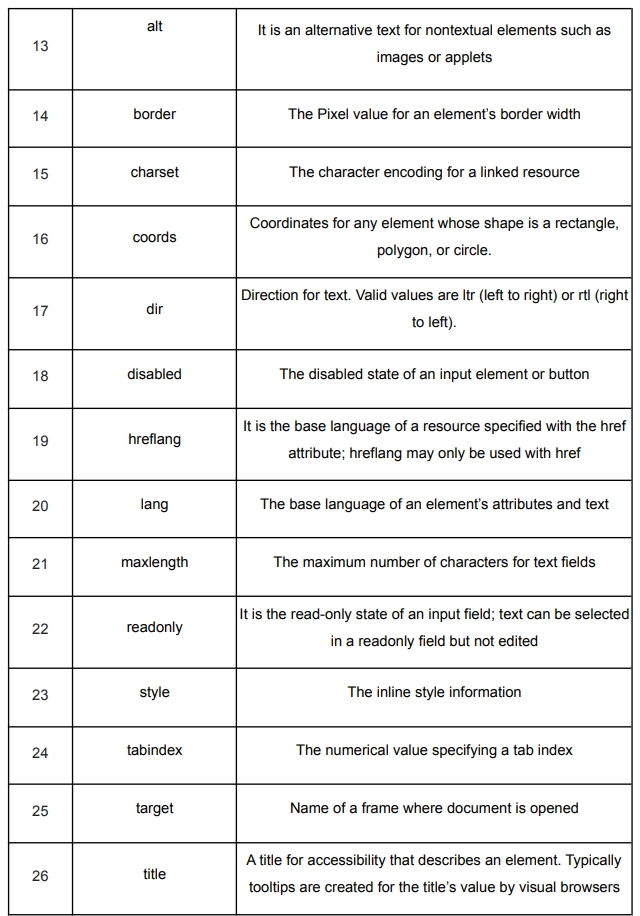
<input type = "password" name = "random value" value = "password" />Attribute Table



Example

index.xhtml
<?xml version='1.0' encoding='UTF-8' ?>
<!DOCTYPE html PUBLIC "-//W3C//DTD XHTML 1.0 Transitional//EN" "http://www.w3.org/TR/xhtml1/DTD/xhtml1-transitional.dtd">
<html xmlns="http://www.w3.org/1999/xhtml"
      xmlns:h="http://xmlns.jcp.org/jsf/html">
    <h:head>
        <title>Facelet Title</title>
    </h:head>
    <h:body>
        <h:form>
            <h:inputSecret id="pass" value="${controlDemo.password}"/><br/><br/>
            <h:commandButton value="Click"/><br/><br/>
            <h:outputText value="${controlDemo.password}"/>
        </h:form>
    </h:body>
</html>
ControlDemo.java
package com.codingninjas;
import javax.faces.bean.ManagedBean;
import javax.faces.bean.RequestScoped;
@ManagedBean
@RequestScoped
public class ControlDemo {
    /**
     * Creates a new instance of ControlDemo
     */
    // password string
    private String password;
    // to get the password
    public String getPassword()
    {
        return password;
    }

    //to set the password
    public void setPassword(String password)
    {
        this.password=password;
    }
}
web.xml
<?xml version="1.0" encoding="UTF-8"?>
<web-app version="3.1" xmlns="http://xmlns.jcp.org/xml/ns/javaee" xmlns:xsi="http://www.w3.org/2001/XMLSchema-instance" xsi:schemaLocation="http://xmlns.jcp.org/xml/ns/javaee http://xmlns.jcp.org/xml/ns/javaee/web-app_3_1.xsd">
    <context-param>
        <param-name>javax.faces.PROJECT_STAGE</param-name>
        <param-value>Development</param-value>
    </context-param>
    <servlet>
        <servlet-name>Faces Servlet</servlet-name>
        <servlet-class>javax.faces.webapp.FacesServlet</servlet-class>
        <load-on-startup>1</load-on-startup>
    </servlet>
    <servlet-mapping>
        <servlet-name>Faces Servlet</servlet-name>
        <url-pattern>/faces/*</url-pattern>
    </servlet-mapping>
    <session-config>
        <session-timeout>
            30
        </session-timeout>
    </session-config>
    <welcome-file-list>
        <welcome-file>faces/index.xhtml</welcome-file>
    </welcome-file-list>
</web-app>
faces-config.xml
<?xml version='1.0' encoding='UTF-8'?>
<faces-config version="2.2"
              xmlns="http://xmlns.jcp.org/xml/ns/javaee"
              xmlns:xsi="http://www.w3.org/2001/XMLSchema-instance"
              xsi:schemaLocation="http://xmlns.jcp.org/xml/ns/javaee http://xmlns.jcp.org/xml/ns/javaee/web-facesconfig_2_2.xsd">
    <managed-bean>
        <managed-bean-name>test</managed-bean-name>
        <managed-bean-class>com.codingninjas.Test</managed-bean-class>
        <managed-bean-scope>request</managed-bean-scope>
    </managed-bean>
</faces-config>
Output
The application initially looks like this:

As you see, once you enter text, it is not visible:

The output when the button is clicked:


 7+ registered

