Do you think IIT Guwahati certified course can help you in your career?
Introduction 📃
Hello there! Welcome to yet another article on Puppet. When an application is developed and deployed, it undergoes many changes. Many developers are also required to make these changes. Have you wondered how this works? If not, then you are at the right place. Coding Ninjas have got you covered.
This article will discuss Puppet and managing access in Puppet. We will discuss the user permissions and roles. We will also discuss creating and managing local users and user roles.
Let's get started.
What is Puppet?
Puppet is a software configuration management tool. It is a platform to configure the system and software settings. Puppet has its declarative language to manage the settings. You do not need much knowledge of programming to use Puppet. Puppet Enterprise is built on top of the Puppet platform. It is a commercial version of Puppet. To get started with Puppet Enterprise, visit Installing and Configuring Puppet Enterprise.
This article will refer to Puppet Enterprise as PE for convenience. Now, let's discuss user permissions and user roles.
User Permissions and User Roles
The user roles are a set of permissions or privileges. The user roles are assigned to users or user groups. The users assigned a role get all the permissions associated with the user role. If a user role is assigned to a user group, then all the group members acquire the user role. The permissions specify what a user can and cannot do in Puppet.
A user does not have any permissions when added to Puppet Enterprise. Permissions are associated with users in two ways - Implicitly or Explicitly. Roles can be assigned to users or inherited when a user is added to a group.
Following are the five in-built user roles:
Administrators: They have all the permissions. They can create and manage user roles and permissions. They can create and update node groups and other objects.
Operators: They can create and update node groups and other objects in Puppet.
Viewers: They can only view the objects. Update permission is not provided.
Code Deployers: Have permission to synchronize code from the version control system.
Project Deployers: Gets the permissions related to projects. They can deploy and run projects and tasks.
You can assign these user roles to users as per your choice. Apart from this, you can also create custom user roles. You can assign custom roles to provide custom permissions. A user can be assigned multiple roles. The user gets the permissions of all the roles assigned to it.
Structure of User Permissions
The structure of user permissions is simple. User permission has three parts - Types, Permissions, and Objects.
Types: Anything on which the action is taken. It can be a node group, user, or user role.
Permissions: Specifies what can be done with the types. It can be to create, view, or edit types.
Objects: The particular instances of Types.
So, you need three things to specify permission in Puppet Enterprise. Following is an example of 2 permissions:
Type
Permissions
Objects
Node groups
View
PE Master
User Roles
Edit
All
The first example in the above table is acted on the PE Master Object of Type node groups. The PE master object is a node group object responsible for managing the primary server on PE. The permission of only view is provided. In the second example, permission to edit is provided on all user roles.
Note:
If an object is not specified, then permission is given to all objects of the given type. The object is denoted by All or “*” in RBAC API.
References for User Permissions and Names
We will now discuss the references of permissions granted to the five default user roles. These references also help you find the display and system names for each type and permission. The display name is the name you see in the PE console. The system name is the name used in RBAC API.
Permissions for Default Roles
The below table shows the references to the permissions granted to the five default user roles. We have provided the type and objects on which the permissions are granted.
The below table uses the display names. Use the display names and system names table for reference.
Type
Permissions
Roles
Certificate request
Accept and Reject.
Administrators
Operators
Configuration
View and Edit.
Administrators
Console
View.
Administrators
Viewers
Operators
Directory service
View, edit, and test.
Administrators
Job orchestrator
Start, stop, and view jobs.
Operators
Viewers
Project Deployers
Node groups
Create, edit, and delete child groups.
Administrators
Operators
Node groups
Edit child group rules.
Administrator
Operators
Node groups
Edit classes, parameters, and variables.
Administrators
Operators
Node groups
Edit configuration data.
Administrators
Operators
Node groups
Edit parameters and variables.
Administrators
Operators
Node groups
Set the environment.
Administrators
Operators
Node groups
View.
Administrators
Operators
Viewers
Nodes
Edit node data from PuppetDB. View node data from PuppetDB. View, add, and delete sensitive connection information in inventory service
Administrators
Plans
Run Plans.
Administrators
Projects
Deploy projects. Run tasks and plans from projects.
Administrators
Project Deployers
Puppet agent
Run Puppet on agent nodes.
Administrators
Operators
Puppet environment
Deploy code.
Administrators
Operators
Code Deployers
Puppet Server
Compile the catalogs for remote nodes.
Administrators
Scheduled jobs
Delete other users’ scheduled jobs.
Administrators
Tasks
Run.
Administrators
User groups
Delete and import.
Administrators
User roles
Create and Edit user roles. Edit members of a user role.
Administrators
Users
Create and Edit. Reset Password. Revoke.
Administrators
Display Names and System Names
Each type and permission has specific display and system names. The display name is the name seen in the PE console, and the system name is the name used in RBAC API. The below table gives the display names and system names for all the types and permissions.
Type Display Name
Type System Name
Permission Display Name
Permission System Name
Certificate requests
cert_requests
Accept and reject
accept_reject
Configuration
configuration
View
view
Configuration
configuration
Edit
edit
Console
console_page
View
view
Directory service
directory_service
View, edit, and test
edit
Job orchestrator
orchestrator
Start, stop and view jobs.
view
Node groups
node_groups
Create, edit, and delete child groups.
modify_children
Node groups
node_groups
Edit child group rules.
edit_child_rules
Node groups
node_groups
Edit classes, parameters, and variables.
edit_classification
Node groups
node_groups
Edit configuration data.
edit_config_data
Node groups
node_groups
Edit parameters and variables.
edit_params_and_vars
Node groups
node_groups
Set environment.
set_environment
Node groups
node_groups
View.
view
Nodes
nodes
Edit node data from PuppetDB.
edit_data
Nodes
nodes
View node data from PuppetDB
view_data
Nodes
nodes
View sensitive connection information in inventory service
view_inventory_sensitive
Plans
plans
Run Plans
run
Puppet agent
puppet_agent
Run Puppet on agent nodes
run
Puppet environment
environment.
Deploy code
deploy_code
Puppet Server
puppetserver.
Compile catalogs for remote nodes.
compile_catalogs
Tasks
tasks
Run Tasks
run
User groups
user_groups
Import
import
User Roles
user_roles
Create
create
User Roles
user_roles
Edit.
edit
User Roles
user_roles
Edit Members.
edit_members
Users
users
Create.
create
Users
users
Edit.
edit
Users
users
Reset Password
reset_password
Users
users
Revoke
disable
Working with Node Group Permissions
The node group permissions are inherited. If a user holds permission to a node group, then the permissions are inherited for the child groups. The user inherits the permission for all the child groups of the given node group.
There are two sets of permissions. One affects the group itself, and the other affects the child groups. For example, the set environment permissions work for the group. You can set the environment for the parent node group. Whereas Edit child group rules permissions act on the child groups. You cannot edit the rules of the parent node group with Edit child group rules permission. It provides the users with specific permissions on parent and child groups.
Best Practices for Assigning Permissions
Granting and revoking permissions are crucial. You do not want to provide permissions to unauthorized users. You also don't want to limit the permissions for users that affect their work. Specific strategies can ensure that the users are granted the correct permissions. We will now discuss such best practices for assigning permissions.
📛 Grant edit permissions to the users with create permissions.
A user that creates an object does not automatically get permission to view the created object. It is good to grant edit permission to the users that have the create permission.
📛 The least privilege model to limit permissions.
It is essential to limit the permissions granted to users. Ensure that the user roles do not get over-permissive permissions. Provide them with the necessary permissions only.
📛 Grant the edit directory service permission carefully.
Note that a user with edit directory service permission can view the directory service settings and passwords. Be careful when granting this permission to user roles.
📛 Along with other password permissions, also grant the reset password permission.
Creating and Managing Local Users and Roles.
The Role-based access control(RBAC) in Puppet Enterprise helps you manage users and user roles. It is easier to create roles and assign them to users than to manage permissions for each user. You can manage what a user can and cannot do in PE. A user role can be assigned to multiple users.
There are two in-built user records:
Administrator
API User
You can also create other user records.
Create a User
You can create a user by following the below steps.
Credit: Youtube.com
Click on the Users tab on the Access Control Page in the Console.
Enter the user's full name in the Full Name field.
Enter a user name for the user in the Login field.
Click on Add local user.
A local user will be created.
Provide Access to the PE console to a user
After creating a local user, you have to send a password reset token. It will be used to log in to the PE console for the first time. Follow the below steps to generate and send a password reset token.
Credit: Youtube.com
Select the user's full name on the Users tab on the Access Control Page.
Click on Generate password reset.
Copy the link from the message and send it to the new user.
The new user can log in to PE by following the link.
Create a User Role
There are five default user roles. These roles have specific permissions granted to them. A user with appropriate permissions can also create custom roles accordingly. It is crucial to grant only necessary permissions to user roles.
Credit: Youtube.com
Follow the below steps to create a role in PE.
Click on the User roles tab on the Access Control Page in the Console.
Enter a name for the user role in the Name field.
Enter a description of the user role in the Description field. It is optional.
Click on Add role.
A new user role will be created.
Assign Permissions to a User Role
After creating a user role, you have to add permissions to it. The permissions associated with a user role are provided to all the users assigned to the role. You can provide any set of permissions to a user role.
Credit: Youtube.com
To add permissions to a user role, follow these steps:
Select a user role on the Users roles tab on the Access Control Page.
Click on Permissions.
Select the type of the objects you want to grant the permissions to, in the Type field.
Select the permissions in the Permissions field.
Select the specific objects in the Object field.
Click on Add permission.
The permission will be assigned to the selected user role.
Add a User to a User role
You have users. You have user roles. Now it's time to assign user roles to users. A user with an assigned role gets all the permissions of the user role. If more than one role is assigned, then permissions are added. The user will get the permissions of all the roles assigned to it. A user must be assigned a role to work in PE.
Credit: Youtube.com
Follow the below steps to add a user to a user role.
Select a user role on the Users roles tab on the Access Control Page.
Click on Member users.
Select a user in the User name field.
Click on Add users.
The selected user will be assigned the user role.
Remove a User from a User Role
You may want to remove a user from a user role. It will revoke all the permissions of the user role from the user. If all the roles are removed from a user, then the user cannot do any work in PE until assigned at least one role.
Credit: Youtube.com
Follow the below steps to remove a user from a user role.
Select a user role on the Users roles tab on the Access Control Page.
Click on Member users.
Locate the user and click on Remove.
Revoke or Reinstate User Access
Revoke will stop the access of a user without deleting the account. You can reinstate the user account to revive the account. Users are also automatically revoked if they attempt too many incorrect passwords. It is also called locking a user account.
Credit: Youtube.com
Follow the below steps to revoke or reinstate user access in PE.
Click on the Users Tab on the Access Control Page in the Console.
Select the user's full name from the Full Name column.
Click on Revoke User Access or Reinstate user access.
The selected user will be revoked or reinstated as selected.
Delete a User
If you want to remove a user permanently from the PE, you can delete a user. It deletes the user account. The user can still be present in the external directory service. All the data except the activity data associated with the user is deleted.
Credit: Youtube.com
Follow the below steps to delete a user in PE.
Click on the Users Tab on the Access Control Page in the Console.
Select the user's full name from the Full Name column.
Click on Remove.
The selected user will be deleted from the PE console.
Delete a User Role
You can also delete a user role in the PE console. When a user role is deleted, the role is revoked from all the assigned users. The assigned users lose the permissions associated with the deleted user role. They can lose access to the PE console if not assigned any other role.
Credit: Youtube.com
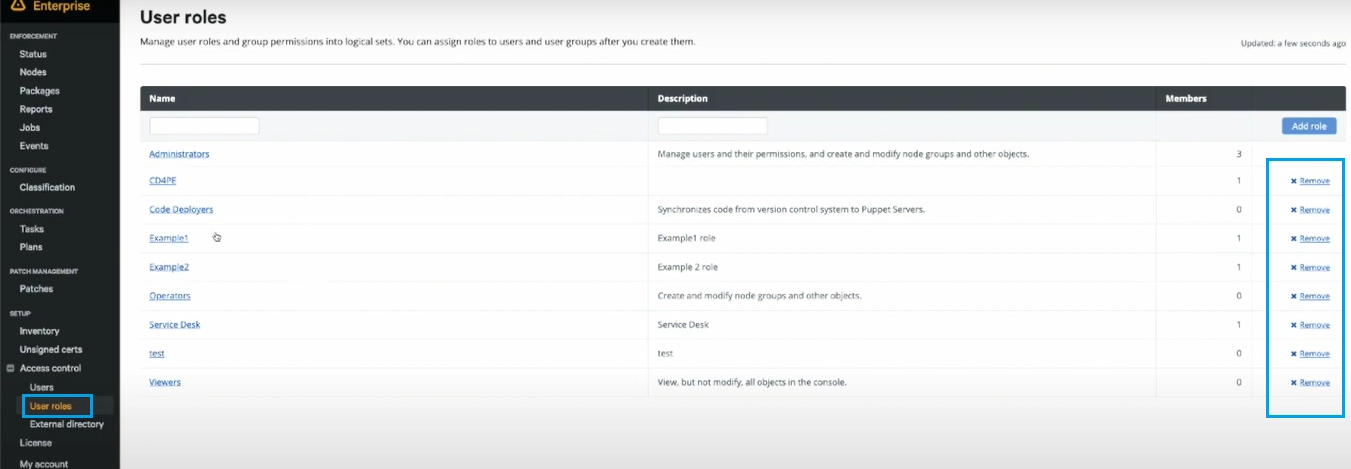
Follow the below steps to delete a user role in PE.
Click on the User roles Tab on the Access Control Page in the Console.
Select the user role from the Name column.
Click on Remove.
The selected user role will be deleted from the PE console.
Frequently Asked Questions❔
What is Puppet?
Puppet is a software configuration management tool. It is a platform to configure the system and software settings. Puppet has its declarative language to manage the settings. You do not need much knowledge of programming to use Puppet.
What are user roles in PE?
The user roles are a set of permissions or privileges. These roles can be assigned to a group of users. The users assigned a role get all the permissions associated with the user role.
What happens if more than one user role is assigned to a user?
Each user role has some permissions associated with them. If more than one user role is assigned to a user, then the user gets the permissions of all the roles.
Can you revoke user access in PE?
Yes, you can revoke user access in Puppet Enterprise. If you do not want to permanently delete the user, you can revoke their access to the PE console. The user access can be reinstated to a user.
What happens if you delete a user role in PE?
When a user role is deleted, the role is revoked from all the assigned users. The assigned users lose the permissions associated with the deleted user role. They can lose access to the PE console if not assigned any other role.
Conclusion🔚
This article discussed managing access in Puppet. We discussed the user permissions and roles. We also discussed creating and managing local users and user roles.








 1+ registered

