




Introduction
Power Apps is a collection of apps, services, connectors, and a data platform that offers a rapid app development environment for your company's needs. Keeping a record of everything is a good thing as it helps you to find what exactly is causing the problem if anything goes wrong.

This blog will show you how you can check the logs of all of your activities on PowerApps.
So let’s get started.
Power Apps Activity logging
Everything you do on power apps is kept as a record in log files. You can follow the steps below to access these logs.
-
As an administrator, log in to Security & Compliance Center.
-
From the left navigation pane. Select search and then Audit log search.

Source: Microsoft Docs
An administrator can filter for particular activities by bringing down the Activities dropdown after reaching the Audit log search screen. A segment of the list specific to Microsoft Power Apps activities can be seen by scrolling down.
What events are audited
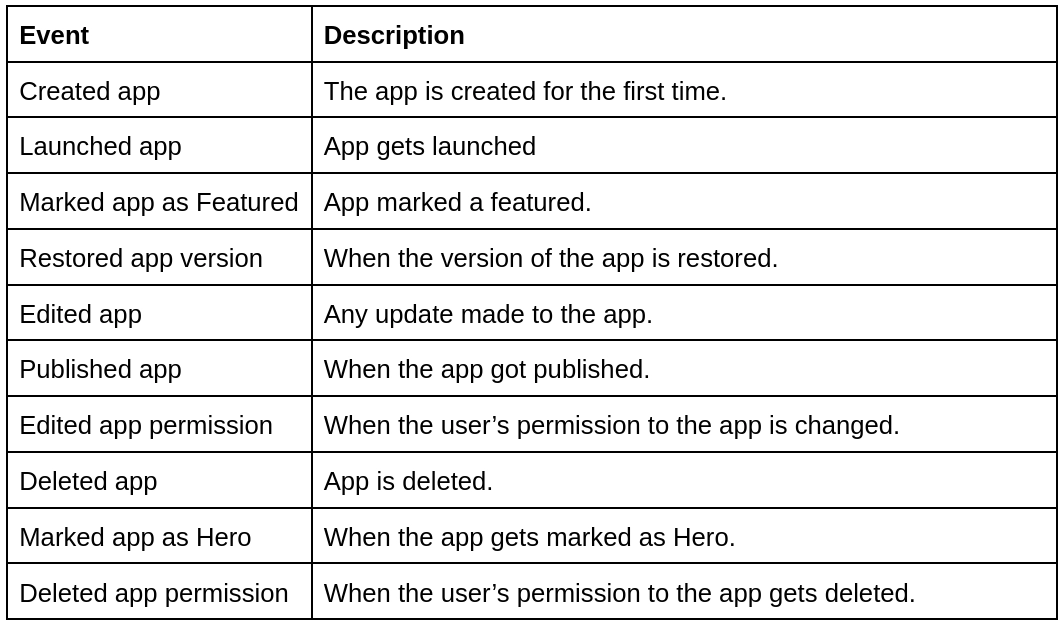
Since logging occurs at the SDK layer, a single action may result in many events that are logged. These user events are the ones you may audit.
Base schema
The Power Apps fields that are forwarded to the Microsoft 365 Security and Compliance Center are determined by schemas. While certain fields are exclusive to Power Apps, others are shared by all programmes that provide audit data to Microsoft 365. The common fields are included in the Base schema.

Review your audit
Microsoft 365 Security and Compliance Center we can review our audit data. To review your audit go to https://protection.office.com/ after that go to Search & investigation, then Audit log search and finally select the Power Apps app activities tab.

Source: Microsoft Docs


 1+ registered

