Do you think IIT Guwahati certified course can help you in your career?
Introduction
A management entity known as a Recovery Services vault is used to store recovery points established over time and offer a user interface for activities involving backups. These tasks include performing restorations, taking on-demand backups, and developing backup rules.
Features
A storage object in Azure that contains data is called a Recovery Services vault. The data often consists of copies of other data or servers, workstation, workload, virtual machine (VM), or server configuration information. You may use Recovery Services vaults to store backup data for various Azure services, including IaaS VMs (Linux or Windows) and SQL Server in Azure VMs. Recovery Services vaults lighten the administrative load while making it easy to organize your backup data. The Azure Resource Manager paradigm offers capabilities like the foundation around which Recovery Services vaults are built.
Secure backup data: Azure Backup offers security features with Recovery Services vaults to safeguard cloud backups. The security mechanisms ensure that you can protect your backups and reliably restore data even if the production and backup servers are hacked.
Central monitoring: Thanks to Recovery Services vaults, you can monitor your on-premises assets and Azure IaaS VMs from one dashboard.
Azure role-based access control (Azure RBAC): Azure RBAC offers granular access management control in Azure. Three built-in roles for managing recovery points are available in Azure Backup, one of the built-in roles provided by Azure.
Soft Delete: With soft delete, backup data is maintained for an additional 14 days even if a backup is unintentionally deleted (or by a malicious actor), enabling the recovery of that backup item without any data loss.
Cross-Region Restore: You may recover Azure VMs in a secondary region, an Azure paired region, using Cross Region Restore (CRR). You may restore the duplicated data in the secondary area whenever possible by turning on this option at the vault level.
Figure. Azure Recovery Service Vault Workflow
Encryption
Using platform-managed keys
By default, all of your data is encrypted with platform-managed keys. There is no particular action needed from your end to enable this encryption. It applies to all backups made to your Recovery Services vault of workloads.
Using customer-managed keys
You have the choice to encrypt your data using private encryption keys. Using the RSA keys stored in the Azure Key Vault, you may encrypt your backups using Azure Backup.
Creating A Recovery Services vault
To create a Recovery Services vault:
Log in to the Azure portal using your subscription.
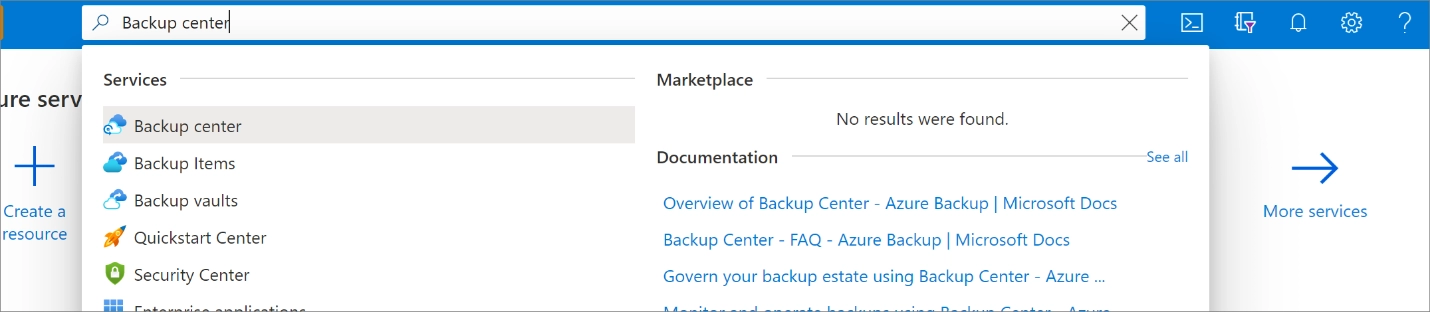
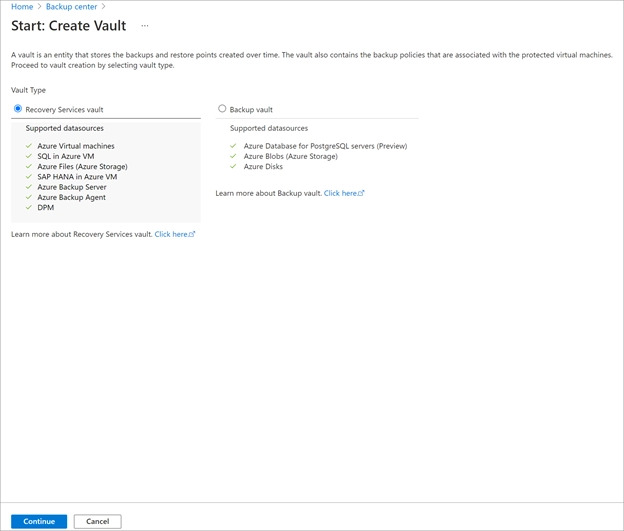
Go to the Backup Center dashboard by searching for Backup center in the Azure portal.
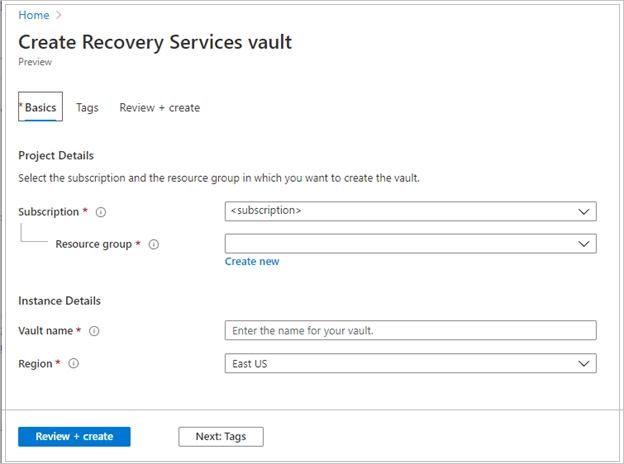
The Recovery Services vault dialog opens. Provide the following values:
Subscription: Select the subscription you want to utilize. You'll see that name if you just have one membership. Choose the default (recommended) subscription if you're unsure which one to use.
Resource group: Create a new resource group or use an existing one.
Vault Name: Choose a nice word to help others find the vault. For the Azure subscription, the character must be exclusive.
Region: Choose the area where the vault will be located. Any data source that you want to help safeguard must be in the same area as the vault, which must be created.
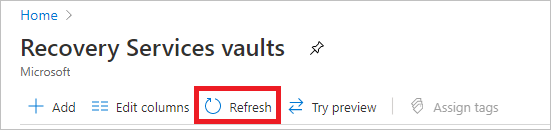
The Recovery Services vault creation process might be time-consuming. Keep an eye on the status updates under the Notifications section in the portal's top right corner. After your vault is created, it's visible in the list of Recovery Services vaults. If you don't see your vault, select Refresh.
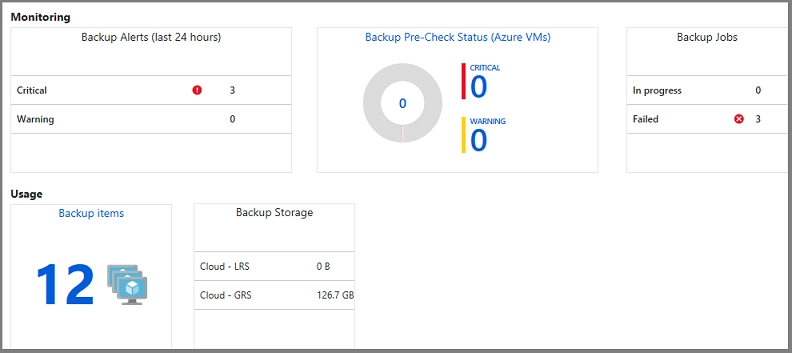
Open the vault to access management information or keep track of alerts for a Recovery Services vault. Monitoring and Usage information may be seen on the Recovery Services vault overview dashboard. The Critical and Warning signs, as well as the In progress and Failed jobs, are displayed on the tiles in the Monitoring area. Open the Backup Jobs or Backup Alerts menu, filtered for that job or alarm, by selecting a specific alert.
The Monitoring area displays the findings of backup jobs and alerts that have been specified. The Monitoring tiles give current details about:
Backup job critical and warning notifications (in the last 24 hours)
Check Azure VMs' status beforehand. See Backup Pre-Check Status for a detailed explanation of the pre-check status.
The backup jobs that are running and the unsuccessful jobs (in the last 24 hours).
Moving a Recovery Service Vaults
To transfer a Recovery Services vault and the resources it contains to another resource group:
Log in to the Azure website.
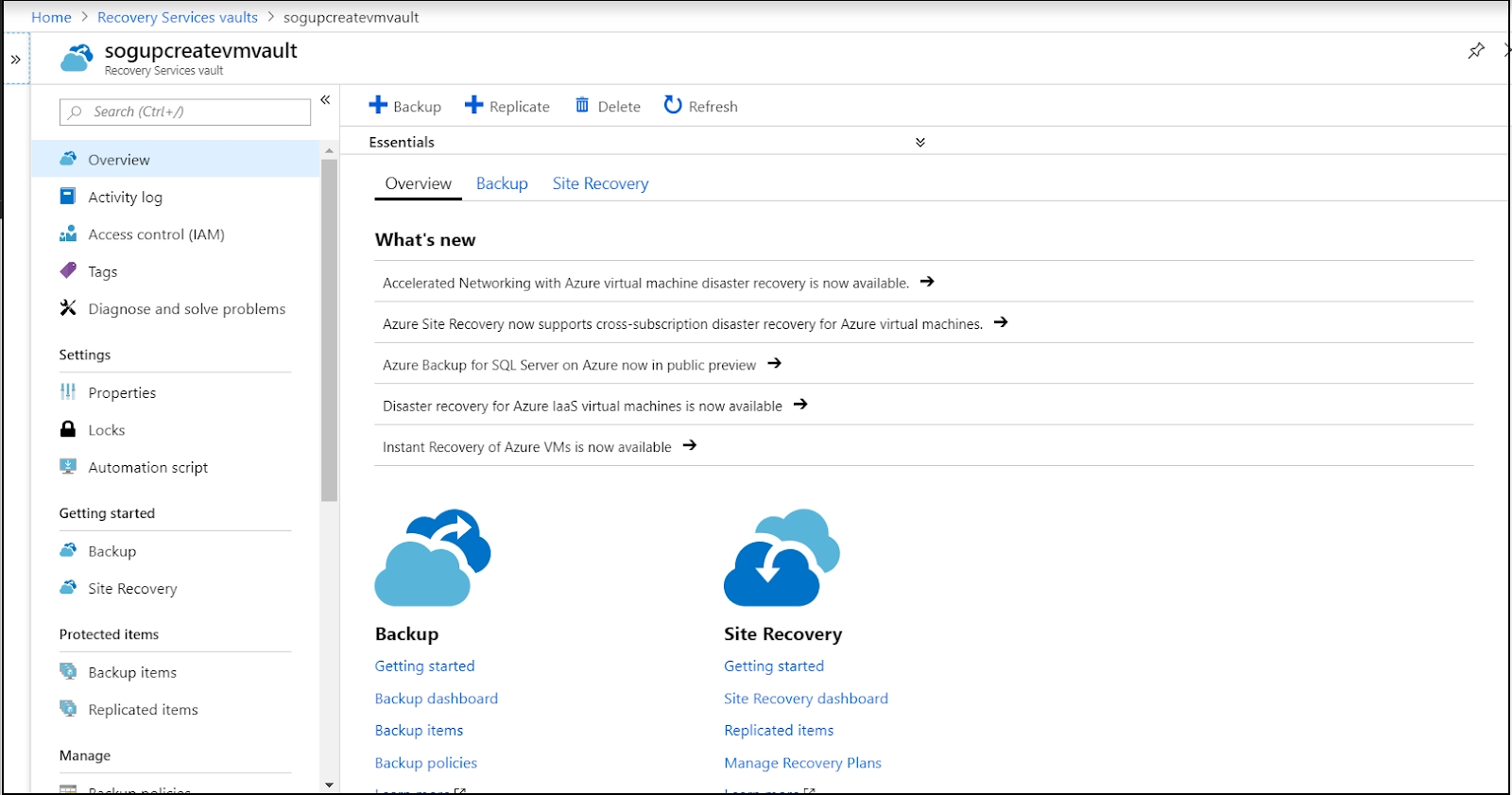
Select the vault you wish to relocate by selecting it from the list of Recovery Services vaults. When the vault dashboard opens, it looks like the next picture.
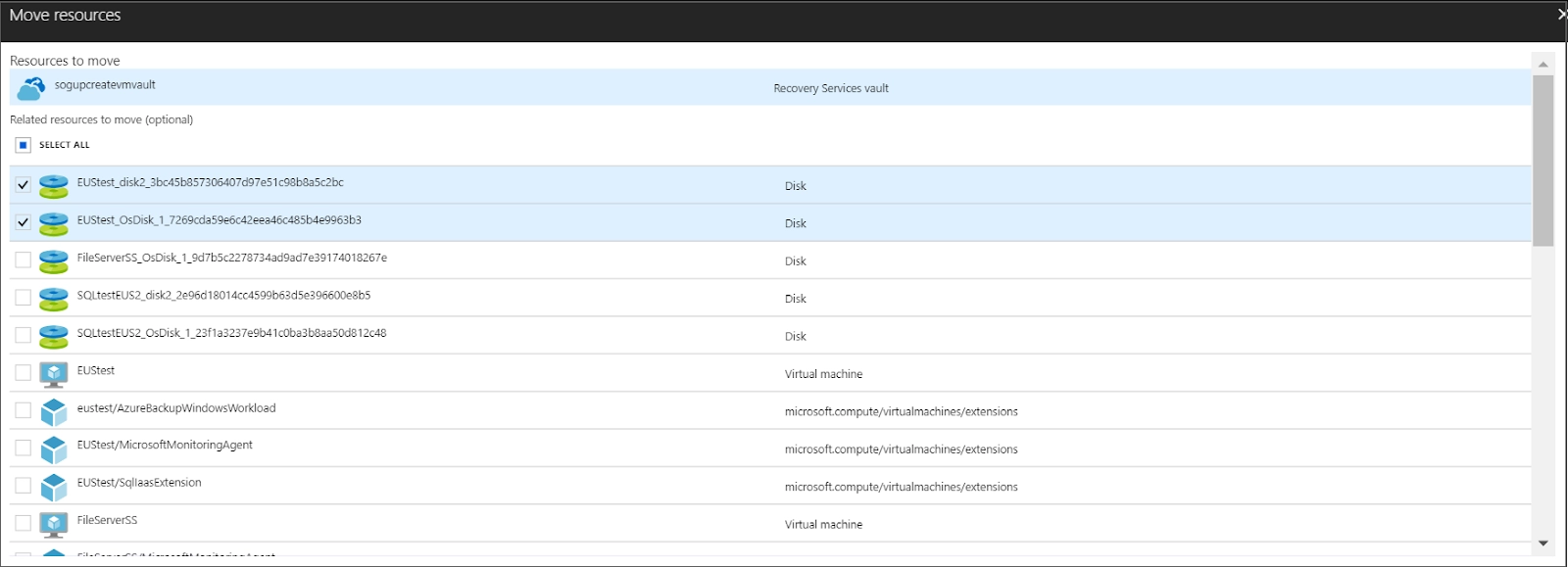
It is advised to relocate the optional associated resources for the selected vault by checking the box shown in the following image in the Move resources window.
Once the resource group has been added, click the option to acknowledge that you realize that tools and scripts connected to moving resources won't function until they have been updated to use new resource IDs. Click OK to finish transferring the vault.
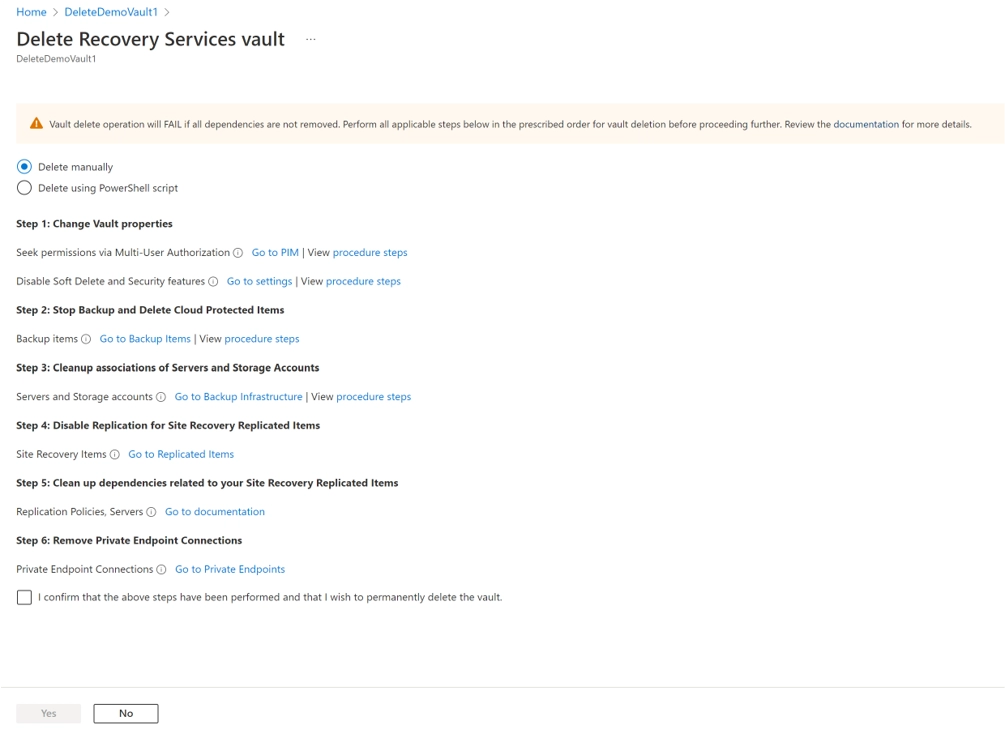
To delete a vault, navigate to vault Overview, click Delete, and then follow the on-screen directions to remove Azure Backup and Azure Site Recovery items.
Turn off the security and soft deletion functions.
If the Soft Delete function is activated, navigate to Properties -> Security Settings and turn it off.
If Security Features are active, go to Properties -> Security Settings and turn them off.
Remove objects that are cloud-protected
Soft-deleted items: Check to see whether any objects previously in the soft-deleted state are still present after enabling soft delete. You must undelete and delete the things again if they are in the soft-deleted state
Select Backup Items from the vault dashboard menu. To stop all specified objects' backups, click Stop Backup; to remove all backup data, click Delete Backup Data.
Delete Backup Servers
Go to Backup Infrastructure > Protected Servers in the vault dashboard menu. Choose the server to deregister from Protected Servers. You must deregister all of the servers to destroy the vault. Unregister may be chosen by right-clicking each secured server.
Servers protected by MARS: Go to Backup Infrastructure > Protected Servers in the vault dashboard menu. All servers indicated here, and their backup files must be erased if your servers are MARS protected.
DPM management servers or MABS: Go to Backup Infrastructure > Backup Management Servers in the vault dashboard menu. All objects listed below, along with their backup data, must be destroyed or unregistered if you use DPM or Azure Backup Server (MABS).
Unregister Storage Accounts
For a successful vault deletion, make sure all registered storage accounts are deregistered. Go to Backup Infrastructure > Storage Accounts in the vault dashboard menu. You must deactivate each of your storage accounts if you have any of the ones listed above.
Remove Private Endpoints
Make sure the vault doesn't have any Private endpoints created. If the vault has any Private endpoint connections that have been established or that have been tried to be established, make sure they have been deleted before continuing with the vault removal.
Delete vault
You can proceed to delete the vault once you've finished these procedures.
Frequently Asked Questions
What is Azure recovery Services Vault?
A storage entity in Azure that houses data is called a Recovery Services vault. Typically, the data consists of copies of data or details about virtual machines' (VMs') workloads, servers, or workstations.
What is the use of a recovery service vault?
A management object known as a Recovery Services vault serves as a repository for recovery points generated over time and as an interface for managing backup-related tasks. These actions include defining backup rules, conducting restorations, and taking on-demand backups.
How many recovery services vaults can be created per subscription?
Five hundred vaults for Recovery Services. Per supported area of Azure Backup and per subscription, you are permitted to establish a maximum of 500 Recovery Services vaults. Create an extra subscription if you want more vaults.
What is the difference between a backup vault and a recovery service vault?
Backups Vault are the previous iterations. Vaults provided by Recovery Services are the current model. The Azure Service Manager paradigm is the foundation of this. This is based on Azure's approach for Azure Resource Manager.
Which are the most popular Microsoft Azure services?
Microsoft Azure Services include Azure DevOps, Azure Blob Storage, Azure Virtual Machines, Azure Backup, Azure Cosmos DB, Azure Logic Apps, Azure Active Directory, API administration, Azure Content Delivery Network, Azure Site Recovery, and Azure Bots.
Conclusion
This article discussed Microsoft Recovery Service Vaults in Azure and how it works. We hope this blog has helped you get to know more about Microsoft Service Vaults in Azure. To learn more, view articles like Introduction to Cloud Computing and Cloud Computing Technologies articles on Coding Ninjas Studio. Do upvote our blog to help other ninjas grow. Happy Coding!
















 1+ registered

