Understanding evaluation outcomes
Resources are reviewed at several points during the resource lifespan, the policy assignment lifecycle, and for continuous compliance. The following are the occasions or occurrences that necessitate the evaluation of a resource:
- A policy assignment creates or updates a resource in scope.
- A policy or initiative has been added to the scope.
- An already allocated policy or initiative is updated.
- During the usual 24-hour compliance review cycle
Control the response to an evaluation
The business standards for dealing with non-compliant resources differ greatly in different businesses. Here are some examples of how an organization could want the platform to respond to a non-compliant resource:
- Deny the change in resources.
- Changes to the resource should be documented.
- Before the update, modify the resource.
- After the adjustment, modify the resource.
- Deploy compliant resources.
Azure Policy and Azure RBAC
There are a few significant distinctions between Azure Policy and Azure role-based access control (Azure RBAC). Azure Policy assesses status by inspecting properties of resources represented in Resource Manager as well as properties of select Resource Providers. Actions are not restricted by Azure Policy (also called operations). Azure Policy guarantees that the resource state is following your business standards, regardless of who made the modification or who has the authorization to make a change. All users may see some Azure Policy resources, such as policy definitions, initiative definitions, and assignments. This architecture allows all users and services to see what policy rules are in place in their environment.
Azure RBAC focuses on controlling user behaviours at various levels. If you need control over activity, Azure RBAC is the solution to employ. Even if a user has permission to conduct an operation, if the outcome is a non-compliant resource, Azure Policy will still prevent the creation or edit.
Azure RBAC permissions in Azure Policy
Many of the built-in roles offer access to Azure Policy resources. The Resource Policy Contributor role covers most Azure Policy functions. The owner has complete control. All read Azure Policy operations are available to both Contributor and Reader.
Contributors can initiate resource remediation but cannot create or modify definitions or assignments. User Access Administrator is required to grant the managed identity on deployIfNotExists or amend permission assignments.
The operations of Azure Policy can have a big influence on your Azure environment. Only the bare minimum of rights required to complete a job should be allowed, and these permissions should not be granted to users who do not require them.
Resources covered by Azure Policy
Azure Policy assesses all Azure resources that are subscription-level or lower, including Arc-enabled resources. There is a deeper connection for managing settings and objects for particular resource providers, such as guest configuration, Azure Kubernetes Service, and Azure Key Vault. See Resource Provider modes for additional information.
Recommendations for managing policies
-
To track the impact of your policy definition on the resources in your environment, start with an audit effect rather than a deny effect. If you currently have scripts in place to autoscale your apps, adding a refuse effect may interfere with such automation chores.
-
When developing definitions and assignments, keep organizational hierarchies in mind. Definitions should be created at higher levels, such as the management group or subscription level. Then, at the next child level, create the assignment. When you construct a definition for a management group, you may limit the assignment to a subscription or resource group inside that management group.
- Even for a single policy definition, we propose establishing and assigning initiative definitions. For instance, suppose you had a policy definition policyDefA that you created under an initiative definition initiativeDefC. If you subsequently construct another policy definition with aims comparable to policyDefA, you may add it to initiativeDefC and monitor them together.
Once you've created an initiative assignment, any policy definitions you add to the initiative become part of its assignments.
All policies inside an initiative are examined when an initial assignment is evaluated. If you need to examine a policy on its own, don't include it in an initiative.
- Manage Azure Policy resources as code, including manual checks on policy definition, initiative, and assignment modifications.
Azure Policy objects
Policy definition
The process of developing and deploying a policy in Azure Policy begins with the creation of a policy description. Every policy definition consists of requirements that must be met for it to be enforced. It also has a specified impact that occurs if the circumstances are satisfied.
We provide various built-in policies that are available by default in Azure Policy. As an example:
-
Storage Account SKUs Allowed (Deny): Determines if a storage account being deployed falls within a set of SKU sizes. It has the effect of denying all storage accounts that do not conform to the list of defined SKU sizes.
-
Allowed Resource Type (Deny): This specifies the resource kinds that can be deployed. It has the effect of denying all resources that are not on this stated list.
-
Deny Allowed Locations: Limits the available locations for new resources. Its effect is utilized to compel you to meet your geo-compliance standards.
-
Allowed Virtual Machine SKUs (Deny): Limits the number of virtual machine SKUs that may be deployed.
-
Add a tag to resources (Modify): Adds a needed tag and its default value if the deploy request does not provide one.
- Not authorized resource types (Deny): Prevents the deployment of a list of resource types.
Policy parameters aid in the simplification of policy management by minimizing the number of policy definitions that must be created. When developing a policy definition, you may define parameters to make it more general. The policy definition may then be reused for multiple circumstances. You accomplish this by providing various values when giving the policy definition. For example, defining a single set of subscription locations.
When generating a policy definition, parameters are defined. When a parameter is defined, it is given a name and, if desired, a value. For example, you may specify a location parameter for a policy. When assigning a policy, you may then give it alternative values such as EaseUS or WestUS.
Assignments
A policy concept or initiative that has been allocated to a specified scope is referred to as an assignment. This scope might include everything from a management group to a single resource. The phrase scope refers to all of the resources, resource groups, subscriptions, or management groups allocated to the definition. All child resources inherit assignments. Because of this architecture, a definition given to a resource group also applies to resources inside that resource group. You can, however, omit a subscope from the assignment.
At the subscription scope, for example, you can apply a definition that restricts the development of networking resources. In such a subscription, you may omit a resource group designated for networking infrastructure. You then provide users who you trust with the creation of networking resources access to this networking resource group.
In another case, you may want to define a resource type allowlist at the management group level. Then, on a child management group or directly on subscriptions, you apply a more lenient policy (allowing additional resource kinds). This example, however, would not work since Azure Policy is an explicit deny system. Instead, the child management group or subscription must be excluded from the management group-level assignment. Then, on the child management group or subscription level, assign the more permissive definition. If any assignment results in a resource being refused, the only method to allow the resource is to change the assignment that is rejecting it.
When assessing resources, policy assignments always utilize the most recent state of their allocated definition or endeavour. If a previously assigned policy definition is altered, all current assignments of that definition will utilize the revised logic when evaluating.
Maximum count of Azure Policy objects
Azure Policy has a maximum count for each object type. A Scope entry means the management group or subscription in definitions. A Scope entry means the management group, subscription, resource group, or individual resource for assignments and exemptions.
Azure Policy Assignment
An assignment is a policy definition tasked with a particular scope. This scope might encompass everything from a management team to a single resource. All the resources, resource groups, subscriptions, or management groups to which the definition is attached collectively are referred to as the "scope." All child resources inherit assignments.
Create a policy assignment to identify Non-Compliant Resources
-
Sign in to the Azure portal. You can create an account on Azure for free from the official Azure portal website.
-
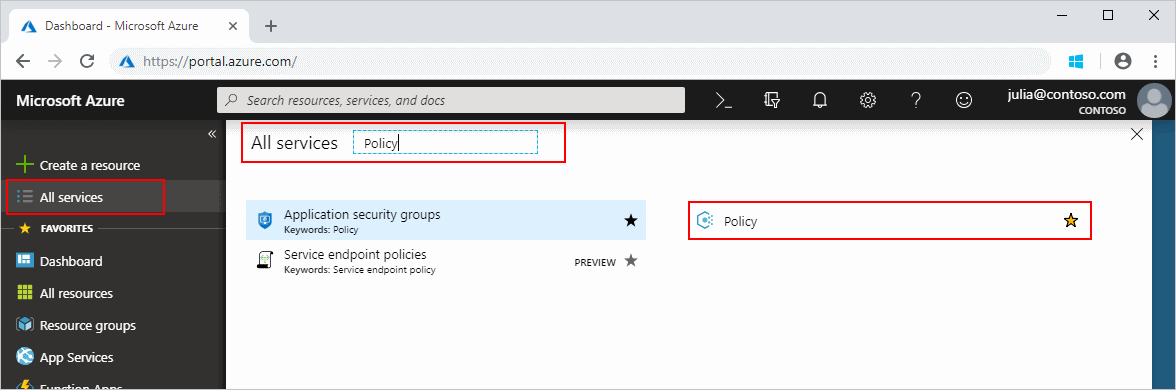
Search for and pick Policy from the All services blade, then click Definitions beneath the Authoring section. Take a look at the list of built-in policy definitions.
-
You can select a set of virtual machine SKUs your company can deploy using the Allowed virtual machine size SKUs definition.
-
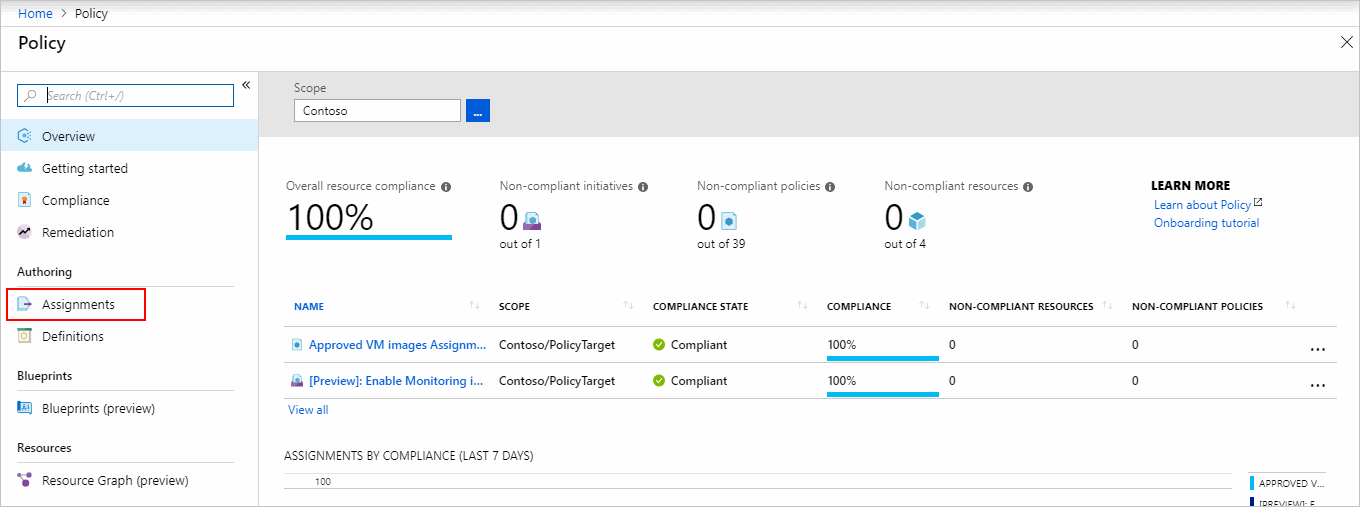
Return to the Policy page and choose Assignments from the Authoring section. An assignment is a policy designated to occur within a specified scope.
-
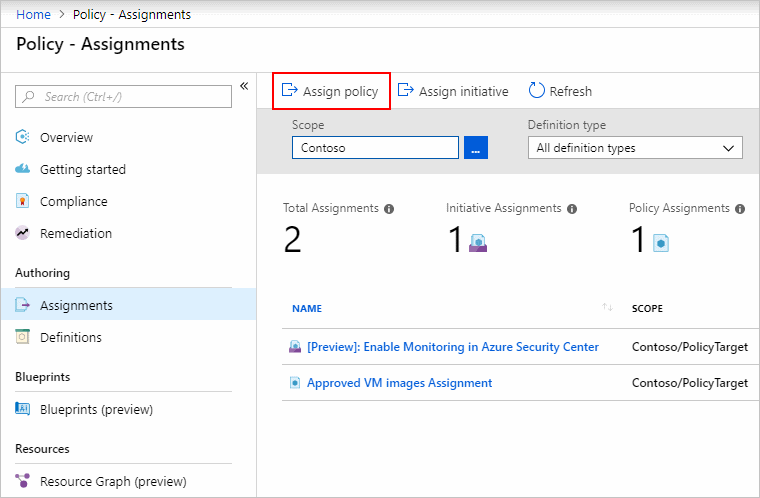
click on Assign Policy at the top of the Policy Assignments page.
-
Set the scope on the Assign Policy page by clicking the ellipsis and selecting a management group or subscription. Choose a resource group if desired. A scope specifies which resources or groups of resources are subject to the policy assignment. Click the 'Select' button on the Scope page.
-
To view the list of definitions available, click the ellipsis next to the Policy definition. You may utilize the built-in policy definitions that come with Azure Policy. Many are offered, including:
Enforce tag and its value.
Apply tag and its value.
Inherit a tag from the resource group if missing.
-
The Assignment name is pre-populated with your chosen policy name, but you can modify it. You may also include a description, which is optional. The description of a policy assignment provides the details of the policy assignment. Assigned by will be filled automatically depending on who is logged in. This field is optional so that you may input your values.
-
To go to the next section of the assignment wizard, click Next at the bottom of the page or the Parameters tab at the top of the page.
-
Configure the parameters on this tab.
-
To go to the next section of the assignment wizard, select Next at the bottom of the page or the Remediation tab at the top of the page.
-
On this tab, check or leave the Create Managed Identity box. However, this box must be checked when the policy includes a policy with either the deployIfNotExists or modify effect.
-
To go to the next section of the assignment wizard, click Next at the bottom of the page or the Non-compliance notifications tab at the top of the page.
-
The Non-compliance notice should be set according to your needs. For example, if you want that your Virtual machines should utilize a managed disc, select this option.
-
To go to the next section of the assignment wizard, click Next at the bottom of the page or the Review + Create option at the top of the page.
-
Examine the settings you've chosen, then click the Create button at the bottom of the page.
Identify non-compliant resources
On the left side of the page, click compliance. Then, find the Audit VMs that do not have managed discs policy assignment that you made.
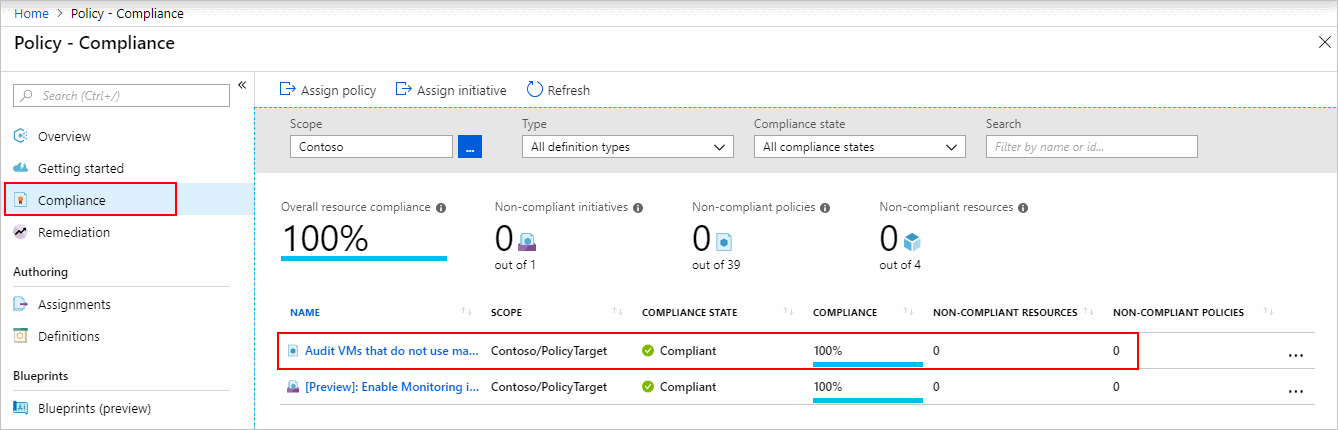
If any current resources are not compliant with this new assignment, they are listed under Non-compliant resources.
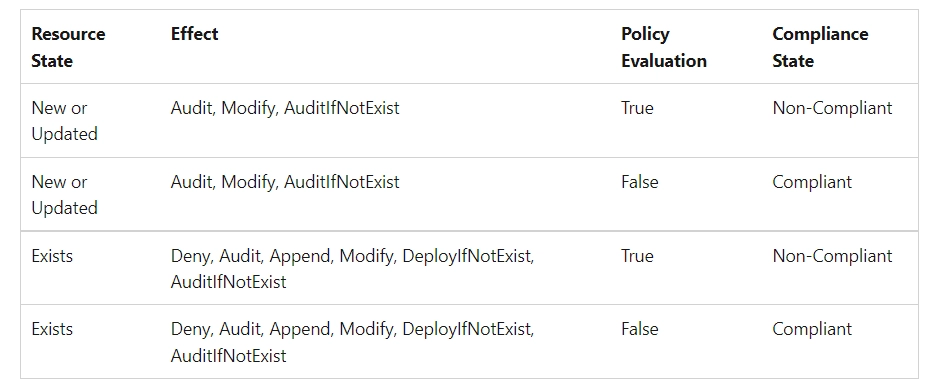
When a condition is applied to your current resources and determined to be true, those resources are flagged as non-compliant with the Policy. The table below illustrates how various policy impacts interact with the condition evaluation for the resultant compliance state. Although the evaluation methodology is not visible on the Azure interface, the compliance status results are displayed. The outcome of the compliance state is either compliant or non-compliant.
Clean up resources
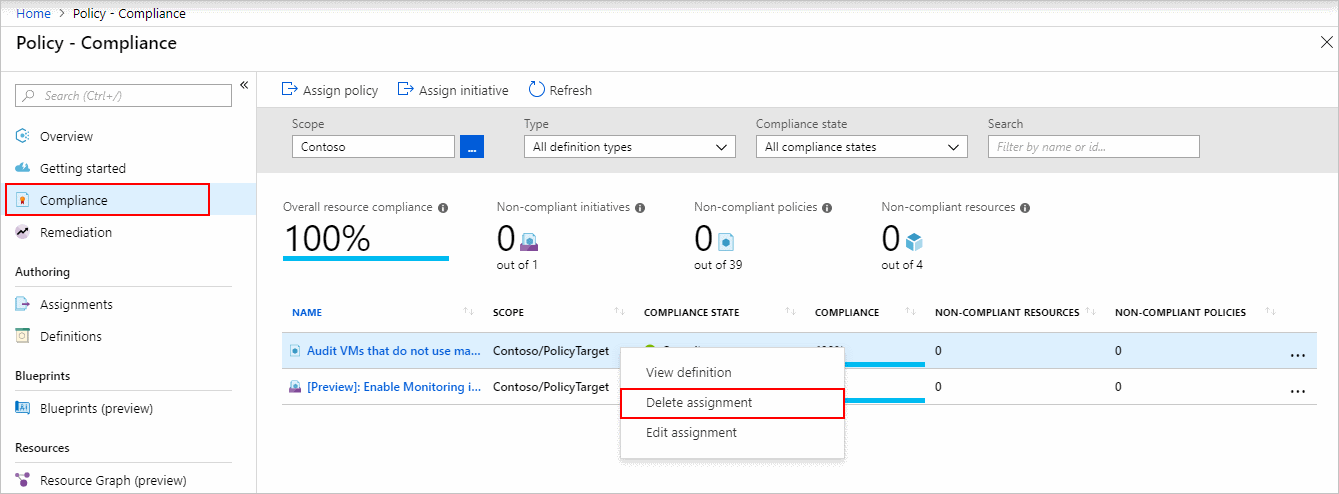
To withdraw the generated assignment, perform these steps:
- Select Compliance (or Assignments) on the left side of the Azure Policy page and look for the Audit VMs that do not utilize managed discs policy assignment that you established.
- Select Delete assignment from the Audit VMs that do not utilize managed discs policy assignment.
Create a policy assignment to identify non-compliant resources with Azure CLI
The first step in understanding Azure compliance is to determine the status of your resources. This quickstart walks you through the stages of building a policy assignment to detect virtual machines that do not use managed discs.
You will successfully identify virtual machines that do not use managed drives at the end of this procedure. They are not following the policy assignment.
Azure CLI is used from the command line or via scripts to build and manage Azure resources. The Azure CLI is used in this article to establish a policy assignment and detect non-compliant resources in your Azure environment.
Prerequisites
-
If you don't already have an Azure membership, sign up for one before you begin.
- This quickstart requires Azure CLI version 2.0.76 or above. Run az —version to determine the version. See Install Azure CLI if you need to install or update.
- Using Azure CLI, register the Azure Policy Insights resource provider. Registering the resource provider ensures that your subscription is compatible with it. You must have the authorization to perform the register resource provider action to register a resource provider. This action is available to the Contributor and Owner levels. To register the resource provider, use the following command:
Az provider register --namespace 'Microsoft.PolicyInsights.'
-
Install the ARMClient if you haven't previously. It is a tool for sending HTTP queries to Azure Resource Manager APIs.
Create a policy assignment
You construct a policy assignment and assign the Audit VMs that do not utilize managed discs definition in this quickstart. This policy definition highlights resources that do not meet the policy definition's requirements.
To make a policy assignment, use the following command:
az policy assignment create --name 'audit-VM-managed disks --display-name 'Audit VMs without managed disks Assignment' --scope '<scope>' --policy '<policy definition ID>'
The preceding command uses the following information:
- Name: The assignment's formal name. Audit-vm-managed disks were used in this case.
- DisplayName: The policy assignment's display name. You are utilizing Audit VMs without managed discs in this situation. Assignment.
- Policy: The policy definition ID from which you're creating the assignment. In this situation, it is the policy definition's ID. Examine virtual machines that do not utilize managed drives. Run the following command to obtain the policy definition ID: —query az policy definition list "[?displayName=='Audit VMs that do not utilize managed discs']."
- Scope: A scope establishes which resources or groups of resources are subject to the policy assignment. It might include anything from a subscription to resource organizations. Make sure you change scope> to the name of your resource group.
Frequently Asked Questions
What exactly are Azure resources?
An Azure resource is any entity that Azure handles. Here are some examples of Azure resources: Accounts for storage, virtual networks, virtual computers, and so forth.
What is meant by SKU in Azure?
SKU stands for 'Stock-keeping-Unit.' In layman's terms, it simply stands for a for-sale object. In Microsoft Azure cloud, they represent a purchasable SKU under a product.
What are Azure subscription policies?
Azure subscription policies govern how Azure subscriptions are moved from and into directories.
What is meant by managed identity in Azure?
Azure managed identities offer Azure services with an automatically managed identity in Azure Active Directory. This identity may be used to authenticate to any service that supports Azure AD authentication without requiring credentials in your code.
What are the parameters in Azure Policy?
Using parameters, a policy definition may be made dynamic to decrease the number of policy definitions required. During policy assignment, the parameter is defined. Parameters are specified by a collection of predefined attributes that explain the parameter and how it is utilized.
Conclusion
This article extensively discussed the Azure Policy and how we can assign an Azure policy. We hope this blog has helped you enhance your knowledge relating to Azure DevTest Labs.
Check out our Azure CDN, Azure Media Service, and Azure Storage Monitoring articles. Practice makes a man perfect. To practice and improve yourself for the interviews, you can check out Top 100 SQL problems, Interview experience, Coding interview questions, and the Ultimate guide path for interviews. Do upvote our blog to help other ninjas grow. Happy Coding!






 7+ registered

