Do you think IIT Guwahati certified course can help you in your career?
Introduction
Rock, Paper, and Scissors is a classic game that's been around for centuries. It's a fun and easy way to pass the time and a great introduction to programming basics. In this post, we'll show you how to make a Rock Paper Scissors game using Python and Tkinter GUI.
The game is played by two players, each making one of three hand gestures: "rock" (closed fist), "paper" (flat hand), and "scissors" (V-shape with index and middle fingers). There are only three possible outcomes besides a tie: rock beats scissors, paper beats rock, and scissors beat paper. If both players make the same gesture, the game is tied and usually replayed to break the tie.
What is Python?
Python is a high-level, interpreted, general-purpose programming language known for its simplicity, readability, and versatility. Created by Guido van Rossum and first released in 1991, Python emphasizes code readability and uses significant indentation, making it beginner-friendly and efficient for developers.
What is Tkinter?
Tkinter is a Python library that provides a set of tools for creating graphical user interfaces (GUIs) for desktop applications. It is one of the most commonly used GUI libraries for Python and is included with most Python installations. With Tkinter, you can create windows, buttons, labels, menus, and other graphical elements to build a GUI for your Python application.
Prerequisites
To follow this tutorial, you should have:
A basic understanding of Python programming and the Tkinter library.
Python and Tkinter installed on your computer. You can download the latest version of Python from the official website or use a package manager like pip.
If you're a beginner, we recommend starting with a beginner's tutorial to familiarize yourself with the language.
With Python and Tkinter, you can create powerful and user-friendly applications.
Explanation of the Code
Let's take a closer look at the code and explain what each part does.
Creating the main window
# Create the main window
root = tk.Tk()
root.title("Rock Paper Scissors")
This code creates the main window for the game and sets its title to "Rock Paper Scissors".
Defining global variables
# Define the global variables
player_score = 0
computer_score = 0
rounds_played = 0
choices = ["rock", "paper", "scissors"]
These lines define the global variables for the player's score, computer's score, rounds played, and the choices available (rock, paper, and scissors).
Generating a random computer choice
# function to get random computer choice
def generate_computer_choice():
    return random.choice(choices)
This function generates a random computer choice using the random.choice() function from the random module.
# function to determine the winner of the round
def determine_winner(player_choice, computer_choice):
    if player_choice == computer_choice:
        return "tie"
    elif player_choice == "rock":
        if computer_choice == "paper":
            return "computer"
        else:
            return "player"
    elif player_choice == "paper":
        if computer_choice == "scissors":
            return "computer"
        else:
            return "player"
    elif player_choice == "scissors":
        if computer_choice == "rock":
            return "computer"
        else:
            return "player"
This function takes in the player's choice and the computer's choice and determines the winner of the round based on the game's rules.
You can practice by yourself with the help of online python compiler for better understanding.
Starting a new game
# function to start a new game
def play_game(player_choice, player_name):
    global player_score, computer_score, rounds_played
    computer_choice = generate_computer_choice()
    winner = determine_winner(player_choice, computer_choice)

    if winner == "player":
        player_score += 1
        result = "You win!"
    elif winner == "computer":
        computer_score += 1
        result = "You lose!"
    else:
        result = "It's a tie!"

    rounds_played += 1

    # Update the labels to show the results
    if rounds_played == 5:
        if player_score > computer_score:
            winner_label.config(text=f"{player_name}, you win the game!")
        elif player_score < computer_score:
            winner_label.config(text="Computer wins the game!", fg="red")
        else:
            winner_label.config(text="It's a tie game!", fg="blue")
        play_again_button.pack(side="top", pady=10)
        rock_button.config(state="disabled")
        paper_button.config(state="disabled")
        scissors_button.config(state="disabled")
    else:
        player_score_label.config(text=f"{player_name} Score: {player_score}")
        computer_score_label.config(text=f"Computer Score: {computer_score}")
        player_result_label.config(text=f"{player_name} > {player_choice}")
        computer_result_label.config(text=f"Computer > {computer_choice}")
        rounds_label.config(text=f"Round {rounds_played + 1}/5")
This function is designed to take in the player's choice and name so that a new game can be started. Once the player has made their choice, the function generates a corresponding choice for the computer.
After both choices have been made, the function determines the winner based on the rules of the game and updates the scores and labels accordingly.
Finally, the function checks to see if the game has ended and takes any necessary actions to conclude the game. By performing all of these actions, the function provides a comprehensive and engaging gaming experience for players of all levels.
Restarting the game
# function to play again after the game is over
def restart_game():
    global player_score, computer_score, rounds_played
    player_score = 0
    computer_score = 0
    rounds_played = 0
    player_score_label.config(text=f"{player_name} Score: {player_score}")
    computer_score_label.config(text=f"Computer Score: {computer_score}")
    player_result_label.config(text="")
    computer_result_label.config(text="")
    winner_label.config(text="")
    play_again_button.pack_forget()
    rock_button.config(state="normal")
    paper_button.config(state="normal")
    scissors_button.config(state="normal")
    rounds_label.config(text=f"Round {rounds_played + 1}/5")
This function is responsible for restarting the game after it has ended. It does so by resetting the scores and rounds played, updating the labels to reflect the new game, and enabling the buttons to play again.
This is an important feature because it allows players to start a new game with a clean slate without having to manually reset any of the game parameters themselves.
This means that players can focus on playing the game rather than worrying about the technical details of resetting the game.
Additionally, the function ensures that the game remains fair and balanced, as all players start on equal footing at the beginning of each new game. Overall, the restart function is a crucial component of any well-designed game and is essential for providing a seamless and enjoyable gameplay experience.
Getting the player's name
# function to get the player's name
def get_player_name():
    global player_name_var
    player_name_var = tk.StringVar()
    name_window = tk.Toplevel(root)
    name_window.title("Enter your name")
    name_label = tk.Label(name_window, text="Please enter your name:", font="Arial 20 bold", fg="blue")
    name_label.pack(side="top", pady=10)
    name_entry = tk.Entry(name_window, textvariable=player_name_var, font="Arial 20 bold", fg="blue")
    name_entry.pack(side="top", pady=10)

    # function to submit the name
    def submit_name():
        global player_name
        player_name = player_name_var.get()
        name_window.destroy()
        player_score_label.config(text=f"{player_name} Score: {player_score}")
        computer_score_label.config(text=f"Computer Score: {computer_score}")
        rounds_label.config(text=f"Round {rounds_played + 1}/5")

    # button to submit the name
    name_button = tk.Button(name_window, text="Submit", command=submit_name, font="Arial 20 bold", bg="green", fg="white")
    name_button.pack(side="top", pady=10)
In the Rock Paper Scissors game, the get_player_name() function is responsible for prompting the player to enter their name. This is an important feature because it allows for a more personalized gameplay experience. By asking for the player's name, the game can display it throughout the game, such as in the score and winner labels.
The function achieves this by creating a new window using the Toplevel() function. This function creates a new top-level window that is a child of the main window. In this case, the new window is used to prompt the player to enter their name.
Once the window is created, the function adds a label instructing the player to enter their name. It then creates an entry field where the player can type their name. The entry field is associated with a StringVar() object, which stores the player's name as a string.
Finally, the function creates a button that the player can click to submit their name. When the button is clicked, the function retrieves the player's name from the StringVar() object and updates the appropriate labels throughout the game. This ensures that the player's name is displayed correctly and consistently throughout the game.
Overall, the get_player_name() function is an essential component of the Rock Paper Scissors game. It allows for a more personalized gameplay experience and enhances the game's overall engagement and enjoyment.
Defining the labels and buttons
# label to display the header
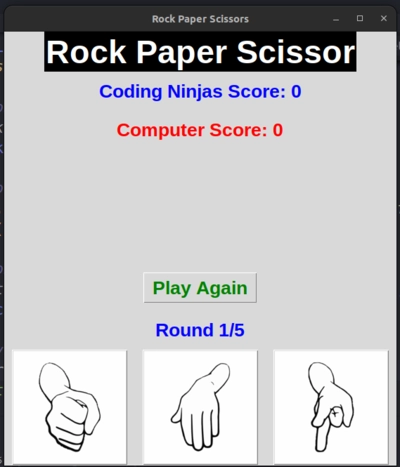
head=tk.Label(text='Rock Paper Scissor',font='arial 35 bold',bg='orange',fg='white')
head.pack()

# label to display the player's score
player_score_label = tk.Label(root, text="", font="Arial 20 bold", fg="blue")
player_score_label.pack(side="top", pady=10)

# label to display the computer's score
computer_score_label = tk.Label(root, text="", font="Arial 20 bold", fg="red")
computer_score_label.pack(side="top", pady=10)

# label to display the round number
player_result_label = tk.Label(root, text="", font="Arial 20 bold", fg="blue")
player_result_label.pack(side="top", pady=10)

# label to display the computer's choice
computer_result_label = tk.Label(root, text="", font="Arial 20 bold", fg="red")
computer_result_label.pack(side="top", pady=10)

# winner label to display the winner
winner_label = tk.Label(root, text="", font="Arial 20 bold")
winner_label.pack(side="top", pady=10)

# image for rock, paper, and scissors
rock_img = tk.PhotoImage(file="rock2.png")
paper_img = tk.PhotoImage(file="paper2.png")
scissors_img = tk.PhotoImage(file="scissors2.png")

# Button to play rock
rock_button = tk.Button(root, image=rock_img, command=lambda: play_game("rock", player_name_var.get()))
rock_button.pack(side="bottom", padx=10)

# Button to play paper
paper_button = tk.Button(root, image=paper_img, command=lambda: play_game("paper", player_name_var.get()))
paper_button.pack(side="bottom", padx=10)

# Button to play scissors
scissors_button = tk.Button(root, image=scissors_img, command=lambda: play_game("scissors", player_name_var.get()))
scissors_button.pack(side="bottom", padx=10)


# Button to play the game again
play_again_button = tk.Button(root, text="Play Again", command=restart_game, font="Arial 20 bold", fg="green")
play_again_button.pack(side="top", pady=10)

# Round label to show which round the game is on
rounds_label = tk.Label(root, text="", font="Arial 20 bold", fg="blue")
rounds_label.pack(side="top", pady=10)
These lines define the labels and buttons for the game. The labels provide descriptions and instructions to the player, while the buttons allow the player to interact with the game, making choices and advancing the gameplay.
Developing effective labels and buttons is crucial to the user experience, as they provide important cues and feedback to the player.
Additionally, the design of these labels and buttons should be visually appealing and intuitive, making it easy for the player to understand their purpose and function.
This can be achieved by carefully considering factors such as font, color, and placement on the screen.
By creating clear and engaging labels and buttons, the game developer can enhance the player's enjoyment and immersion in the game world, leading to a more successful and satisfying gaming experience overall.
Starting the program
# Start the program
get_player_name()
root.mainloop()
This code starts the program by calling the get_player_name() function and running the Tkinter main loop.
Frequently Asked Questions
What are some common applications of Python and Tkinter?
Python and Tkinter can be used to create various applications, including desktop applications, games, scientific simulations, web applications, and more. Some popular applications built with Python and Tkinter include Dropbox, BitTorrent, and Blender.
What are some best practices for developing GUI applications with Python and Tkinter?
Some best practices for developing GUI applications with Python and Tkinter include writing modular code, using object-oriented programming principles, and following the Model-View-Controller (MVC) pattern. It's also important to test your code and ensure that it's user-friendly and accessible.
How can I optimize the performance of my Python and Tkinter applications?
There are many ways to optimize the performance of your Python and Tkinter application, such as using efficient algorithms and data structures, minimizing I/O operations, and optimizing your code for the specific platform and hardware you're targeting.
How do you find the winner in Rock-Paper-Scissors in Python?
Use conditional statements or a dictionary to compare player choices based on the game's rules: Rock beats Scissors, Scissors beats Paper, Paper beats Rock.
Conclusion
In conclusion, we have successfully created a Rock Paper Scissors game using Python and Tkinter UI. We used the PIL library to display images for the three options and integrated the logic of the game using conditional statements. We also used the random module to generate the computer's choice. The game allows the user to play multiple rounds and displays the winner of each round and the overall winner at the end.








 1+ registered

