Do you think IIT Guwahati certified course can help you in your career?
Introduction
Both technical and non-technical testers will find Katalon simple to set up and use. Itwas first introduced in January 2015. The majority of popular operating systems and browsers support it. It manages several testing modes, such as API, Web UI, and mobile.
The Slack Web API is an interface for getting data from and making changes in a Slack workplace. Katalon improves the performance of all your tools by allowing you to integrate cutting-edge apps and unique tools directly. You can also integrate Slack in Katalon. It includes a set of a tool or products of Slack that is useful for testing.
In this article, we will cover Slack Integration in Katalon, how to enable slack integration, and how to manage test reports in Katalon Studio.
What is Slack Integration in Katalon Studio?
Slack makes it easy to contact your testing teams. Developers can collaborate and can work in channels. Slack integration includes the features of Slack that Katalon can directly access. The vital use of Slack is to receive test execution results from Katalon to a Workplace in real-time.
There are two types of channels in Slack:
Public.
Private.
Katalon's Slack Plugin supports both channels so that you can receive the test results in all channels.
The basic requirements for the Slack Plugin are
A Slack channel.
A valid Katalon Studio licence.
How to create an API for Slack Integration?
You can follow the steps to create a Slack API app for integration in Katalon.
Step 1: Open a Slack workspace and visit the Slack API app site to start a new app from scratch.
Step 2: Click onCreate an App option.
Step 3: Set up the app.
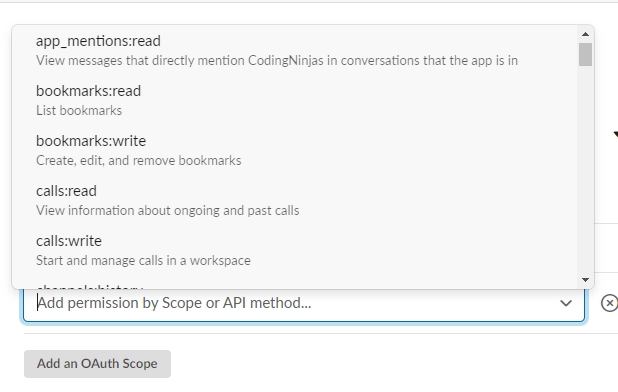
Step 4: Go to the OAuth & Permissions section of the Feature sidebar, and scroll down to the Scopes pane.
Step 5: Add the following Bot Token Scopes:
app_mentions:read, calls:write, chat:write, and chat:write.customize.
Step 6: Scroll to the OAuth Tokens for Your Workspace pane and click the Install to Workspace button to install the app.
Step 7: A Bot User OAuth Token is shown after installation. To copy the token to your clipboard, click the Copy button.
This token is necessary for Katalon Studio to integrate with a Slack API app.
Step 8: Within your Slack workplace, choose a channel. Enter "/invite" in the message area, then click Add apps to this channel. Name your app now.
How to Enable Slack Integration?
You can follow the given steps to enable Slack integration in Katalon.
Step 2: Open Katalon Studio after installing the plugin, then choose Your Account > Reload Plugins.
Step 3: Choose Project > Settings > Plugin > Slack from the main menu.
Step 4: Check the box next to "Using Slack" to activate Slack integration.
Step 5: Enter the data needed in the authentication section.
Authentication Token: The Bot User OAuth Token of your Slack API app serves as the token.
Channel: The Slack channel where the app is installed.
Step 6: To check if Katalon Studio and the Slack API app are connected, click the Test Connection button. When finished, click Apply.
After setup, your Slack API app will automatically deliver execution reports to the specified Slack channel once an execution in Katalon Studio is complete.
Frequently Asked Questions
How can I manage the Slack Integration in Katalon?
Click the name of your workspace in the top left corner of your desktop. Open the Slack App Directory by choosing Settings & admin from the menu > click the Manage application option. Go to the Custom Integrations section on the left sidebar. Locate and choose the custom integration you want to remove.
Which framework does Katalon Studio use?
Groovy, a Java-based language used by Katalon Studio, requires loading many libraries to parse test data, test objects, and logging. Groovy is a scripting language with a syntax similar to Java. By using dot-separated notation, Groovy makes it easier to write code while maintaining, allowing syntax to operate collections, Strings, and JavaBeans.
What is the use of the Bot User OAuth Token of Slack Integration in Katalon?
The "bot token" represents the bot user, and the "Oauth Access token", also known as the "user token", represents the user that installed the app. One should generally utilise the bot token in Slack Integration with Katalon for all web API requests.
Conclusion
We have discussed Slack Integration in Katalon Studio. We started with the essential requirements. Further, We have discussed how to create the Slack API app by using the following steps:
Visit the Slack API app website and select “Create an APP”.
Set up the app and fill in the required details.
Name your App and finish the process.
We hope this blog has helped you. We recommend you visit our articles on different topics of Katalon Studio, such as







 1+ registered

