State transitions with watchers
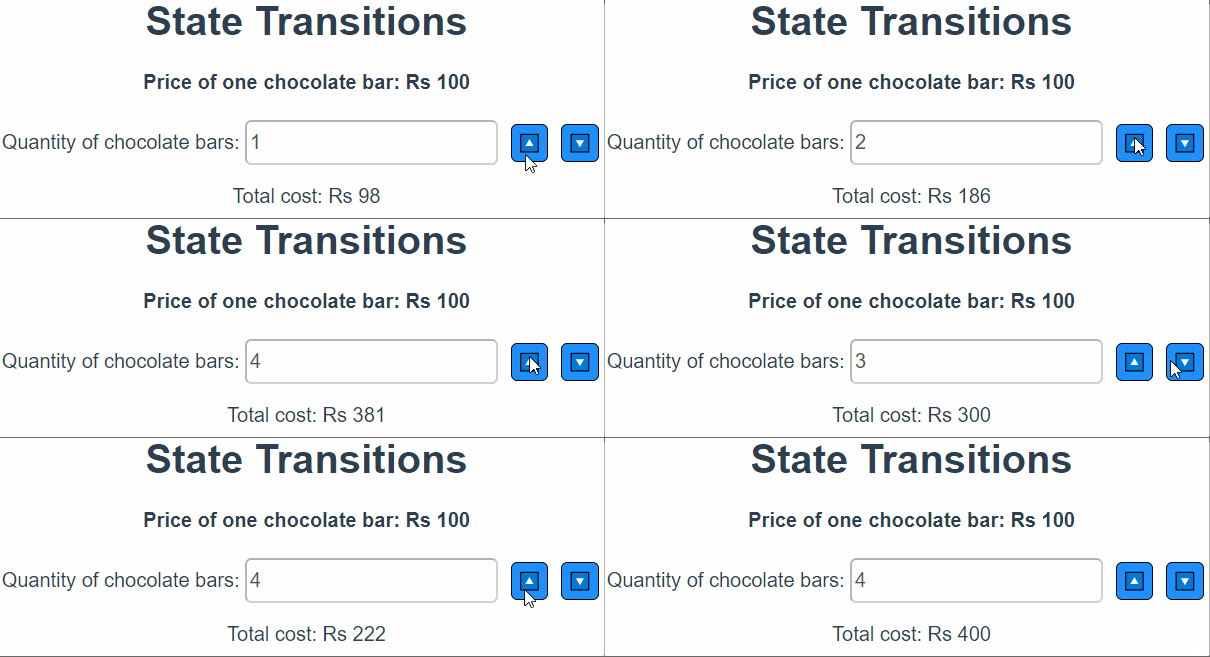
The watch in export default keeps track of or watches the changes in the data mentioned within it. When the data changes, the watcher can perform an event with the new value of the data. In this case, whenever our data changes, we will animate it wherever it is displayed on the Frontend. Let us look at it with a coding example:
index.html
We will be using the GSAP library which will help us animate the elements easily. We will be using it with CDN.
<!DOCTYPE html>
<html lang="en">
 <head>
       <meta charset="UTF-8" />
       <link rel="icon" href="/favicon.ico" />
       <meta name="viewport" content="width=device-width, initial-scale=1.0" />
       <script src="https://cdnjs.cloudflare.com/ajax/libs/gsap/3.3.4/gsap.min.js"></script> <!-- CDN for gsap library-->
       <script src="https://cdnjs.cloudflare.com/ajax/libs/gsap/3.3.4/CSSRulePlugin.min.js"></script> <!-- CDN for gsap CSSRulePlugin-->
        <title>State Transitions</title>
 </head>
 <body>
       <div id="app"></div>
       <script type="module" src="/src/main.js"></script>
 </body>
</html>
scr/components/Watchers.vue
Through this code, we will be animating the total cost using the gsap animations. The data has two variables: the number and the tweened number. There is a watcher for the number. So, when we increase or decrease the number, that is, the quantity of the chocolate bars, then the watcher will capture the new value and animate the data using the gsap.to() function. This tweened number will be animated, computed, and displayed in the Frontend.
<template>
 <div id="animated-number-demo">
       <h4>Price of one chocolate bar: Rs 100</h4>
       <span>Quantity of chocolate bars:   </span>
       <input v-model.number="number" step="1" disabled/>
       <button @click="increaseQty">🔼</button>
       <button @click="decreaseQty">🔽</button>
       <p>Total cost: Rs {{ animatedNumber }}</p>
</div>
</template>
<script>
export default{
     data() {
           return {
                 number: 0,
                 tweenedNumber: 0
           }
     },
     computed: {
           animatedNumber() {
                 return this.tweenedNumber.toFixed(0)
           }
     },
     watch: {
           number(newValue) {
                 gsap.to(this.$data, { duration: 0.5, tweenedNumber: newValue*100 })
           }
     },
     methods:{
           increaseQty(){
                 this.number++;
           },
           decreaseQty(){
                 if(this.number>0)
                 this.number--;
           }
     }
}
</script>
<style scoped>
input{
     border-radius:5px;
     height:30px;
     font-size:16px;
     margin-right:10px;
}
button{
     margin-right:10px;
     border:1px solid black;
     background-color:dodgerblue;
     padding:5px;
     border-radius:5px;
}
</style>
src/App.vue
Let us import and register the watcher.vue in the App.vue and then run the code.
<template>
     <div>
         <h1>State Transitions</h1>
         <Watchers/>
     </div>
</template>

<script>
import Watchers from "./components/Watchers.vue"
export default{
     components:{
           Watchers,
     }
}
</script>

<style>
#app {
     font-family: Avenir, Helvetica, Arial, sans-serif;
     text-align: center;
     color: #2c3e50;
     margin-top: 60px;
}
</style>
Dynamic State Transitions
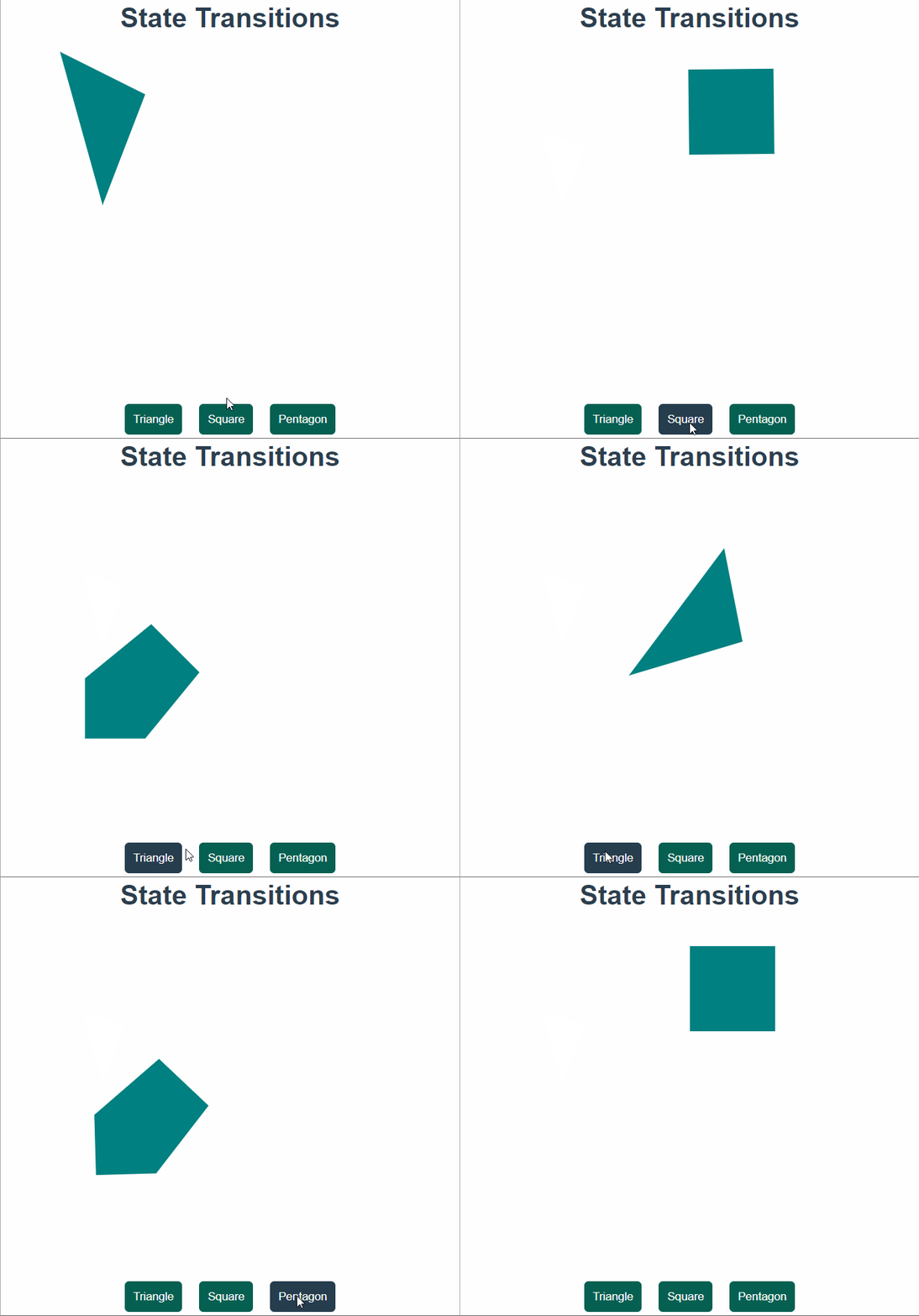
We can change the state of elements in real-time and animate them. This is known as Dynamic state transition as we are changing the animation or the state from the frontend itself. Let us have a look at it through a code:
src/components/Dynamic.vue
In this code, we are morphing the polygon into different shapes by changing the points on button click. The points are being watched and whenever there is a change in the points, the transition properties of the polygon are changed. The rotation, x and y used inside the gsap.to() are changed from the frontend using the buttons.
<template>
 <div>
       <svg height="400" width="400">
             <polygon v-bind:points="points" />
       </svg>
       <div>
             <button @click="changeToTriangle">Triangle</button>
             <button @click="changeToSquare">Square</button>
             <button @click="changeToPent">Pentagon</button>
       </div>
 </div>
</template>
<script>
export default{
     data(){
         return {
             points:"100 50,0 0, 50 180",
             finalX:0,
             finalY:0,
             rot:0
         }
     },
     watch:{
         points(newValue) {
               gsap.to("polygon",{rotation: this.rot, x: this.finalX, y:this.finalY,duration: 1})
         }
     },
     methods:{
         changeToTriangle(){
             this.points="100 50,0 0, 50 180"
             this.setState(200,100,27)
         },
         changeToSquare(){
             this.points="0 0,0 100,100 100, 100 0"
             this.setState(300,20,90)
         },
         changeToPent(){
             this.points="10 0,0 100,50 150,100 100, 90 0"
             this.setState(100,150,45)
         },
         setState(x,y,r){
             this.finalX=x
             this.finalY=y
             this.rot=r
         }
     }
}
</script>
<style scoped>
 input{
       margin:10px;
 }
 button{
       margin:10px;
       border:none;
       background:#066052;
       border-radius:5px;
       padding:10px;
       color:white;
 }
 button:hover{
       background:#263D4D;
 }
 polygon{
       fill:teal;
 }
</style>
src/App.vue
Let us replace the Watcher.vue file with the Dynamic.vue in the App.vue.
<template>
     <div>
         <h1>State Transitions</h1>
         <Dynamic/>
     </div>
</template>

<script>
import Dynamic from "./components/Dynamic.vue"
export default{
     components:{
           Dynamic,
     }
}
</script>
Making state transition components and reusing them
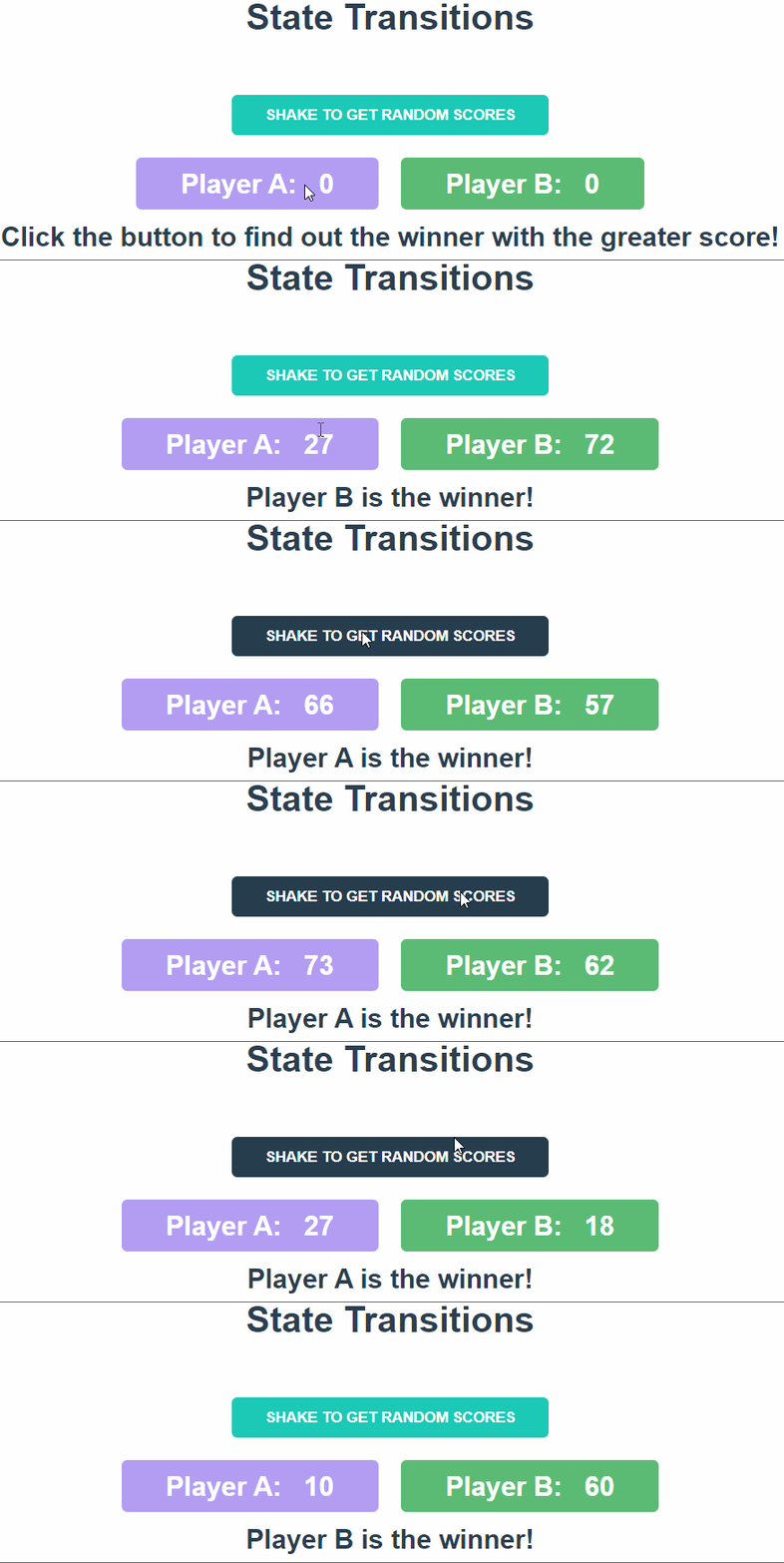
We can make transition components and use them wherever and as many times as we want in other components. Given below is an example of organizing transitions into components.
src/components/Compi.vue
Firstly, we will be making the file which will contain the main code for a random score generator. The player with the highest score wins. When the button is clicked, the shake function is called and the random score for both the players are generated and stored.
<template>
 <div>
       <div><button @click="shake">SHAKE TO GET RANDOM SCORES</button></div>
       <div>
       <span id="classA">
       <span>Player A:</span>
       <Score :pscore="scoreA" />
       </span>
       <span id="classB">
       <span>Player B:</span>
       <Score :pscore="scoreB" />
       </span>
       </div>
       <div><h2>{{winner}}</h2></div>
 </div>
</template>
<script>
import Score from "./Score.vue"
export default{
     components:{
       Score
     },
     data(){
       return{
             winner:"Click the button to find out the winner with the greater score!",
             scoreA:0,
             scoreB:0
       }
     },
     methods:{
       shake(){
             this.scoreA=Math.floor((Math.random() * 100) + 1)
             this.scoreB=Math.floor((Math.random() * 100) + 1)
             if(this.scoreA==this.scoreB){
                 this.winner="Tie!"
             }else if(this.scoreA>this.scoreB){
                 this.winner="Player A is the winner!"
             }else{
                 this.winner="Player B is the winner!"
             }
       }
     }
}
</script>
<style scoped>
 span{
       font-weight:bold;
       margin:10px;
       font-size:24px;
 }
 button{
       background:#1BC9B6;
       color:white;
       padding:10px 30px;
       font-weight:bold;
       margin:30px;
       border:none;
       border-radius:5px;
 }
 button:hover{
       background:#263D4D;
 }
 #classA{
       background:#B29DF3;
       padding:10px 30px;
       margin-top:100px;
       color:white;
       border-radius:5px;
 }
#classB{
       background:#5BBB74;
       padding:10px 30px;
       margin-top:100px;
       color:white;
       border-radius:5px;
 }
</style>
src/components/Score.vue
This is the file which will contain the transition for the data. We are going to use this transition component two times: for player A and for player B. We are going to import this component in the code above.
<template>
 <span>
   {{animatedScore}}
 </span>
</template>
<script>
export default{
 props:["pscore"],
 data(){
   return{
     tweenedScore:0
   }
 },
 computed: {
   animatedScore() {
     return this.tweenedScore.toFixed(0)
   }
 },
 watch:{
   pscore(newValue){
     gsap.to(this.$data, { duration: 0.5, tweenedScore: newValue})
   }
 }
}
</script>
src/App.js
<template>
     <div>
         <h1>State Transitions</h1>
         <Compi/>
     </div>
</template>
<script>
import Compi from "./components/Compi.vue"
export default{
     components:{
           Compi,
     }
}
</script>
Animating SVGs using State Transitions
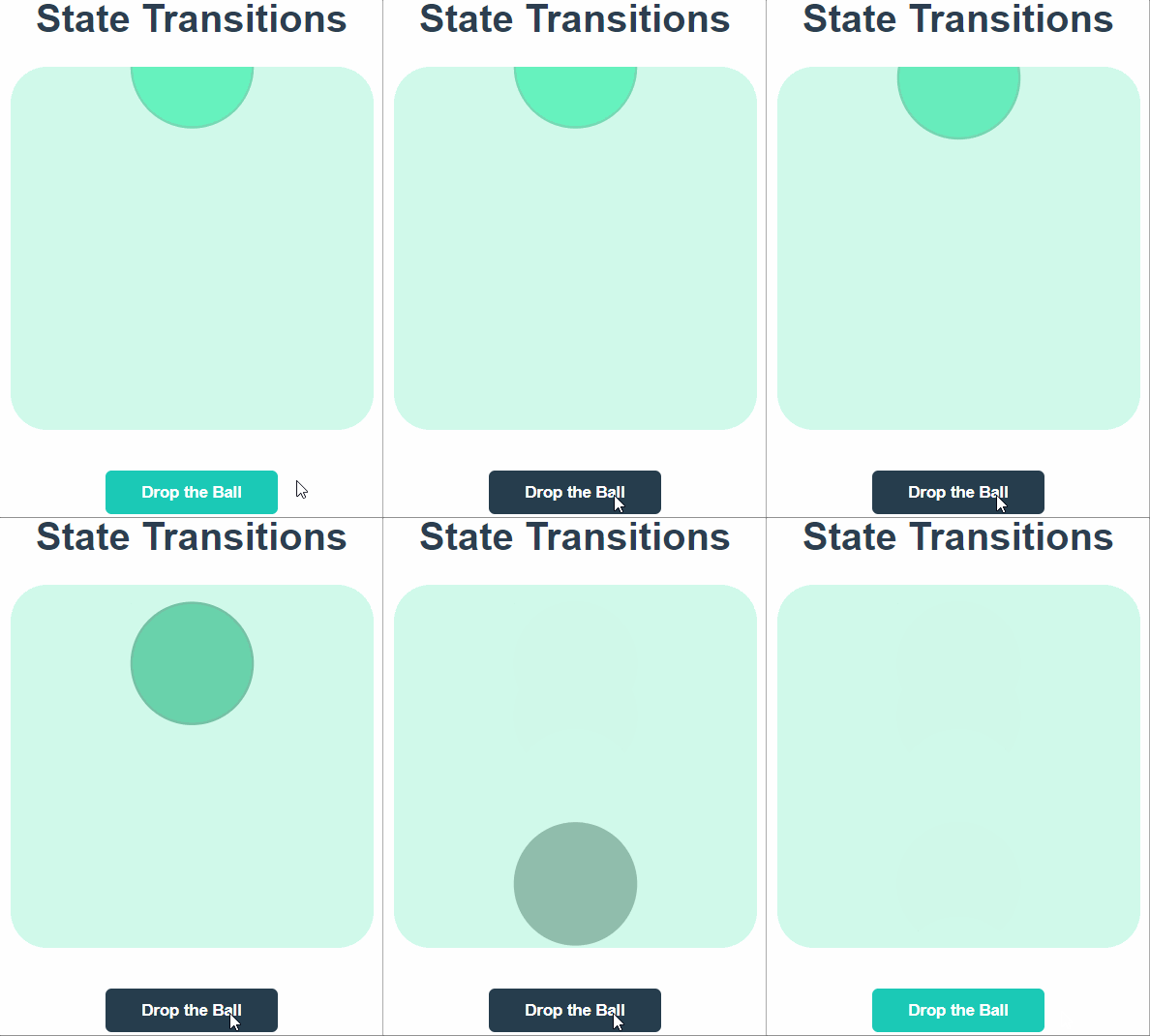
Scalable vector graphics can be animated using the State Transitions. Adding movement to the SVGs makes them more attractive. Let us make an SVG and add animation to it! You can even download an SVG from the internet and add motion to the different parts.
src/components/SVG.vue
This is a program for animating a ball made with svg HTML. The start variable is being watched. If it changes to false, the gsap animation will be applied to the ball.
<template>
 <div>
     <svg width="300" height="300">
         <circle cx="150" r="50" stroke="#76D9B4" stroke-width="2" fill="#66F3BF " />
     </svg>
     <div><button @click="drop">Drop the Ball</button></div>
 </div>
</template>
<script>
export default{
   data(){
       return{
           start:true
       }
   },
   watch:{
       start(newValue){
           gsap.to("circle",{y:400,fill:"black",stroke:"black",duration:1,ease: "power1.in",opacity:0})
       }
   },
   methods:{
       drop(){
           this.start=!this.start
       }
   }

}
</script>
<style scoped>
 svg{
       background:#D0F9EA;
       border-radius:30px;
 }
 button{
       background:#1BC9B6;
       color:white;
       padding:10px 30px;
       font-weight:bold;
       margin:30px;
       border:none;
       border-radius:5px;
 }
 button:hover{
       background:#263D4D;
 }
</style>
src/App.vue
<template>
     <div>
         <h1>State Transitions</h1>
          <SVG/>
     </div>
</template>
<script>
import SVG from "./components/SVG.vue"
export default{
     components:{
           SVG
     }
}
</script>
FAQs
-
What are the Javascript libraries that can be used for animation apart from GSAP?
Some of the JS libraries that can be used for animation are Anime.js, Velocity.js, Popmotion, Three.js, AniJS, mo.js, and many more.
-
How are Dynamic state transitions useful?
Dynamic state transitions are useful for prototyping elements and components. You can alter variables in real-time to see what suits you the best.
-
Why do we need state transitions?
<transition> and <transition-group> tags can be used to animate single and list elements entering and leaving the components with simple CSS. However, when we want to animate the data itself or achieve complex animations, we have to use Javascript that helps us do the state transitions.
Key Takeaways
In this article, we learned about state transitions. We learned how to use watchers to animate the elements. We saw the practicals for dynamic state transitions, animating SVGs, and making transition components.
But this is not enough; you need something extra to excel in Vue.js truly. If you want to learn more about Vue.js, you can read our articles on Vue.js or take our highly curated Web Development course.







 1+ registered

