




Introduction
A table is an arrangement that divides information into rows and columns. Its purpose is to store and display structured data. React-Table is used for this purpose in react. React-table is an open-source library that allows you to create tables in the React framework. It is a lightweight, fast, and fully customizable React Datagrid that can be expanded (JSX, templates, state, styles, and callbacks). Many well-known tech companies, including Google, Apple, and Microsoft, are used. This tutorial will teach us how to create table in react js applications, a standard functionality in the web world.
If you want to learn how to create dynamic table in React js, this tutorial will help you. We here assume that you have a basic understanding of React and are familiar with its Functional and Class Components in React.
How to Create Table in React js
Below are the step by step commands on how to create table in react js.
Creating a React App

The project name is React-table-app. You can choose any name of your choice. You can skip the first step to create a customised and dynamic table in an existing application.
Move to the Project Directory
We must run the command below to navigate to the project directory in this step. Use the cd command and the project name to get to the project directory.

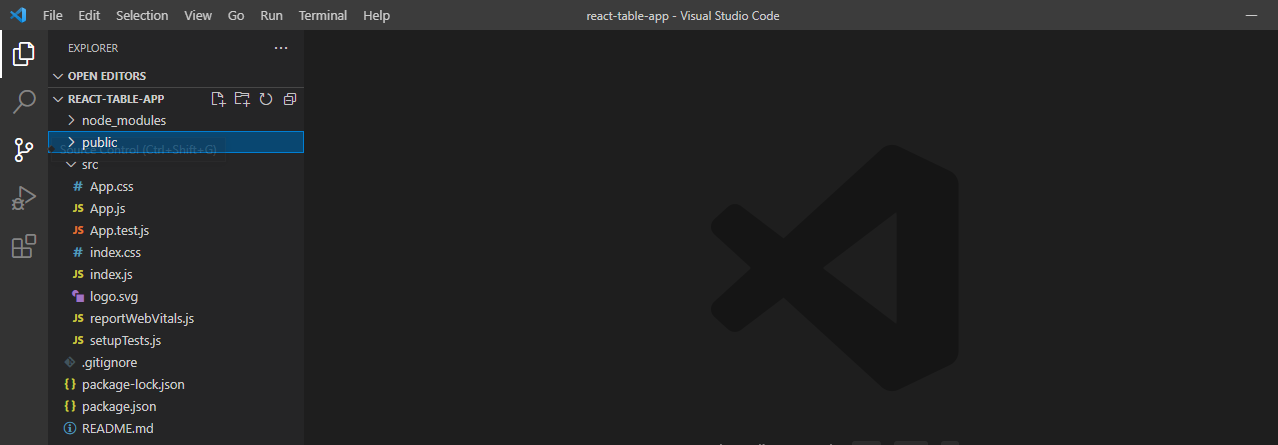
If you import your project into any code editors after step 2, your project structure will look like this:
Creating a Static Table in React js
The app component is the React JS application's default component. So, we'll here see how we can use the App component to create a static table in React JS. Following that, we'll look at making a customised and dynamic table. Below are the changes made in the App.js file:
import logo from "./logo.svg";
import "./App.css";

function App() {
  return (
    <div className="App">
      <h1>Students Table</h1>
      <table>
        <thead>
          <tr>
            <th>Name</th>
            <th>Age</th>
            <th>Gender</th>
            <th>Roll Number</th>
          </tr>
        </thead>
        <tbody>
          <tr>
            <td>Akram</td>
            <td>21</td>
            <td>Male</td>
            <td>2019MEB1235</td>
          </tr>
          <tr>
            <td>Jason</td>
            <td>22</td>
            <td>Male</td>
            <td>2018CSB1234</td>
          </tr>
          <tr>
            <td>Dave</td>
            <td>20</td>
            <td>Female</td>
            <td>2019eeb1242</td>
          </tr>
          <tr>
            <td>Tom</td>
            <td>20</td>
            <td>Male</td>
            <td>2019mmb1235</td>
          </tr>
          <tr>
            <td>Stark</td>
            <td>20</td>
            <td>Male</td>
            <td>2019meb1290</td>
          </tr>
        </tbody>
      </table>
    </div>
  );
}

export default App;
There is nothing advanced in the above code; we used basic HTML tags. The changes we need to make in the App.css file to apply the style to our Table are also listed below:
table {
  width: 800px;
  height: 200px;
  border-collapse: collapse;
}

th {
  border-bottom: 1px solid black;
  border: 2px solid black;
}

td {
  text-align: center;
  border: 2px solid black;
}
After making all of the changes, the command to run our app is as follows:

When you run the following command, it will host your application on port 3000, and you will see the output shown below:
| Name | Age | Gender | Roll Number |
| Akram | 21 | Male | 2019MEB1235 |
| Jason | 22 | Male | 2018CSB1234 |
| Dave | 20 | Female | 2019eeb1242 |
| Tom | 20 | Male | 2019mmb1235 |
| Stark | 20 | Male | 2019meb1290 |
Creating a dynamic table in react js
The majority of the time, your requirement in the application is to populate the dynamic data in the React table. Your table in react js code should be dynamic to generate a dynamic and customised Table that occupies the data in the array. Therefore, it becomes important to learn how to create dynamic table in react js.
Simply put, we define an array and populate it with data. In real-world applications, however, our array comes from the backend and contains the data that you want to display. Assume we have an array like the one below and want to display the array data in our Table.
const data = [
  { name: "Akram", age: 21, gender: "Male", Roll_Number: "2019meb1235" },
  { name: "Michael", age: 22, gender: "Female", Roll_Number: "2019csb1225" },
  { name: "Manisha", age: 22, gender: "Female", Roll_Number: "2018meb1236" },
  { name: "Tanishq", age: 21, gender: "Male", Roll_Number: "2018eeb1190" },
  { name: "Stark", age: 19, gender: "Female", Roll_Number: "2019csb1212" }
]
Instead of manually looping through the entire array, we can use the array's inbuilt method, array.map (). The callback function allows us to iterate over the array and modify its elements using array.map(). This callback function will then be called on all the array elements. In this case, we will return the table row at the end of each iteration. The complete App.js file code is provided below.
import logo from "./logo.svg";
import "./App.css";

const data = [
  {
    name: "Akram",
    age: 21,
    gender: "Male",
    Roll_Number: "2019meb1235",
  },
  {
    name: "Michael",
    age: 22,
    gender: "FeMale",
    Roll_Number: "2019csb1225",
  },
  { name: "Manisha", age: 22, gender: "Female", Roll_Number: "2018meb1236" },
  { name: "Tanishq", age: 21, gender: "Male", Roll_Number: "2018eeb1190" },
  { name: "Stark", age: 19, gender: "Female", Roll_Number: "2019csb1212" },
];

function App() {
  return (
    <div className="App">
      <h1>Students Table</h1>
      <table>
        <thead>
          <tr>
            <th>Name</th>
            <th>Age</th>
            <th>Gender</th>
            <th>Roll Number</th>
          </tr>
        </thead>
        <tbody>
          {data.map((value, key) => {
            return (
              <tr key={key}>
                <td>{value.name}</td>
                <td>{value.age}</td>
                <td>{value.gender}</td>
                <td>{value.Roll_Number}</td>
              </tr>
            );
          })}
        </tbody>
      </table>
    </div>
  );
}

export default App;
When you run the code with npm start, you should see the following output in your browser:
When you run the following command, it will host your application on port 3000, and you will see the output shown below:
| Name | Age | Gender | Roll Number |
| Akram | 21 | Male | 2019meb1235 |
| Micheal | 22 | Female | 2019CSB1225 |
| Manisha | 22 | Female | 2018meb1236 |
| Tanishq | 21 | Male | 2018eeb1190 |
| Stark | 19 | Female | 2019csb1212 |
A Above, we saw how to create dynamic table in react js. We will next proceed towards some FAQ’s.
Click on Click on the following link to read further: Hooks in React JS

 7+ registered

