Text Input with a Button in Kivy
To work with a text input widget or button first, we must import it. Import the text input widget and button using the following commands.
from kivy.uix.text input import TextInput
from kivy.uix.button import Button
Code:-
# Base Class of App need to inherit from the APP class
from kivy.app import App

# Import TextInput widget to provide us box for editable plain text
from kivy.uix.textinput import TextInput

# Import Button to create a button in kivy. It gives an error if not
# imported
from kivy.uix.button import Button

# Box Layout helps us arrange widgets in a particular fashion
# that vertical fashion or horizontal fashion
from kivy.uix.boxlayout import BoxLayout

# Import config helps us change the default setting of kivy
from kivy.config import Config
Config.set('graphics', 'resizable', True)

# Creating App class CodingNinja
class CodingNinja(App):

   # define build function
   def build(self):

       # Defining Orientation of Layout Box
       b = BoxLayout(orientation='vertical', )

       # Adding the text input
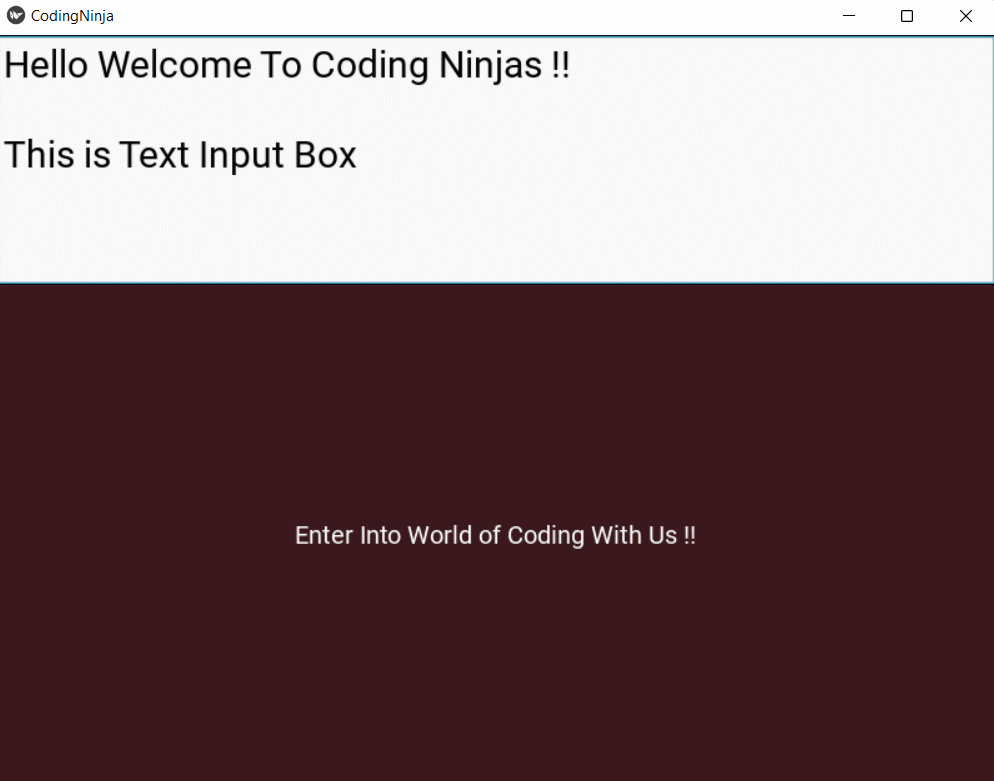
       t = TextInput(font_size=30,
                     size_hint_y=None,
                     height=200)

       # Adding the Button with design configuartion
       f = Button(text="Enter Into World of Coding With Us !!",
                  font_size="20sp",
                  background_color=(.67, .27, .33, 1),
                  color=(1, 1, 1, 1))
       b.add_widget(t)
       b.add_widget(f)
       return b

# Define main
if __name__=="__main__":

   # Run app
   CodingNinja().run()

You can also try this code with Online Python Compiler
Output:-
FAQs
What is kivy?
Kivy is a platform-independent Graphical user interface tool in python that can run on android, ios, Linux, windows etc. It is used to build the android application and develop desktop applications.
What is a Text Input Widget in Kivy?
The TextInput widget helps us provide a box for editable plain text. Features like Unicode, multiline, cursor navigation, selection and clipboard are supported.
What is a button in Kivy?
The button in Kivy is a Label. On clicking the button, the associated actions are triggered. We can also add functions behind the button and can style it as well.
Conclusion
In this article, we have discussed how to take text Input with a button in Kivy. I hope this article must have helped you improve your learning about Kivy.
Please visit our Guided Path in Coding Ninjas Studio to learn about such content. If you are preparing for an interview, visit our Interview Experience Section. To become more confident in DSA, try out Interview Problems in our Code studio. All the best for all your future adventures, and Happy Coding.








 1+ registered

