Do you think IIT Guwahati certified course can help you in your career?
Introduction
In this article, we will discuss JavaFX 3D Object Properties, its material, drawing modes, camera, and sub-scenes. Ultimately, we will look into a coded example of JavaFX 3D Object Properties. We will start with a brief introduction to JavaFX 3D Object Properties and move further into the topic for a detailed description.
Without further ado, let's start by learning JavaFX 3D Object Properties
JavaFX 3D Object Properties
We may modify the different attributes of 3D objects using JavaFX and alter JavaFX 3D Object Properties. Each property in JavaFX has a particular class defined for it. Geometrical forms that can independently be displayed on the X, Y, and Z planes are 3D shapes in JavaFX.
The X, Y, and Z planes express length, height, and width, respectively. Cube, Cuboid, Cylinder, Cone, Sphere, etc., are examples of common 3D shapes. The shape3D class includes 3D shapes, and the Shape class consists of all shapes (2D and 3D). The foundation class for all shapes is Shape3D.
The following are some of the JavaFX 3D Object Properties.
Cull Faces
The act of deleting the portions of 3D objects that are not visible in the view region is known as culling. 3D shapes in JavaFX have a property of type CullFace. The 3D shape class object should use the instance method shown below to set this property to an acceptable value.
The CullFace class defines the following three types of strokes:
None: There is no culling.
Front: All front-facing polygons are eliminated.
Back: All polygons that face the back are removed.
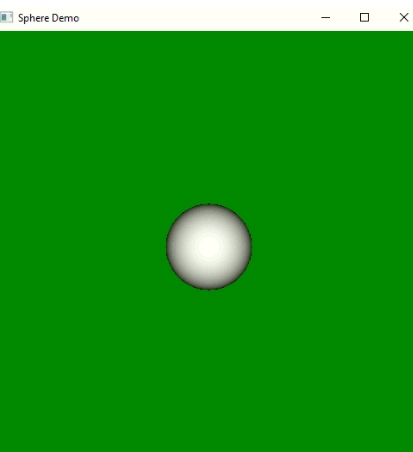
Example to show the 3D object properties
import javafx.scene.Camera;
import javafx.scene.Group;
import javafx.scene.PerspectiveCamera;
import javafx.scene.Scene;
import javafx.scene.input.KeyEvent;
import javafx.scene.paint.Color;
import javafx.scene.shape.Sphere;
import javafx.stage.Stage;

public class SphereDemo extends Application {
@Override
public void start(Stage outputStageObject) {

// title to the application
outputStageObject.setTitle("Sphere Demo");

//  creating the sphere object
Sphere sphereObject = new Sphere(50);

// creating the group object
Group groupObject = new Group();

//calling the sphere object
groupObject.getChildren().add(sphereObject);

//creating the camera object
Camera perspectiveCamera = new PerspectiveCamera();

//defining scene object for addition of group object
Scene sceneObject = new Scene(groupObject, 300, 300);
sceneObject.setFill(Color.GREEN);

//setting up the camera
sceneObject.setCamera(perspectiveCamera);

//adding translation property for sphere object for both X and Y axis
sphereObject.translateXProperty().set(300 / 2);
sphereObject.translateYProperty().set(300 / 2);

//event handler for key pressing
outputStageObject.addEventHandler(KeyEvent.KEY_PRESSED, eventHandler -> {
switch (eventHandler.getCode()) {

//it increases the size of sphere if we press button A
case A:
sphereObject.translateZProperty().set(sphereObject.getTranslateZ() + 200);
break;

//it decreases the size of sphere if we press B
case B:
sphereObject.translateZProperty().set(sphereObject.getTranslateZ() - 200);
break;
}
});
outputStageObject.setScene(sceneObject)

//displaying the output on the screen
outputStageObject.show();
}

       // calling main
       public static void main(String[] args) {

        launch(args);
    }
}
You can also try this code with Online Java Compiler
A 3D shape's surface can be covered with various materials thanks to JavaFX. All the classes that deal with the material of a 3D shape are provided by the class Material in the package javafx.scene.paint. The subclass of the class Material is the class PhongMaterial. All that is necessary to produce the desired material is to instantiate this class.
The properties of this class are provided by this class as a variety of materials, each of which can be set to a specific value using the setter methods. However, the following technique can be used to apply the material to a form.
shape.setMaterial(<material-type>)
Properties
Drawing Modes
To draw three-dimensional shapes, JavaFX offers several drawing options. This attribute belongs to the DrawMode class. The class defines the following DrawMode kinds.
🔥 Fill: In this mode, the 3D shape is drawn and filled. DrawMode is a representation of it. Fill
🔥 Line: In this mode, only lines are used to draw the 3D shape. DrawMode is a representation of it. Line
To set a draw mode for the 3D shape, use the setter method that is listed below.
Shape3D.setDrawMode(<DrawMode value>)
JavaFX Camera
The camera is represented as an object in JavaFX so that it can be moved about a 3D layout and alter the scene's view as needed. the javafx.scene class. Camera stands for the camera. It differs from a 2D space, though, where moving the camera around the screen is not necessary.
The X-coordinate, Y-coordinate, and Z-coordinate in the JavaFX camera coordinate system all point to the right, downward, and away from the viewer, respectively.
The following lines of code must be used to create the camera and add it to the scene.
Camera camera = new Camera();
camera.setTranslateX(150);
camera.setTranslateY(150);
camera.setTranslateZ(120);
scene.setCamera(camera);
JavaFX Subscene
A container that can store a scene node for which the camera angle needs to be specified is known as a subscene node. It is employed to divide scenes. If we need to set a separate camera for a specific area of the scene, we can do it by using the subscene node. One of the following situations allows for the use of subscene.
If the UI controls we are utilising in the scene require a static camera (overlay).
Y-up for 3D objects and Y-down for 2D user interface
Create a subscene by using the following syntax as an underlay for the background.
Developers can construct rich client applications that work reliably across a range of platforms by designing, building, testing, debugging, and deploying them using JavaFX, a collection of graphics and media packages.
How do I include a picture in a JavaFX scene?
A FileInputStream should represent the image you want to load. You bypass the input stream object you just generated and send it as a constructor parameter, instantiate the Image class instead. Create an instance of the ImageView class. By providing the image object as a parameter to the setImage() method, you can set the image to it.
What does a JavaFX stage mean?
A Scene, made up of visual components, is hosted by a Stage in JavaFX. The Stage class in the JavaFX represents a stage in a JavaFX application. The start(Stage s) method of the Application class receives the platform-created primary stage as a parameter.
Conclusion
In this article, we have extensively discussed the JavaFX 3D Object Properties along with JavaFX 3D Object Properties materials, drawing modes, camera, sub-scenes, and coded examples.
After reading about Introduction to 3D object properties, are you not feeling excited to read/explore more articles on the topic of file systems? Don't worry; Coding Ninjas has you covered. If you want to check out articles related to Java refer to these links, JavaFX, JavaFX arc, Bubble chart using JavaFX, and java interview questions.







 7+ registered

