Do you think IIT Guwahati certified course can help you in your career?
Introduction
If a python programmer wants to create a website using a fast, open-source, full-stack framework, then web2py is the correct framework that fits their bucket. Web2py helps us in developing fast, scalable and portable database-driven web-based applications. Now, in this blog, we will be discussing how to add an image blog in web2py in brief and also look into how to add grids and configure the layouts to an Image Blog in Web2py
Web2py
Web2Py
Web2py is an open-source, free full-stack framework written in python that helps rapidly develop fast, scalable, secure and portable database-driven web-based applications.Web2Py is a full-stack framework as it contains all the tools, components, and APIs essential to building a fully functional web application.Web2Py is compatible with both versions of python, i.e., python 2. X and Python 3.X
Web2py is built by keeping security in mind and is its very first concern for it. As a Back-End framework, web2py comes with a built-in Data Abstraction Layer that helps developers communicate with different SQL DataBases such as SQLite, PostgreSQL, MySQL, MSSQL, and Oracle, IBM DB2, etc.
Let's start understanding how to add an Image blog in Web2py. Let's look into it. We will also see the implementation and code for adding images to the web2py blog.
After that, we will look at how to add grids and configure the layouts to an Image Blog in Web2py
Add Images to the Web2py Blog
So now, in this section, we will discuss how to add an Image blog in Web2py. So before going into anything, let us start from scratch. Start the executable file for Web2py. Now start the server by choosing the password to your network. As shown below image.
Web2Py Server Login
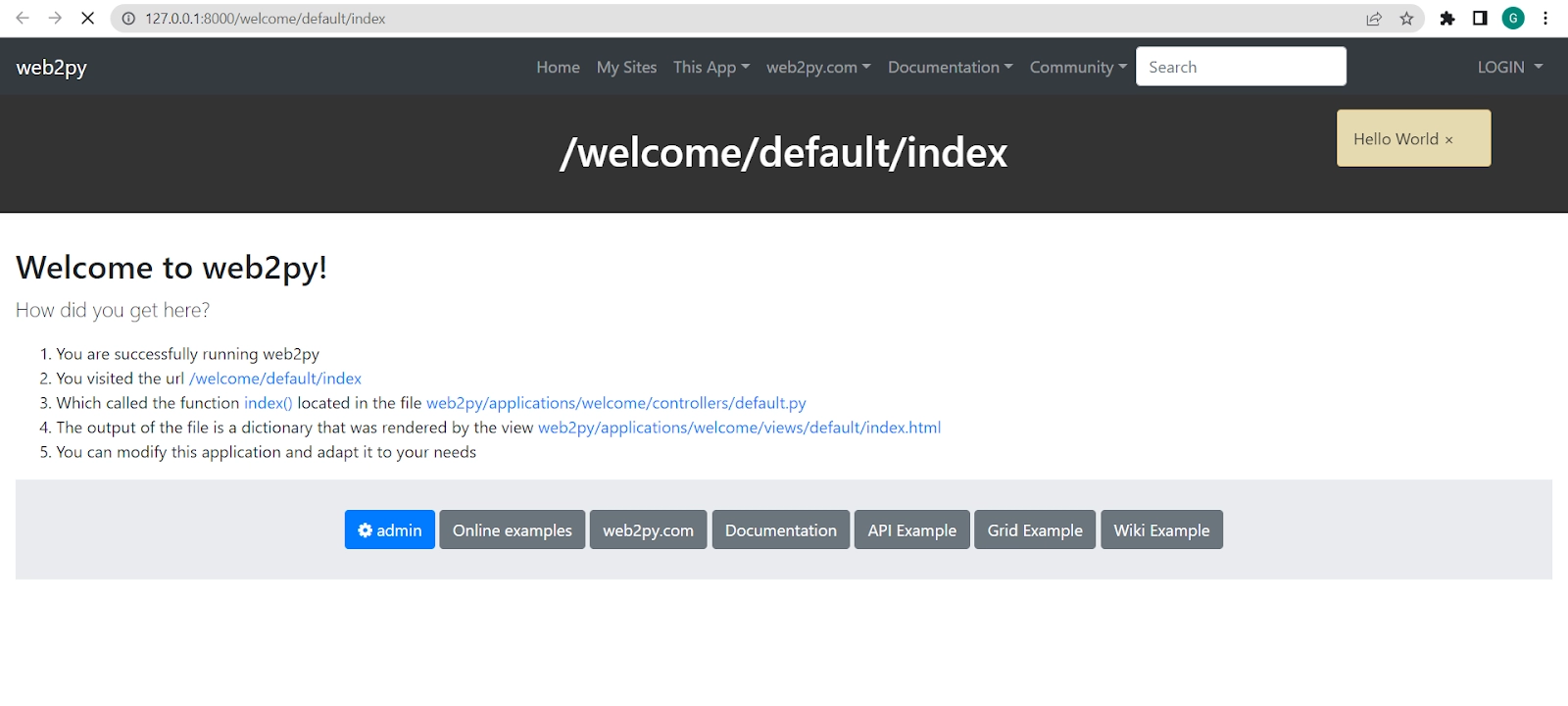
Once you click on start server, it will open /welcome/default/index in our web browser. Similar to the screen displayed below
Web2py Default Welcome Window
Now we are all set to start working on the web2py framework. So next step is to get a detailed understanding of how to add images to the web2py blog.
First, create a new application called CodingNinjaImage, and navigate to the edit page.
Web2py Administration Login
Administrative Interface
So now, we will create a model representing the persistent data in the application. Create/edit a model file called "db.py" for lack of imagination. Remove the model "menu.py". Corresponding to the "db.py" file, there is an "edit" button
Edit Window Web2Py
Click on the edit button mentioned above and enter the below code into that file.
db = DAL("sqlite://storage.sqlite")
# Above Line defines a global variable called db that represents the database connection.For above case its an connection to SQLite database


# Here we have defined a table called "image". Method define_table of the db object is used. The first argument of define_table, "image", is the name of the table
db.define_table('image',
                Field('title', unique=True),
                Field('file', 'upload'),
                format = '%(title)s')


# Here we have defined a table called "post". Method define_table of the db object is used. The first argument of define_table, "post", is the name of the table
db.define_table('post',
                Field('image_id', 'reference image'),
                Field('author'),
                Field('email'),
                Field('body', 'text'))

# Validators
# Validator for Title of Image
db.image.title.requires = IS_NOT_IN_DB(db, db.image.title)

# Validator for Image ID
db.post.image_id.requires = IS_IN_DB(db, db.image.id, '%(title)s')

# Validator for author requirement
db.post.author.requires = IS_NOT_EMPTY() # author could not be empty

# Validator for email requirement
db.post.email.requires = IS_EMAIL()

# Validator for body requirement
db.post.body.requires = IS_NOT_EMPTY()
db.post.image_id.writable = db.post.image_id.readable = False
Once we have defined a model and there are no errors, web2py creates an application administration interface to manage the database, which we can access directly via the "database administration" link on the edit page.
Application Databases
This interface is coded in the controller "appadmin.py" and the corresponding view "appadmin.html."If we edit the model and access appadmin again, web2py will generate a SQL file for altering the existing tables. Generated SQL is logged into the "sql.log".We need to go back to our appadmin and should try to insert a new image record
Creating New Image Record
Web2py would translate the db. image.file "upload" field into an upload form for the file. So whenever the form is submitted, and an image file is uploaded, the file would be renamed securely by preserving the extension under the application "uploads" folder, and the new name is stored in the db. image.file field. We have designed this process to prevent directory traversal attacks.
If we do not get a view, we need to render the dictionary by "views/generic.html" and Proceed by creating a view for our index action. also, edit "default/index.html" in admin, and replace its content with the following
The above action would return a dictionary. We need to Proceed with creating a view for the index action. So Return to admin, edit "default/index.html" and replace its content with the below file code:
After clicking on the image name link, we are directed to http://127.0.0.1:8000/CodingNinjaImage/default/show/1, which results in an error since the action called "show" is not created in the controller file "default.py".
Invalid Request
So to get the view let's edit the "default.py" controller by replacing its content with the below code:
The "default.py" file of the controller in the scaffolding application already defines the "download" action."Show" action must have a view, so we again have to return to the admin and need to create a new view called "default/show.html".To edit the new file and replace its content with the following code:
Now our view will be able to display the image. file by calling the "download" action that is defined inside an <img ... /> tag. If any comments are found, it would loop over them and display each.
This is how everything will appear to a visitor.
Final Result
Just Like the above application, we have created you could also start creating one that looks just like the below image.
Final Result
Adding Grids to the Image Blog in Web2py
We could improve the application further by using the SQLFORM.grid and SQLFORM.smartgrid gadgets by creating a management interface for the CodingNinjaImage application:
We could configure the default layout by editing "views/layout.html", but we can also configure it without editing the HTML. The "static/css/web2py.css" stylesheet is adequate. We can change colour, columns, size, borders and background without editing the HTML. If we desire to edit the menu, the title or the subtitle, we could do so in any model file. The framing app sets the default values of these parameters in the file "models/menu.py
Web2Py is an open-source, free full-stack framework written in Python that helps rapidly develop fast, scalable, secure and portable database-driven web-based applications.
For what purpose Web2py is used?
Web2py is mainly used to program dynamic websites using Python as a programming language. It contains all the tools, components, and APIs essential to building a fully functional web application.
Which is easier, Web2py or Django?
Web2py differs from Django since it's very compact and easier to learn. Unlike Django, it doesn't have any project-level configuration file.
Web2py Support which version of Python?
Web2Py is compatible with both versions of Python, i.e., python 2. X and Python 3. X
Conclusion
In this article, we have explored how to deal with the addition of grids and configuring the layouts to an image blog in Web2py. We have also understood in brief about Adding Images and then configuring the layouts to an Image Blog in web2pyWe expect now you must know how to add images to the web2py blog. Give an upvote to the blog to help other ninjas grow.











 1+ registered

