





Source: Link
Introduction
Active Server Pages (ASP) and Active Server Pages (ASP.NET) are server-side technologies for displaying interactive web pages. ASP.NET offers developers a wide range of options in a large, diverse ecosystem of libraries and tools. Developers can also design custom libraries that can be shared with any.NET platform application.
Backend code for ASP.NET apps can be written in C#, Visual Basic, or even F#. Developers can effectively code the business logic and data access layer because of this flexibility. Another big benefit of utilising ASP.NET is the ability to create dynamic web pages in C# using the Razor webpage template grammar tool.
In addition to HTML, CSS, JavaScript, and C#, Razor has a syntax for constructing interactive dynamic web pages. Client-side code is commonly written in JavaScript, and ASP.NET can even operate with other web frameworks like Angular or React.
ASP.NET also contains an authentication system for developers, which includes a database, libraries, templates for handling logins, external authentication to Google, Facebook, and other services, and more. ASP.NET may be used on all major platforms, including Windows, Linux, macOS, and even Docker, by developers.
Let us learn how to create our first ASP.NET App.
Download and Install ASP.NET App
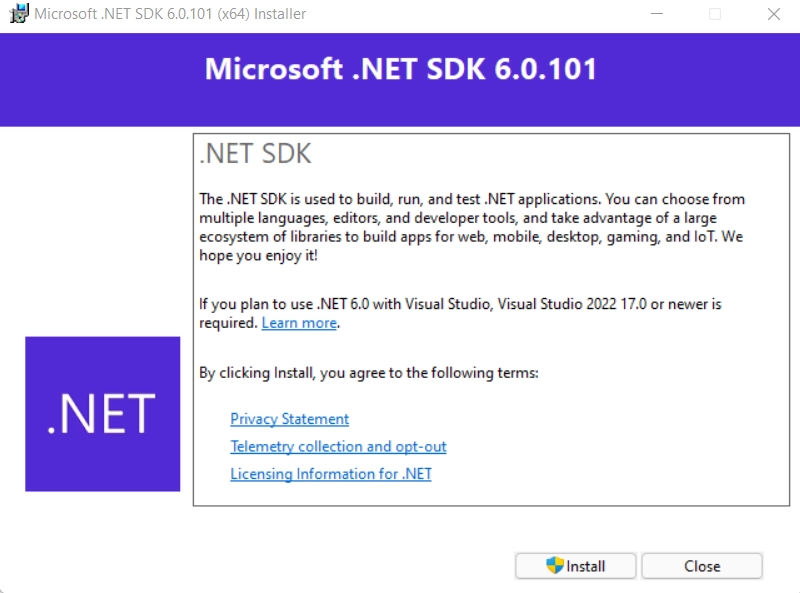
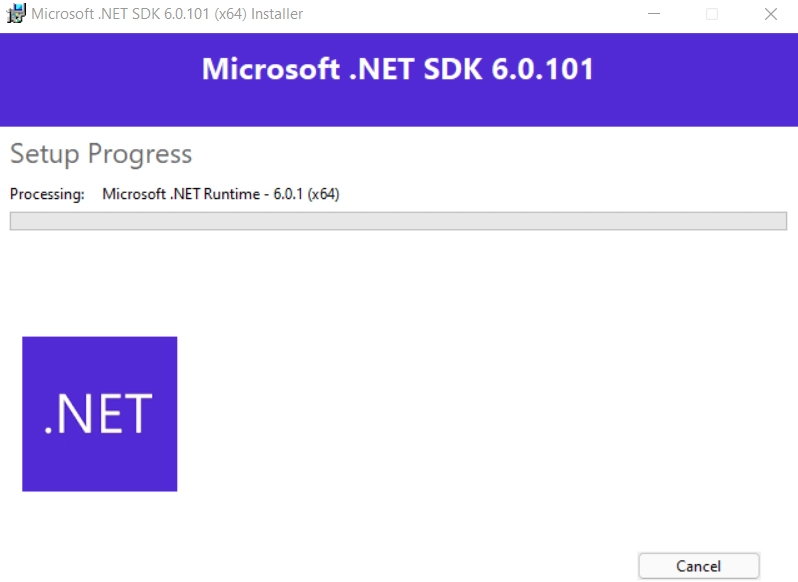
Download and install the.NET SDK to begin developing.NET apps (Software Development Kit).
Run The Downloaded File
Check the installed files
Once you've installed it, open a new command prompt and run the following command:
dotnet
If the installation was successful, we would be able to see something like this:

If everything appears to be in order, click the ‘Continue’ button to go to the next step.
Note: If we get an error saying that "dotnet isn't recognised as an internal or external command”, make sure you've started the afresh command prompt.
Create Your ASP.NET App
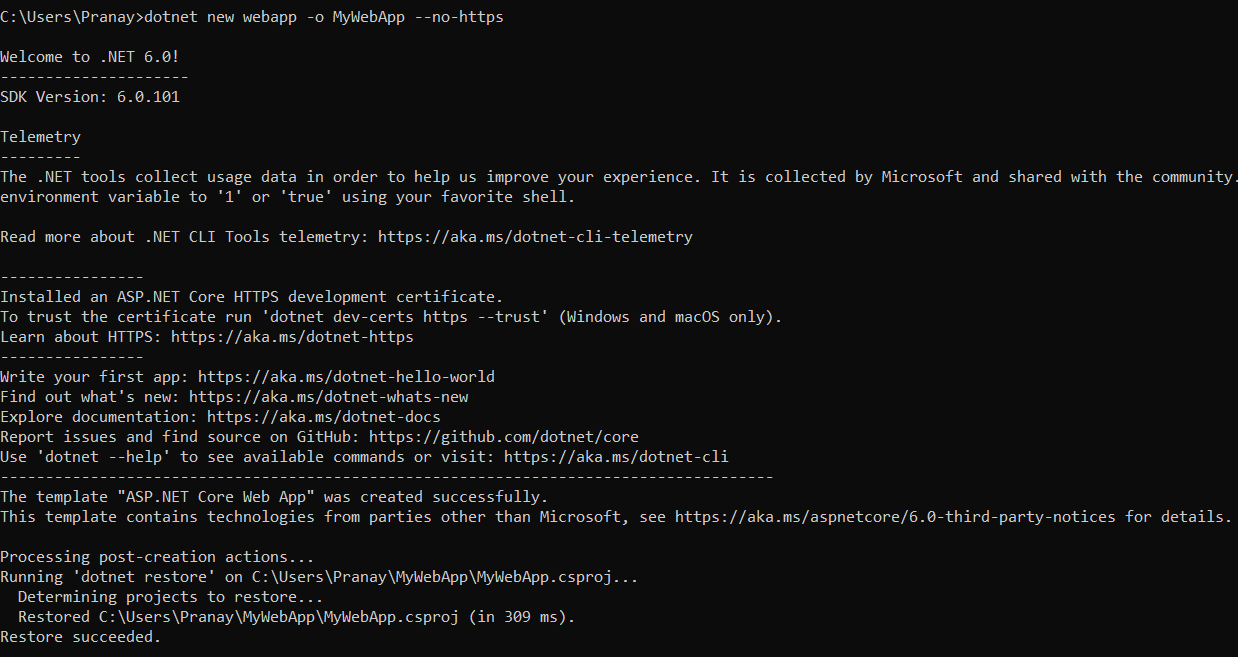
To make your app, type the following command into your command prompt.
dotnet new webapp -o MyWebApp --no-https
Output:
What files were created?
Several files were produced in the MyWebApp directory to provide you with a ready-to-run web application.
- The app startup code and middleware setup are found in Program.cs.
- Some sample web pages for the application can be found in the Pages directory
- Some project options, such as the .NET SDK version to target, are defined in MyWebApp.csproj.
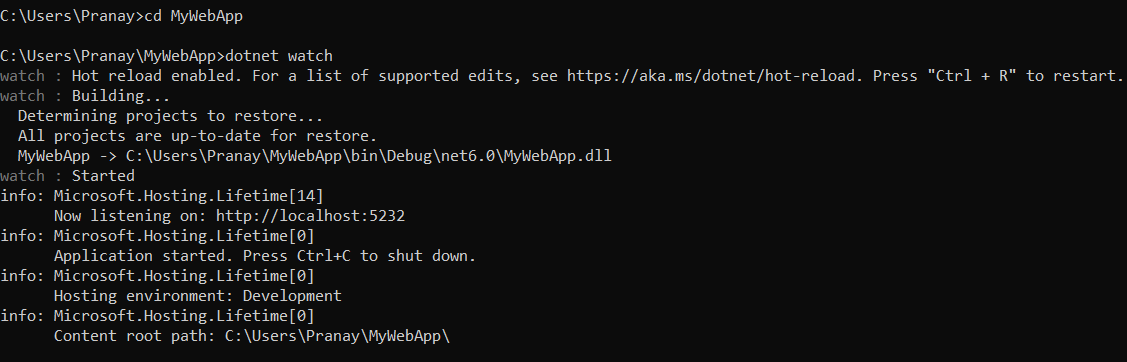
- Various profile settings for the local development environment are defined in the launchSettings.json file in the Properties directory. When a project is created, a port number between 5000 and 5300 is automatically allocated and saved to this file.
What does this command mean?
A new application is created with the dotnet new command.
- When developing your app, the webApp option determines the template to use.
- The -o option creates a directory called MyWebApp, in which your app will be saved.
- The -no-https flag tells the server not to use HTTPS.
Note: If you see a message like the below,
"ASP.NET Core Web App" could not be created. Failed to create the template. Details: Access to the path 'C:\Windows\System32\MyWebApp' is denied.Then switch to a directory where you have permission to make a new folder and try running the command again.
If Windows is unable to locate the SDK when you attempt to build the project despite the fact that you are certain the SDK has been installed, your machine may have a problem with the PATH environment variable. Instructions on how to identify and fix this problem may be found in this Stack Overflow topic.


 7+ registered

