Do you think IIT Guwahati certified course can help you in your career?
Introduction
Have you ever done the troubleshooting of servers or deploying of applications or stopped and restarted any service manually? Have you ever used tools or software to automate the maintenance of the infrastructure?
This article is focused on one of these tools, which is known as Bolt. It is an open-source tool that can be used to automate the maintenance of the infrastructure of an organization. We will also study the configuration of Bolt in detail.
What is Bolt?
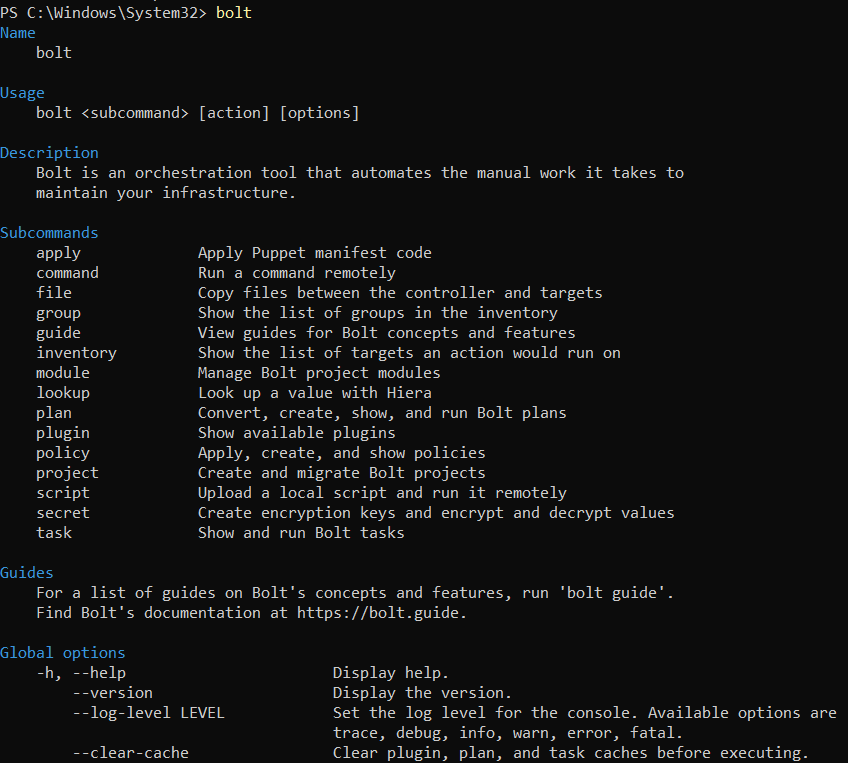
Bolt is an open-source orchestration solution that automates the tedious work required to maintain your infrastructure. Use Bolt to automate the work you do on an as-needed basis or as part of a larger orchestration workflow. Bolt can be used to patch and update systems, diagnose servers, deploy applications, or halt and restart services. You don't need to install any agent software because Bolt may be installed on your local workstation and connects to remote targets directly using SSH or WinRM.
Projects in Bolt
A Bolt project is merely a directory that acts as Bolt's starting point. Along with your Bolt content, like plans and tasks, you keep your inventory file, configuration files, and other information in a project.
Bolt projects give you a mechanism to share that content with other people in your organization in addition to allowing you to work with your local Bolt content. You can develop orchestration tailored to the infrastructure you're using, commit the project directory to version control, and make it available to others.
Bolt recognizes only a directory that contains a bolt-project.yaml file as a Bolt project. A name key is present in the bolt-project.yaml file, which is present at the directory's root.
Creating a Bolt Project
Follow these steps if you want to create a Bolt project:
First, you will have to create a directory for the project. The project name must have only lowercase letters, underscores, and numbers. And the name should begin with a lowercase alphabet.
Next, run "bolt project.init," and Bolt will create a file named bolt-project.yaml in your directory. The bolt-project.yaml will only have a name key with the project name.
You can create plans and tasks in the plans and tasks directory. It is present in the root directory.
Configuration of a Project
The bolt-project.yaml file is an essential file of a bolt project. Along with the name key, this file also contains the option to configure your project. You can also change Bolt's behavior when the project is executed.
For example, if you want to include a flair to the output, you can use the output format known as the rainbow.
# bolt-project.yaml
name: mytestproject
format: rainbow
Choosing Project Directory
Most of the time, you execute Bolt commands from a specially constructed Bolt project directory. When you launch Bolt from within your project, it can locate your inventory and other configuration files.
Bolt, however, always operates within the framework of a project. Bolt uses the ~/.puppetlabs/bolt/ directory as the default project directory if you don't run from within your own Bolt project or if you don't specify a project.
The following are the methods that Bolt uses while choosing the Bolt directory:
Environment variable: It allows you to specify a path to a project.
Parent directory: Bolt searches the parent of the current directory until it finds:
Boltdir directory or
bolt-project.yaml file.
Command-line specification: You can also specify the path of the directory on the Command Line using the --project <DIRECTORY_PATH> command.
Default project directory: Sometimes Bolt is not able to find Boltdir or bolt-project.yaml and has reached the root of the file system. In such cases, it uses ~/.puppetlabs/bolts/ as the parent directory.
Common files and directories in a Project
Let’s check out common files and directories that are present in the Bolt project:
Directory/File
Description
bolt-project.yaml
It contains the configuration options for Bolt as well its projects.
inventory.yaml
It contains the list of known targets and their data.
plans/
It is a directory for storing the plans.
tasks/
It is a directory for storing the tasks.
files/
It is a directory for storing the content such as scripts that is consumed by the tasks and plans.
Puppetfile
It specifies the modules present in the project.
modules/
It is a directory that stores the custom modules.
manifests
It is a directory that stores the Puppet code files.
hiera.yaml
It contains the Hiera config to use for target specific data.
data/
This is the path to store static Hiera data files.
bolt-debug.log
It contains debug log output for recent Bolt commands.
.modules/
Here, Bolt installs modules.
Inventory Files
You can store info about your targets and arrange them into different groups. You can also control how Bolt will connect to these targets. You can command multiple targets at once by grouping.
The bolt project contains an essential file along with the bolt-project.yaml file, which is known as the inventory file.
How Bolt Loads the Inventory?
If a command accepts targeting settings, Bolt will only load the inventory for that command (query, rerun, and targets). As an illustration, when Bolt executes a job, inventory is loaded, but not when Bolt installs modules.
Bolt fills all of the inventory, not just the targets or groups that the targeting option has specified when it loads the inventory. It's crucial to comprehend how the inventory is resolved because loading the complete inventory can have an adverse effect on performance and lead to a target configuration that is different from what you could anticipate.
Configuring Bolt
There are many features and options that you can configure in the bolt project as per your need. The configuration is divided into four categories:
Projects: You can configure the project in which you are running Bolt. You can change the path to an inventory file or to a Hiera configuration file.
Bolt behavior: You can also configure how the Bolt runs itself. For example, you can format the output or the number of threads to use when it is connected to the target.
Inventory data: You can group and configure multiple targets at once and run commands with the Bolt.
Transports: You can also configure the transport bolt is using to connect with the targets. For example, the path to a private key while using SSH or which port to connect to when using WinRM.
You can configure the features and options of the Bolt at
the project level,
the user level,
or the system-wide level.
If you are at the project level, you can do the configuration in the inventory.yaml and bolt-project.yaml files.
If you are at the user or system-wide level, you can do the configuration in the bolt-defaults.yaml file. Configure Bolt at the project level unless your use case calls for specifying user-specific or system-wide configurations.
Project-level Configuration
Almost all the time, you will have to set the configuration at the project level. Any configurable option you set in Bolt is only applicable to that project.
You can set project level configurations in the following files:
You can use bolt-project.yaml for Bolt configuration. This file allows you to change Bolt’s behavior like how many threads to use when running commands on the targets. You can also use this file to configure different components of your project.
You can use inventory.yaml for inventory configuration. It is a structured data file with info about the groups of targets on which you can run Bolt commands. You can also configure the transport being used to connect with the targets. You can also set the inventory configuration at multiple levels under an option known as config. You can configure the below options under config option:
transport,
docker,
local,
pcp,
remote,
ssh, and
winrm.
User-level Configuration
You can use this level to set the configuration to all the projects that belong to a specific user. It includes options like paths to private keys, a plugin’s credential or default inventory configuration. All these are common to all the projects. You can set the configuration at user-level using the bolt-default.yaml file.
This default configuration file has almost all of the configuration options of Bolt. It doesn’t have project specific options like modules and modulepath.
System-wide Configuration
You can set this level to set the configuration to all the users and all their projects. It includes configuration for connection to the organization’s forge proxy. You can set most of the Bolt’s configurable options at the system level.
Here also, you can set the configuration at user-level using the bolt-default.yaml file.
Logs in Bolt
There are many log levels that Bolt supports. You can do the configuration of the log level using CLI or using the project configuration file. Following are the supported logging levels in most to least order:
trace: It contains the most comprehensive information about the actions to be performed on the specific target.
debug: It contains where Bolt is loading data from in great detail and provide information for target-specific actions.
info: It gives a high-level overview of Bolt's activities from info logs.
warn: It contains alerts about deprecations and possibly dangerous scenarios that could impact your Bolt run. But still, they don't stop Bolt from running
error: It contains error messages that Bolt encountered during execution.
fatal: It contains emerg and critical notifications from a Puppet code file (manifest) or apply block.
Privilege Escalation using Bolt
Bolt often uses the same user to connect to and operate on remote computers by default. Sometimes, it's necessary to connect and run as separate users.
For example, installing a package as the root user on a system that forbids inbound connections as the root user may be necessary. With the help of Bolt's configuration settings, you may choose which user to execute as, how to elevate to that account, and how to execute commands.
Setting up VS Code for Bolt
Content, including plans and task metadata, as well as configuration and inventory files, adheres to predefined requirements. By making your development environment aware of these specifications, you can validate and check the data types as you write in real time, accelerating the development process and lowering mistakes.
Using JSON schemas offered by Puppet Forge, you may validate Bolt's configuration and inventory files. By setting up Visual Studio Code (VS Code) to use Bolt's JSON schemas, you may leverage the live IntelliSense feature of VS Code, which provides capabilities like code completion and parameter information for fields that are present in the files.
When creating content for your Bolt project, you can use the VS Code Extension provided by Puppet. Numerous compelling features of the Puppet VS Code Extension are available, such as validation for task metadata files, live Intellisense for Puppet plans, validating Puppetfiles, and more.
Frequently Asked Questions
Is there a free version of Puppet?
Open-source Puppet is free for use and open for modification as well as customization.
What is a bolt project?
A Bolt project is a regular directory that is used as the launching point for Bolt.
How does a puppet work?
Puppet operates in a pull mode, where agents periodically poll the master to obtain site- and node-specific configurations.
Is Puppet still used?
Big-name companies like Oracle and Google, and many others run their data servers using Puppet.
Is Puppet an automation tool?
You may manage and automate the configuration of servers using Puppet.
Conclusion
In this article, we have studied one of the automation tools, which is known as Bolt, in detail. We hope that this article has provided you with the help to enhance your knowledge regarding Bolt and if you would like to learn more, check out our articles on tasks in bolt and about bolt.







 1+ registered

