Do you think IIT Guwahati certified course can help you in your career?
Introduction
Do you know any tool that eliminates paperwork and whiteboards and can help boost your business by managing projects, scheduling, and estimating? Yes, you guessed it right! Today we will discuss tasks in bolt.
Puppet bolt is an open-source command line tool written in ruby and distributed as a package. Puppet tasks solve problems that need to fit better into the puppet's traditional model.
Single actions that we run on target machines in our infrastructure are tasks. We use tasks to make necessary changes to remote systems. These tasks support programming languages like bash, python, or ruby. Let's now understand how to inspect and write tasks in the bolt.
Inspecting Tasks
Tasks in bolt are packaged in modules. Therefore we can reuse, download and share tasks on the forge. The metadata of tasks in boltdescribes the task, validates the input, and controls how the task runner helps execute tasks.
We need to inspect the task to ascertain its effect on the targets. The inspection should be done before we run a task in the environment. There are several activities you can perform while inspecting the tasks in bolt. Some of them are given below.
Run in No Operation Mode
As a user, if we want to view changes, we can run the tasks in no-operation(no-op) mode without taking action on the targets. We will get an error if the task does not support a no-op mode similar to this-
*nix shell command
bolt task run package name=vim action=install --noop --targets google.com
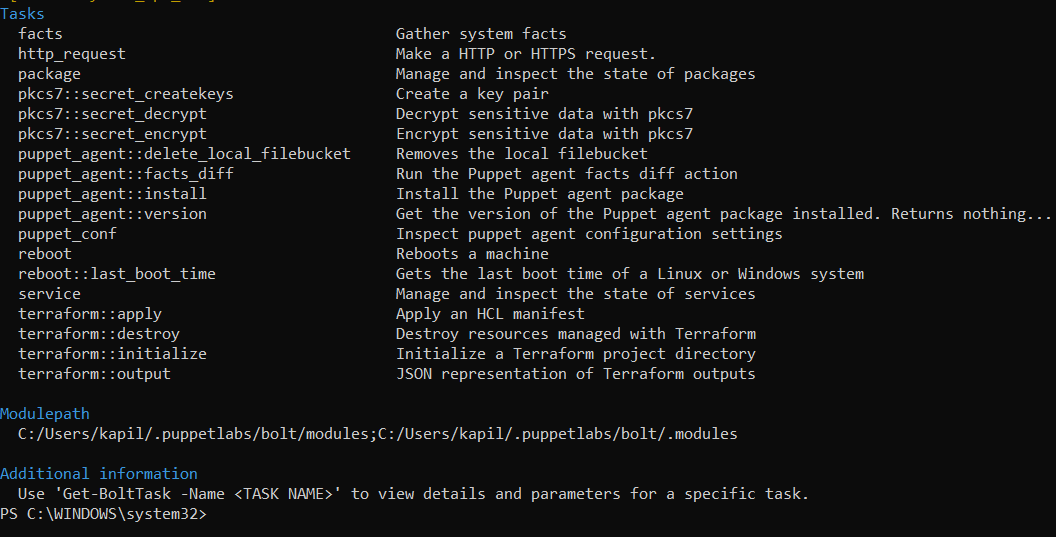
You can type the given commands if you want to view the tasks in bolt installed in the current module path.
*nix shell command
bolt task show
PowerShell cmdlet
Get-BoltTask
These commands will show all the task lists except the ones marked with private metadata keys. Similar to this-
Show Documentation
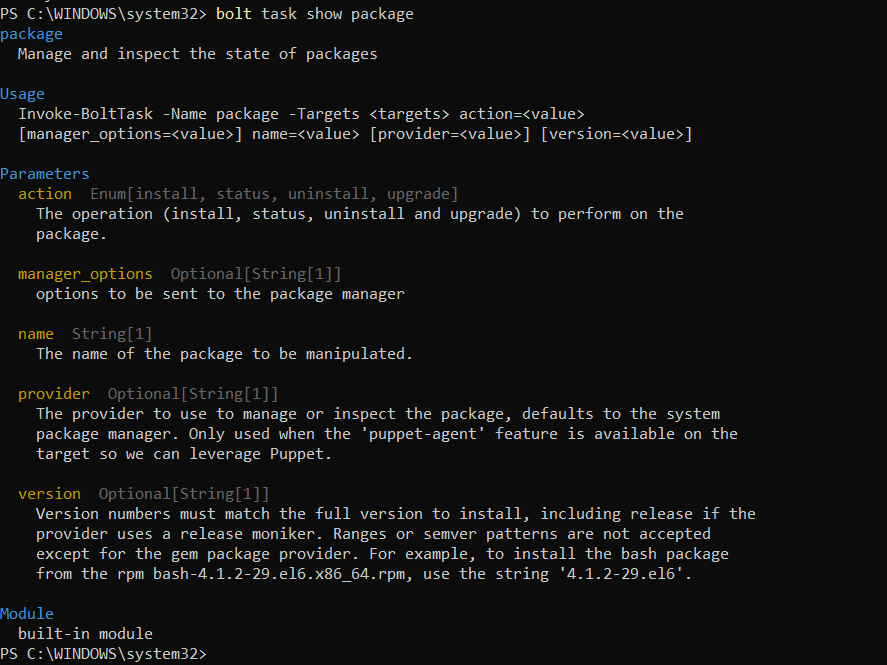
It views parameters and other details for a task.
*nix shell command
bolt task show <Enter Task Name Here>
PowerShell cmdlet
Get-BoltTask -Name <Enter Task Name Here>
Writing Tasks
Bolt tasks are kept in modules and have a striking similarity with scripts. They also have metadata which allows the user to share and reuse them.
A task can be written in any programming language, such as python, bash, or powershell, or it can also be a compiled binary code that runs on the targets. This task file should be placed in the ./tasks directory of a module. Also, add a metadata file to the task to configure task behavior and describe parameters.
Naming Tasks
The task name is used to interact with a task using the bolt command line. For example, you can make use of-
bolt task run mysql::sql --targets localhost
to run the mysql::sql task.
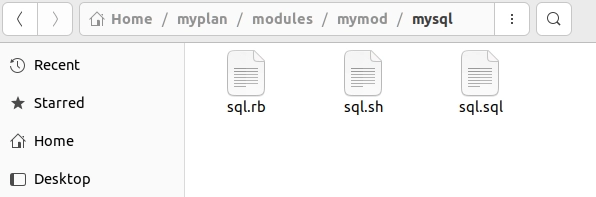
In this example, you may observe that the task 'mysql::sql' has two segments where the 'mysql' signifies the name of the module file where the task is placed, and 'sql' represents the task name without the extension.
These task files should be placed in the top level of the ./tasks directory of the module and have extensions of the language in which they are written. Let's say we have written our 'sql' task in the ruby language, and then the file should be saved as 'sql.rb'.
Make sure that task or plan names must begin with a lowercase letter and can include underscores and digits. And also, remember that the file extension should not have reserved extensions like- .md or .json.
Task Metadata
The files of task metadata give information about parameters and perform input validation. They also control the task execution. Once the module and tasks are created, you need to specify the task metadata in a JSON file for the task, similar to this-
Each metadata key has some default values, which can be changed according to your convenience. Let's discuss some of them-
Metadata key
Value
Default Values
"description"
String
None
"input_method"
environment
stdin
powershell
powershell for .ps1 tasks. Both environment and stdin for other tasks.
"parameters"
An array of objects describing each parameter
None
"puppet_task_version"
Integer
1 ( only valid value.)
"files"
An array of strings
None
"supports_noop"
Boolean
false
"implementations"
An array of objects describing each implementation
None
"private"
Boolean
false
"remote"
Boolean
false
Task metadata accepts most puppet datatypes such as - string, enum, pattern, integer, array, hash, boolean, etc. Let's now discuss some of them-
Metadata key
Value
String
Accepts string
Integer
Accepts integer values.
Enum[choice1, choice2]
Accepts one of the listed choices.
Pattern[/\A\w+\Z/]
Accepts strings matching the regex /\w+/ or non-empty strings of word characters.
Array[String]
Matches an array of strings.
Variant[Integer, Pattern[/\A\d+\Z/]]
Matches an integer or a string of an integer.
Boolean
Accepts bool values like true and false, 1 and 0.
Hash
It matches a JSON object.
Defining Parameters in Tasks
Tasks in bolt can accept input in various ways. These methods can be a JSON hash on standard input, environment variables, or PowerShell arguments. Bolt submits the parameters as environment variables or JSON on stdin by default.
To define a parameter to your recent task as an environment variable, pass the argument starting with the Puppet task prefix PT_.
Now let's consider you want to add a message parameter to your task. Then you can read it as PT_message from the environment in the task code. When we run the task, we can specify any value for the parameter on the command line as message=WassupNinjas!. In turn, the task runner submits the value 'WassupNinjas!' to the variable PT_message.
#!/usr/bin/env bash
echo your message is $PT_message
Using Structured Input and Output
If you have a task that has numerous options, is part of a task plan, or provides a large amount of information. You should insist on using structured input and output. But in the case of complicated inputs, such as hashes and arrays, you can accept structured JSON in your task.
Let’s talk about a structured input by setting up the params key to acceptJSON on stdin.
require 'json'

#Here, we are setting up the params key to accept JSON on stdin.
params = JSON.parse(STDIN.read)


#Here instead of filecodingninjas you can take any filename.
exitcode = 0
params['files'].each do |filecodingninjas|
  begin
    FileUtils.touch(filecn)
    puts "updated file #{filecodingninjas}"
  rescue
    exitcode = 1
    puts "couldn't update file #{filecodingnninjas}"
  end
end
exit exitcode
Now suppose you want to use the output in another program. Even if you're going to use the task result in a puppet task plan, in that case, the structured output is valid. For ex-
/*The #! (shebang sign) tells the kernel which interpreter should be used.*/
#!/usr/bin/env python


import json
import sys
minor = sys.version_info
result = { "major": sys.version_info.major, "minor": sys.version_info.minor }
/*We will print only JSON object to stdout to return structured o/p from the task */
json.dump(result, sys.stdout)
Regarding returning output in the task, we can also return a detailed error message if our task fails or return sensitive data from the task.
Supporting no-op in tasks
No-operation functionality, commonly referred to as no-op mode, is supported by tasks. This function indicates what modifications the task would make without implementing the changes.
With no-op support, a user can use the —noop flag to test a command's success on all targets before making any changes.
This —noop flag is true if the user sends it along with their command, in such case, your task cannot perform any changes.
No-op metadata example
{
  "description": "File content",
  "supports_noop": true,
  "parameters": {
    "filename": {
      "description": "the file in which we will write",
      "type": "String[1]"
    },
    "content": {
      "description": "The content to be written",
      "type": "String"
    }
  }
}
To support no-op, your task needs to have code that checks for the _noop meta parameter
No-op task example
#!/usr/bin/env python

import json
import sys
import os

params = json.load(sys.stdin)
filename = params['filename']
content = params['content']
noop = params.get('_noop', False)


exitcode = 0


def make_error(msg):
  error = {
      "_error": {
          "kind": "file_error",
          "msg": msg,
          "details": {},
      }
  }
  return error


try:
  if noop:
    path = os.path.abspath(os.path.join(filename, os.pardir))
    file_exists = os.access(filename, os.F_OK)
    file_writable = os.access(filename, os.W_OK)
    path_writable = os.access(path, os.W_OK)


    if path_writable == False:
      exitcode = 1
      result = make_error("Path %s is not writable" % path)
    elif file_exists == True and file_writable == False:
      exitcode = 1
      result = make_error("File %s is not writable" % filename)
    else:
      result = { "success": True , '_noop': True }
  else:
    with open(filename, 'w') as fh:
      fh.write(content)
      result = { "success": True }
except Exception as e:
  exitcode = 1
  result = make_error("Unable to open the file %s: %s" % (filename, str(e)))
print(json.dumps(result))
exit(exitcode)
Single and cross-platform tasks
In most cases, tasks are developed for a single platform and consist of a single executable with or without a related metadata file. For example, ./mysql/tasks/sql.rb and ./mysql/tasks/sql.json are the two files that can exist.
For example, consider a module with the given files:
The sql linux.sh implementation in the example above requires the shell feature, but the sql windows.ps1 implementation needs the PowerShell feature.
Writing Remote Tasks
Sometimes, it is hard to execute tasks directly. In this situation, we can write a task that runs on a proxy target and interacts with the actual target remotely. Bolt lets us specify connection information for remote targets by writing a remote task and injecting the information into the _target meta parameter.
To run a task on a remote target, you need to define its metadata as true.
{
  "remote": true
}
Add slack as a remote target in the inventory file to write a task that posts the messages to slack.
If we want to convert the script into a task, then we can either write a task that wraps the script or add logic to the script to check the parameters listed in the environment variables. If the script is already installed on the targets, you can write a task that wraps the script. In the task, read the script arguments as task parameters and call the script, passing the parameters as the arguments.
If the script isn't installed, or you want to make it into a cohesive task so that you can manage its version with code management tools, add code to your script to check for the environment variables, prefixed with PT_, and read them instead of arguments.
Given a script that accepts positional arguments on the command line:
version=$1
[ -z "$version" ] && echo "Specify a version to deploy && exit 1


if [ -z "$2" ]; then
  filename=$2
else
  filename=~/myfile
fi
To convert the script into a task, replace this logic with task variables:
version=$PT_version # if we use metadata then no need to validate
if [ -z "$PT_filename" ]; then
  filename=$PT_filename
else
  filename=~/myfile
fi
Sharing executables
You can refer to the same executable file for multiple task implementations.
Executables can access the _task meta parameter, which contains the task name.
Sharing task code
Common files can be shared between several tasks. Additional library code from other modules can be accessed via tasks.
Include the files attribute in your metadata as an array of paths to create a task. A path may include :
Name of the module.
One of the mentioned directories within the module:
files
This prevents the file from being added to the Puppet Ruby load path or considered as a task.
tasks
These are the helper files that can be called tasks on their own.
lib
Ruby code that can be reused by types, providers, or Puppet functions.
scripts
These are the scripts that can be called from a task.
The rest of the path to a file or directory must include a trailing forward slash /. For example, stdlib/lib/puppet/.
Secure Coding Practices for Tasks
We should always use secure coding practices when we write tasks. It helps protect the system. As the bolt executes scripts across the infrastructure, you should be aware of certain accountability, and you should code the task in such a way that guards against remote code execution.
Let's say our task selects the parameters to form various operational modes passed through the shell commands.
String $mode = 'file'
For the secure coding practice, you can write the same thing as-
/*Using an enum or other non-string types helps you to prevent improper data from being entered.*/

Enum[file,directory,link,socket] $mode = file
Debugging Tasks
There are several ways to debug tasks. This can be performed by using remote debugging libraries. We can also use methods available in the task helper libraries, running the task locally as a script and redirecting stderr to stdout.
Bolt only displays task output that is sent to stdout. However, the bolt does log additional information about a task run, including output sent to stderr, at the debug level. You can view these logs during a task run using the --log-level debug CLI(command-line interface) option.
$ bolt task run mytask param1=foo param2=bar -t all --log-level debug
Frequently Asked Questions
Which programming languages are accepted by tasks?
The tasks in bolt support programming languages like Bash, Python, or Ruby.
How do the tasks accept input?
Tasks in bolt can accept input as either environment variables, a JSON hash on standard input, or PowerShell arguments.
What should be the task location if we want Bolt to find a task?
If we want Bolt to find a task, the task must be in a module on the module-path.
What is the need for structured input and output?
If you have a task that has numerous options, provides extensive information, or is part of a task plan, You should insist on using structured input and output with your task.
Mention the use of task helpers.
Task helpers have functions for returning structured output, creating error objects, and more. There is no need to install them separately because Bolt ships with these task helpers.
Conclusion
This article discussed the concept of tasks in Bolt descriptively. Tasks are the single action that we run on target machines. Apart from Tasks in Bolt, we have also discussed various task helpers and information on how to run and read tasks.
For more information on Bolt, you can refer to the following articles-









 1+ registered

