




Introduction
Java GUI applications can be created with Swing. It includes a number of components that can be used to create highly interactive desktop applications in Java. Developments using Swing are used to create enterprise desktop applications.
Here you can learn how to display images in swing applications if you need to display images in your application. It is easy to run the example code since we have provided you with its complete source code.
Display an Image in Java Using JLabel.setIcon()
In all examples, we use the JLabel class from the Swing library. Our JLabel component extends JComponent, and we can attach it to a JFrame. Our image file is accessed using the File class, and the image's path is passed to it. Next, we use ImageIO.read() to convert the image into a BufferedImage object. The next step is to create an icon that will be displayed in the JLabel.
Example1
You can upload an image to your project, as shown in the following example.
import javax.swing.*;


public class ImageJFrame
{
  ImageJFrame()
  {
    JFrame f = new JFrame("Add an image to JFrame");
    ImageIcon icon = new ImageIcon("test.png");
    f.add(new JLabel(icon));
    f.pack();
    f.setVisible(true);
  }
  public static void main(String args[])
  {
    new ImageJFrame();
  }
}
Output:
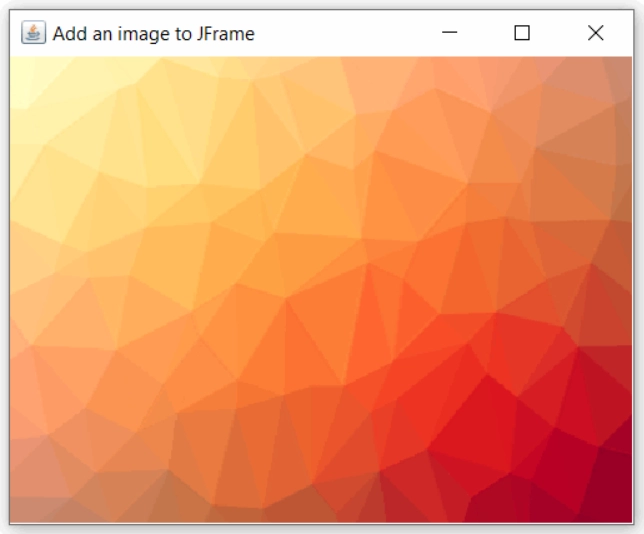
Example2
ImageIO class is used in this example to display an image from the system on a frame. In the command prompt, the user enters the name of the image, and the program displays it. By using ImageIO.read(File file), the image is read from the system.
This example uses the following methods:
drawImage(Image img, int x, int y, ImageObserver observer): You can use this method to draw an image. A top-left corner of the image is drawn in the coordinate space of this graphics context at (x, y) coordinates
setSize(int height, int width): This method determines the size of the frame.
setVisible(boolean b): Display the image if the boolean value is true, or vice versa. To display the image on the frame, we pass the boolean value true.
getContentPane(): This method retrieves the content pane into which our GUI component will be added.
Code description:
Firstly in this example is to import the required packages. Next, create a class that extends Panel named ShowImage. You now need to declare a variable based on the BufferedImage class. ShowImage() reads the image from the system using the name passed at the command prompt in the BufferedReader object. The image can be drawn using the paint() method. In the main method, create a frame and a ShowImage object. Display the image on the frame by adding this object to the content pane, setting the size of the frame, and defining visibility mode is true.
import java.awt.*;
import java.awt.image.BufferedImage;
import java.io.*;
import javax.imageio.ImageIO;
import javax.swing.JFrame;
public class ShowImage extends Panel {
  BufferedImage  image;
  public ShowImage() {
  try {
  System.out.println("Enter image name\n");
  BufferedReader bf=new BufferedReader(new
InputStreamReader(System.in));
 String imageName=bf.readLine();
  File input = new File(imageName);
  image = ImageIO.read(input);
  } catch (IOException ie) {
  System.out.println("Error:"+ie.getMessage());
  }
  }


  public void paint(Graphics g) {
  g.drawImage( image, 0, 0, null);
  }


static public void main(String args[]) throws
Exception {
  JFrame frame = new JFrame("Display image");
  Panel panel = new ShowImage();
  frame.getContentPane().add(panel);
  frame.setSize(500, 500);
  frame.setVisible(true);
  }
}Output:
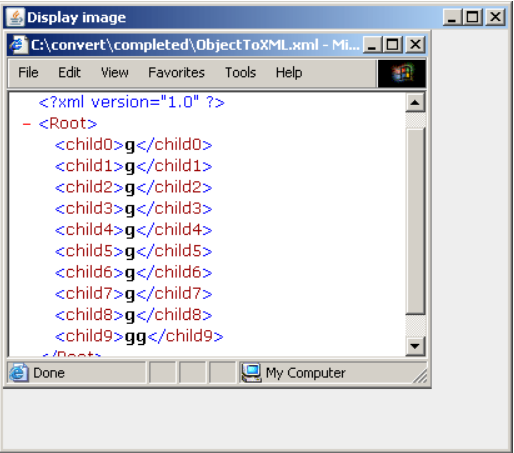
Example3
FlowLayout objects with 500 x 500 dimensions are needed in order to display the label icon. We can adjust the size as needed. Using JLabel.setIcon(), we can set the icon of the JLabel object. The JFrame component is added to the jLabel component, and the visibility of the frame is set to true.
import javax.imageio.ImageIO;
import javax.swing.*;
import java.awt.*;
import java.awt.image.BufferedImage;
import java.io.File;
import java.io.IOException;


public class DisplayImage {
    public static void main(String[] args) throws IOException {


        File file = new File("C:\\Users\\User1\\Pictures\\Camera Roll\\java.png");
        BufferedImage bufferedImage = ImageIO.read(file);


        ImageIcon imageIcon = new ImageIcon(bufferedImage);
        JFrame jFrame = new JFrame();


        jFrame.setLayout(new FlowLayout());

        jFrame.setSize(500, 500);
        JLabel jLabel = new JLabel();


        jLabel.setIcon(imageIcon);
        jFrame.add(jLabel);
        jFrame.setVisible(true);


        jFrame.setDefaultCloseOperation(JFrame.EXIT_ON_CLOSE);
    }
}Output:

Also read swing component in java


 1+ registered

