





Introduction
Handling images is a widespread use case in programming. There are many ways to take pictures, and we are going to learn how to handle images with the Pilow module in Python. It's a viral module for image handling, and we will see how we can use various functionalities of this module to achieve our use cases.
For this, please make sure that you have Pillow installed in your system.
pip install pillowThe above command can be used to install this module.
Must Recommended Topic, Floor Division in Python, Swapcase in Python
Using Pillow
Import
from PIL import Image
Loading an Image
img=Image.open(“/path/to/image.jpg”)
img.show()It will show the image.
img object returned is our go-to object to make any changes in the image. We will interact with this img object and call functions to achieve our use-cases, which can be many.
Also read, Convert String to List Python
Getting the properties of an Image
Pillow has inbuilt functions to know the basic properties of the image. Let us see how we use them to draw some information.
print('Format:',img.format)
print('Size',img.size)
print('Mode:', img.mode)There are various modes in which images can be there; below is a description of multiple ways of an image.
The format can be png, jpeg, jpg etc.
Also Read About, Python for Data Science
Cropping the image
While cropping an image we need to tell how much we need to cut from each corner; for that we provide a tuple of length four while cropping an image.
cropped = img.crop((1,2,300,300)) # tuple for cropping the image
#Display the cropped portion
cropped.show()
#Save the cropped image
cropped.save('images/croppedBeach1.jpg')img.crop is returning the new cropped image.
Splitting an Image
The image can be split into channels of which it is made of; using the split function, it returns a tuple having 3 values, one for each channel.
R, G, B= img.split()Also Read - Image Sampling
Transformations in Image
Here we will discuss how can we apply various transformations to an Image, like rotation, resizing etc.
Resizing
resized_img=img.resize((200,200))Rotating an Image
rotated_image = img.rotate(90)Transposing Image
tran_image = img.transpose(Image.FLIP_TOP_BOTTOM)there are other types of transformations, like Image.FLIP_LEFT_RIGHT.
Changing the Color
from PIL import Image
# creating image object
img = Image.open('img.jpg')
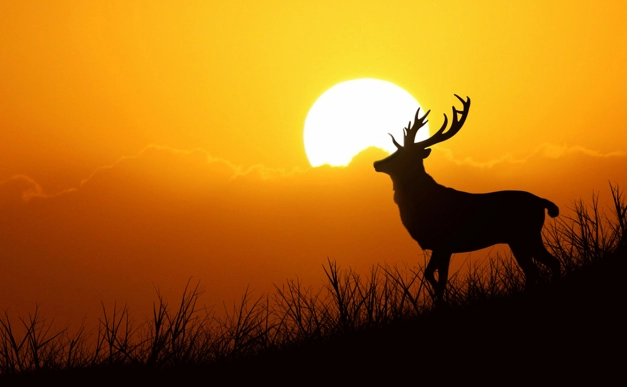
img.show() This is our input image.
# using convert method for img1
img1 = img.convert("L")
img1.show()
# using convert method for img2
img2 = img.convert("1")
img2.show()
Filters In Image
from PIL import ImageFilter
from PIL import Image
img=Image.open('img.jpg')
# blurring
blurred = img.filter(ImageFilter.BLUR)
blurred.show()
# sharpening the edges
sharped= img.filter(ImageFilter.SHARPEN)
sharped.show()
#Finding Edges
edges = sharped.filter(ImageFilter.FIND_EDGES)
edges.show()
#Enhancing Edges
en_edges = sharped.filter(ImageFilter.EDGE_ENHANCE)
en_edges.show()
#Emboss Filter
emb = sharped.filter(ImageFilter.EMBOSS)
emb.show()Output:


You can compile it with online python compiler.


 1+ registered

