Do you think IIT Guwahati certified course can help you in your career?
Introduction
This article will show how to download and install JavaFX into your windows system. Before learning its installation to your computer, let's first learn what JavaFX is?
A software platform called JavaFX is used to develop and distribute desktop applications and rich web apps that can work on various devices. JavaFX is compatible with desktop PCs, web browsers running Microsoft Windows, Linux, and macOS, as well as iOS and Android-powered mobile devices.
Downloading the JavaFX Setup
As a matter of fact, from Java8 onwards, the Java Development Kit contains the JavaFX. So, you only need to install Java with a version greater than or equal to 8. To download the setup on your computer, type "download Java for windows" in your browser and follow the download link for windows. You can also go to this link to download the setup Java for windows.
You just need to click on the link next to the highlighted text given below in the picture.
After clicking the link, the download will get started automatically and you will see a .exe file in your recent downloads after the completion of the download.
Installing the JavaFX Setup
Well, in the heading, it's written installing the JavaFX, but here we are simply installing the java setup. Double click on the file you've downloaded and the installation will start.
Simply click on the Next button.
Choose the default folder location of your setup and again click on the Next button.
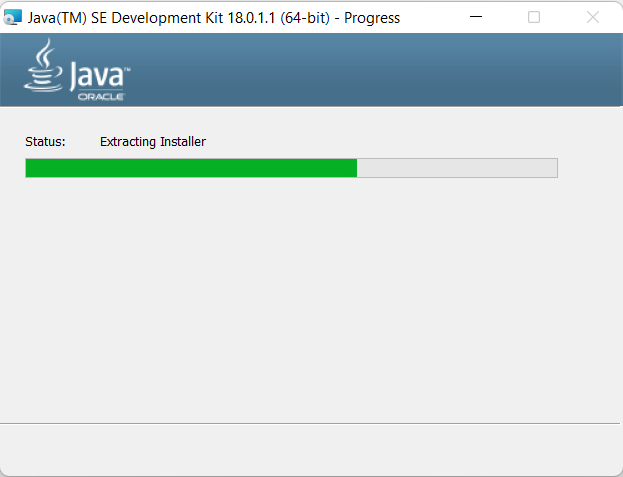
The installation will get started. Wait for a moment to get it installed.
Alright! Our JavaFX is being installed. Click on the Close button.
Setting up the Environment Variable
Although we have successfully downloaded and installed the JavaFX setup, if we check its version on the command prompt by running the command java --version, you will get this message.
This is because our computer doesn't know that we have installed the JavaFX, so this is a time to tell our computer by setting up the environment variables.
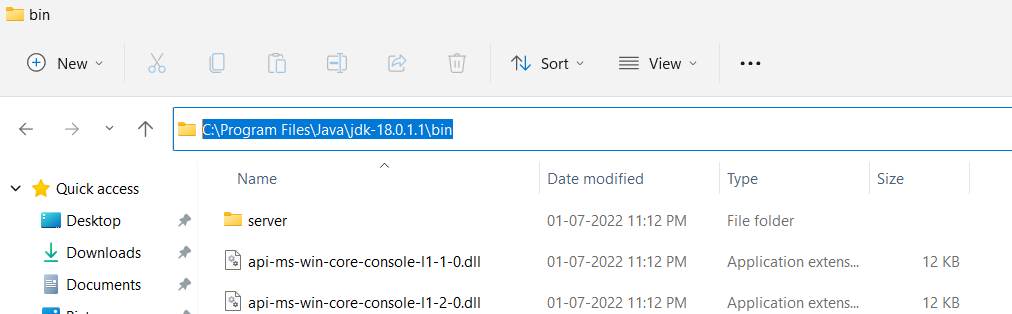
Open the folder of Java recently being created in your C drive program files and open the bin folder. Copy the path of your bin folder.
Now, open the Edit Environment Variables window by typing the env in the search bar and press enter. Now go to the User Variables section, select the path, click the Edit button and then click on the New button. Paste the path you have copied and press the OK button.
Now, you will get a different result if you check its version from the command prompt.
Frequently Asked Questions
Why is JavaFX used?
Developers can construct rich client applications that work reliably across various platforms by designing, building, testing, debugging, and deploying them using JavaFX, a collection of graphics and media packages.
What are the features of JavaFX?
Features of JavaFX are:
Written in Java.
Provides CSS-like styling.
Rich set of APIs to develop GUI applications.
JavaFX is swing interoperability.
What are some of the essential packages in JavaFX?
Some of the essential pancakes of JavaFX are:
javafx.animation
javafx.application
javafx.css
javafx.event
javafx.geometry etc.
What are the components of JavaFX?
The JavaFX application consists of three parts:
Stage: It includes every JavaFX object.
Scene: depicts the actual contents of the JavaFX application.
Nodes: This is the JavaFX.scene package that illustrates a node.
What are the different transformations in JavaFX?
There are different transformations in JavaFX, such as:
Translation
Scaling up and down
Rotation
shearing
Conclusion
In this article, we have extensively discussed the downloading and installation of JavaFX and learned to set up its environment.









 7+ registered

